
How to send us a suspicious email for automated analysis
- Why "forward as an attachment" matters
- How to forward as an attachment
- Outlook on the web · New Outlook for Windows
- Classic Outlook for Windows
- Outlook for Mac
- Apple Mail (macOS)
- Gmail (web)
- On a phone or tablet
- What happens after you send it
- Understanding your reply
- Phishing detected
- Under review by our team
- Safe (only ever from a technician)
- "We couldn't analyze this submission"
- A few important reminders
Got an email that looks fishy? Don't delete it, and don't engage with it — forward it to us and you'll get back an automated verdict, usually within a few minutes. Here's exactly how to do it from any email app, what the reply means, and what to do next.
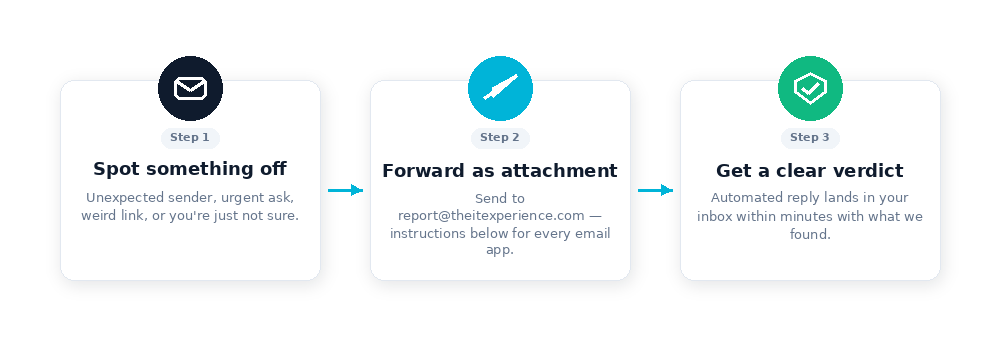
Forward as an attachment to [email protected]
A regular forward strips out the parts of an email we need to actually check it. The fix takes one extra click in most email apps. We'll show you where it is.
You'll get a reply that says Phishing or Under Review (a technician then follows up), or a note that we couldn't analyze it. We never send an automatic “safe”: only a technician can tell you an email is safe.
Why "forward as an attachment" matters
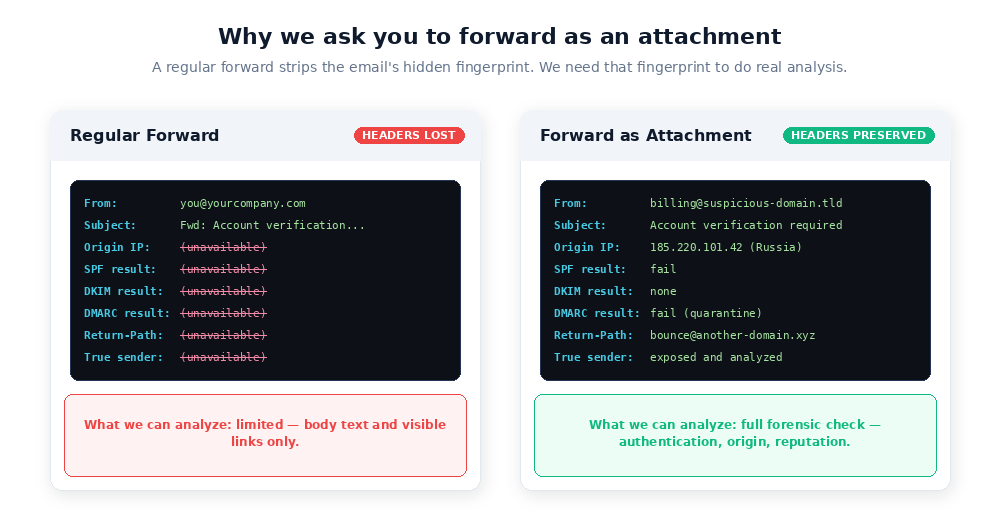
Every email carries hidden technical information — the sending server's IP address, authentication results (SPF, DKIM, DMARC), the real return path, and more. This is the forensic fingerprint that tells us whether the email actually came from who it claims to be from.
When you hit Forward normally, your email app strips that fingerprint and replaces it with yours. We get a copy of the words, but not the evidence. When you forward as an attachment, the original email is wrapped intact inside your new message — fingerprint and all.
How to forward as an attachment
Find your email app below. Each section shows the menu path and a numbered diagram you can follow.
Outlook on the web · New Outlook for Windows
These two share the same interface. If you use Outlook in a browser at outlook.office.com, or the "new" Outlook desktop app on Windows, this is your path.
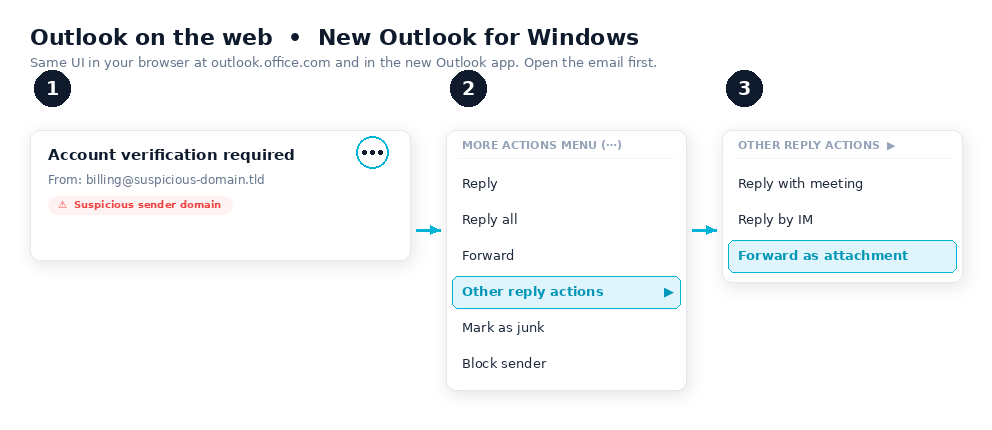
- Open the suspicious email.
- Click the … (More actions) button in the top-right of the message, then choose Other reply actions.
- Click Forward as attachment. A new compose window opens with the email attached as a
.emlfile. - Send to [email protected]. You don't need to write anything in the body.
Classic Outlook for Windows
The traditional desktop app with the ribbon at the top. If your Outlook has tabs labeled Home, Send/Receive, Folder, etc. along the top, you're on classic Outlook.
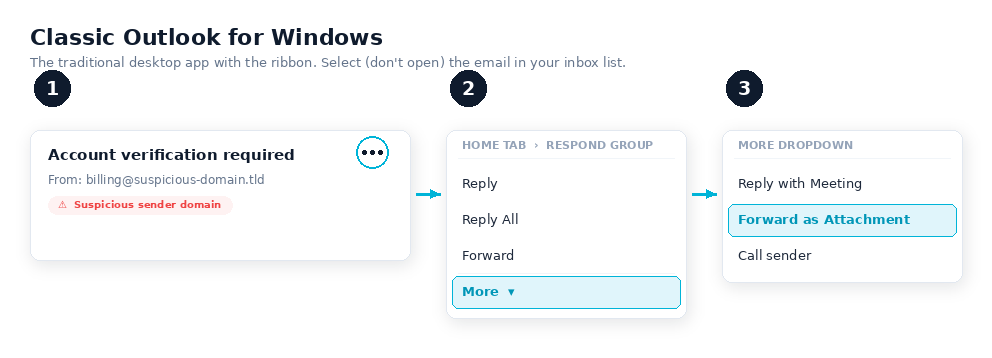
- In your inbox list, single-click the suspicious email to highlight it (don't open it).
- On the Home tab, find the Respond group and click More (or the small dropdown arrow next to Forward).
- Choose Forward as Attachment.
- Send to [email protected].
Ctrl + Alt + F to skip straight to the forward-as-attachment compose window.
Outlook for Mac
The fastest path on Mac is the right-click menu.
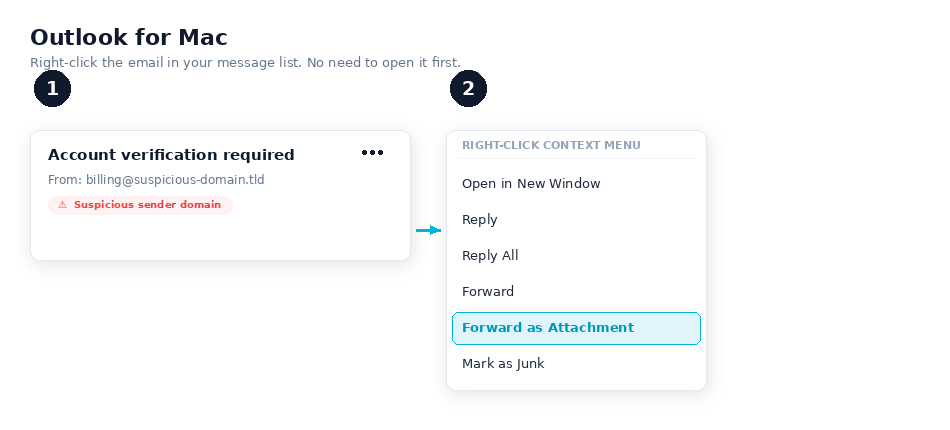
- In your message list, right-click (or Control-click) the suspicious email.
- Choose Forward as Attachment.
- Send to [email protected].
Apple Mail (macOS)
Apple Mail puts this option in the menu bar at the top of your screen.
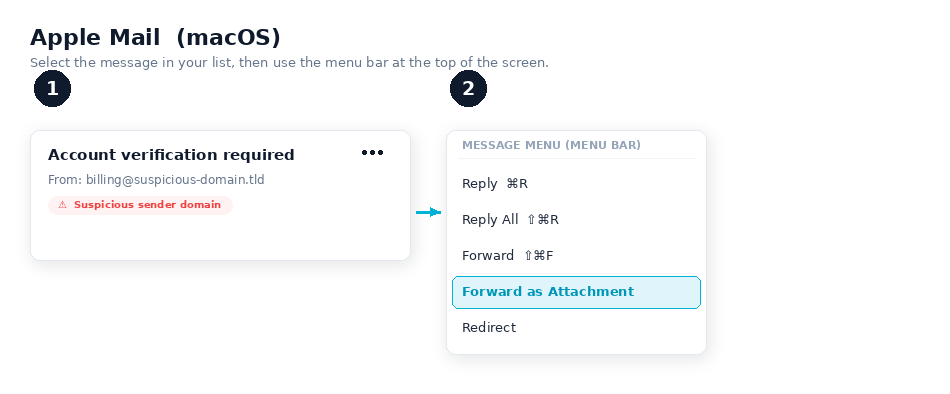
- Single-click the suspicious email in your message list.
- At the top of the screen, click Message in the menu bar.
- Choose Forward as Attachment.
- Send to [email protected].
Gmail (web)
If you have a Gmail account (or your work email runs on Google Workspace), the option lives in the message's three-dot menu.
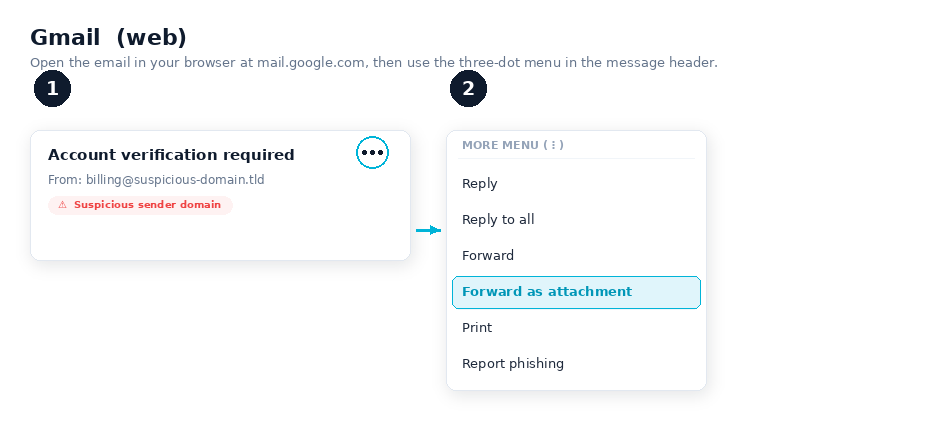
- Open the email at
mail.google.com. - Click the ⋮ (More) menu in the top-right of the message header — not the one in the toolbar above the email list.
- Choose Forward as attachment.
- Send to [email protected].
On a phone or tablet
Most mobile email apps — Outlook Mobile, Gmail Mobile, Apple Mail on iPhone — don't have a "forward as attachment" option built in. You've got two good choices:
Wait until you're back at a desktop
Phishing emails don't get more or less dangerous in the next few hours. Leave the email alone (don't click anything) and forward it as an attachment when you're back at your computer.
Forward the normal way from your phone
Just hit forward and send to [email protected]. We can still analyze a lot of it — we just lose the technical fingerprint, so anything ambiguous gets routed to a person to look at directly.
outlook.office.com or Gmail at mail.google.com). The "forward as attachment" option works there even on a phone, though the buttons are small.
What happens after you send it
Your forwarded email lands in our analysis mailbox and gets picked up automatically. Behind the scenes, a series of checks runs against the sender's domain, authentication signals, links, attachments, and message content. The whole thing typically takes a few minutes.
You'll get an automated reply at the email address you forwarded from. The reply will have one of three outcomes — here's what each one looks like and what to do.
Understanding your reply
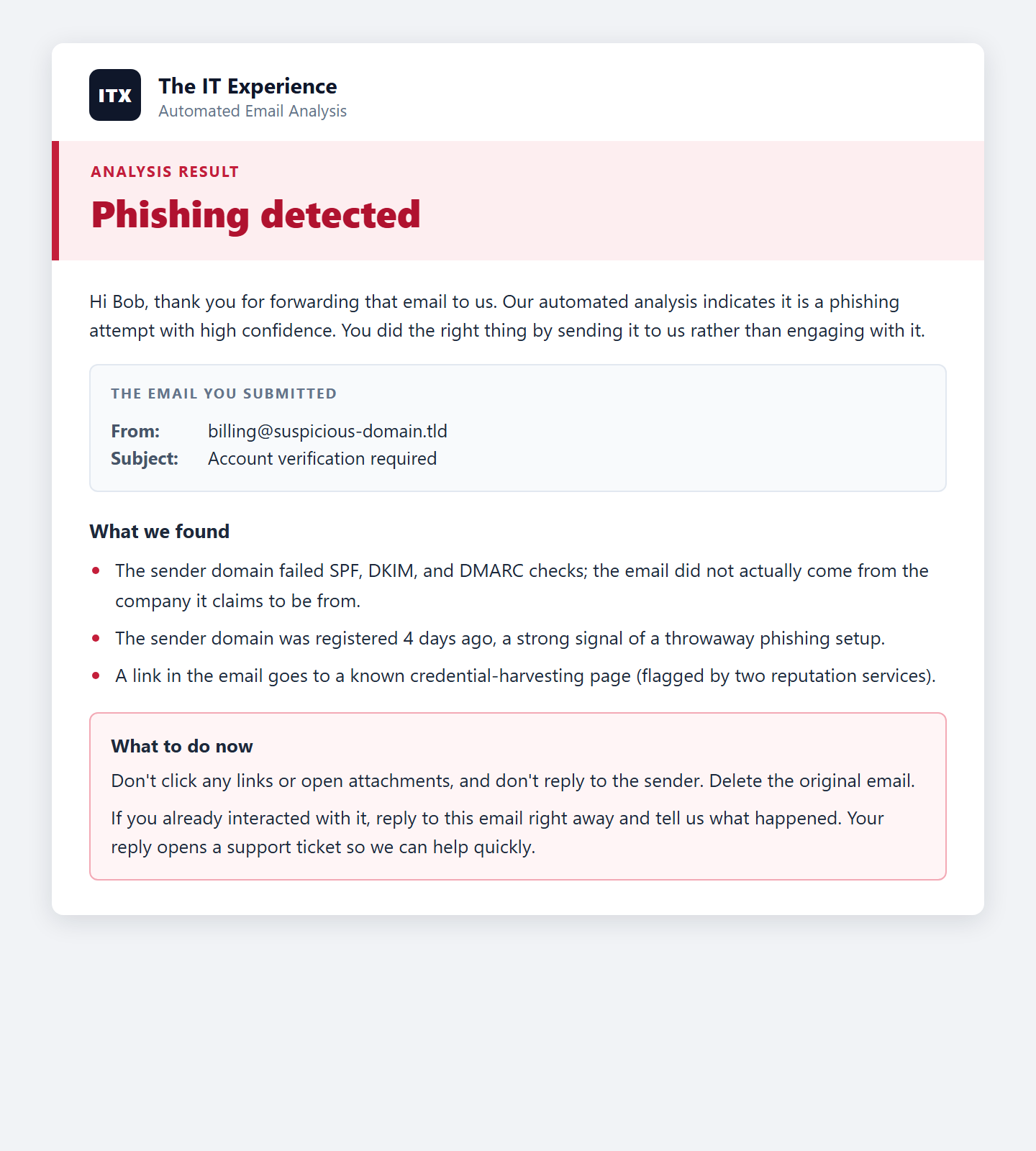
Phishing detected
The strongest verdict. The analysis found clear signals that the email is malicious — failed authentication, a known-bad link, a sender domain registered days ago, or a combination of red flags that don't have an innocent explanation.
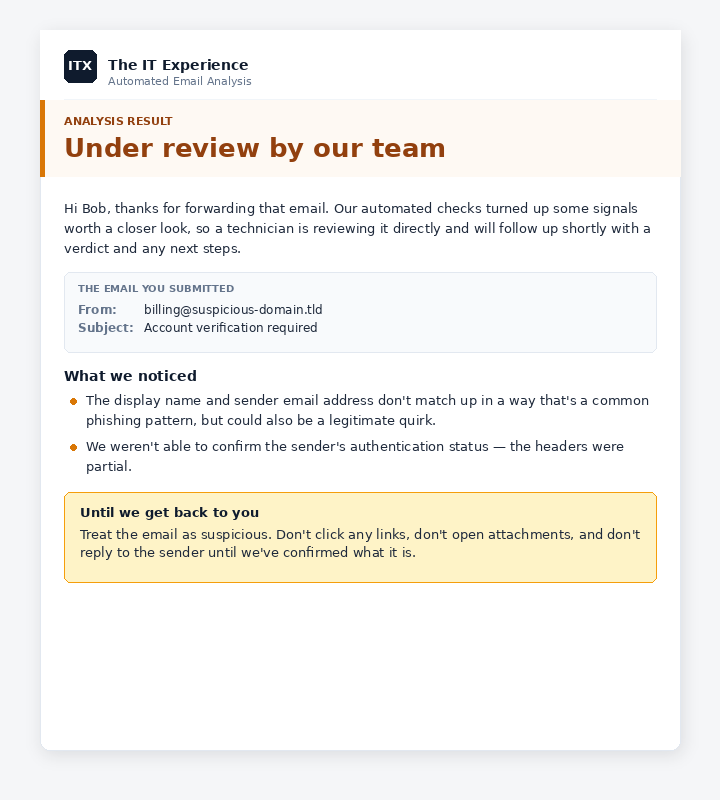
Under review by our team
This is the most common verdict. The automated checks turned up something worth a closer look — not enough to call it phishing outright, but not clean either. A real person on our team is taking a look and will follow up directly.
Safe (only ever from a technician)
We never send an automatic “safe” reply. Some of the most convincing scams are plain-text emails with no links or attachments, and no automated check can see through them. So a person on our team always looks before we call an email safe. If the email turns out to be legitimate, the technician who reviewed it will let you know.
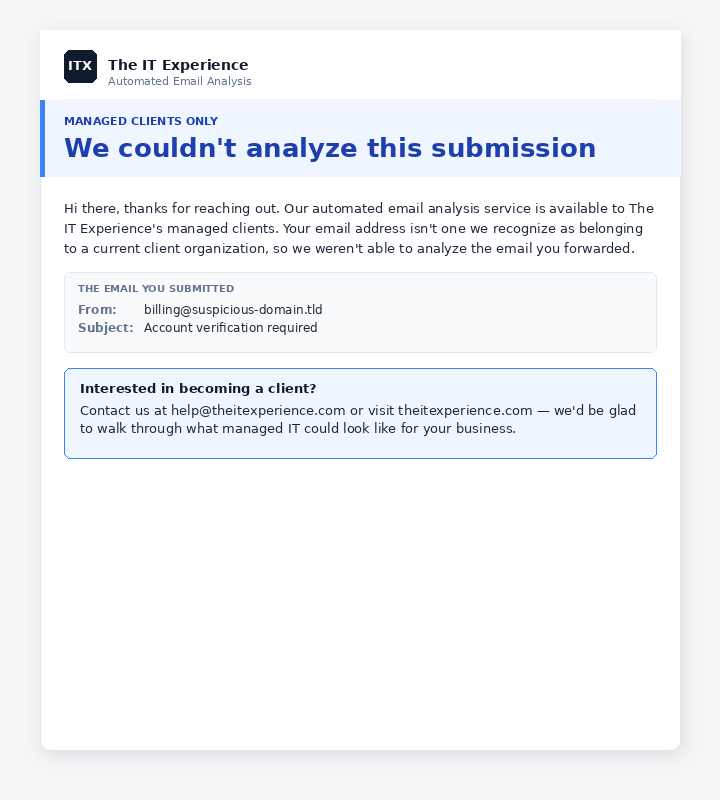
"We couldn't analyze this submission"
If the email address you forwarded from isn't recognized as belonging to one of our managed-client organizations, you'll see this response instead of a verdict. The service is included as part of managed IT and isn't something we run for the general public.
A few important reminders
Don't engage with the suspicious email while you're waiting
While the analysis runs, leave the original email alone. Don't click any links to "see where they go", don't open attachments to "check what they are", and don't reply — even with a quick "is this you?" because that just confirms your address is live for the attacker.
The most common red flags to trust
You don't need to wait for our analysis to recognize most phishing. A few habits catch the vast majority on their own:
- Unexpected urgency. "Your account will be locked in 24 hours." "Wire this payment by end of day." Urgency is the single most reliable phishing signal.
- The actual sender address doesn't match the display name. Click or tap the sender to reveal the underlying email address. "Microsoft Support" coming from
[email protected]is a giveaway. - Requests for passwords, MFA codes, or financial details over email. No legitimate bank, vendor, government agency, or IT provider will ever ask for these by email. Treat any request like this as phishing by default.
- Links you didn't expect. Hover (don't click) over links to preview where they actually go. If a "PayPal" email links to
pp-billing-service.com, that's not PayPal. - Out-of-band verification works for everything else. If you genuinely need to verify a request — an invoice change, a payment, a banking detail — call the sender at a number you already have on file. Not a number from the email. Not a reply to the email.
What we do with submissions
Raw submitted emails purge from our queue automatically after 48 hours. We retain the analysis summary (the verdict, what we found, the sender domain) for longer so we can spot campaigns hitting multiple clients at once — but the original email itself is short-lived. We don't share submissions with anyone outside our team.
Forward suspicious emails as an attachment to:
Need help with something this article didn't cover, or already clicked on something you shouldn't have? Submit a support request or email [email protected].