
Duplicate/Dual Monitor Setup & Troubleshooting
All laptops and desktops provided by The I.T. Experience support at least two monitors. This guide walks through plugging in a second monitor, arranging the screens so your mouse moves naturally between them, and fixing the most common hiccups — sizes, sharpness, and screens that show up in the wrong order.
Setting up a second monitor
- Connect the external monitor to your computer using the appropriate cable (HDMI, DisplayPort, USB-C, or VGA)
- Right-click on your desktop and select "Display settings"
- Scroll down to "Multiple displays"
- Select one of the following options:
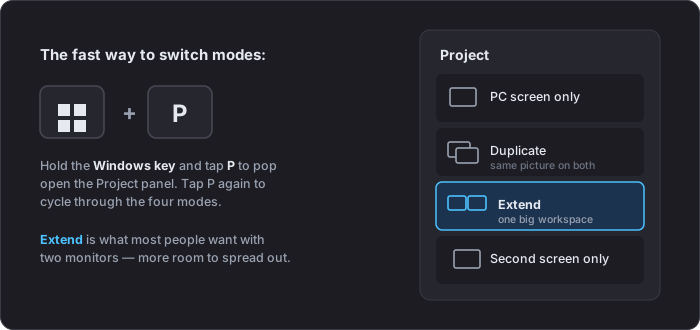
- Duplicate these displays — Shows the same content on both screens
- Extend these displays — Uses both monitors as one large workspace (recommended)
- Show only on 1/2 — Only uses one of the displays
Arrange your displays (so the mouse moves naturally)
Windows doesn't automatically know which monitor sits on the left and which sits on the right — it guesses. If your mouse disappears off one edge and reappears somewhere unexpected, the on-screen arrangement doesn't match your desk. Here's how to fix it:
- Right-click your desktop and choose "Display settings" (or go to Start > Settings > System > Display)
- Click Identify — a number briefly appears on each physical screen so you know which box is which
- Drag the numbered boxes so they match how your monitors actually sit on your desk — left/right, and even one above the other if that's your setup
- Line up the tops of the boxes (or bottoms, if your monitors are aligned that way) so the mouse crosses over smoothly instead of "jumping"
- Click Apply

Size & sharpness: Scale, Resolution, and Orientation
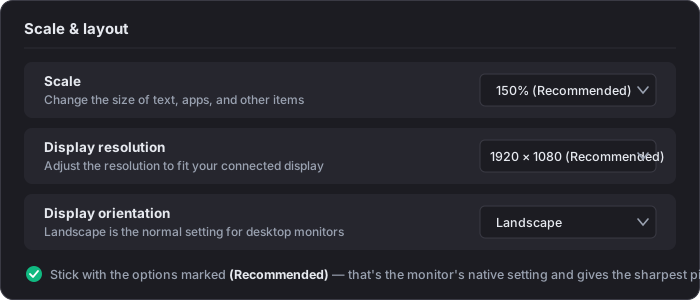
These three settings live under Scale & layout in Display settings, and they're set per monitor — click a monitor's box at the top of the page first, then adjust:
- Scale — makes text, apps, and buttons bigger or smaller without changing picture quality. If text is too small to read comfortably, this is the setting to change.
- Display resolution — how many pixels the monitor draws. Keep the option marked (Recommended): that's the monitor's native resolution, and anything else will look soft or stretched.
- Display orientation — Landscape for normal setups. If you physically rotate a monitor sideways for documents or code, switch it to Portrait here.
Troubleshooting & FAQs
Click a question to expand it.
My second monitor isn't detected at all.
Work through these in order:
- Check that the cable is firmly connected at both ends, and that the monitor is powered on and set to the right input (HDMI 1, DisplayPort, etc. — use the buttons on the monitor itself).
- Try a different cable or a different port if one's available.
- Press Windows key + P and select "Extend" — sometimes the monitor is detected but the mode is set to show only one screen.
- In Display settings, scroll to Multiple displays and click "Detect".
- Restart the computer — this clears up a surprising number of detection issues, especially after Windows updates.
- Still nothing? An outdated graphics driver can be the cause. Check Start > Settings > Windows Update for updates — or just send us a support request and we'll handle it.
My mouse exits one screen and appears on the wrong side (or gets "stuck").
The on-screen arrangement doesn't match your desk. Follow Arrange your displays above — drag the numbered boxes into the same order as your physical monitors and line up their tops, then click Apply. If the mouse snags in a "dead corner" between screens, that vertical alignment step is usually the fix.
My taskbar and new windows open on the wrong monitor.
That's the "main display" setting. In Display settings, click the box for the monitor you want to be primary, expand Multiple displays, and check "Make this my main display."
Text is tiny on one monitor and huge on the other.
Scale is set per monitor, so mismatched monitors often need different percentages. In Display settings, click monitor 1's box, set Scale to a comfortable value, then click monitor 2's box and adjust it separately. Windows' (Recommended) value for each is a good starting point.
The picture looks fuzzy, soft, or stretched.
Almost always a resolution that doesn't match the monitor. In Display settings, select that monitor, and under Display resolution pick the value marked (Recommended) — that's the monitor's native resolution. Monitors can run at lower resolutions, but text won't look as sharp. If it's still soft afterward, check the Scale setting isn't at an odd value like 175%.
One of my screens is sideways or upside down.
In Display settings, select the affected monitor and set Display orientation back to Landscape. (This usually happens from a stray keyboard shortcut or after a monitor was remounted.)
Should I use Duplicate or Extend?
Extend for day-to-day work — each monitor is its own space, so you can put email on one screen and your work on the other. Duplicate shows the identical picture on both, which is really only useful for presentations or a conference-room TV. Switch anytime with Windows key + P.
I use a laptop with a dock — can I close the lid and keep using my monitors?
Yes, but by default many laptops go to sleep when the lid closes. We can configure your laptop so it stays awake on external monitors while docked — submit a support request and we'll set it up properly for your machine.
What about my monitors when I connect to the office remotely?
That's handled inside the remote session, not Windows settings — see Working with multiple monitors in our remote access platform.
Source: Microsoft — Change your screen resolution and layout in Windows