
How backups work for managed clients — and how restores usually go
- The 30-second version
- Managed backup vs OneDrive versions
- What is typically in scope
- What you can usually fix yourself
- How to request a restore
- Details that speed us up
- What a restore usually feels like from your side
- Ransomware basics (plain English)
- If you think you are looking at it
- What backups are not
- Testing and proof (what we handle)
- What not to do
- Related articles
Backups are supposed to be boring. This page is the calm map of where your files are protected, what you can usually put back yourself in about a minute, and when to open a ticket instead — including what to do if something looks like ransomware.
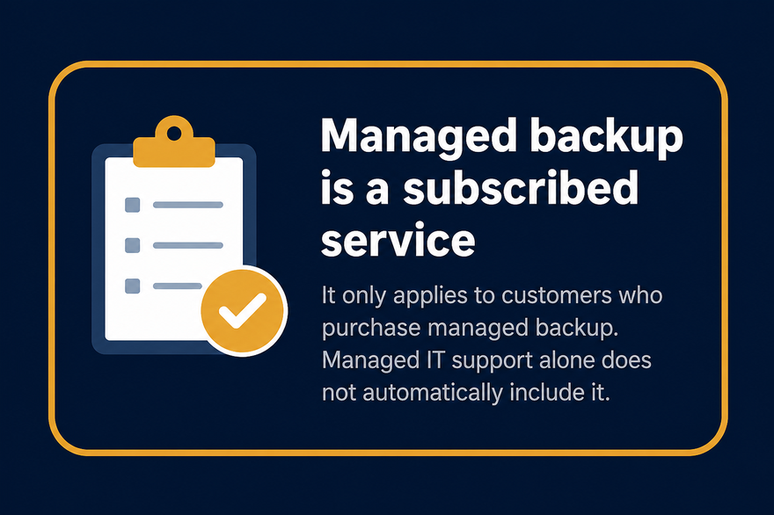
The 30-second version
Which situation are you in?
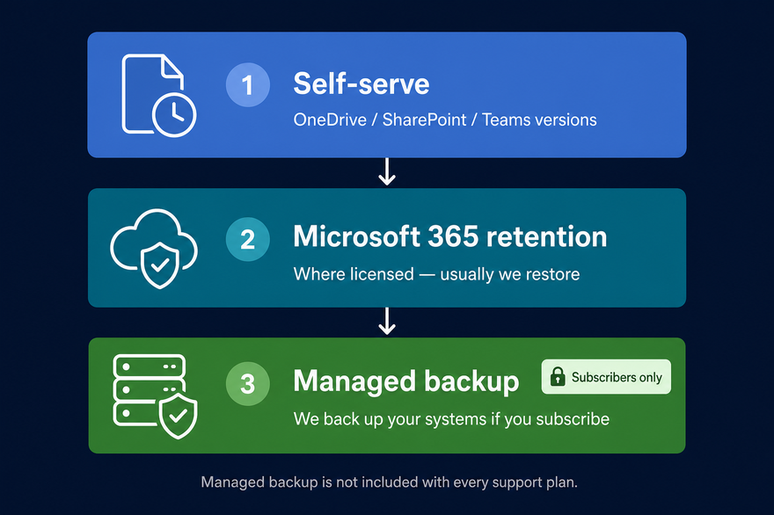
What do the three layers in the picture mean?
- Self-serve — Recycle bin and Version history in OneDrive, SharePoint, and Teams. Start here for one file you deleted or overwrote. See Recovering a deleted file or an earlier version.
- Microsoft 365 retention — Extra safety inside Microsoft 365 when your tenant has it configured. We usually handle these restores.
- Managed backup (subscribers only) — Copies we take of the systems that keep the business running (servers and, where your backup subscription includes them, workstations and/or Microsoft 365 data). This is what we use for bigger recoveries. If your organization does not subscribe to managed backup, this layer does not apply — start with self-serve OneDrive recovery and contact us for options.
Managed backup vs OneDrive versions
These get mixed up often. They are both useful — and they are not the same thing.
| OneDrive / SharePoint / Teams | Managed backup | |
|---|---|---|
| What it is | Recycle bin, version history, and (for your own OneDrive) a short whole-library rollback | Copies we take of systems covered by your agreement |
| Who restores | Often you, in a browser or File Explorer | Us, from a ticket |
| Best for | “I deleted / overwrote this document” | Whole folders, servers, many machines, older recoveries, ransomware-shaped events |
| Not a substitute for | Saving work in the right place | Saving every personal USB stick or random Downloads folder |
If the file lived on a mapped network drive or company file server rather than in OneDrive/Teams/SharePoint, the self-serve Recycle bin steps do not apply. Open a ticket and we will recover from the right layer — see also when the OneDrive article says the same thing under “Was it actually a OneDrive file?”
What is typically in scope
We speak carefully here on purpose. Exact coverage is defined by your backup subscription and agreement, not by this article.
Managed backup only applies if your organization subscribes to it. For those subscribers, it is aimed at the systems that keep the business running. Depending on that agreement, that can include:
- Servers and shared company data
- Workstations or laptops — coverage varies by agreement. Ask us what is included for your organization.
- Microsoft 365 mailboxes, OneDrive, or SharePoint — coverage varies by agreement. Ask us what is included for your tenant. (Self-serve Recycle bin and Version history still apply to your own Microsoft 365 files either way.)
You do not need to “run” a backup job yourself. Our monitoring watches for failures. If a backup is unhealthy, that is on us to catch — not something we expect you to check every morning.
We keep product console screenshots out of this article on purpose so the advice stays accurate when tools change. What matters on your side is how to ask for a restore.
What you can usually fix yourself
For a single document in your OneDrive, a Teams channel, or SharePoint:
- Restore from the cloud Recycle bin, or
- Right-click the file → Version history and bring back an earlier copy
Full steps (including Teams → Open in SharePoint, online-only files, and the whole-OneDrive rollback) live here:
→ Recovering a deleted file or an earlier version
Try that path before opening a ticket when:
- Only you (or one shared library) are affected
- The file lived in OneDrive / Teams / SharePoint
- It went missing recently enough that Recycle bin / versions still apply
How to request a restore
When self-serve is not enough — or you are not sure — open a ticket. Do not wait until after you have rebuilt the file from memory.
Submit a support request · email [email protected]
Put “Restore request” (and the system, if you know it — e.g. “OneDrive file”, “shared drive”, “server folder”) in the subject.
Details that speed us up
Copy/paste this into the ticket when you can, then fill in each line:
Subject: Restore request - OneDrive file / shared drive / server folder

What:
Where it lived:
When it was last good:
Who is affected:
Urgency:
What you already tried:
Anything else:
What to write on each line
- What — file name(s), folder path, mailbox, shared drive, or “whole PC / whole server”
- Where it lived — your OneDrive, a Teams/SharePoint library, a mapped drive letter, a server share name
- When it was last good — approximate date and time (include time zone if you are traveling)
- Who is affected — just you, a team, or the whole company
- Urgency — e.g. “blocks invoicing today” vs “nice to have this week”
- What you already tried — Recycle bin, Version history, search for a moved folder
- Anything else that helps (screenshot of an error, affected drive letter, etc.)
What a restore usually feels like from your side
- Single file / small folder: often returned beside the original or into a recovery folder once we have the details — typically same business day for straightforward requests, size and layer permitting.
- Mailbox item or calendar: we confirm the date range and where it should land (same mailbox vs export).
- Server, many machines, or a larger event: we give you a short plan and an ETA rather than silence. Larger restores are paced so we bring back clean data, not a second copy of the problem.
Exact timing depends on which backup layer holds the copy, whether we can restore during business hours, and how large the recovery is.
You do not need to babysit a console. We will tell you when the files are ready and where to look.
Ransomware basics (plain English)
Ransomware is software that encrypts files and then demands payment. On a work computer it can look like:
- Files suddenly will not open, or open as nonsense
- Strange new extensions on many files at once
- A text file, pop-up, or desktop wallpaper telling you to pay
Stay calm. Looking this up and telling us is the right move. Speed and a clean recovery path matter more than diagnosing the brand of the malware yourself.
If you think you are looking at it
A ransom note is an incident, not a DIY weekend project. Do these four things, in this order:
1Stop
Stop clicking around to “try one more folder” or opening every encrypted file.
2Disconnect
Turn off Wi-Fi or unplug the network cable, if you can.
LEAVE IT TURNED ON
Don't shut it down or restart it.
3Report now
From your phone or another computer:
Submit a Security Concern request →
Start the description with Business-critical:
Early reports are how small events stay small. More on reporting
4Don't
- Don't pay.
- Don't call a number from the note.
- Don't run random “decryptor” tools from the internet.
- Don't wipe or reinstall the PC before we have a chance to collect what we need.
Our goal is to restore from a clean managed backup (and to confirm the path that let it in — often email). If the story started with a suspicious message you already interacted with, also see I already clicked a phishing link or entered my password — what to do next once the urgent “stop and report” steps are done.
What backups are not
- Not a substitute for saving work in the right place (OneDrive / SharePoint / the file server you were shown)
- Not a personal Time Machine for every USB drive someone plugged in once
- Not the same thing as “I emailed the file to myself” or a PST on a flash drive
- Not instantaneous magic for every minute of every day — we restore from the copies we have, at the retention your agreement includes
- Not something you need to “kick off” before leaving for the weekend
Testing and proof (what we handle)
You do not need to run test restores yourself. We verify managed backups on a schedule as part of how we support managed clients. If a backup job fails, our monitoring is meant to catch it.
If your leadership team wants a plain-language summary of what is covered for your company, ask us — that conversation belongs with your account contact and us, not in a public guess on this page.
What not to do
Skip these — they burn time or make recovery harder:
- Do not assume Desktop / Downloads / a USB stick is covered without asking
- Do not wait a week to report a missing important file — recovery windows close
- Do not pay a ransom, “fine,” or gift-card demand from a page or note
- Do not download decryptors or “cleanup” tools advertised by the same pop-up
- Do not wipe the PC, reinstall Windows, or reimage unless we ask you to
- Do not blast “we’ve been hacked” emails to All Staff before you have talked to us — use the incident reporting path
- Do not keep working in folders that look half-encrypted “to see what still opens”
Related articles
- Recovering a deleted file or an earlier version — self-serve Recycle bin & Version history (start here for one Microsoft 365 file)
- Reporting an IT Security Incident — broader incidents, including ransomware-shaped events
- I already clicked a phishing link or entered my password — what to do next — if the story may have started in email
- Fake virus pop-ups and tech-support scams — scareware pages that are not the same as file-encrypting ransomware, but still need a calm stop-and-report
Need a restore or not sure what’s covered? Submit a support request · [email protected]