
Recovering a deleted file or an earlier version
- First, work out where the file actually went
- Path 1: Recover a deleted file from the Recycle bin
- If the file was in your own OneDrive
- If the file was in a Teams channel or a SharePoint site
- If you deleted it in File Explorer
- If Restore doesn't behave the way you expect
- Path 2: Bring back an earlier version of a file that still exists
- From your browser
- From File Explorer
- Path 3: Roll your whole OneDrive back to a point in time
- How long you have
- When it needs us instead
- What to include when you write in
Two of the more stressful moments in an office day: you open the folder where a file lived and it simply isn't there, or you open a document and realize you've saved over an afternoon's work. Take a breath. If the file lived in OneDrive, Teams, or SharePoint, it is very likely still recoverable — and in most cases you can do it yourself, from your own computer, in about a minute.
What happened?
Deleting a file in Microsoft 365 doesn't destroy it. Not sure how it was deleted? Check the cloud Recycle bin first: it catches files deleted in a browser and in File Explorer. Each of these safety nets has a time limit (see how long you have), so do it today rather than next week.
First, work out where the file actually went
The single most common reason a file "can't be recovered" is that someone looked in the wrong recycle bin. There are two different ones, and which one holds your file depends on how you deleted it.
Here's the thing to understand: files in OneDrive, Teams, and SharePoint live in the cloud. What you see in File Explorer on your computer is a synced view of that cloud storage — a window onto it, not the only copy. So deleting from File Explorer and deleting from the website aren't quite the same action.
- You deleted it in a web browser (on the OneDrive site, a SharePoint site, or from a Teams channel) — it's in the cloud Recycle bin only. It will not appear in your computer's Recycle Bin.
- You deleted it in File Explorer, and the file had been downloaded to your computer — it's in both the Windows Recycle Bin and the cloud Recycle bin. Either one gets it back.
- You deleted it in File Explorer, but the file was online-only — that is, it appeared in the folder list but hadn't actually been downloaded to your computer yet. It's in the cloud Recycle bin only. Online-only files never touch your computer's Recycle Bin, which is exactly why people conclude a file is gone forever when it isn't.
One more possibility before you go hunting: files reported as deleted have quite often just been moved. If the file has a distinctive name, try searching for it first — a folder dragged one row too far in File Explorer looks identical to a deletion, and a search finds it in seconds.
Path 1: Recover a deleted file from the Recycle bin
Start with the cloud Recycle bin. It covers every scenario above, whereas the Windows Recycle Bin only covers some of them.
If the file was in your own OneDrive
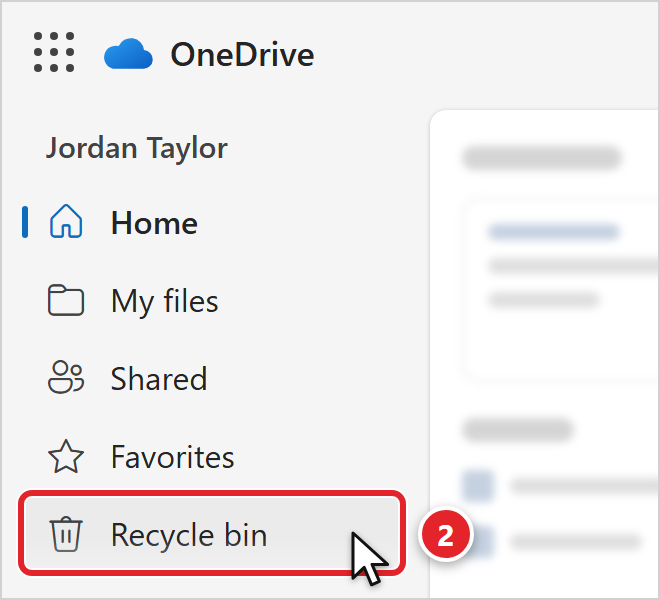
The red numbers in the pictures match the steps.
- Open a web browser and sign in to the OneDrive website with your work account.
- In the navigation pane down the left side, select Recycle bin (2).
- Find your file in the list. Point to it and select the circle check box that appears next to its name (3). You can tick several at once if a whole batch went missing.
- Select Restore on the menu bar at the top (4).
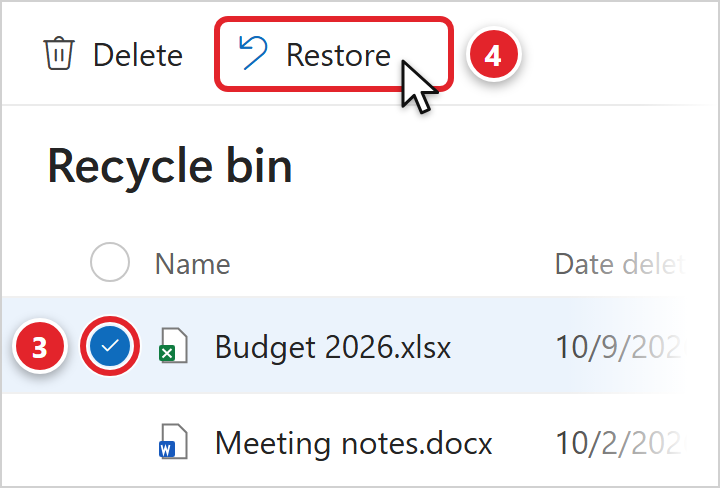 On a SharePoint site or Teams channel, these last two steps are the same once you open its Recycle bin: tick the file, then select Restore.
The file goes straight back to the folder it was deleted from, and it will reappear in File Explorer on its own once syncing catches up. That's it — no ticket required.
If the file was in a Teams channel or a SharePoint site
Files you see on the Files tab of a Teams channel aren't really stored "in Teams" — they live in a SharePoint document library behind the scenes, and that's where the recycle bin lives too.
- In Teams, go to the channel, open the Files tab, select More, then choose Open in SharePoint. (If you already work in the SharePoint site directly, just open the site in your browser and skip this step.)
- Select Recycle bin in the quick launch bar down the left side of the site. If you don't see it there, select the settings gear at the top right, choose Site contents, and Recycle bin appears at the top right of that page.
- Tick the item you want, then select Restore. These are the same two clicks as steps 3 and 4 for your own OneDrive, although the page looks a little different.
One note on Teams: the Open in SharePoint option appears on a Teams channel Files tab. It isn't there on the Files tab of a one-to-one or group chat, because files can't be deleted from a chat Files tab in the first place.
If you deleted it in File Explorer
You may have two chances here, so start with the one already sitting on your desktop.
- Open the Recycle Bin on your Windows desktop.
- Select the file (or files), right-click, and choose Restore. Windows puts it back in the folder it came from, and OneDrive syncs it back to the cloud.
If it isn't there, that almost certainly means the file was online-only rather than downloaded — so go back to the cloud Recycle bin steps above, where it will be waiting. On a Mac, the equivalent is opening Trash, right-clicking the file, and choosing Put back.
If Restore doesn't behave the way you expect
- The file comes back with a number added to its name. That's normal and deliberate. It happens when something already exists at the original location with the same name — Microsoft renames the restored copy rather than overwrite what's there.
- You deleted a whole folder, and restoring one file inside it fails. A file can't go back into a container that isn't there any more. Restore the folder first, then everything inside comes back with it.
- You can see the item but Restore is grayed out or errors. Don't keep clicking. Submit a support request and tell us what you see — see the checklist at the end of this article.
Path 2: Bring back an earlier version of a file that still exists
This is the fix for "I saved over my work", "someone else edited it and now half of it is missing", or "I pasted the wrong thing in and saved before I noticed". The file isn't deleted, so the Recycle bin is no help — but OneDrive and SharePoint quietly keep earlier versions of your files, and you can roll one back yourself.
From your browser
- Sign in to OneDrive (or open the SharePoint site) in your browser and find the file.
- Right-click the file and choose Version history.
- You'll see a list of earlier versions with dates, times, and who saved each one. Use those timestamps to pick the last one you know was good.
- Select the ellipsis (...) next to that version, then choose Restore.
From File Explorer
If the file is in a synced OneDrive or SharePoint folder on your computer, you don't need the browser at all: right-click the file in File Explorer, choose Version history, then select the ellipsis (...) next to the version you want and choose Restore.
Two things worth knowing. Version history restores one file at a time, so if a dozen documents were mangled, read the next section instead. And how many earlier versions exist isn't a fixed number — it depends on how the library or OneDrive account the file lives in is configured, and very old versions can be trimmed away automatically over time. The recent versions you're most likely to want are the ones most likely to be there.
Path 3: Roll your whole OneDrive back to a point in time
Occasionally something bigger goes wrong — a sync mishap, a folder dragged somewhere unrecognizable, or a large batch of files changed or removed at once. For that, OneDrive has a rollback feature that undoes file and folder activity across your entire OneDrive back to a chosen moment in the last 30 days.
- Sign in to the OneDrive website in your browser.
- Select the settings gear at the top right, then choose the option to restore your OneDrive.
- Pick a date from the drop-down, or choose the custom date and time option if you know roughly when things went wrong.
- Review the activity chart and the list of changes underneath it — this shows you exactly what will be undone before you commit to anything.
- Select Restore.
How long you have
Every one of these safety nets is a window that closes. They are separate features with separate clocks, and mixing them up is the usual reason someone acts too late.
- Deleted files in the Recycle bin — normally up to 93 days. That's a single clock that starts the moment the file was deleted from its original location. It does not reset or get extended along the way. Retention rules configured for your organization can change how long deleted content is kept, and a recycle bin that someone has emptied loses its contents sooner, so treat 93 days as a ceiling rather than a promise.
- The whole-OneDrive rollback — the last 30 days. A completely different limit from the one above. You may still be able to restore an individual deleted file from the Recycle bin long after the rollback option can reach the day in question.
- Earlier versions of a file — it varies. There's no universal number of versions kept; it depends on how your document library is configured.
- A former colleague's OneDrive — limited, and set in advance. When someone leaves and their account is closed, their OneDrive is kept for a defined period and then removed. That period is decided ahead of time, not when you ask, so this is the one where waiting genuinely costs you.
When it needs us instead
Some recoveries genuinely sit outside what your account can reach. None of these are lost causes — they just need someone with administrative access, so send them our way rather than hunting further.
- The file isn't in the Windows Recycle Bin or the cloud Recycle bin, and you've checked both.
- It was deleted from the Recycle bin, or the Recycle bin was emptied.
- It went missing more than about three months ago.
- The file was in a departed colleague's OneDrive, or in a shared location you no longer have access to.
- An entire site, library, or shared folder has disappeared rather than a single file.
- You can see the item but restoring it fails or the option isn't available to you.
For files belonging to someone who has left the company, it's also worth reading employee termination and data retention, which explains what happens to an account's data when someone departs.
What to include when you write in
You can submit a support request or email [email protected]. The more of this you can give us up front, the faster we can start looking — file recovery is mostly a search problem, and these are the search terms.
- The file name, as exactly as you can remember it, and what kind of file it was (Word document, spreadsheet, PDF, photo).
- Roughly where it lived — the folder path if you know it, or a plain description like "in the Budgets folder under 2026".
- Whether it was in your own OneDrive or a shared location, and if shared, the name of the Teams team, channel, or SharePoint site.
- Roughly when it went missing, and the last time you're certain you had it open.
- How it was deleted, if you know — in File Explorer, in a browser, or you simply found it missing.
- What you've already checked — Windows Recycle Bin, cloud Recycle bin, version history — and any error message, word for word.
- Whether anyone else works in the same folder, in case it was moved rather than deleted.