
Fake virus pop-ups and tech-support scams
- The one rule that matters most
- How to tell it's a scam
- Why your computer is probably fine
- How to close the page safely
- Step 1 — Try to leave full screen
- Step 2 — Close the browser from Task Manager
- Step 3 — If Task Manager doesn't open
- Step 4 — When you reopen your browser
- After the page is closed
- Reporting the page to Microsoft
- If you already called, clicked, or let them in
- What to do right now
- What to tell us
- You are not in trouble
- The same scam arrives by email too
- If you're not sure what you saw
Your screen has filled with a warning you didn't ask for. There may be a siren or a recorded voice, a countdown, a "scan" racing through your files and finding infections, and a phone number in large type urging you to call Microsoft support before it's too late. It's frightening by design — and it's almost certainly a web page, not a virus. Your computer is very likely completely fine.
A pop-up warning that shows you a phone number is a scam. Don't call it, and don't let anyone connect to your computer.
Which situation are you in?
I only saw the page
Don't click anything on the page. Close it like this:
- Press Esc or F11 to leave full screen, then Ctrl + W to close that tab.
- Still stuck? Press Ctrl + Alt + Delete and choose Task Manager. Select your browser, then End task.
- Task Manager won't open? Choose Sign out on the same screen.
- Reopen your browser and close the Restore pages box with its X. Don't click Restore.
Then submit a support request so we know it happened.
I called the number, downloaded something, or let someone connect
Act now. Speed matters more than getting the details tidy.
- End the call if you're on one, and don't follow any more of their instructions.
- Unplug the network cable or turn off Wi-Fi.
- From your phone or another computer, submit a Security Concern request. Start the description with Business-critical: tech-support scam. Or email [email protected].
- Paid, or gave card or bank details? Contact your bank or card issuer too.
You're not in trouble. See the full steps and what to tell us.
The one rule that matters most
A genuine warning from Windows, or from a real security product, doesn't push you to call a phone number. Microsoft says so directly: its error and warning messages never include a phone number. The US Federal Trade Commission says the same thing independently: "Security pop-up warnings from real tech companies will never ask you to call a phone number."
That makes the number itself the tell. You don't have to work out whether the rest of the page is convincing, or whether the error code looks real, or why it seems to know which browser you're using. A phone number pushed at you by a warning you didn't go looking for means a scam.
That second rule deserves a moment, because you can't judge it by appearances. Scammers use the same kind of commercial remote-support software that legitimate IT providers use, so their session looks much like ours would. The test isn't what appears on your screen — it's who started the conversation. Support from us always begins with you: you open a request, we connect only with your knowledge and consent, and the session is logged. A connection offered to you out of the blue is never us. Get Remote Support: Let Us Connect to Your Computer (Windows and Mac) describes how a real session starts.
One more thing is quietly on your side. On a managed computer you don't have rights to install software yourself. If a stranger is walking you through a download and Windows asks for an administrator password, that isn't a hurdle to get past — it's your cue to stop.
How to tell it's a scam
Microsoft documents what these pages do. They put the image or your browser on full screen so the warning appears to come from Windows, continuously display pop-up windows, play audio messages, and in some cases disable Task Manager — all of it, in Microsoft's words, to "persuade you to call the specified tech support number". Microsoft also notes they can "put your browser on full screen and display pop-up messages that won't go away, essentially locking your browser."
Alongside those, here's what we see over and over:
- A phone number on the screen. On a page like this, it's the signal that settles it.
- Manufactured urgency. A countdown, a claim that your files or your banking details are being taken right now, a warning not to shut down or restart. Real security software doesn't need you to hurry.
- An alarming sound. A siren, a repeating beep, or a recorded voice reading the warning aloud. Nothing on your computer legitimately behaves this way.
- A "scan" that starts by itself. A progress bar sweeping through folders and turning up infections. The page isn't reading your files — on its own it can't scan them, and what you're watching is an animation.
- Borrowed branding. Microsoft or Windows logos, or the colors and layout of a well-known antivirus product, wrapped around a page that has nothing to do with either.
- A page that fights back. Buttons that do nothing, warnings that reappear the moment you dismiss them, a window that won't close.
- A demand for unusual payment. Microsoft says it "will never ask that you pay for support in the form of cryptocurrency like Bitcoin, or gift cards." Gift cards and cryptocurrency are chosen precisely because the money can't be recalled.
Why your computer is probably fine
What you're looking at lives inside your web browser. It's a page — the same sort of thing as a news site or a shopping basket — written to look like a system alarm. Seeing one doesn't mean anything was installed, and in the overwhelming majority of cases nothing has been. Closing the browser ends it, as long as you didn't download or run anything it offered you.
Your browser isn't asleep at the wheel either. Microsoft Edge blocks known support scam sites using Windows Defender SmartScreen, and can stop the pop-up loops these pages depend on. "Known" is the operative word — new scam pages appear constantly, so one slipping through isn't evidence that something is wrong with your computer or with how it's protected.
How to close the page safely
Work through these in order. Don't click anything on the page itself — not the X, not Cancel, not OK. Use the keyboard instead.
Step 1 — Try to leave full screen
Press Esc. Microsoft describes that key as "Stop or leave the current task, or dismiss a dialog box", and on an ordinary page that's enough to drop out of full screen. If nothing happens, press F11, which in Microsoft Edge is "Enter or exit full-screen reading".
If you get your tab bar back, press Ctrl + W — "Close the active tab" — to close just that tab. You're done.
If neither key does anything, that's expected. These pages are written specifically to defeat them, and a page that won't let go of the screen isn't a sign of infection. Move to step 2.
Step 2 — Close the browser from Task Manager
Press Ctrl + Alt + Delete. This is the one keystroke a web page can't intercept: Windows claims it during start-up, before any application has the opportunity, which is exactly why it's the safe way out of a screen you don't trust.
It doesn't close the scam page by itself. It takes you to the Windows security screen, from which you can, in Microsoft's description, "lock the desktop, switch user, sign out, change a password, or open Task Manager."
- Press Ctrl + Alt + Delete, then choose Task Manager.
- Go to Processes — the list of apps and background processes that are running.
- Select your browser in the list (3): Microsoft Edge, Google Chrome, whichever you were using.
- Choose End task (4) at the top of the window. It stays grayed out until you select a row. The browser closes, and the scam page goes with it. Right-clicking the row and choosing End task works too.
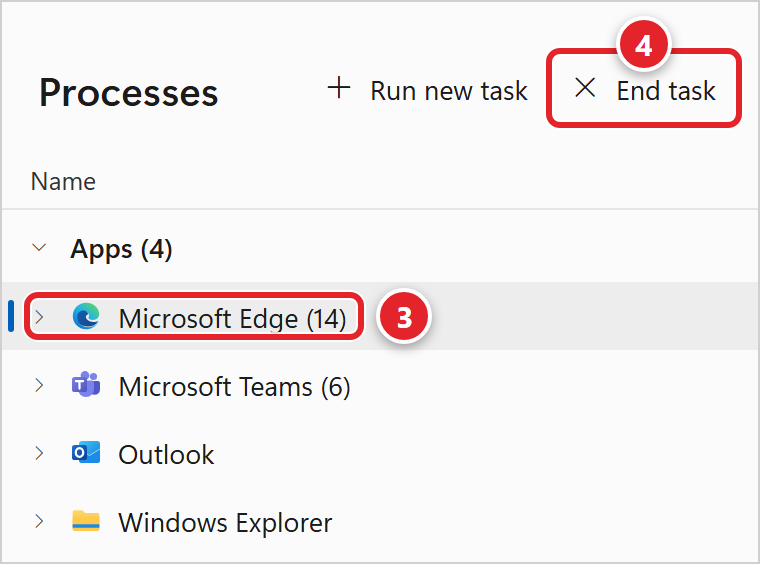
This works on a normal work account. The browser is running as you, so ending it needs no administrator rights and no help from us.
Step 3 — If Task Manager doesn't open
Some scam pages try to block it, and on a managed computer it can also be restricted by policy. Either way you have a route out that doesn't depend on it: from that same Ctrl + Alt + Delete screen, choose the sign-out option. Signing out closes everything you have open, including the browser, and you can sign straight back in.
Be aware that it closes your other applications too, so unsaved work in them may be lost. It's still the right call — an unclosable scam page isn't worth leaving on the screen while you hunt for something gentler.
Step 4 — When you reopen your browser
This is the step people miss, and it's why some readers come away convinced the virus came back.
- Decline the offer to restore your pages. After a browser is closed this way, Microsoft Edge offers a Restore pages dialog to bring back what was open before. Accepting it reloads the scam page. There's no "No" button, so close it with its X (1), or just open a new tab. Don't click Restore.
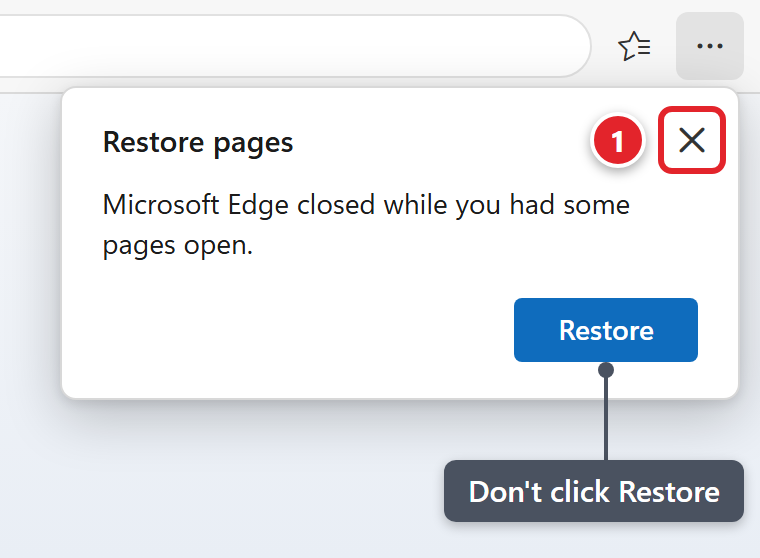 In Chrome the box says Restore pages? and Chrome didn't shut down correctly. Close it the same way.
 - Don't press Ctrl + Shift + T. That shortcut is "Reopen the last closed tab" — and the last closed tab is precisely the one you just got rid of.
- Don't return to the site or the link that took you there. Type an address you actually want, or use a bookmark.
If the page does come back, it isn't an infection reasserting itself. It's the browser being helpful about the wrong thing. Close it the same way and start clean.
After the page is closed
If you didn't call the number, didn't download or run anything, and didn't let anyone connect, you're finished. Closing the browser was the whole fix, and there's nothing left to clean up.
Two things are still worth doing:
- Let us know it happened. Submit a support request with a short note of what you saw and where you were when it appeared. That lets us check whether colleagues are hitting the same page, and whether the site should be blocked. You don't need to wait for a reply to carry on working.
- Ask for a scan if it would settle your mind. Say so in the same request and we'll run one for you. Security scanning on a managed computer is ours to drive, so there's nothing for you to install, start, or interpret.
Reporting the page to Microsoft
Once you're safely out, you can report the site so it joins the lists that block it for everyone else. In Microsoft Edge, go to Settings and More → Help and Feedback → Report unsafe site. Microsoft also accepts reports at microsoft.com/reportascam, and in the US the Federal Trade Commission accepts them at ReportFraud.ftc.gov. None of this is required, and telling us is the part that helps the people sitting near you.
If you already called, clicked, or let them in
Read this section first if it applies to you and come back to the rest later. Speed matters here far more than getting the details tidy.
What to do right now
- Stop the conversation. End the call and don't pick up if they try again. Don't follow any further instruction they've given you, however reasonable it sounded a minute ago.
- Disconnect the computer from the network. Unplug the network cable if it has one, or switch off Wi-Fi. If anyone is connected to the machine, that ends their session immediately.
- Leave the rest alone. Don't try to uninstall whatever they had you install, and don't attempt a clean-up of your own. Those steps need administrator rights you don't have, and we'd rather look at the computer exactly as it is.
- Submit a support request straight away (choose Security Concern), and start the first line with Business-critical: tech-support scam so it's triaged properly. Send it from your phone or another computer if this one is disconnected. An email to [email protected] reaches us just as well.
- If you paid, or gave card or bank details, contact your bank or card issuer as well. That piece is time-sensitive and only you can start it. Everything on the computer, and on your work accounts, is ours to handle.
Our wider process for this kind of thing is described in Reporting an IT Security Incident — but don't wait to read it. Send the request first.
What to tell us
Include as much of this as you can remember. None of it is a test; it simply decides what we do first.
- What you actually did — called the number, typed something, downloaded or ran a program, allowed a connection, made a payment.
- Whether they were connected to the computer, and roughly for how long.
- The name of any program they had you download or open, if you caught it.
- Any password, security code, or personal or financial detail you typed or read out. Tell us which one it was — never send us the value itself.
- Whether you paid, by what method (card, bank transfer, gift cards, cryptocurrency), and how much.
- The date and rough time, and the name of the computer.
You are not in trouble
We mean that literally. These pages are made by people who do this full time, and they're tuned to work on careful, competent adults in the middle of a busy day. Being taken in by one isn't carelessness, and reporting it isn't an admission of anything.
The only thing that reliably makes an incident worse is delay, and the usual cause of delay is embarrassment. Told in the first ten minutes, this is normally a contained piece of work. Told a week later, it may not be. Nobody here is keeping score.
The same scam arrives by email too
CISA, the US government's cybersecurity agency, describes tech support scams as social engineering attacks in which "scammers contact a user via a website pop-up or notification, phone call, or email in an attempt to convince a user that their system requires technical support." The pop-up is only the version you meet while browsing.
The same rule covers all three routes. Microsoft doesn't send unsolicited email or make unsolicited phone calls to request personal or financial information, or to fix your computer. As Microsoft puts it: "Any communication with Microsoft has to be initiated by you."
If your version arrived as an email — a fake invoice, a renewal notice for antivirus you've never had, an alarming message about your account — treat it as phishing and report it that way. See How to send us a suspicious email for automated analysis for the forwarding method, and Reporting Junk Email or Phishing Attempts for the built-in reporting buttons. A pop-up can't be forwarded, which is why this article gives you a different set of steps.
If you're not sure what you saw
Not every alarming message is a scam. Windows and your security software do produce genuine notifications. If you can't tell which you're looking at, don't guess and don't act on it. Submit a support request and include:
- What the message said, word for word if you can, including any code or reference number.
- Whether it appeared inside a browser window or somewhere else on the screen.
- Which browser you were using, and what you were doing when it appeared.
- Whether it showed a phone number, played a sound, or refused to close.
- Whether you clicked, typed, or downloaded anything, or called the number.
- The name of the computer, and the date and rough time.
A screenshot helps if you can take one safely. If the page has taken over the screen, close it first using the steps above — we'd far rather have it closed than photographed.