
Getting a new phone: moving Microsoft Authenticator
- Why your work account doesn't just come along
- What you need before you start
- Moving Authenticator to the new phone
- Step 1: Add the new phone
- Step 2: Test it, before anything else
- Step 3: Remove the old phone's registration
- What Authenticator's cloud backup does — and what it doesn't
- If you sign in with a passkey
- Common snags
- If the old phone is already gone or wiped
- What to include in your support request
- Before you trade in your phone
New phone day is a good day, right up until the first time you try to sign in to work on it. Here is the one thing worth knowing before you start: your work account doesn't travel with the phone. Microsoft Authenticator has to be set up again on the new device, and the easiest moment to do that is while you still have both phones in front of you. Ten minutes now saves a genuinely bad afternoon later.
Which situation are you in?
I still have my old phone
Even if you're about to trade it in. Do these three steps, in this order:
Trading it in? Do the five-point check first.
Why your work account doesn't just come along
This surprises almost everyone, so it's worth a minute of explanation. Your Authenticator registration is tied to a specific handset, not to your phone number and not to your account. Move the SIM, keep the same number, restore everything from your old phone's backup — none of that moves the registration to a new device. Microsoft's own guidance is that you have to sign in again on the new phone to complete setup.
There's one useful exception. If you also have a text message to your phone number registered as a verification method, that method does follow your number to the new handset, because it's registered against the number rather than the device. For a lot of people that text message is the lifeline that gets them through the setup below. It's worth knowing whether you have one.
If any of this is new to you, our overview of multi-factor authentication for Microsoft 365 explains what these verification methods are and why your account has them.
What you need before you start
- Both phones, with the old one still working and still signed in to Authenticator.
- A computer, ideally your work computer. The setup is a two-screen job: a QR code appears on the computer and you scan it with the new phone.
- Microsoft Authenticator installed on the new phone, from the App Store or Google Play. Install it, but don't try to add your work account from inside the app yet — start from the computer.
- About ten uninterrupted minutes. The Security info page will ask you to verify who you are again if you leave it sitting for a while, so it's better to do this in one sitting than to start it and come back to it later.
Moving Authenticator to the new phone
These steps assume the normal, happy situation: you still have the old phone and it still works. If the old phone is already gone or wiped, skip ahead to the section below — that's a different (and very fixable) problem.
Step 1: Add the new phone
- On your computer, go to
https://mysignins.microsoft.com/and sign in with your work email address. You'll be asked to verify. On the old phone, type the number shown on your computer and tap Yes. This is exactly why we start here rather than at the trade-in counter.security-info - Select Add sign-in method, choose Microsoft Authenticator, then select Add.
- Follow the wizard until a QR code appears on the computer screen. Leave it on screen.
- On the new phone, open Microsoft Authenticator. On a brand-new install you'll land on a welcome screen offering Add work or school account. If you've already got other accounts in the app, tap the + button or Add account instead, then choose Work or school account.
- Choose the option to scan a QR code, and point the new phone at the code on your computer screen. If the camera won't cooperate, the computer offers a link to show the setup details as text you can type into the app by hand instead.
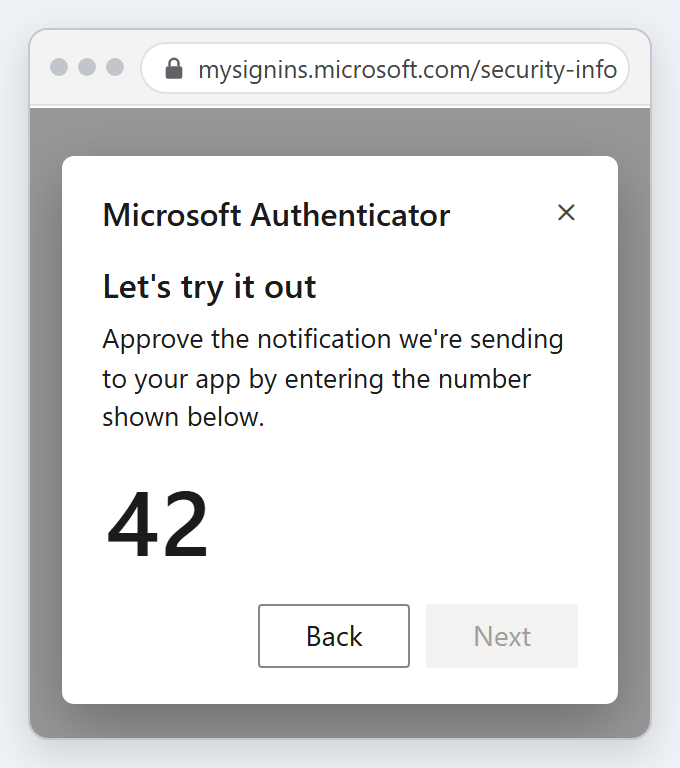
- The computer shows a number and sends a test notification to the new phone. Type the number shown on your computer into the prompt on your new phone (1), then tap Yes (2). When the computer shows Notification approved, select Next to finish the wizard.
On your computer
On your new phone
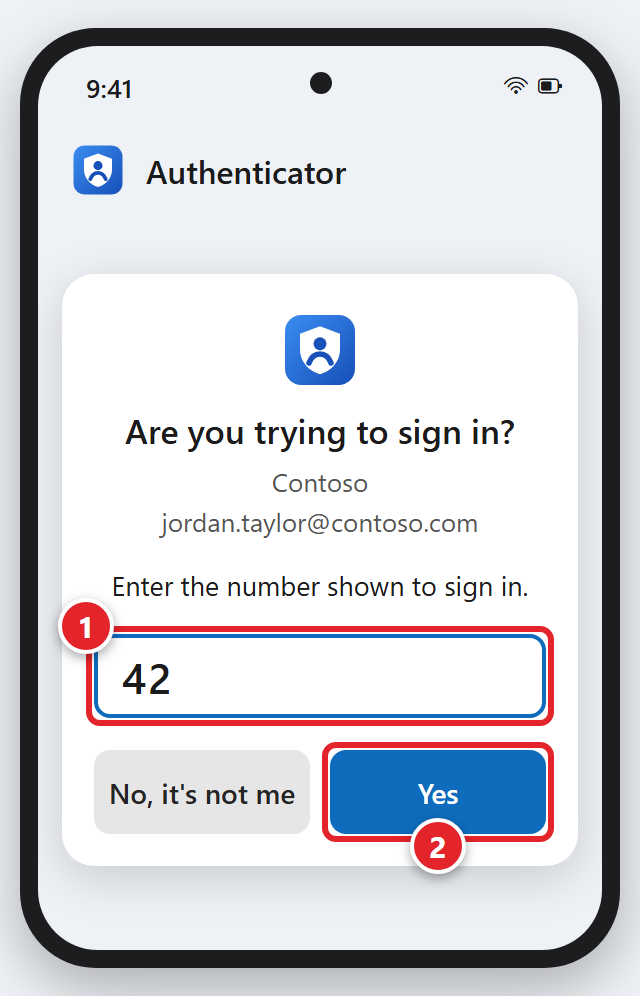
There's no plain Approve button: your phone only accepts the sign-in once you type the number shown on your computer. You'll see the same kind of prompt whenever you sign in to work on a computer.
If you'd like a fuller walkthrough of that setup, including where to get the app, see setting up Microsoft Authenticator.
Step 2: Test it, before anything else
Don't take the app's word for it. Prove the new phone works on something real: open a private or incognito browser window, sign in to your work email, and type the number shown on your computer into the prompt on the new phone, then tap Yes. Better still, sign in to one or two of the things you actually use every day.
Until that test passes, keep the old phone exactly as it is — charged, powered on, and not wiped. It is your safety net, and it costs nothing to hold onto it for another day.
Step 3: Remove the old phone's registration
Adding the new phone doesn't remove the old one — they're separate registrations, and the old entry sits there until you delete it deliberately. It's worth tidying up: registrations from three phones ago eventually cause problems (see the snags below).
- Back on the Security info page, find the Microsoft Authenticator entry for the old phone and select Delete on that same row (1). Each entry shows the name of the device it was set up on.
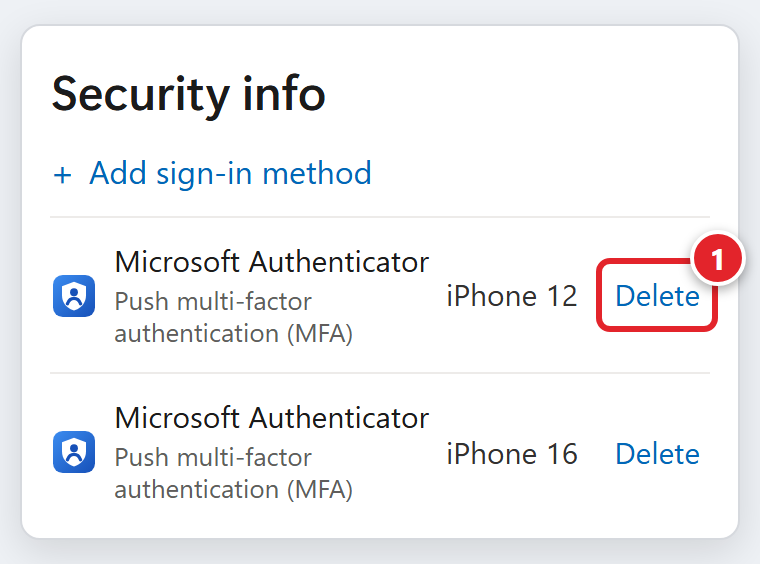
Android phones may show a model code instead of a name. On an Android phone, Settings > About phone shows yours.
- You may be asked to verify again first — deleting a method is itself a protected action. Approve it on the new phone (type the number shown on your computer), which is exactly the confirmation you want.
- While you're there, check the sign-in method line at the top of the page. Depending on your organization's settings, it's called Default sign-in method or Sign-in method when most advisable is unavailable. If it's still pointing at something you no longer use, select Change, pick a method you still have, then select Confirm.
What Authenticator's cloud backup does — and what it doesn't
This is the part that catches people out, so please read it even if you're confident you've got backup switched on.
Authenticator's backup and restore does not carry your work account across in a working state. Microsoft is explicit about this: for work or school accounts, only the account name is restored, so you can recognize it on the new phone. You still have to sign in again to complete setup. A restored work account entry is a label, not a working credential.
What backup does restore properly is the 30-second verification codes for your other accounts — the personal ones like Amazon, Google or Facebook. And that's precisely the trap: those come back looking perfect, the list on your new phone looks complete, and it's easy to assume your work account came across too. Look at the work entry specifically. If it shows a prompt underneath asking you to sign in — the exact wording differs between iPhone and Android — that's your proof it hasn't been set up yet, and it's normal, expected, and exactly what the steps above fix.
Backup is still worth having for those other accounts, so if you want to turn it on before you switch phones:
- On Android — in Authenticator, open the menu and go to Settings → Cloud Backup, turn it on, choose a personal Microsoft account to store it in, and confirm. If you don't have a personal Microsoft account, you can't create the backup — which matters less than it sounds, since your work account wouldn't restore usefully anyway.
- On iPhone — Microsoft's current instructions are all in iOS settings rather than in the app: turn on iCloud Drive, iCloud Keychain and iCloud Backup, then go to Apple Account → iCloud → Saved to iCloud and switch on the toggle for Authenticator. Depending on your app version you may also see a backup option inside Authenticator itself; if you do, that works too.
- Switching between iPhone and Android? Backup and restore only works within the same platform. An iPhone backup cannot be restored onto an Android phone, or the other way around. Since a new phone is often when people switch sides, assume you're re-adding everything by hand.
If you sign in with a passkey
If you were set up with a passkey in Authenticator — a way of signing in that uses your fingerprint or face instead of a code — it needs handling of its own. Passkeys created in Authenticator are locked to the device they were made on and can't be synced or restored, so backup doesn't cover them. You create a fresh one on the new phone.
The route is the same page as before — Add sign-in method on the Security info page, then the passkey option — and the same order of operations applies: create it, test it, and only then remove the old one. On the new phone you'll also need to switch Authenticator on as the phone's passkey provider in the phone's own settings; if that's left off, your passkeys won't work.
If your passkey was saved into a synced password manager rather than into Authenticator itself, it may already be available on the new phone — but check that it actually works there before you get rid of the old device rather than assuming. And if the passkey option isn't offered to you at all, that's an organization setting, so send it our way.
Common snags
- "You have too many devices registered." There's a limit of five authenticator apps and hardware tokens combined, and old phones you never removed still count. Delete a registration you no longer use and try again. If the message points at a hardware token — one of those small keyfob-style code generators — only we can clear that, so submit a support request.
- The verification prompt keeps reappearing. The Security info page asks you to verify who you are again if it has been left sitting for a while — that's the page protecting itself, not a fault at your end. If you wandered off mid-task, start again from the beginning rather than fighting the page.
- The old phone's app is prompting you to update. Do it while the old phone still works. Microsoft can require a current version of Authenticator to complete a sign-in, and an out-of-date app on the device you're relying on is a bad surprise at the worst moment.
- You need the QR code sent to you. Unfortunately that isn't possible — the code is generated live inside your own signed-in session and can't be issued in advance, emailed, or reused. If you can't reach the page to generate one, the route below is the way through.
If the old phone is already gone or wiped
First: this is a completely normal thing that happens, we handle it regularly, and nobody is in trouble. It's a routine reset, not a disaster.
Here's the honest position. If you have another working verification method — a text message to your number, or another registered device — use it. When the sign-in screen asks you to approve the request in Authenticator, select I can't use my Microsoft Authenticator app right now under the number (1). On the Verify your identity list that opens, pick a method that still works, such as Text to your phone number (2). If the screen asks for a code from a text message instead, the link is called Sign in another way. Once you're in, you can follow the steps above to add the new phone.
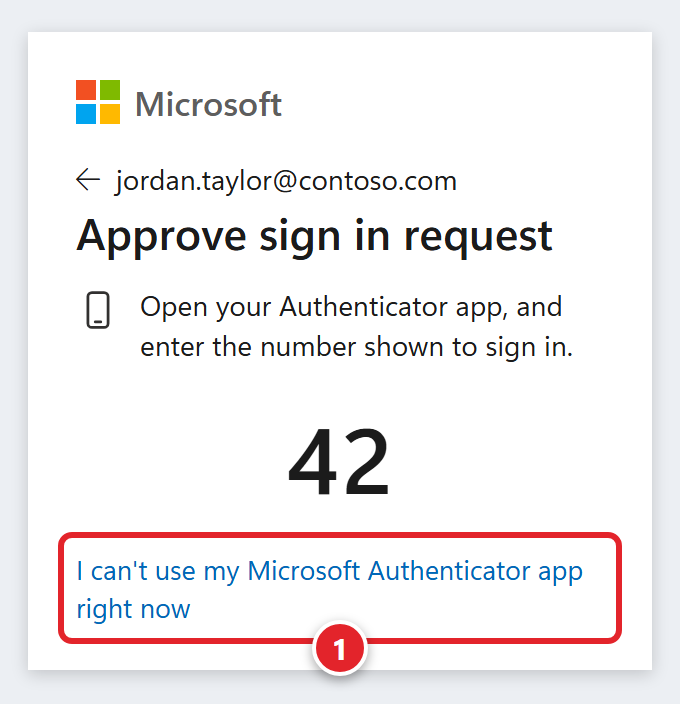
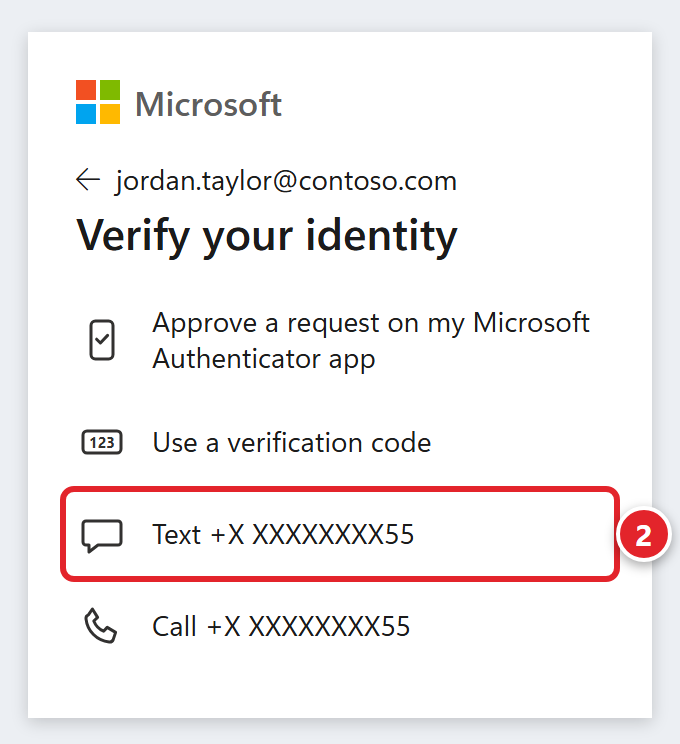
If the list only offers the Authenticator app, with no Text or Call option, there's no other method registered, and there is no self-service route back in. That isn't a failing on your part — it's the security model working as designed, because anyone who could talk their way past it could get into your account too. We need to clear your registration from the administrator side so you can set it up fresh on the new phone. (A small number of organizations have an identity-verification recovery option enabled; if yours is one of them you'd see it offered at sign-in. Most don't, so plan on the support request.)
Submit a support request from any device you can still get email on — a colleague's computer, a personal address, whatever's to hand. Then keep reading for what to put in it.
What to include in your support request
Whether you're locked out or just stuck partway through, these details let us fix it on the first reply instead of trading messages for a day:
- Your full name and your work email address.
- Whether you still have the old phone, and whether Authenticator on it still works.
- What the new phone is — iPhone or Android — and whether that's a switch from the old one.
- Exactly where you got stuck, and any on-screen message word for word, including any error or reference code.
- Whether any other verification method still works for you, such as a text message to your number.
- Whether you're currently locked out of your work email, and any deadline we should know about.
You can also reach us at [email protected]. Once we've cleared the old registration, you'll be prompted to set up a new verification method the next time you sign in — so have the new phone with Authenticator already installed and sitting next to you.
Before you trade in your phone
- The new phone is registered on the Security info page.
- You've signed in to something real and approved it on the new phone.
- The old phone's registration has been deleted, and your default sign-in method points somewhere sensible.
- If you use a passkey, it's been re-created on the new phone and tested.
- The codes for your personal accounts are on the new phone too. We can always reset your work account for you — your own personal accounts aren't ours to restore, so those are the ones to move carefully.