
I already clicked a phishing link or entered my password — what to do next
- The 30-second version
- Which path am I on?
- Path A — Link only
- Path B — Password or MFA
- Path C — Attachment or something ran
- Path D — You sent sensitive information
- Do this now (ordered checklist)
- The five facts we need
- What we typically do on our side
- What not to do
- If you are on the road with only a phone
- Aftercare (next few days)
- Related articles
Got an email that turned out to be phishing — and you already clicked, signed in, opened something, or replied? You are not the first person this week, and you are not in trouble for telling us. Looking this up was the right move. Speed and a calm checklist matter more than a perfect write-up.
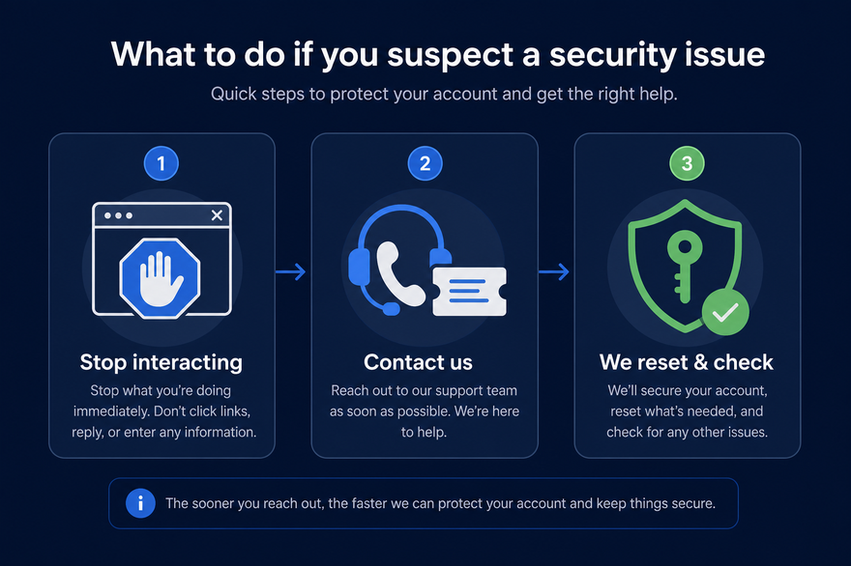
The 30-second version
- Stop interacting with the email and the website. Close the tab. Do not click “log in again” to see if it still works.
- Do not warn the office by forwarding the phishing email to a distribution list. That spreads the bait. Tell a neighbor verbally, or open a normal support request.
- Contact us right away — submit a support request (choose Security Concern) or email [email protected] — with the five facts below.
- If you typed a password or approved an MFA prompt you did not mean to: do not try to “fix” it yourself with a self-serve password reset. Stop using that session, contact us, and we will reset the password and revoke sign-in sessions with you.
Which path am I on?
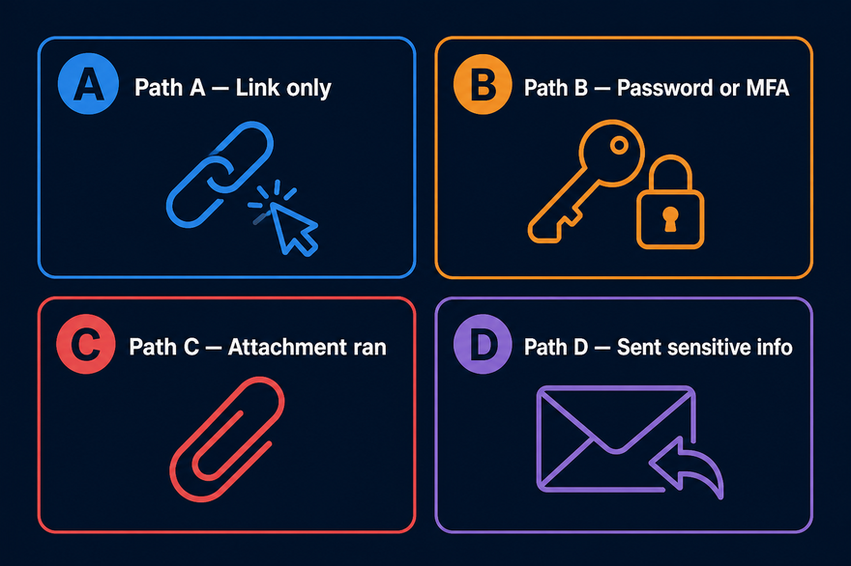
Pick the first row that matches. You can belong to more than one — follow the stricter path (B, C, or D over A).
| What happened | Start here |
|---|---|
| Clicked a link, but did not type a password or approve a sign-in request on your phone | Path A |
| Typed your username/password, or approved a sign-in request on your phone (Microsoft Authenticator) that you did not mean to | Path B |
| Opened an attachment, or ran a downloaded file / “security update” | Path C |
| Replied with sensitive info (payroll, wire instructions, W-2, invoice change) | Path D |
Path A — Link only
- Close the browser tab. Leave the site alone.
- Note the approximate time and the sender display name (do not click again to look things up).
- Leave the message in your inbox for now. After you have contacted us (or when we ask), you can report it using How to send us a suspicious email for automated analysis.
- Message us with the five facts. We will tell you if anything else is needed.
You often will not need a password reset for Path A. We would rather confirm than guess.
Path B — Password or MFA
This is the path where we want a ticket first — not a DIY password change.
- Stop using that browser session for work email, Teams, or portal sign-ins. Close the tab/window.
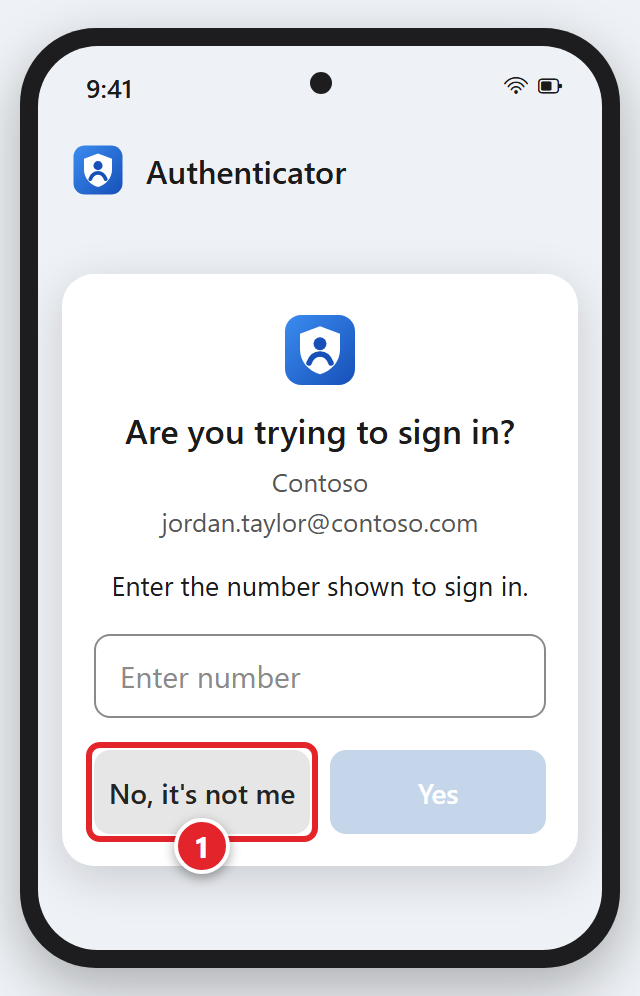
- Do not approve any further MFA / Authenticator prompts you did not just initiate yourself. If one appears on your phone, tap No, it's not me (1), then tell us in your request.
- Contact us immediately. Submit a support request (choose Security Concern) or email [email protected].
- Say clearly that credentials or MFA may be involved so we prioritize a password reset and session revocation.
- Keep the device you used nearby. We may ask whether Outlook, Teams, or the browser looked unusual afterward.
Path C — Attachment or something ran
- Disconnect from Wi‑Fi or unplug Ethernet if you are comfortable doing that; leave the computer powered on.
- Do not start deleting files, installing cleanup tools from a pop-up, or resetting Windows yourself.
- Submit a support request right away (choose Security Concern; use another device if this one is disconnected). Say you opened or ran something from email.
- Capture what you can without digging: filename, approximate time, any on-screen message. See also Reporting an IT Security Incident.
If what you saw looked like a fake virus / “call Apple/Microsoft” scare screen, also read Fake virus pop-ups and tech-support scams — and still tell us.
Path D — You sent sensitive information
- Submit a support request right away (choose Security Concern) and start it with "Business-critical: sensitive information sent". This is the path where minutes matter for finance and HR follow-up.
- Tell us who you replied to, what you sent, and whether money, payroll, W-2, or invoice/banking changes were involved.
- Do not send a “correction” email on the same thread until we say so — attackers often watch those threads.
- If you also typed a password along the way, follow Path B’s contact steps as well (ticket → we reset).
Do this now (ordered checklist)
Use this when you want one list instead of path cards:
- Leave the site/tab. Do not “log in again to check.”
- Do not forward the phishing email to coworkers as a warning.
- Contact us: support request (Security Concern) · [email protected].
- If Path B: say credentials/MFA were involved — we handle the reset and session revoke.
- If Path C: disconnect network if you can; leave the PC on; wait for us.
- If Path D: ticket first, marked business-critical; do not reply again on that thread.
- Have the five facts ready.
The five facts we need
Copy/paste into your support request or email:
- About what time it happened (include time zone if you are traveling).
- What you did — clicked / typed password / approved MFA / opened attachment / replied with sensitive info.
- Which account — usually your work email address.
- Which device — office PC, laptop, phone; home or office network.
- Whether anything seemed to install, or whether a ransom / “locked files” / scareware message appeared.
Anything else is bonus (subject line, screenshot of the message without clicking links again). Those five let us start.
What we typically do on our side
You do not need to run these yourself. Depending on the path, we may:
- Reset your password with you and revoke sign-in sessions
- Check your mailbox for forwarding rules or inbox rules you did not create
- Search for the same campaign across your organization
- Check the device health tooling already on managed computers
- Walk finance / HR through next steps if Path D applies
- Ask you to forward the original as an attachment for analysis once the urgent steps are done — see How to send us a suspicious email…
We will tell you what we changed and whether you need to sign back into Outlook, Teams, or other apps on each device.
What not to do
Skip these — they make things worse or burn time we need:
- Do not pay a ransom, “fine,” or gift-card demand from a page or email.
- Do not call a phone number from the suspicious email or pop-up.
- Do not run cleanup tools advertised by the page you landed on.
- Do not wipe your PC or reinstall Windows unless we ask you to.
- Do not blast the original phishing email to “All Staff.”
- Do not treat a self-serve password-reset page as the whole fix after phishing — contact us so we can reset and revoke properly.
If you are on the road with only a phone
Submit a support request from your phone's web browser (the form works on phones), or email [email protected], with the five facts and “credentials involved” in the subject when that applies. A short request now beats a perfect write-up tonight. When you can reach a desktop later, you can still forward the original as an attachment for analysis.
Aftercare (next few days)
- Treat unexpected password-reset messages seriously — tell us if you did not request a reset (and did not just finish one with us).
- If colleagues ask “did you email me to buy gift cards / change wiring?”, call them back on a known number and submit a support request to tell us.
- If Outlook rules, auto-forwarding, or your signature changed, tell us even if mail seems fine.
- Approve MFA prompts only for sign-ins you just started.
Related articles
- How to send us a suspicious email for automated analysis — pre-click / reporting path (companion to this article)
- Reporting an IT Security Incident — broader incidents beyond phishing
- Fake virus pop-ups and tech-support scams — scareware / fake support pages
- Microsoft 365 self-service password reset — normal day-to-day forgotten-password help (not the primary path after phishing; after a phishing click, submit a ticket instead)
Need us now? Submit a support request · [email protected]