
Rebooting/Restarting your Computer
Restarting your computer is one of the simplest — and most effective — things you can do to keep it running well. A surprising number of everyday problems clear up the moment Windows gets a fresh start: sluggish performance, programs that won't open, printing or network hiccups, and updates that won't finish.
That's exactly why we recommend a restart as the first step whenever something isn't working right — it resolves a significant share of the issues we see day to day.
And while restarting every day isn't strictly required, it's great practice. Beginning each day with a fresh slate keeps Windows fast, stable, and secure, and heads off many problems before they start. If a daily restart isn't realistic for you, aim for at least once a week.
How to Restart in Windows 11
It only takes three steps. The animation below shows the whole flow from start to finish:
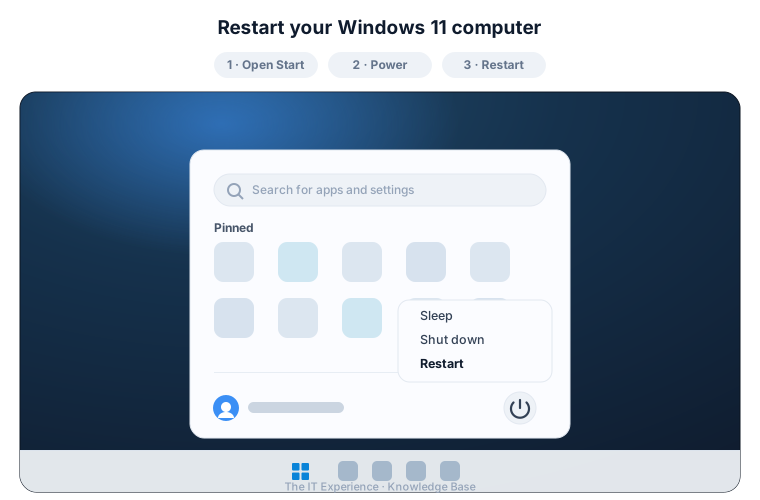
- Click the Start button — the Windows logo in the center of the taskbar at the bottom of your screen.
- In the Start menu, click the Power button in the bottom-right corner.
- Select Restart. Windows will close everything and reboot on its own.
If you have any questions or run into any issues, please submit a support request.