
Remote Access — ScreenConnect (Office PC)
Our remote access platform is powered by ScreenConnect (formerly ConnectWise Control). It lets you reach your office computer from anywhere — and it's the same tool our technicians use to connect to your machine when you need a hand. This guide covers how to connect, how to work with multiple monitors (the question we get asked most), and the answers to the other things people run into day to day.
Connecting to your computer
If you or your company subscribe to our remote access platform, you can reach your office computer from any other computer once your account is provisioned.
- Visit the remote access portal (the URL is provided to you during provisioning).
- Log in with the credentials our support team gave you.
- Select your computer from the list of available machines.
- Click "Join" to start the remote session.
Requirements
- An active internet connection on both your office computer and the device you're connecting from.
- Your office computer must be powered on and connected to the network.
- A modern web browser (Chrome, Edge, or Firefox recommended).
Working with multiple monitors
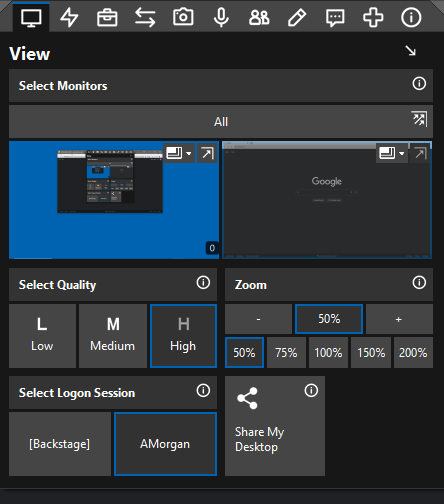
This is the single most common thing people ask about. If your office computer has two or more monitors, ScreenConnect gives you a few ways to view them. Everything below lives in the View menu — the monitor icon at the far left of the toolbar at the top of the session window.
Show one monitor, or all of them
Open the View menu and look at the Select Monitors section at the top. You'll see a thumbnail for each monitor on the remote computer, plus an All button.
- Click a single monitor's thumbnail to view just that screen. This is usually the clearest, since one remote screen fills your whole window instead of being shrunk to fit alongside the others.
- Click All to see every remote monitor stitched together in one window. Handy for a quick overview, but everything is smaller.
Split each monitor into its own window
If you have multiple monitors on your end too, you can spread the remote screens across them. Click the triple-arrows icon (the small diagonal-arrow button in the corner of the Select Monitors panel) to break each remote monitor out into its own separate window. Then drag each window onto whichever of your monitors you like.
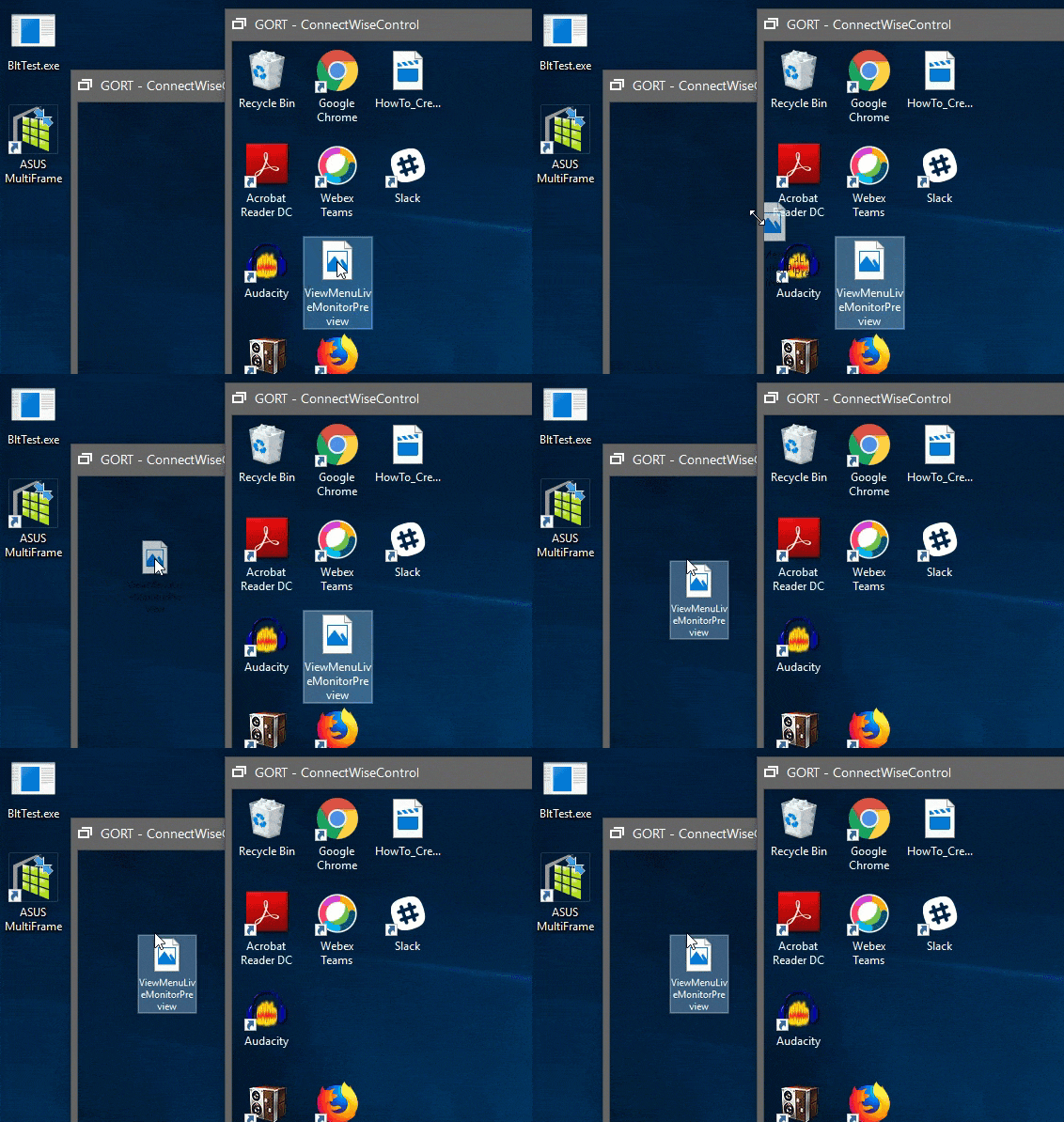
- If you have the same number of monitors or fewer than the remote machine, ScreenConnect arranges one remote screen per monitor of yours.
- If the remote machine has more monitors than you do, it opens one window per remote monitor and cascades the extras on your last screen.
- Once monitors are separated, you can drag files and shortcuts between the windows just like you would on the office computer.
Change a monitor's resolution
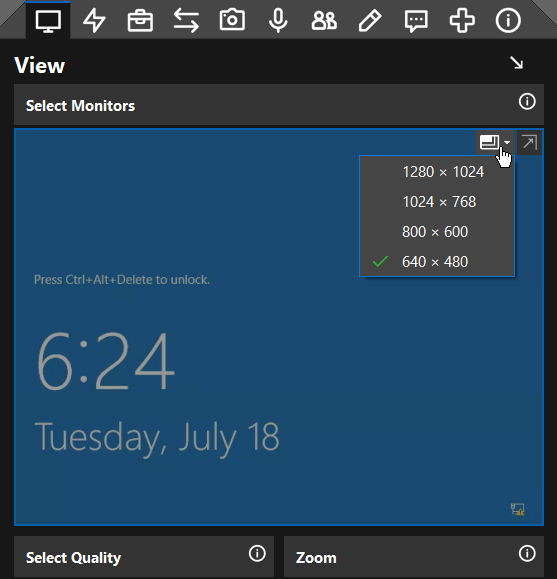
If a remote screen looks stretched, cramped, huge, or tiny — or you can't see the whole office monitor without scrolling — changing that monitor's resolution is usually the fix:
- Open the View menu (the monitor icon at the far left of the toolbar).
- Find the monitor you want to change in Select Monitors, and click the small monitor-resolution icon in that monitor's upper-right corner.
- Pick a supported resolution from the list — the change takes effect immediately.
Official reference: ConnectWise — Change guest monitor resolution
Video walkthroughs
Two short official videos from ConnectWise. The first focuses on multiple monitors; the second covers the whole View menu.
ScreenConnect: Multiple Monitors
ScreenConnect: Using the View Menu
Quality, zoom & resolution
Also in the View menu, three settings control how the remote screen looks and performs:
Select Quality
Controls the color depth of the session. If your connection is slow or laggy, lowering this makes the session feel snappier at the cost of color:
- High (true color) — a full-color, true-to-life picture of the remote screen. Best on a good connection.
- Medium (~256 colors) — fewer colors, lighter on bandwidth.
- Low (grayscale) — black-and-white; the lightest option for a poor connection.
Zoom
Enlarges or shrinks the remote screen inside your window without changing anything on the office computer. Use the – and + buttons or pick a preset (50%, 75%, 100%, 150%, 200%). This is the right knob to reach for when text looks too small — it only affects your view.
Frequently asked questions
Click a question to expand it. Several of these use the Essentials menu — the lightning-bolt icon, second from the left on the session toolbar.
I can only see one monitor — where's my second screen?
Open the View menu and look at Select Monitors at the top. Click the other monitor's thumbnail to switch to it, or click All to see both at once. To put each screen in its own window, click the triple-arrows (split) icon. See Working with multiple monitors above.
The screen looks blurry or fuzzy.
Two common causes. First, if you're viewing All monitors at once, each screen is shrunk to fit — switch to a single monitor for a sharper picture. Second, check Select Quality in the View menu and set it to High if your connection can handle it. You can also increase Zoom to make text more readable.
Everything on the office screen looks huge, tiny, or stretched.
That's a resolution problem, not a zoom problem. Follow the steps in Change a monitor's resolution above — and remember the change sticks after you disconnect, so set it back when you're done. If it only looks too small to you but was fine at the office, use Zoom instead.
How do I send Ctrl+Alt+Delete to the office computer?
Pressing Ctrl+Alt+Delete on your keyboard affects your computer, not the remote one. Instead, open the Essentials menu (the lightning-bolt icon on the session toolbar) and click Send Ctrl-Alt-Del. This is often needed to unlock or sign in to the office computer.
How do I restart my office computer from home?
You don't have to drive in. Open the Essentials menu (lightning-bolt icon) and under Reboot and Reconnect, choose To Normal Mode. The office computer restarts and your session reconnects automatically once it's back up — give it a few minutes.
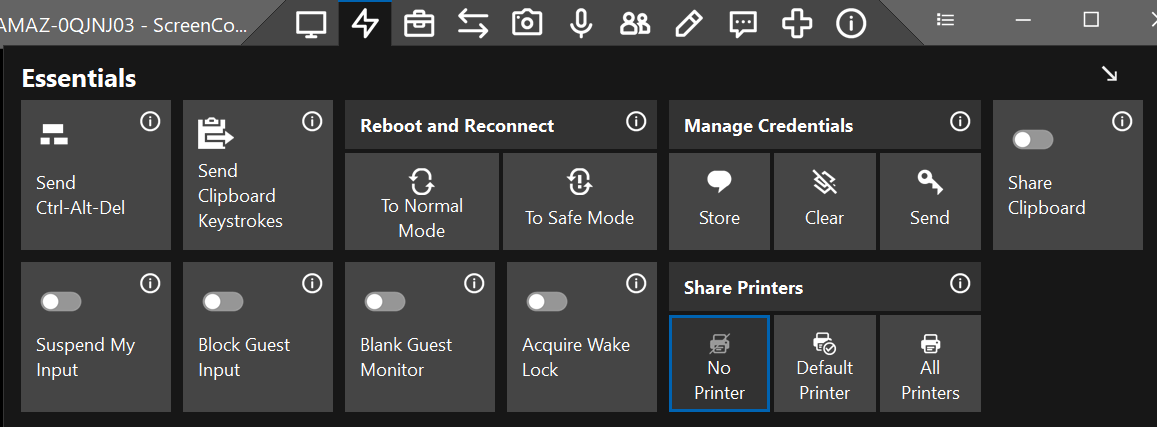
Save your work first — anything unsaved on the office computer is lost in a restart, same as pressing the power button. (Curious what else is in this menu? ConnectWise's short Essentials menu video walks through it.)
The office computer keeps going to sleep or locking mid-session.
In the Essentials menu, turn on Acquire Wake Lock. That keeps the office computer from auto-locking, sleeping, or starting its screensaver while you work. It switches itself off when you close the session window, so the machine goes back to locking normally after you're done.
Some keyboard shortcuts (like the Windows key or Alt+Tab) don't reach the office computer.
A few system-level key combinations are captured by your own computer before ScreenConnect can pass them through. Working in full-screen mode (see below) helps more of them get through. For the Windows key specifically, use the on-screen Start button on the remote desktop instead.
How do I go full screen?
Use the full-screen control on the session toolbar, or your browser's own full-screen (press F11 in most browsers). Full screen gives you the most room and helps more keyboard shortcuts pass through to the office computer.
Can I copy and paste between my computer and the office computer?
Yes — text copied on one side can generally be pasted on the other. If it stops working, check that Share Clipboard is switched on in the Essentials menu (lightning-bolt icon). Still stuck? Let us know and we'll check the session settings.
Paste won't work in a password or sign-in box.
Some sign-in screens refuse pasted text. Copy the password on your computer, then open the Essentials menu and click Send Clipboard Keystrokes — ScreenConnect types your clipboard into the remote machine keystroke by keystroke, which works even where paste is blocked. Click into the password field first so the keystrokes land in the right place.
Can I transfer files to or from the office computer?
Yes. When your monitors are split into separate windows you can drag files directly between them. There's also a file-transfer option on the session toolbar for moving files between your computer and the remote one.
Can I print something from the office computer on my home printer?
Yes — in the Essentials menu, look for Share Printers and choose Default Printer (or All Printers). Your home printer then shows up as a choice when you print from the office computer. Pick No Printer to turn it back off.
The session keeps disconnecting or freezing.
This is almost always the internet connection on one end. Try lowering Select Quality to Medium or Low, and if you're on Wi-Fi, move closer to the router or switch to a wired connection. A quick reconnect from the portal usually restores the session. If it keeps happening, submit a support request.
The remote screen is black.
A black screen usually means the office computer is at the lock or sign-in screen, is asleep, or its monitor went to sleep. Try sending Ctrl+Alt+Delete (see above) or moving the mouse to wake it. If it stays black, try Reboot and Reconnect from the Essentials menu — and if that doesn't bring it back, reach out and we'll help.
Will someone at the office see what I'm doing?
If anyone is physically at the office computer, they can see the screen just as if you were sitting there — it's the same desktop. For privacy, open the Essentials menu and turn on Blank Guest Monitor: the office screen goes blank while you work, and anyone walking by sees nothing. If you instead want to share your screen with someone at the office, use Share My Desktop in the View menu.
Is this the same as the VPN?
No. The VPN connects your device to the office network so you can reach shared drives and resources as if you were in the building. This remote access platform connects you to a specific office computer so you can see and control its desktop. For VPN help, see VPN — Install the CloudVPN Client.
Sources: ConnectWise — View menu · Essentials menu · Change guest monitor resolution
We're happy to hop on and help.
If the monitor layout won't cooperate or the session isn't behaving, submit a support request and a technician will get you sorted out.