
Docking station: monitors or Ethernet not working
- Why a dock behaves this way
- Monitors black: work through these in order
- 1. Check the monitor and its input source
- 2. Reseat the monitor cable at both ends
- 3. Undock and redock properly
- 4. Ask Windows to look again
- 5. Power-cycle the dock, in the right order
- 6. Restart the laptop while it's still docked
- If one screen works and another doesn't
- If the wired network doesn't come up
- Firmware and drivers: leave these to us
- If none of that worked
You set your laptop on the dock the way you do every morning, and something doesn't come back: one monitor stays black, or both do, or the screens are fine but the wired network never came up. It's almost never a broken laptop, a broken monitor, or a dead dock. It's nearly always a connection that hasn't quite seated, or a handshake between the laptop and the dock that didn't finish — and most of them are fixed at your own desk in a couple of minutes.
Black monitor? Try these in order, and stop when your screens come back
- Check the monitor is on and set to the right inputThe most common cause
- Reseat the video cable at both ends
- Undock, wait 15 seconds or more, and plug back in
- Ask Windows to look againWindows key + P, then Detect
- Power-cycle the dock, in the right orderDock power goes back in before the laptop
- Restart the laptop while it's still docked
Screens fine but the wired network isn't working? Start here.
Still stuck? Here's what to send us.
Why a dock behaves this way
A dock is a translator. Your laptop connects to it with one cable, and everything else travels down that cable: both monitors, the wired network, your keyboard, mouse and headset. When you dock, the laptop and the dock hold a short conversation to sort all of that out — how many screens are attached, what each one can display, how much power to send back, and whether a wired network adapter should appear in Windows.
That conversation takes a few seconds and it only gets one go. If a connector is a hair short of fully seated, or the dock is in a stuck power state, it ends early — and Windows is then perfectly content, because it never heard about that second monitor or that network adapter. Nothing's damaged. The handshake just needs to happen again, cleanly.
Monitors black: work through these in order
These run most likely and least disruptive first. Stop as soon as your screens come back — there's no need to do all six.
1. Check the monitor and its input source
Do this one properly, because it's the single most common cause. Confirm the monitor's power light is on, then check which input it's displaying. Monitors don't follow the socket you plug into — a monitor with a DisplayPort cable in the back can show a "no signal" message all day because it's still watching the HDMI input it was left on. Use the buttons on the monitor itself to open its menu and step through the inputs until the picture appears. If your monitor offers an option to select its input automatically, turning that on stops it happening again.
2. Reseat the monitor cable at both ends
Unplug the video cable from the back of the monitor and from the dock, then push both ends firmly home. Microsoft's advice for a blank screen says the same: “Ensure all cables (HDMI, DisplayPort, VGA) are securely connected. Try a different monitor or cable to rule out hardware issues.”
3. Undock and redock properly
Unplug the dock cable from your laptop, wait 15 seconds or more, then plug it back in. The wait is the part people skip, and it matters: it gives the dock time to register that the laptop's gone, so the next connection starts a fresh negotiation instead of resuming a half-finished one. Fifteen seconds is Dell's stated minimum.
4. Ask Windows to look again
If the cables are sound, give Windows a nudge — three different moves, in this order:
- Windows key + P, then choose Extend — the normal docked setting. On PC screen only your external monitors are ignored on purpose; on Second screen only your laptop screen goes black by design.
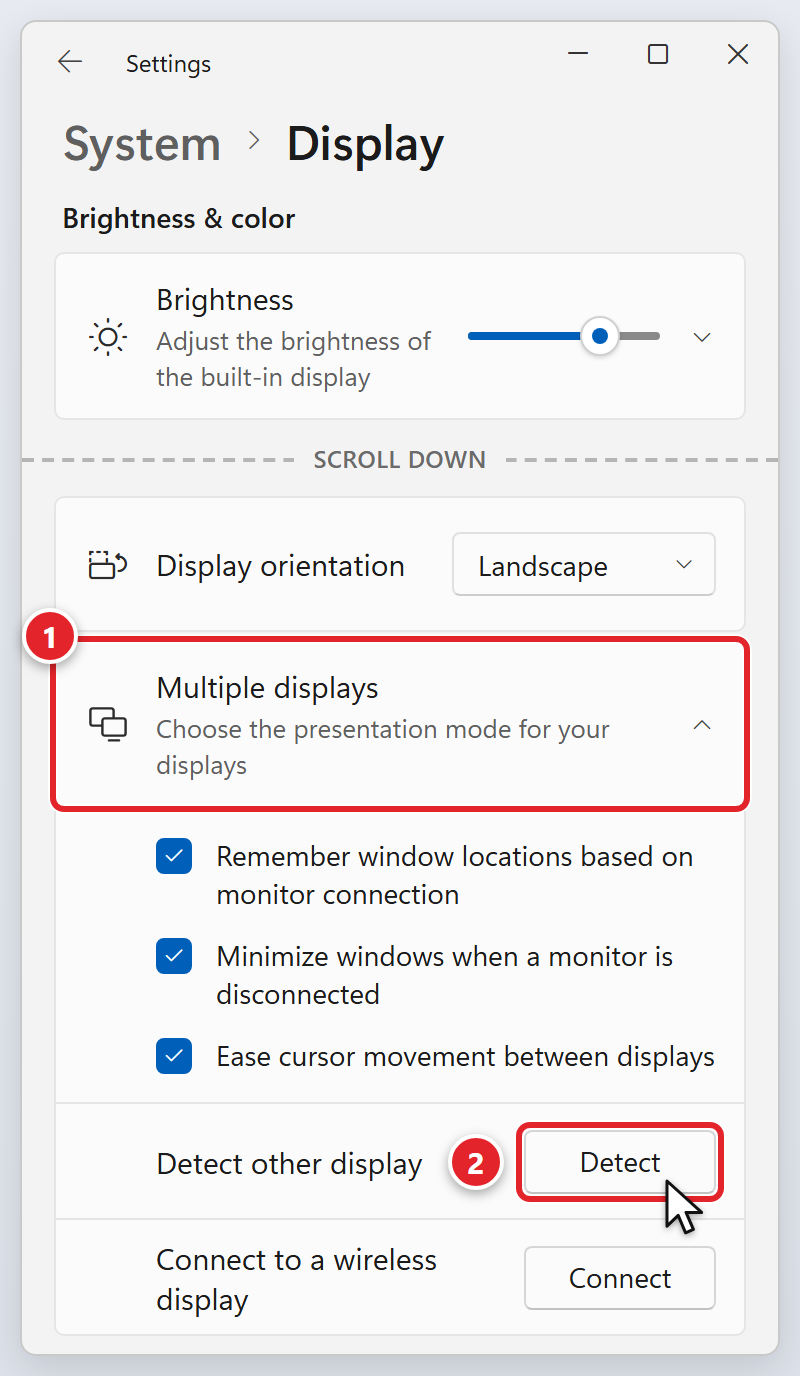
- Start → Settings → System → Display. Scroll down, click Multiple displays (1) to expand it, then click Detect (2) next to Detect other display. This makes Windows rescan for screens it missed. There's no keyboard shortcut for it — the button is the only way.
- Windows key + Ctrl + Shift + B. In Microsoft's words: “Press Windows + Ctrl + Shift + B to reset the graphics driver. You should hear a beep or see a screen flicker if successful.” It restarts the display software without closing anything you've got open.
5. Power-cycle the dock, in the right order
This clears a dock that's stuck, and the order matters more than people expect. Dell documents this exact sequence:
- Unplug the dock cable from your laptop first.
- Then unplug the dock's power adapter from the dock.
- Wait 15 seconds or more with both disconnected.
- Plug the power adapter back into the dock before you touch the laptop cable, and give it a moment.
- Now plug the dock cable back into your laptop.
Bringing the dock up on its own power first means it's fully awake before your laptop introduces itself, so follow the order rather than simply pulling the plug and pushing it back in.
6. Restart the laptop while it's still docked
Leave everything connected and restart — that re-runs the whole detection process with the dock present. Use Restart rather than shutting down and switching back on; our guide to rebooting and restarting your computer explains why those aren't the same thing on Windows.
If one screen works and another doesn't
When some screens light up and one refuses, it's usually a question of which ports are being used rather than the dock being faulty.
- Swap the two video cables at the dock. If the dead screen comes alive and the working one goes dark, the problem follows the port. If the same screen stays dark either way, it's that monitor or its cable. This one test tells us a great deal, so it's worth doing before you write in.
- On the older dock, HDMI and the USB-C video port cannot both drive a screen. Dell states it plainly: “HDMI 2.0 and MFDP Type-C cannot support dual monitors simultaneously. Only one of these ports can be used at a time.” If you've got monitors in both, one will never appear — move it to a DisplayPort socket, which is one reason new monitors are set up on DisplayPort.
- The number of screens is a laptop limit, not a dock limit. Dell publishes different maximums depending on the laptop's processor — some capped at two external screens, others at three. A dock with four video sockets doesn't mean four screens on every machine.
- Chained monitors need more than a cable. If your monitors connect to each other rather than each one back to the dock, the first monitor needs a DisplayPort output socket and a multi-stream setting switched on in its own menu, which Dell ships turned off — and chaining doesn't work over HDMI at all. Send that one to us.
If the wired network doesn't come up
The dock's network adapter only exists in Windows while the dock is connected, which gives you a clue straight away. If the monitors are dead too, this isn't really a network problem — the dock isn't being seen at all, so work through the steps above. If the monitors are fine, the dock and laptop are talking and the fault is on the wired side:
- Look at the small lights beside the network socket on the dock. They indicate a live link. No lights at all points at the cable, the wall port, or the equipment at the other end rather than at your laptop.
- Reseat the network cable at both ends — at the dock, and at the wall port or switch it runs to. Dell's guidance is to check it's secure at the docking station and at the equipment on the other end, and it's the far end people forget.
- Try a different wall port or a cable you know is good, changing one thing at a time.
- Check whether Wi-Fi is quietly covering for it. If your laptop has fallen back to Wi-Fi, most things keep working and it's easy to miss that the wired link never came up. The quickest check is the network icon by the clock, just left of the speaker icon:
On Wi-Fi
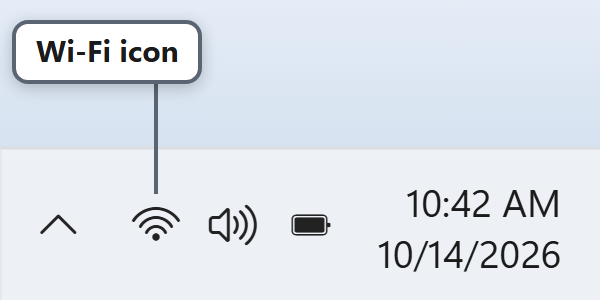
A fan of curved bars. If you see this while you're docked, the wired connection didn't come up.
On the wired network
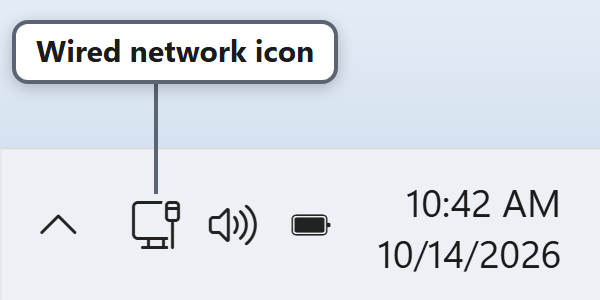
A small screen with a cable. Windows usually shows this when the wired network is working, even if Wi-Fi is on too. A VPN can also show this icon.
Other icons near your clock may look a little different. Just look for these two shapes. To be sure, go to Start → Settings → Network & internet and open Ethernet.
Leave Wi-Fi on while you test — switch it off while the wired link is down and you'll drop off the network entirely, including any remote support session.
- Power-cycle the dock using the order in step 5. The network adapter comes back with the dock, so a stuck dock takes the wired connection down with it.
Firmware and drivers: leave these to us
Dock firmware, graphics drivers, dock drivers and the laptop BIOS all genuinely affect whether monitors and wired networking behave. Dell's blunt about it: “Update your system's BIOS, graphic drivers and the Dell Thunderbolt Dock drivers to the latest versions available at www.dell.com/support BEFORE using the docking station.”
Every one of those needs administrator rights, and Dell's dock firmware tool has to be run as an administrator with the dock connected. On a managed computer you won't be able to install them, and you shouldn't try — even if a search result or a Dell download page tells you to. These are ours to manage. If your troubleshooting has led you to a download page, that's the moment to stop and submit a support request instead.
If none of that worked
Submit a support request or email [email protected]. Docks are straightforward to diagnose remotely once we know what we're looking at, so a few details up front save a round of back-and-forth. Please include:
- Which dock you've got. The model number is printed on the dock's own label and will read
WD22TB4orSD25TB4. It genuinely changes our answer, so it's worth turning the dock over. - How many monitors you have, and which are affected — "two monitors, the left one is black and the right one is fine" beats "my monitors are not working".
- Whether your laptop's own screen is working. That tells us the laptop's healthy and the problem sits between the dock and the monitors.
- Whether you're on the wired network or Wi-Fi, and whether the network and the monitors failed together or separately.
- What you already tried from this article, and what happened each time. "I reseated both ends and power-cycled the dock in the order in the article" tells us far more than "I tried everything".
- When it started, and anything that changed just before — a new monitor, a different desk, a different dock, a cable that got knocked.
- Any message on screen, word for word, including anything the monitor puts up by itself.
- Your computer's service tag if you've got it to hand — here's how to find it. It tells us exactly which laptop to look at, which matters if you've moved desks.