
Remote Access — Windows (Remote Desktop)
In This Article
Windows - Remote Desktop Connection
Before you start: you'll need 3 things from us
- Computer name (the computer you're connecting to)
- User name
- Password
Don't have them yet? Submit a support request and ask for your remote access details.
Every time you connect
- Double-click your Remote Desktop shortcut.
- Check the computer name, tick Clipboard and Printers, and click Connect (step 8).
- Type your password if Windows asks for it (step 9).
The certificate box from step 10 should not come back. If it does, don't click Yes. Submit a support request first (see when not to dismiss a warning).
Set up once: steps 1 to 7
- Click on the "Start" button and then immediately start typing "Remote Desktop"
- Click on "Remote Desktop Connection" on the start menu
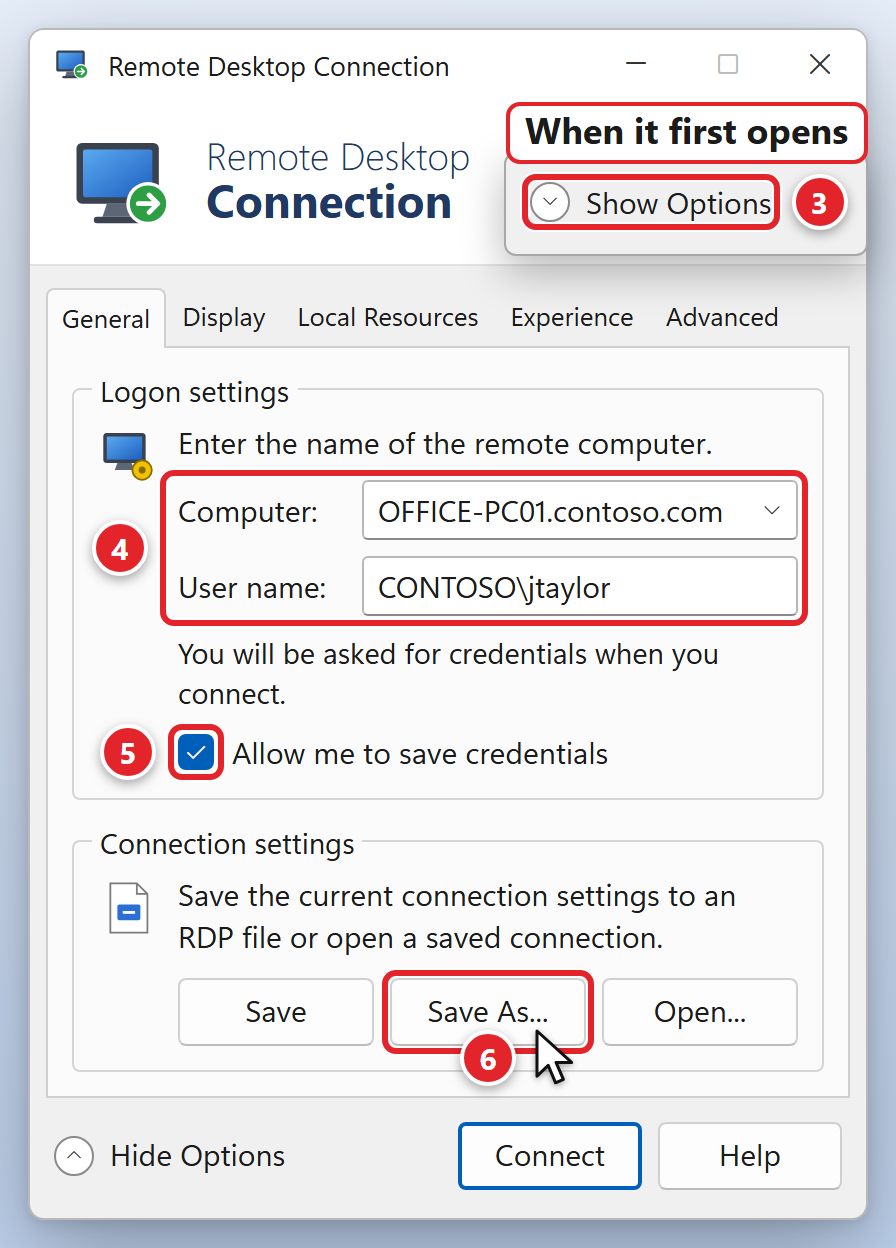
- Once the application opens, select "Show Options" (3)
- Enter in your "Computer" name and "User name" (4). Both are provided to you by your technician.
- Once your information is populated, click on "Allow me to save credentials" (5)
- Select "Save As..." (6) and save the Remote Desktop Connection somewhere where you can easily locate it (e.g., Desktop)
- Once the connection is saved, a new icon will be available for you to connect to your computer remotely
Connect: steps 8 to 11
- Double-click on the Remote Desktop icon. Before Windows connects to anything, a security box appears — usually headed "Caution: Unknown remote connection", with the publisher shown as "Unknown publisher". Check that the computer name it shows is the one your technician gave you, and tick the items you need during the session. The items all start switched off, and anything you leave unticked will not work once you are connected — for most people the ones to tick are "Clipboard" (copy and paste between the two computers) and "Printers". Then select "Connect". In the picture: Clipboard (1), Printers (2), Connect (3).
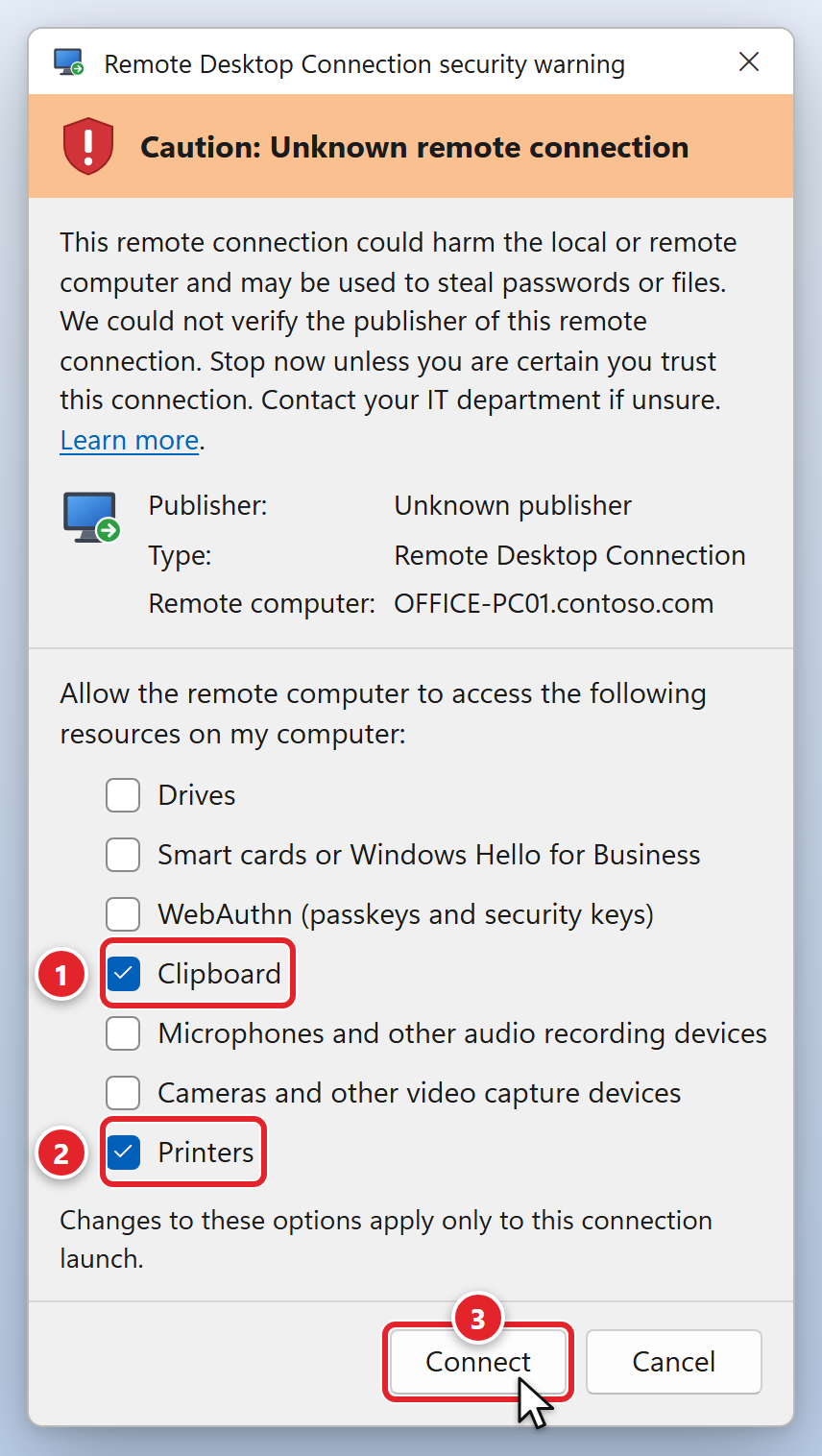 Your list may be longer or shorter. Tick only what you need.
 - Enter in your password (provided to you by your technician), select "Remember Me" and then click "OK"
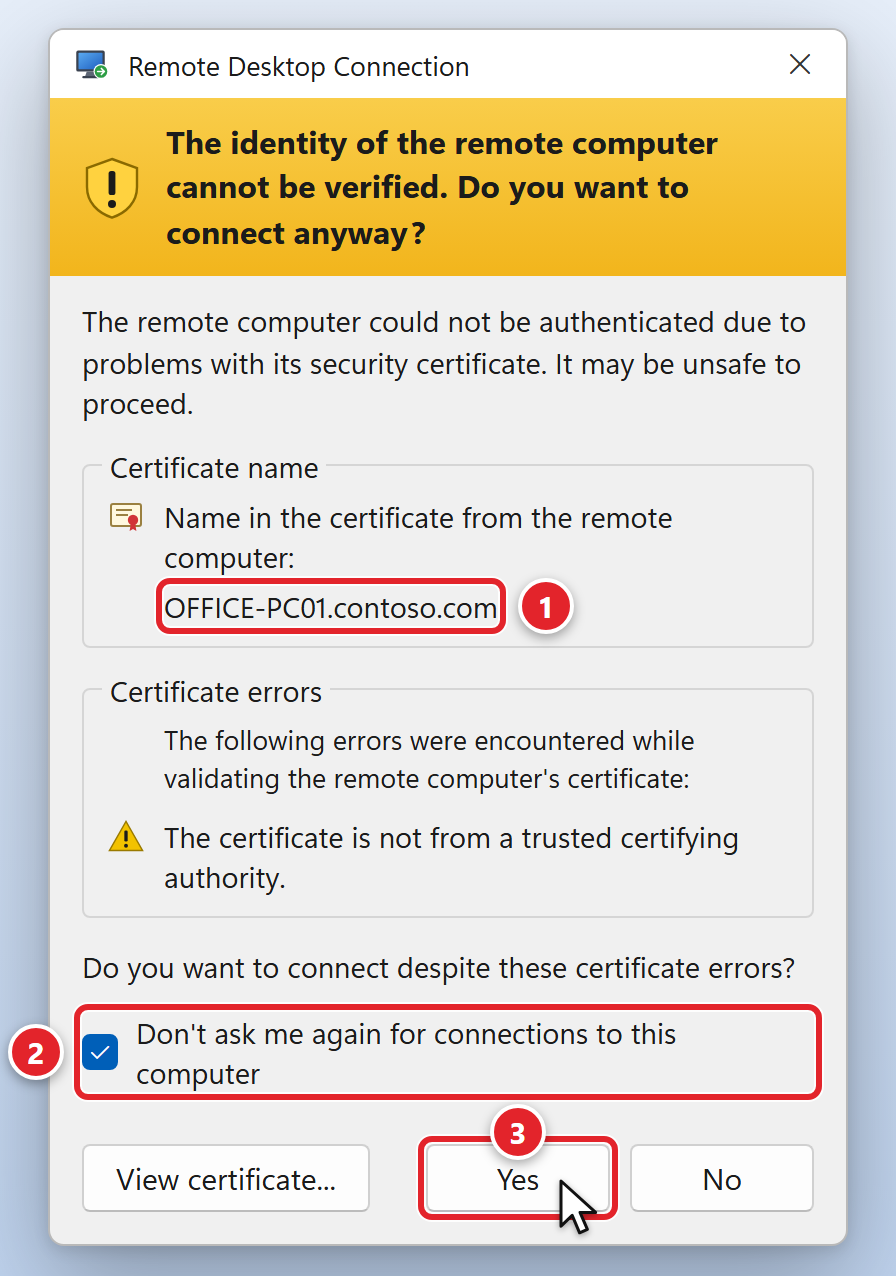
- A second box appears, headed "The identity of the remote computer cannot be verified." Select "Don't ask me again for connections to this computer" and then select "Yes". In the picture: the computer name (1), Don't ask me again (2), Yes (3).
- You will then be brought to your remote desktop
The box in step 8 comes back every time, and that is normal. Since an April 2026 Windows security update, opening a saved Remote Desktop shortcut always shows that box, and Microsoft deliberately removed the "don't ask me again" option from it — so plan on ticking your clipboard and printer boxes each time you connect. The certificate box in step 10 is a different prompt, and that one does stay away once you tick its checkbox. Remote Desktop certificate warnings explains both boxes in full, including what "Unknown publisher" does and does not mean, and when a warning is worth reporting rather than dismissing.
The very first time you open a Remote Desktop file on a computer, Windows shows a one-time notice explaining what these files are and asking you to allow them for your account. Allow it once and it will not appear again — see Remote Desktop Notice: New Security Notice. Separately, if you ever connect by typing the computer name into Remote Desktop Connection instead of opening your saved shortcut, you will see an older version of the step 8 box that does carry a "Don't ask me again for connections to this computer" checkbox — tick it and select "Connect".
Tired of ticking those boxes every morning? That is a fix we can make from our end rather than yours: we can digitally sign your organization's connection files, and issue the server a certificate your computers already recognize. Submit a support request or email [email protected] and we will plan it properly.
Was this article helpful?