
Remote Desktop certificate warnings
- Why a company Remote Desktop connection warns you
- Is my session still encrypted?
- The certificate warning — the one you can turn off
- What to do
- Other lines you might see
- The other box — the connection warning
- If you open a saved shortcut or connection file
- If you type the computer name in yourself
- What "Don't ask me again" actually does
- Why a prompt can come back later
- When not to dismiss the warning
- A different notice you may also see
- If something looks wrong, or you aren't sure
You double-click your Remote Desktop shortcut to reach your work computer or your company's remote desktop server, and instead of connecting, Windows stops you with a warning box. Maybe two of them, using phrases like "could harm your local or remote computer" and "the identity of the remote computer cannot be verified". That's alarming enough that plenty of people stop right there and write in, which is a perfectly sensible instinct. Here's what those boxes actually mean, and what to do about them.
The question to ask: is this the connection I use every day, to the server I expect, started from my own shortcut? When the answer is yes, the warning is routine.
Which box is in front of you?
Windows shows them in this order. Match the heading on your screen.
Want the background first? Click a heading to expand it.
Why a company Remote Desktop connection warns you
When you connect with Remote Desktop, the computer on the other end has to prove who it is. It does that with a certificate — a small digital ID card that travels with the connection.
Certificates for public websites are issued by a handful of organizations Windows already trusts, which is why your bank's website never warns you. A Remote Desktop server inside a company is different. Windows automatically generates a certificate for Remote Desktop on each machine, and that certificate is self-signed: the server issued it to itself. It works perfectly well — but nobody outside the building is vouching for it. Your computer was never told to trust that particular ID card, so it does the honest thing and asks you.
That's the whole story behind a warning on a familiar internal server. It isn't a sign that the server is compromised, that something is broken, or that you did anything wrong.
Is my session still encrypted?
On a normally configured connection, yes. It's worth being precise about why, because the certificate isn't itself the encryption. The certificate identifies the server and is used to set up the keys that encrypt the session — and that encryption happens whether or not Windows recognizes who issued the certificate. The warning isn't telling you your session is traveling in the clear.
We'd rather you understand the limit of that reassurance than simply be told it's nothing. Encryption stops the traffic being read along the way. It doesn't, on its own, prove who is on the other end. Someone who managed to insert themselves between you and your server could present a self-made certificate of their own, and you'd see a warning that looks exactly like the usual one.
So the useful question is never "is there a warning?" It's: is this the connection I use every day, to the server I expect, started from my own shortcut? When the answer is yes, the warning is routine. When it isn't, that's when it's worth stopping.
The certificate warning — the one you can turn off
This is the box most people are asking about, and it's the one where ticking "don't ask me again" genuinely works. It appears once Windows has started connecting to the server. Its heading reads:
"The identity of the remote computer cannot be verified. Do you want to connect anyway?"
Followed by: "The remote computer could not be authenticated due to problems with its security certificate. It may be unsafe to proceed."
The box names the computer you asked for and the name on the server's certificate, and under Certificate errors it lists what Windows objected to. On an ordinary internal server, that line is:
"The certificate is not from a trusted certifying authority."
That's the self-signed certificate described above, and on a connection you recognize it's exactly what you'd expect to see.
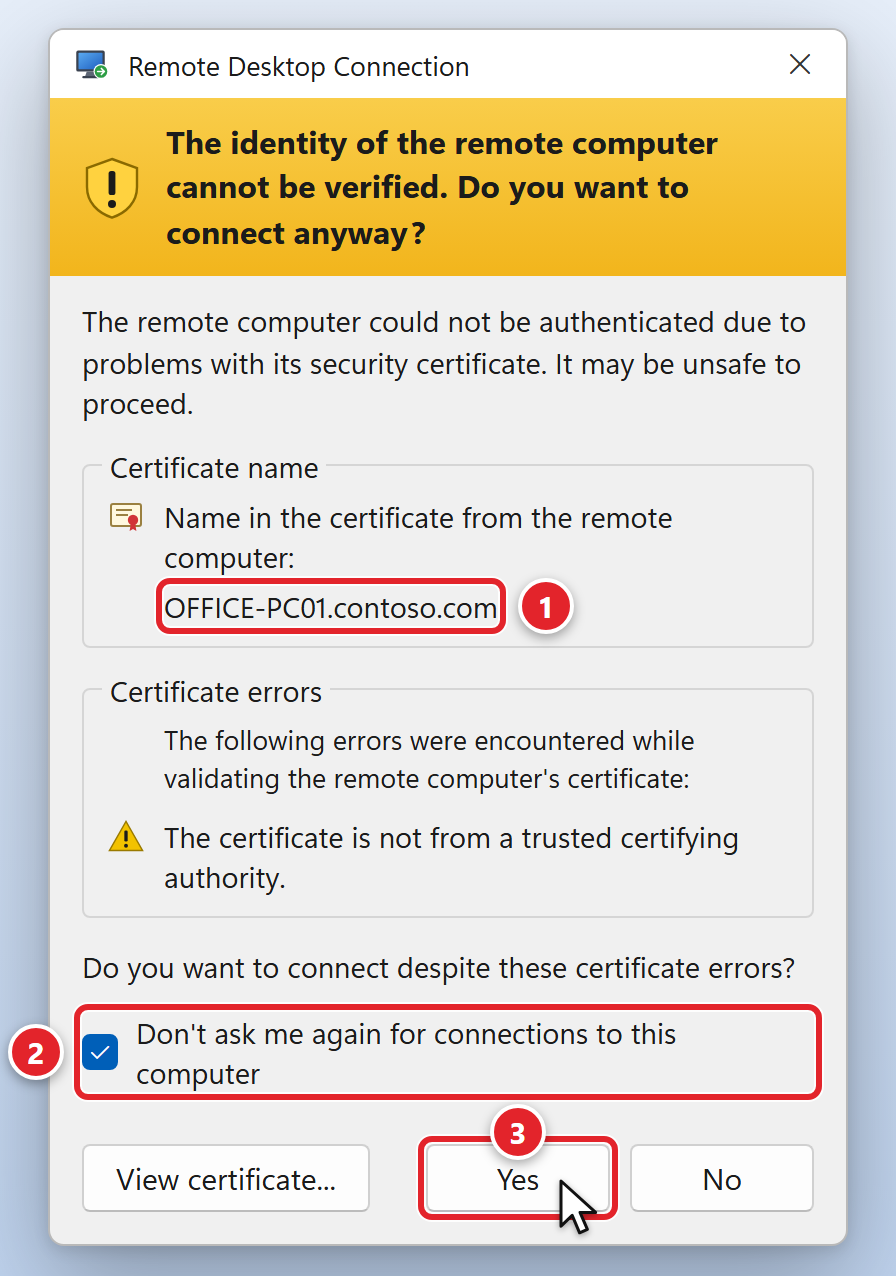
An illustration of the certificate warning. The red numbers match the steps under What to do. Your server name will differ.
What to do
- Check that the server name shown (1) is the one you expect.
- Tick Don't ask me again for connections to this computer (2).
- Click Yes (3). This prompt uses Yes and No — not Connect and Cancel.
Other lines you might see
You may see extra lines in that list. "The server name on the certificate is incorrect." appears when the address in your shortcut doesn't match the name on the certificate — always the case when a shortcut connects by IP address, because a certificate can't vouch for an IP address. "The certificate has expired or is not yet valid." appears when the certificate has passed its end date. Neither is something you can fix from your end, but do mention them if you send us a ticket.
The other box — the connection warning
Before the certificate warning, you'll often get a second, separate box asking whether you trust the connection itself. Which version you see depends on how you start the connection, and they behave differently — this is where people get caught, so it's worth knowing which one is in front of you.
If you open a saved shortcut or connection file
Since an April 2026 Windows security update, opening a saved Remote Desktop file shows a redesigned box headed Caution: Unknown remote connection, with Publisher shown as Unknown publisher, the address of the computer you're connecting to, and a checkbox for each thing on your own computer the connection wants to reach.
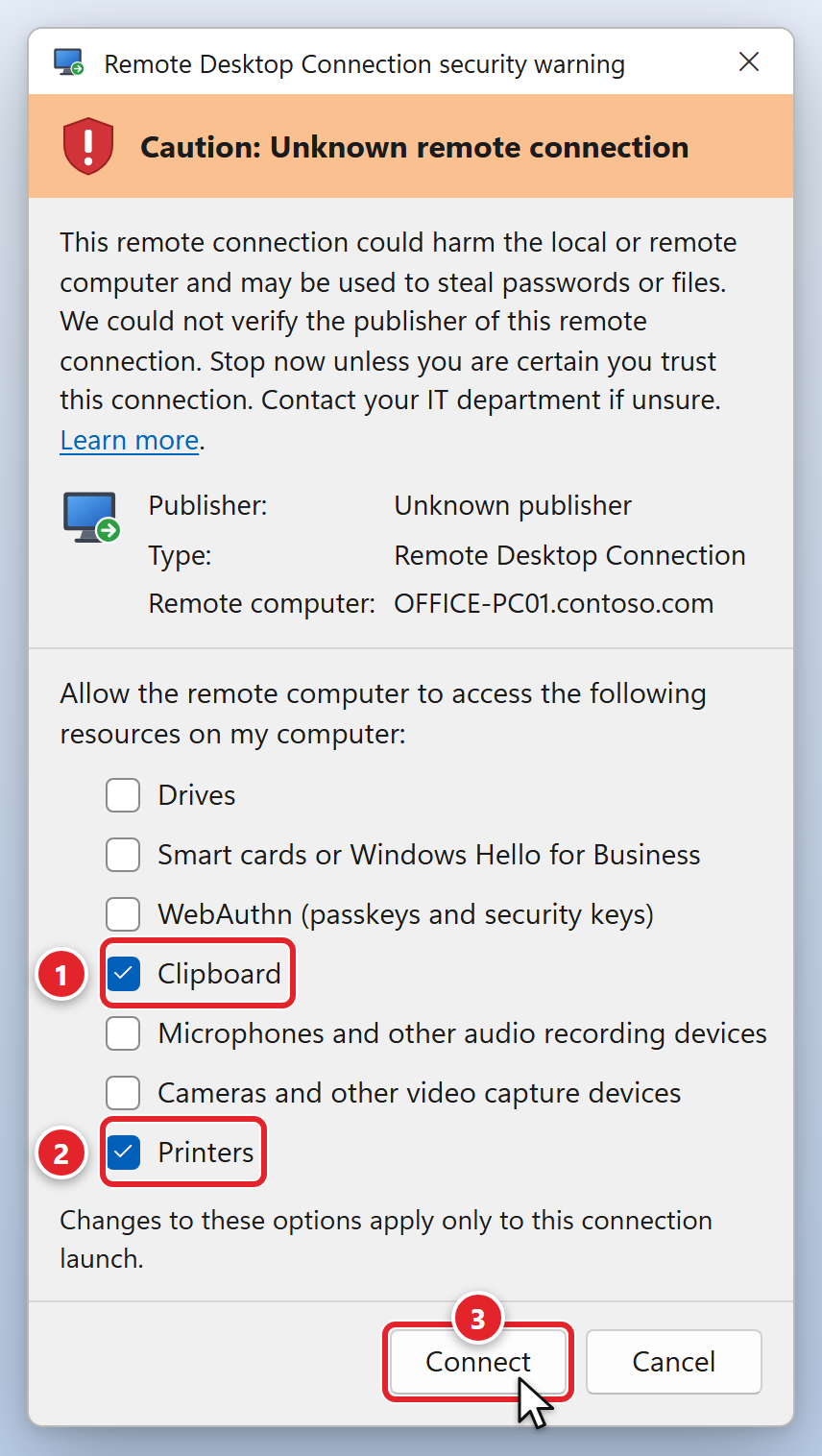
An illustration of the redesigned connection box. The exact list of items varies with the connection, so tick only what you need.
Two things about this version surprise people, and both are deliberate on Microsoft's part rather than a fault:
- It appears every single time you open the file, and there's no "don't ask me again" option on it. That's by design — Microsoft removed the ability to suppress it.
- Everything is switched off by default. Each box you leave unticked stays unavailable inside the session. If you normally copy and paste between your own computer and the remote one, or print from the remote session to a printer beside your desk, those are the boxes to tick.
So on this version: check the computer name, tick only what you actually need, such as Clipboard (1) and Printers (2), and click Connect (3). Unknown publisher here only means the connection file isn't digitally signed — it says nothing about whether the server is safe.
If you type the computer name in yourself
The April 2026 change only applies to opening a Remote Desktop file. If you open Remote Desktop Connection and type the computer name in directly, nothing about that has changed. You may see the older version of this box, headed "The publisher of this remote connection can't be identified. Do you want to connect anyway?" — and that one does carry a Don't ask me again for connections to this computer checkbox. Tick it and click Connect.
Our setup guide has you save a shortcut and open that, so its step 8 covers the redesigned box above, with the certificate box at step 10 — see Remote Access — Windows (Remote Desktop) for the full walkthrough.
What "Don't ask me again" actually does
Where the checkbox exists, it doesn't disable anything. It records your answer for that one server, so Windows stops asking the same question every time. The certificate box remembers that you accepted that specific certificate from that server; the older connection box remembers that you approved that connection.
Both decisions are saved for your Windows account, on the computer you're sitting at. On a different computer, or for a colleague who signs in as themselves, the prompts appear once again. That's normal.
Why a prompt can come back later
Ticking the box isn't a permanent switch. The ordinary reason a warning returns is that the server's certificate was replaced — your answer is pinned to one specific certificate, and certificates get regenerated over time, while servers get rebuilt or renamed. When the certificate changes, the prompt returns once so you can accept the new one.
That's legitimate. But a warning reappearing out of nowhere is also the one item on this page genuinely worth telling us about, so please don't just click through it.
When not to dismiss the warning
Everything above assumes a connection you already know. These warnings exist for a real reason, and attackers do send Remote Desktop files as bait. Stop, tick nothing, and submit a support request if any of the following is true:
- You weren't expecting it. A Remote Desktop prompt appearing when you weren't deliberately starting a remote connection isn't something to click past.
- You don't recognize the server name. Microsoft's own advice is blunt: if you don't recognize the computer name or address shown in the dialog, don't connect.
- The file arrived by email, chat, or a link. Never open a Remote Desktop file you weren't expecting, even if the message looks legitimate and appears to come from someone you know. If it came by email, leave it alone and report it — see How to send us a suspicious email for automated analysis.
- A prompt reappeared where you'd already ticked the box. That can mean the server was rebuilt, renamed, or had its certificate replaced — all things we'd know about — but it can also mean something changed that shouldn't have. It takes us a couple of minutes to tell you which.
- The connection is asking for more than it used to. Drives is the one to be most careful with: it lets the far end read files from your computer and write files to it. Clipboard access lets it see anything you copy, including a password. Approve only what your work actually needs, and ask us if you aren't sure.
- A prompt appears for a Microsoft-hosted desktop service. Connection files from services such as Azure Virtual Desktop and Windows 365 are signed by Microsoft and shouldn't produce this security dialog. If one does, don't proceed.
One more thing worth knowing: a real-looking company name next to Publisher isn't a guarantee by itself. Attackers can sign files too, using names built to resemble a company you know. Whether you were expecting the connection matters more than the name you recognize.
A different notice you may also see
There's a third Remote Desktop pop-up that's easy to confuse with these. Also introduced with the April 2026 update, it's headed Opening Remote Desktop Connection and explains what Remote Desktop files are and why unexpected ones are risky. Its checkbox says I understand and allow RDP files to open on this device for my account.
That one is a one-time notice per Windows account rather than a per-connection warning, and it appears before the boxes covered here. We wrote it up separately in Remote Desktop Notice: New Security Notice.
If something looks wrong, or you aren't sure
When in doubt, don't connect — nothing is lost by waiting a few minutes for us to confirm. You can submit a support request or email [email protected], and include as much of this as you can:
- What you were doing — which shortcut, icon, or file you opened, and where it came from.
- The exact wording on screen, word for word — the title bar, the heading, and any lines listed under Certificate errors. A screenshot is ideal if you can take one.
- The server name shown in the box, plus the name on the certificate if both are listed.
- Whether you've connected to this server before without seeing the prompt, and roughly when that changed.
- Your computer's name — under Settings → System → About, shown as Device name.
- Whether the file arrived by email, chat, or a link, and who it appeared to come from. Don't open it again in the meantime.