
Set Up an Out of Office (Automatic Reply) in Outlook
Going on vacation or out sick? An automatic reply (often called an "Out of Office") lets people who email you know you're away and who to contact instead. It takes about two minutes to set up, and you can set it to turn itself off when you're back.
In Short
- New Outlook or Outlook on the web: Settings (the gear, top right) > Accounts > Automatic replies > turn it on, write your message > Save
- Classic Outlook: File > Automatic Replies > Send automatic replies > write your message > OK
- Outlook on your phone: Settings > tap your account > Automatic Replies
You only need to do it in one place: automatic replies are saved with your mailbox, not on your computer, so they work even when your computer is off.
The red numbers in each picture show what to click, in order.
New Outlook and Outlook on the Web
These steps are the same in new Outlook for Windows and in Outlook on the web (outlook.office.com), which you can use from any computer.
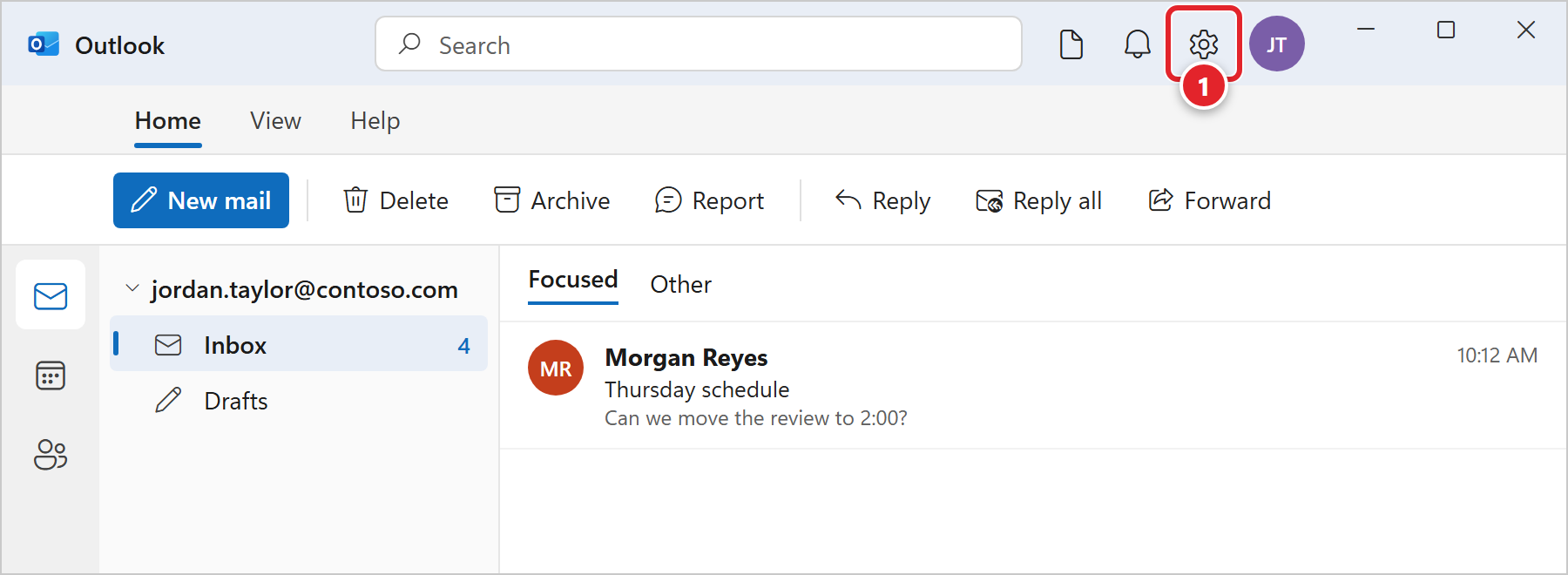
- Click Settings, the gear icon at the top right of the Outlook window.
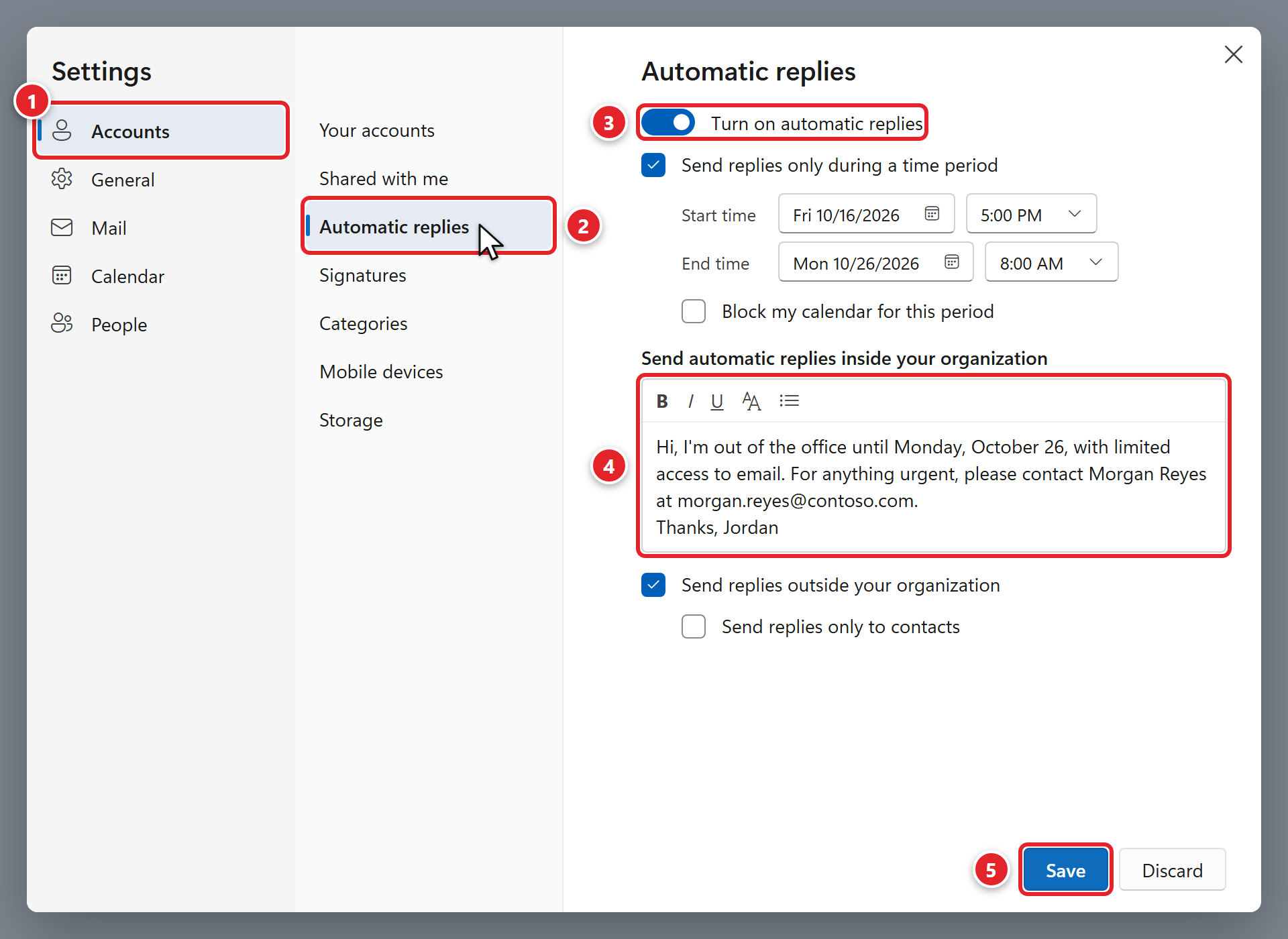
- In the Settings window, click Accounts (1), then Automatic replies (2).
- Switch on Turn on automatic replies (3).
- To have replies start and stop on their own, check Send replies only during a time period and pick a Start time and End time.
- Type your message in the box (4). See what to write below for an example.
- Want people outside your company (customers, vendors) to get a reply too? Check Send replies outside your organization. A second message box appears: you can use the same message or a shorter one.
- Click Save (5).
Classic Outlook for Windows
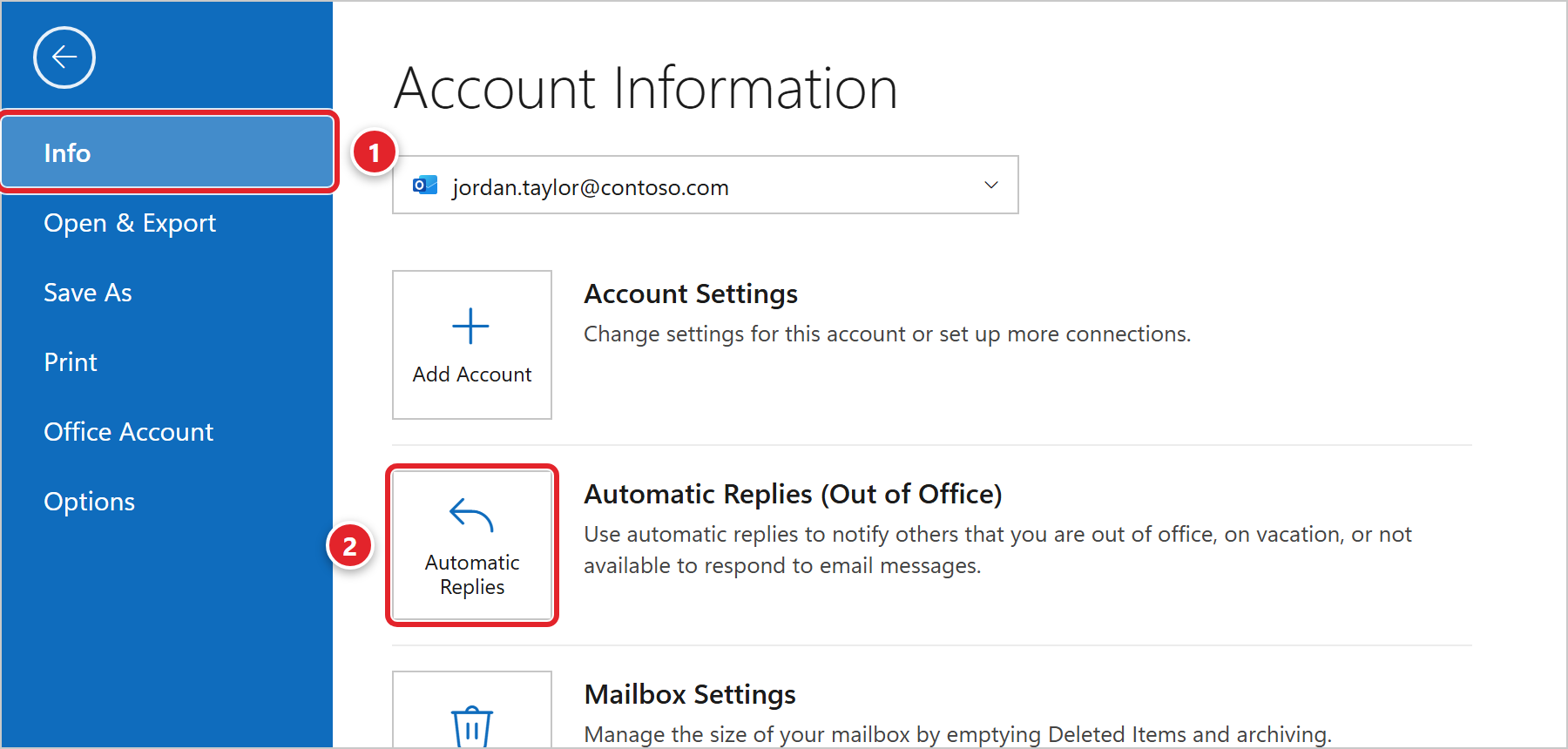
- Click the File tab at the top left of Outlook. The Info page opens (1).
- Click Automatic Replies (2).
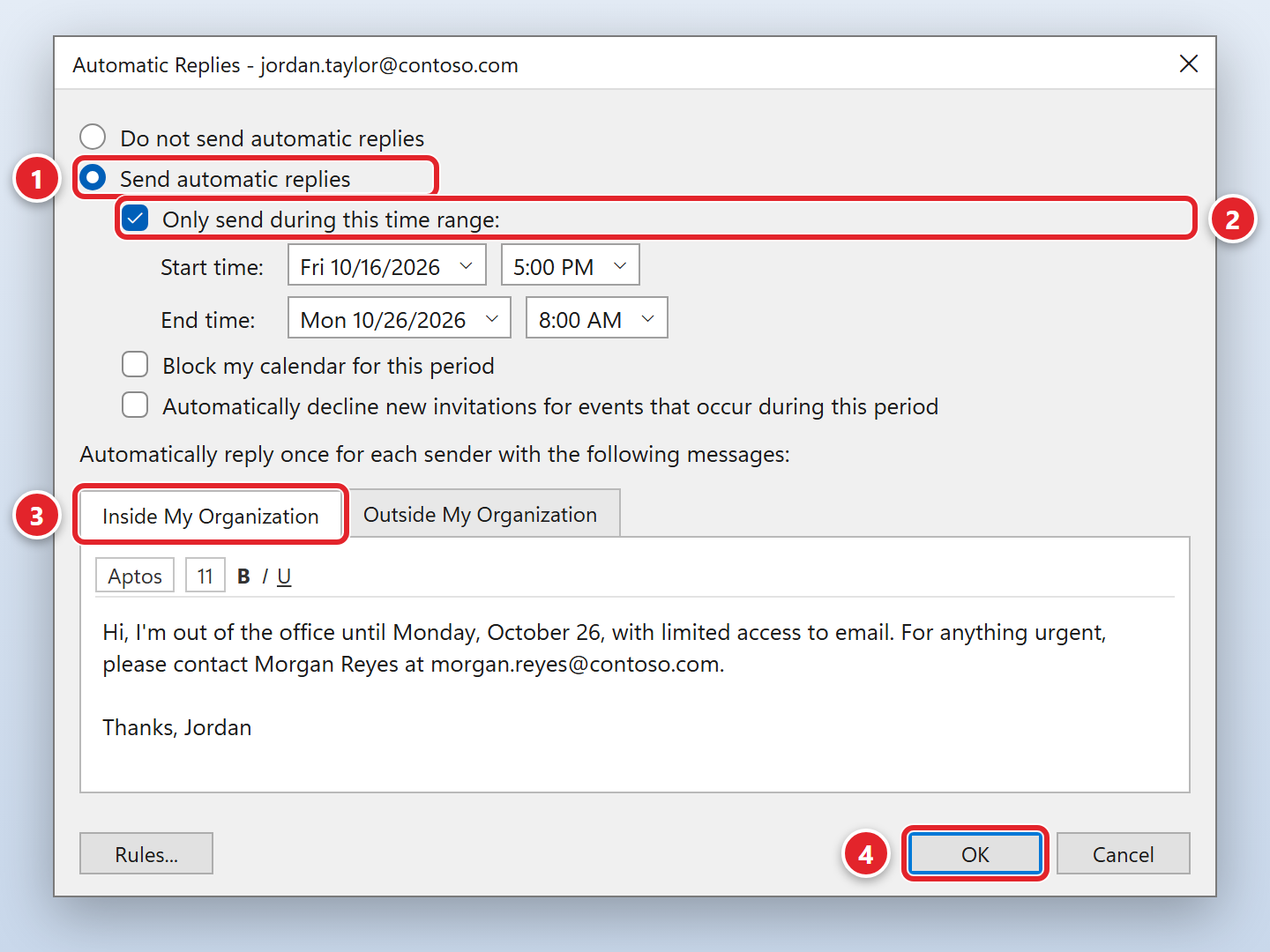
- Select Send automatic replies (1).
- To have replies start and stop on their own, check Only send during this time range (2) and set the Start time and End time.
- On the Inside My Organization tab (3), type your message for coworkers.
- Click the Outside My Organization tab, check Auto-reply to people outside my organization, choose Anyone outside my organization (or My Contacts only), and type a message for people outside your company.
- Click OK (4).
While your automatic replies are on, a yellow bar at the top of Outlook says they're being sent, with a Turn off button.
Outlook on Your Phone (iPhone or Android)
- Open the Outlook app and tap your profile picture or initials at the top left.
- Tap Settings (the gear), then tap your work account.
- Tap Automatic Replies and switch it on.
- Choose whether to reply to everyone or only to people in your organization, and optionally set Reply during a time period.
- Type your message, then tap Save (or the check mark).
What to Write
Keep it short. Say when you'll be back and who to contact for anything urgent. For example:
For coworkers
Hi, I'm out of the office until Monday, October 26, with limited access to email. For anything urgent, please contact Morgan Reyes at [email protected]. Thanks, Jordan
For people outside the company
Thank you for your email. I'm currently out of the office and will reply when I return. For immediate help, please contact our office at (555) 555-0100.
Turning It Off
- If you set a time period, replies stop automatically at the end time. You don't need to do anything.
- New Outlook or Outlook on the web: go back to Settings > Accounts > Automatic replies, switch it off and click Save.
- Classic Outlook: click Turn off on the yellow bar at the top of Outlook, or go to File > Automatic Replies and select Do not send automatic replies.
Frequently Asked Questions
Click a question to expand it.
Will someone who emails me five times get five replies?
No. Outlook replies once to each person while your automatic replies are on. If you turn them off and on again, or change the message, people may get one more reply.
I forgot to turn it on before I left. What can I do?
You can set it from your phone (see the phone steps) or from any web browser at outlook.office.com. Sign in with your work account and follow the new Outlook steps. If you can't sign in, ask your manager to submit a request and we'll turn it on for you.
I don't see Automatic Replies in classic Outlook.
Make sure you're looking at your work account: if you have more than one account in Outlook, choose your work email from the list at the top of the Info page. If it's still missing, submit a support request.
Can my email be forwarded to a coworker while I'm away?
In most cases, an automatic reply that names a contact person is all that's needed. If a coworker really needs to cover your email, have your manager submit a request and we'll set up the right access. Automatic forwarding to an outside address, like a personal email account, is usually blocked for security.
Source: Microsoft - Set up out of office (automatic) replies in Outlook