
Outlook search isn't finding emails
- Start with the search scope
- First: which Outlook are you using?
- Widening the scope in classic Outlook
- Widening the scope in new Outlook
- Only recent mail is stored on this computer
- Mail that lives outside your main mailbox
- Archive mailboxes
- Shared mailboxes
- When you get results, but not enough of them
- When indexing is incomplete (classic Outlook)
- A quick check that answers the big question
- If none of that worked
- More about Outlook search
You know the email exists. You can picture it — who sent it, roughly when it landed, maybe even the subject line. But you type it into Outlook's search box and get nothing back, or you get a handful of recent messages and none of them is the one you want. It's a genuinely frustrating experience, and it almost never means the message is gone.
Quick checks
Which Outlook do I have? Look at the top left of the Outlook window. If you see a File tab, you have classic Outlook. If you see Home, View and Help tabs but no File tab, you have new Outlook.
- Both Outlooks Widen the search scope
- Classic only Download older mail to this computer
- Classic only Archive or shared mailbox? Search from inside it
- Classic only Show more than 250 results
- Classic only Check whether indexing has finished
Still can't find it? Search for it at outlook.office.com. If it's there, your mail is safe and the Outlook app on this computer is the problem. Either way, submit a ticket and tell us what you found.
Start with the search scope
This is the most common cause and the easiest fix, so it's worth checking before anything else. When you search, Outlook doesn't necessarily look through your whole mailbox — it looks wherever the current scope points. If that scope is set to the folder you're viewing, and the message you want was filed into a different folder months ago, Outlook will honestly report that it found nothing. The message is fine. Outlook just wasn't looking at it.
First: which Outlook are you using?
There are two different Outlook apps for Windows, and they behave differently enough that it's worth knowing which one is on your screen. Look at the top left of the Outlook window. If you see a File tab, you have classic Outlook. If you see Home, View and Help tabs but no File tab, you have new Outlook.
Each one keeps its search options in a different place:
- Classic Outlook — settings sit behind the File tab in the top-left. The path to search options is File → Options → Search.
- New Outlook for Windows — options are grouped under Settings. The path to search options is Settings → General → Search.
(If you're setting Outlook up on a new computer, our guide to Outlook client setup covers that side of things.)
Widening the scope in classic Outlook
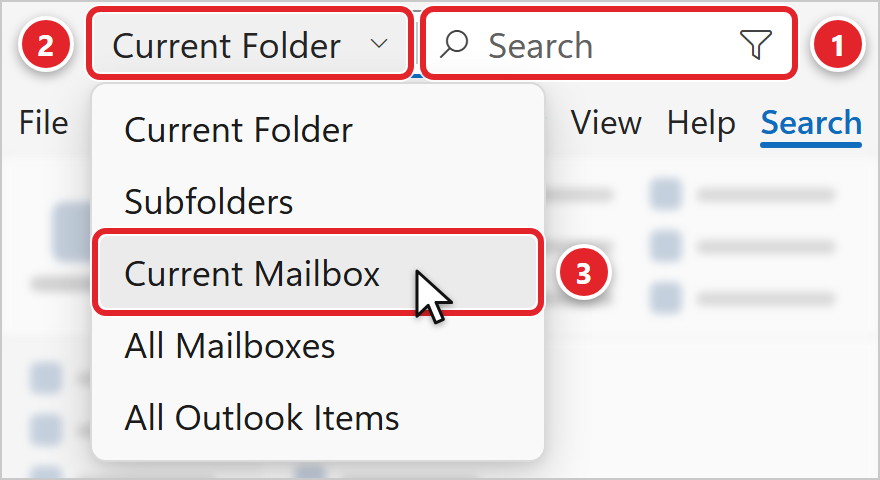
- Click into the search box at the top of the window (1), or press
Ctrl + E. A Search tab appears in the ribbon. - Click the scope drop-down at the left end of the search box (2). It shows where Outlook is looking right now. If it says Current Folder, Outlook is only searching the folder you have open. The options are Current Folder, Subfolders (the open folder plus the folders inside it), Current Mailbox, All Mailboxes and All Outlook Items.
- For a message you know exists but can't place, start with Current Mailbox (3) — that covers your whole mailbox rather than one folder — then widen further if you still come up empty.
- Retype your search after changing the scope.
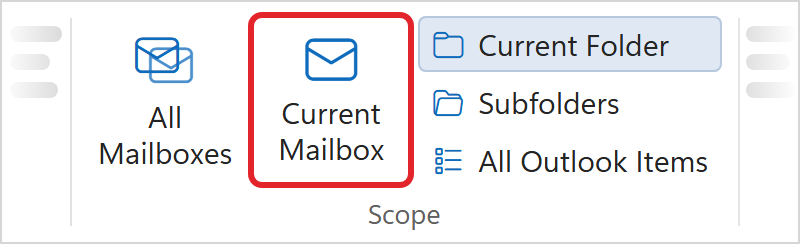
The same choices are also on the Search tab, in the Scope group. Click Current Mailbox there. If your ribbon looks different, for example in a narrow window or with the simplified ribbon, use the drop-down in the search box instead. It works the same way.
If you'd rather not do this every time, you can change the default. Go to File → Options → Search and set the scope you want Outlook to use from the start. It's a per-user setting and doesn't need any special permissions.
Widening the scope in new Outlook
New Outlook keeps its search options at Settings → General → Search. Two things there are worth knowing about:
- There's a setting for which folders search covers — set it to search all folders rather than just the one you're in.
- There's an Include deleted items option. If the message may have been deleted at some point, turn this on before searching again.
Only recent mail is stored on this computer
This one catches people out constantly, and it applies to classic Outlook only.
Classic Outlook normally keeps a local copy of a slice of your mailbox rather than the whole thing, so that Outlook stays fast and works when you're offline. Anything older than that window still exists — it lives in your mailbox on the server — it just isn't stored on this computer, and therefore isn't in the local index. The default window for a Microsoft 365 mailbox is 12 months, but yours may be set differently — the slider goes as low as 3 days.
To check or change it:
- Go to File → Account Settings → Account Settings.
- On the Email tab, select your account and click Change.
- Under Offline Settings, find the slider labeled "Download email for the past:". Its positions are 3 days, 1 week, 2 weeks, 1 month, 3 months, 6 months, 12 months, 24 months, 36 months, 60 months and All.
- Drag it to a longer period — All if you routinely need older mail — then follow the prompts to finish. If Outlook asks you to restart, go ahead.
Outlook will then download the additional mail in the background. On a large mailbox that can take a while, so give it time before judging whether search improved.
Mail that lives outside your main mailbox
If the message you want was archived, or arrived in a shared mailbox, the normal rules change.
Archive mailboxes
Some mailboxes have an online archive — a separate store that older mail is moved into to keep the main mailbox manageable. If you have one, it appears in your folder list as a mailbox of its own.
In classic Outlook, searching your main mailbox will not reach into the archive — Microsoft lists archive results appearing in the primary mailbox as something classic Outlook doesn't support. The fix is simple once you know it: click the archive folder you want first, set the scope to Current Folder (with the scope drop-down at the left end of the search box), and search from there. Widening to All Mailboxes or All Outlook Items is not the answer here, and will keep coming back empty.
In new Outlook, archive results do appear alongside your primary mailbox results, so this particular trap doesn't apply.
Shared mailboxes
Searching a shared mailbox from classic Outlook has a couple of known rough edges, so don't assume you've done something wrong. In particular, running a search with the All Mailboxes scope and expecting shared mailbox results to appear won't work — Microsoft describes that as a design limitation rather than a fault to be fixed.
The reliable approach is the same as for archives: click into the shared mailbox folder you want, set the scope to Current Folder (with the same scope drop-down), and search there. If shared mailbox search still behaves oddly after that, please submit a support request — the remaining workarounds are configuration changes on our side, not settings you should be changing on your computer.
When you get results, but not enough of them
Sometimes search clearly works — you get a list — but the message you want isn't in it, and everything you can see is fairly recent. In classic Outlook there's a specific reason for that.
By default, classic Outlook displays 250 search results. That's a cap on how many results are shown, not a cutoff on how far back it looks — but the effect on screen can feel like "Outlook only searches recent mail." A broad search on a common word can fill those 250 slots without ever showing you the one you're after.
To lift the cap, go to File → Options → Search and clear the checkbox marked "Improve search speed by limiting the number of results shown". Searches will show everything after that, but they will take longer to come back — which is exactly the trade the setting's name describes. You can turn it back on afterward.
When indexing is incomplete (classic Outlook)
If you've widened the scope, lifted the result cap and confirmed the mail is stored locally, and search still comes back thin, the Windows Search index may not have finished cataloging your mailbox. This is worth checking after a new computer, a mailbox move, or a large batch of mail arriving at once.
- Press
Ctrl + Eor click into the search box so the Search tab appears. - On the Search tab, select Search Tools, then Indexing Status.
- The window tells you how many items are still waiting to be indexed. Note the number, wait about five minutes, and check again.
- If the number is going down, indexing is working — leave Outlook open and let it finish. Search results will improve as it does.
- If the number hasn't moved, or nothing has been indexed at all, stop there and let us know.
A quick check that answers the big question
Before you raise a ticket, it's worth doing one thing: sign in to Outlook in a web browser at outlook.office.com with your work account, and search for the message there.
This is the single most useful diagnostic for this problem, because it separates two very different situations. If the message turns up in the browser, it exists in your mailbox and the issue is with the Outlook app on your computer — which is a much smaller problem, and one we can fix. If it doesn't turn up in the browser either, then the message may never have reached your mailbox, and we'll look in a different direction entirely.
It also unblocks you immediately: you can read, reply to, or forward the message from the browser right now, while we sort out the desktop app.
If none of that worked
Submit a support request or email [email protected], and include as much of this as you can. It's the difference between us fixing it on the first pass and coming back to you with questions:
- Which Outlook you're using — classic (options behind the File tab) or new (options under Settings).
- Who sent the message — a name or email address.
- Roughly when it arrived — even "some time last spring" narrows things down enormously.
- What you searched for — the exact words you typed into the search box.
- Which scopes you already tried — for example "Current Mailbox and All Outlook Items, both empty".
- Whether the message appears in Outlook on the web. Please try this if you can; it's the fastest way for us to narrow the cause.
- Whether it's in a shared mailbox or an archive, rather than your own inbox.
- Any on-screen message, word for word, if Outlook displayed one.
- Your computer's name, so we know which machine to look at.
If you're not sure how to put a request together, submitting a support request walks through it.
More about Outlook search
Click a topic to expand it.
Why the two Outlooks search differently
This explains a lot of the "it works on my colleague's computer" confusion, so it's worth two minutes.
Classic Outlook leans on the Windows Search index — the same behind-the-scenes catalog that makes the Start menu find files quickly. Mail that has been downloaded to your computer gets added to that index, and classic Outlook searches the index rather than reading every message from scratch. It can also send searches to the server for online and shared mailboxes, so it's a mix of the two. The practical upshot: if the index is incomplete, or if the mail was never downloaded to this computer in the first place, classic Outlook can miss it.
New Outlook doesn't use the Windows Search index at all. There's no indexing status to check and no index to rebuild, so those particular problems don't apply. It does keep mail on your computer for offline use, with its own Days of email to save setting. What it is stricter about is scope and accounts — which is why the two checks under Widening the scope in new Outlook matter more there.
Search techniques that actually help
A few habits will find more mail than any setting change:
- Search by sender, not by memory. If you know who sent it, their name or email address is far more reliable than the words you think were in the message.
- Use one or two distinctive words, not a sentence. Long exact phrases fail easily — a stray comma, a line break, or slightly different wording is enough to miss. Pick the most unusual word in the message and search that alone.
- Prefer a subject-line word over a body word where you can. Subject lines are short, so you're more likely to remember them accurately.
- Use the refine options next to the scope buttons. On the classic Outlook Search tab, the same area that holds the scope choices also holds options for narrowing results further — useful once a broad search returns too much.
- Check the obvious hiding places. Deleted Items and Junk Email are both real answers. In new Outlook, turn on Include deleted items at Settings → General → Search. In classic Outlook, click the folder itself and search with Current Folder.
- Scan the whole result list rather than assuming the top result is the closest match. If the list is long, add a second word to the search instead of scrolling.