
Open a Shared Mailbox in Outlook
A shared mailbox, like info@, sales@ or billing@, lets a team read and answer email from one address. Once you've been given access, here's how to see it in Outlook on your computer, on the web and on your phone, and how to send email from it.
In Short
- Classic Outlook: close and reopen Outlook. The shared mailbox usually appears on its own.
- New Outlook: right-click your email address in the folder list > Add shared folder or mailbox > type the address > Add.
- Outlook on the web: right-click Folders > Add shared folder or mailbox.
- Outlook on your phone: Add account > Add a Shared Mailbox.
New Outlook for Windows
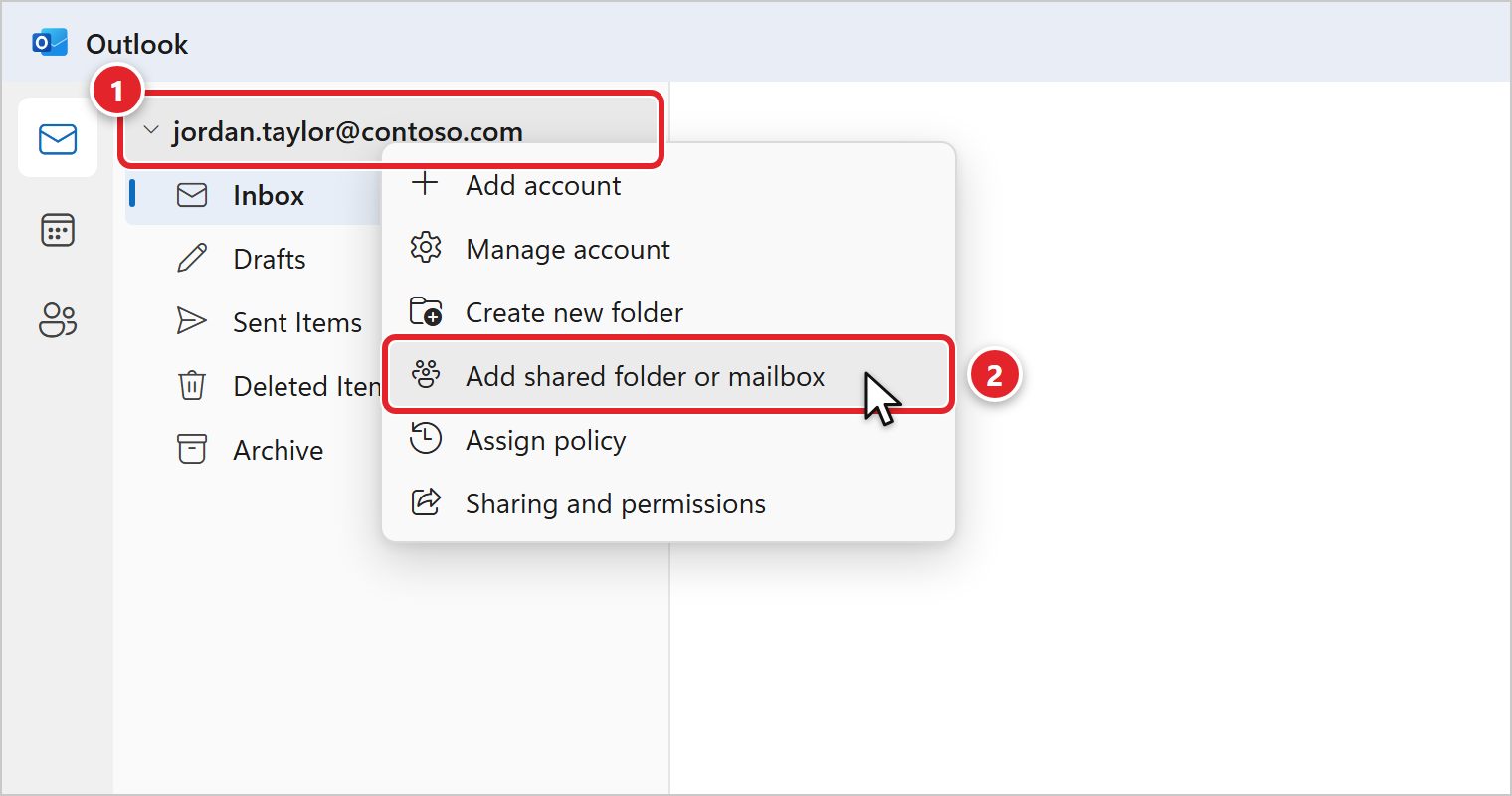
- In the folder list on the left, right-click your email address (1).
- Click Add shared folder or mailbox (2).
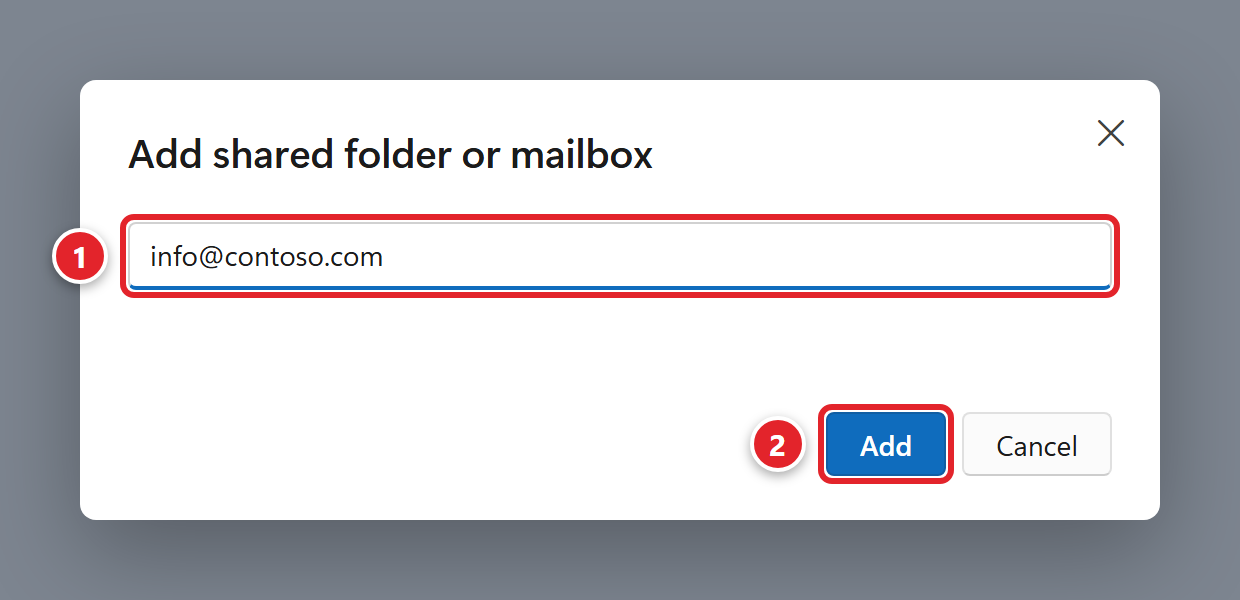
- Type the shared mailbox's email address (1) and click Add (2).
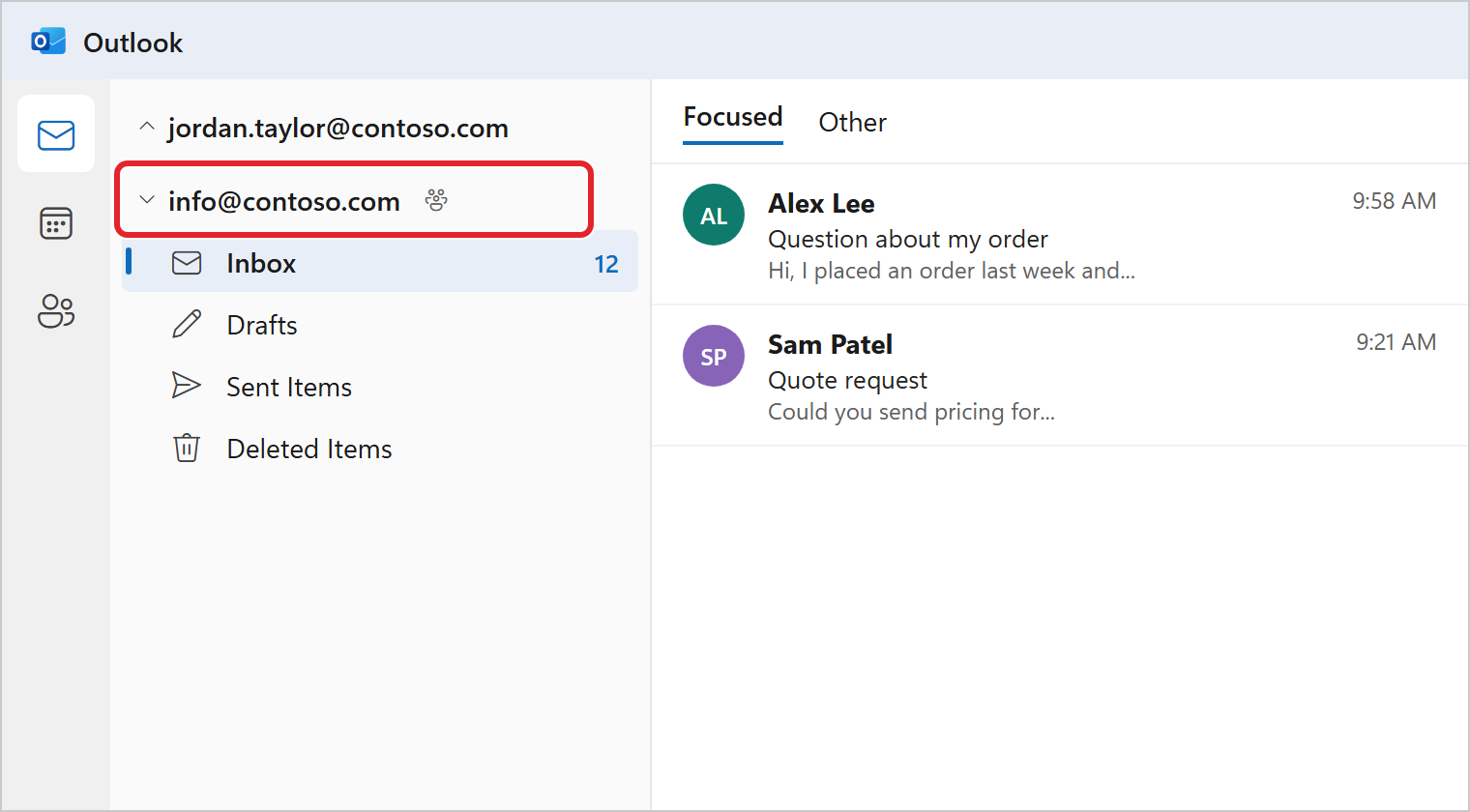
- The shared mailbox appears in the folder list under your own mailbox, with a small people icon. Click the arrow next to it to see its Inbox and other folders.
Classic Outlook for Windows
In classic Outlook, a shared mailbox you've been given access to normally shows up by itself. Close Outlook and open it again; the mailbox appears in the folder list below your own, under its name or address. It can take a few minutes after access is granted.
It still isn't there after a few hours. Can I add it myself?
Yes:
- Click File > Account Settings > Account Settings.
- On the Email tab, select your work account and click Change.
- Click More Settings, then the Advanced tab.
- Click Add, type the shared mailbox's address, and click OK, then OK again.
- Click Next, Finish, then Close.
If Outlook says it can't find the mailbox, your access may not be set up yet. Let us know.
Outlook on the Web
- Sign in at outlook.office.com with your work account.
- In the folder list, right-click Folders and choose Add shared folder or mailbox.
- Type the shared mailbox's address and click Add. It appears in your folder list.
Prefer it in its own browser tab? Click your profile picture at the top right, choose Open another mailbox, type the address and click Open.
Outlook on Your Phone
- In the Outlook app, tap your profile picture at the top left.
- Tap the Add account button, then Add a Shared Mailbox.
- If asked, choose your work account. Type the shared mailbox's email address and tap Add Mailbox.
The shared mailbox appears as its own account in the app. New to Outlook on your phone? Set up your own work email first: Set Up Work Email on Your iPhone or Android Phone.
Sending From the Shared Mailbox
To send from the shared address, you need permission to send from the mailbox, which is set up separately from permission to read it.
New Outlook and Outlook on the web
- Start a new message (or a reply).
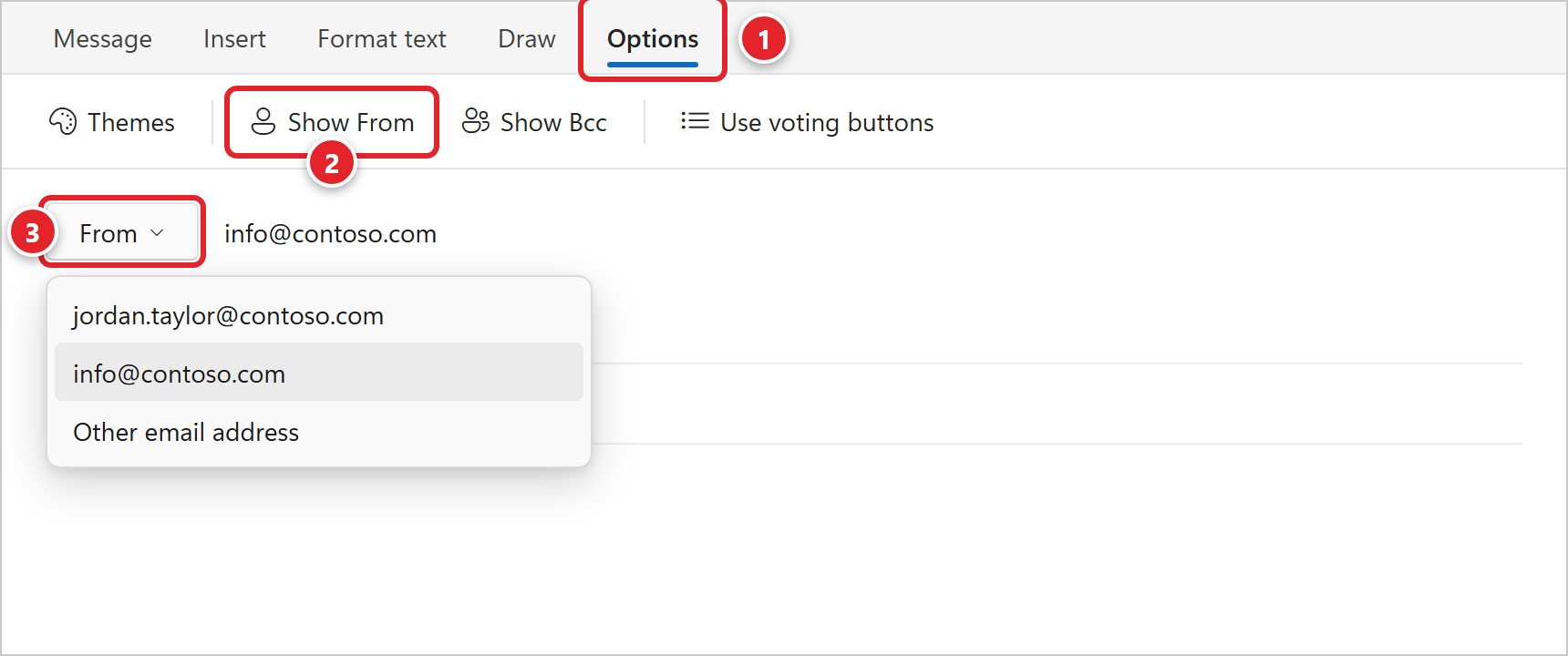
- Click the Options tab (1), then Show From (2). In Outlook on the web, Show From is under the ... (More actions) menu.
- Click From (3) and choose the shared address. If it isn't listed, choose Other email address and type it.
Outlook remembers the From line once it's turned on, so next time you only need to pick the address.
Classic Outlook
In a new message, click Options > From to show the From line. Click From and choose the shared address, or choose Other email address, type it, and click OK.
Messages you send from the shared mailbox are usually saved in your own Sent Items folder, not the shared mailbox's.
Troubleshooting & FAQs
Click a question to expand it.
I can read the shared mailbox, but I can't send from it.
Reading and sending are separate permissions. If you get a message saying you don't have permission to send as that address, ask your manager to request send permission for you.
Outlook says it can't find the mailbox.
Check the spelling of the address. If it's right, your access may not be in place yet, or may still be taking effect. Wait an hour and try again, then contact us if it still doesn't work.
Can I set an Out of Office on the shared mailbox?
Usually this has to be set up by us. Submit a support request with the mailbox address, the message and the dates.
How do I remove a shared mailbox I no longer need?
In new Outlook or Outlook on the web, right-click the shared mailbox in the folder list and choose the option to remove it. In classic Outlook, a mailbox that appeared by itself disappears when your access is removed; ask your manager to request that. On your phone, go to Settings, tap the shared mailbox, and tap Delete Account.
Source: Microsoft - Open and use a shared mailbox in Outlook