
VPN — Can’t Connect or See Network Drives (CloudVPN)
If you are attempting to access network resources while working remotely and you are unable to connect, in most cases your VPN client may require you to reauthenticate to the network. If this occurs, the VPN agent simply needs to be restarted.
Our CloudVPN service is delivered by the LogMeIn Hamachi client — on your computer, the icon is labeled "Hamachi". CloudVPN and Hamachi refer to the same thing.
How to Restart the VPN Client
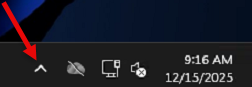
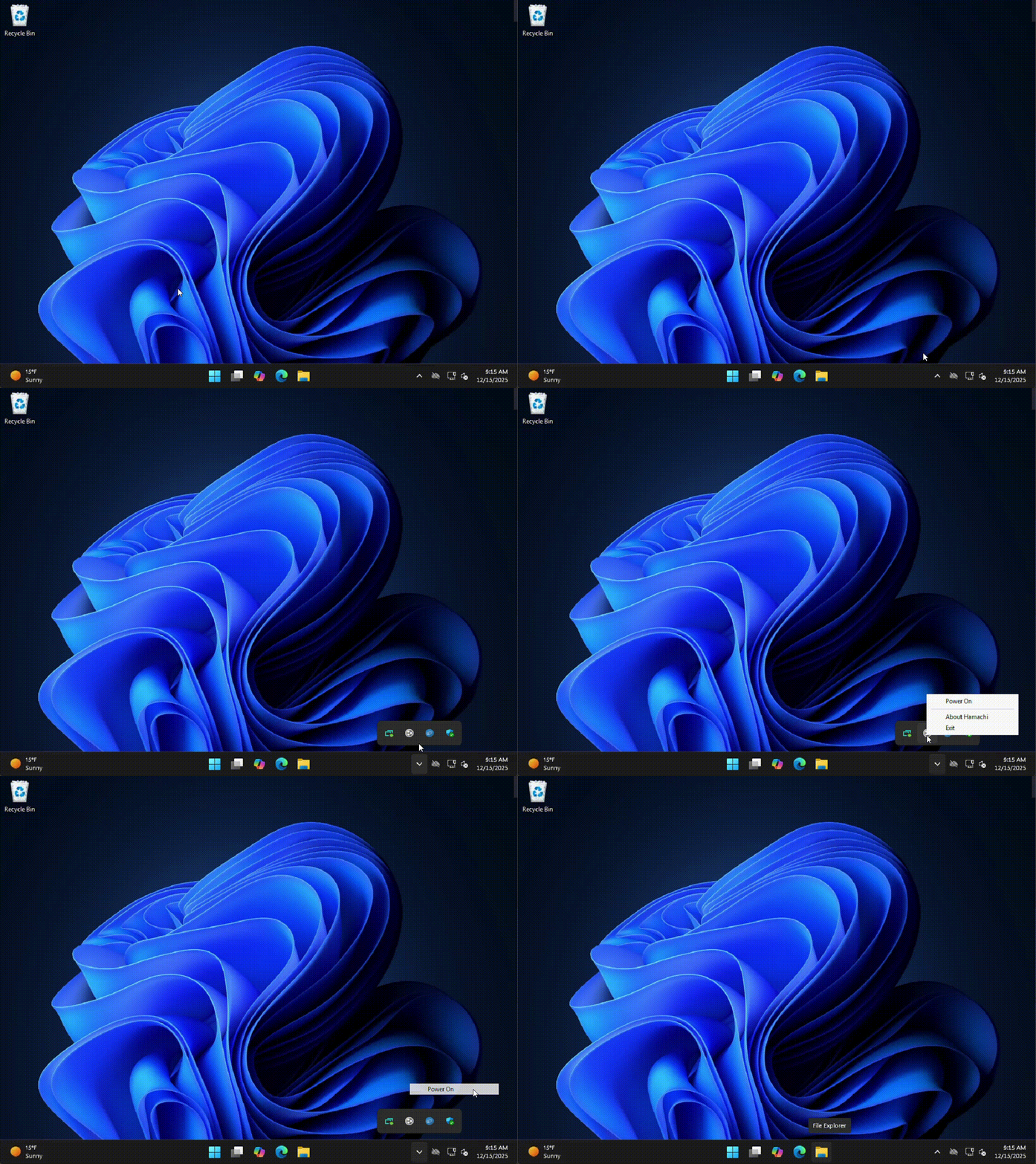
- Select the "^" arrow on the bottom right of your Windows 11 computer (near the clock)
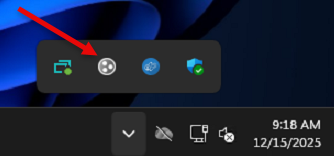
- Once selected, locate the "Hamachi" VPN client icon
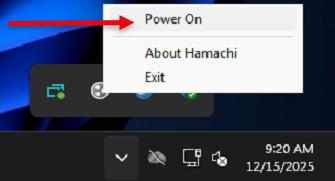
- Right click on the icon and select "Power On" (If "Power Off" is displayed, skip this step)
- Remote connectivity will be restored within 30 seconds.
If the "Power On" option is not available and instead shows "Power Off" — or you do not have the icon listed at all — please submit a support request for further assistance.
Was this article helpful?