
Remote Support — Windows Quick Assist
Windows has a built-in remote access utility that can allow agents to quickly connect to your computer without the need for additional software being installed.
Only enter a code from one of our technicians who is working on your support ticket.
Asked to start a session from our website (theitexperience.com/helpme) instead? That's a different tool. Follow Get Remote Support: Let Us Connect to Your Computer.
How to Use Quick Assist
- Click the "Start" button and immediately start typing "Quick Assist"
- Select "Quick Assist" from the menu
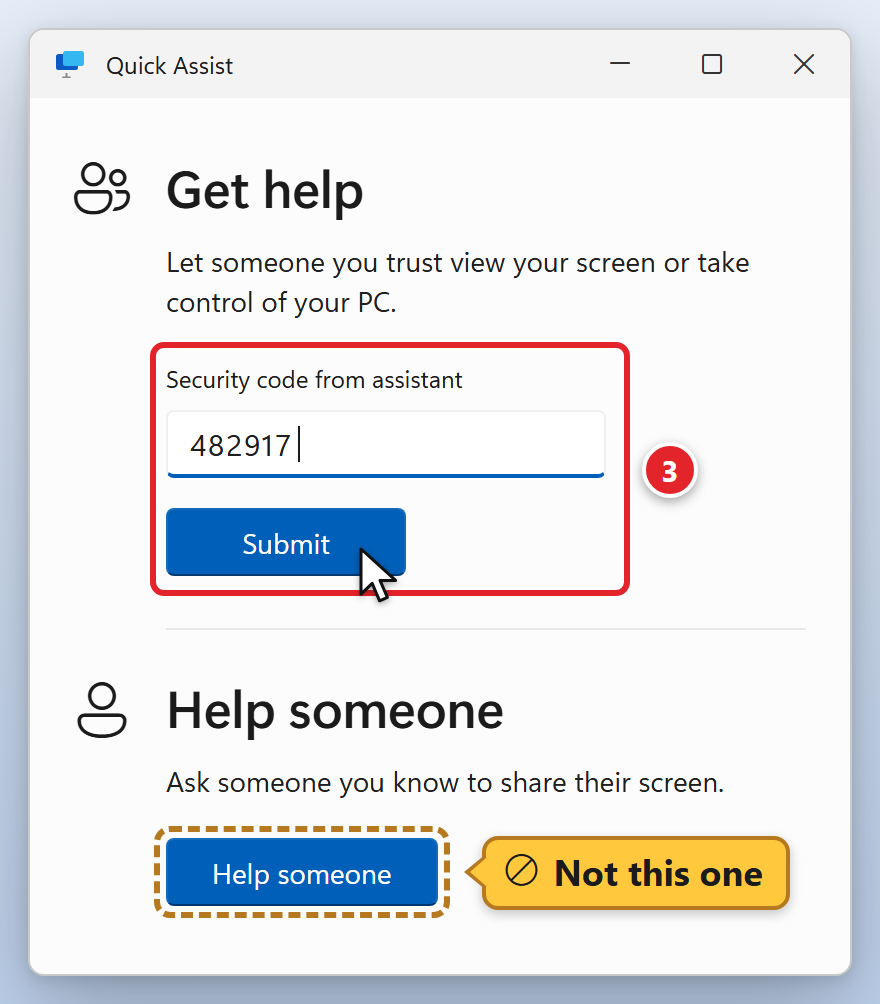
- Under "Get help", enter the code provided to you by the technician in the "Security code from assistant" box and then select "Submit" (3). Don't click "Help someone"; it's for the person helping.
- When prompted, select "Allow" to approve the connection to your computer
- Your technician will now be able to connect and control your computer
If you do not have Quick Assist installed, it can be downloaded for free from the Microsoft Store.
Was this article helpful?