
An Email Didn't Arrive? Check Junk, Quarantine and More
Someone says they sent you an email, but you can't find it? Most "missing" emails are sitting in another folder, the Junk Email folder, or quarantine. Work through these checks in order; the first few take seconds.
In Short
- Search for the sender's name or email address.
- Check the Other tab, next to Focused.
- Check your Junk Email folder. Found it? Report > Not junk.
- Look for a quarantine notification email.
- Ask the sender to check the address and whether they got a bounce-back message.
- Still missing? Contact us with the details.
1. Search All Your Folders
Click the Search box at the top of Outlook and type the sender's name or email address. Make sure the search covers all folders, not just your Inbox: a rule or an accidental drag can file a message somewhere unexpected. If search itself seems unreliable, see Outlook search isn't finding emails.
2. Check the Other Tab
If your inbox has Focused and Other tabs, Outlook sorts messages it thinks are less important, like newsletters and automated email, into Other. If you find the message there, right-click it and choose Move to Focused or Always Move to Focused so future emails from that sender land in Focused.
3. Check Your Junk Email Folder
Messages that look like spam go to Junk Email. If a real email ended up there:
- Click the Junk Email folder (1) and select the message.
- Click Report (2), then Not junk (3). The message moves to your Inbox, and Outlook learns from it.
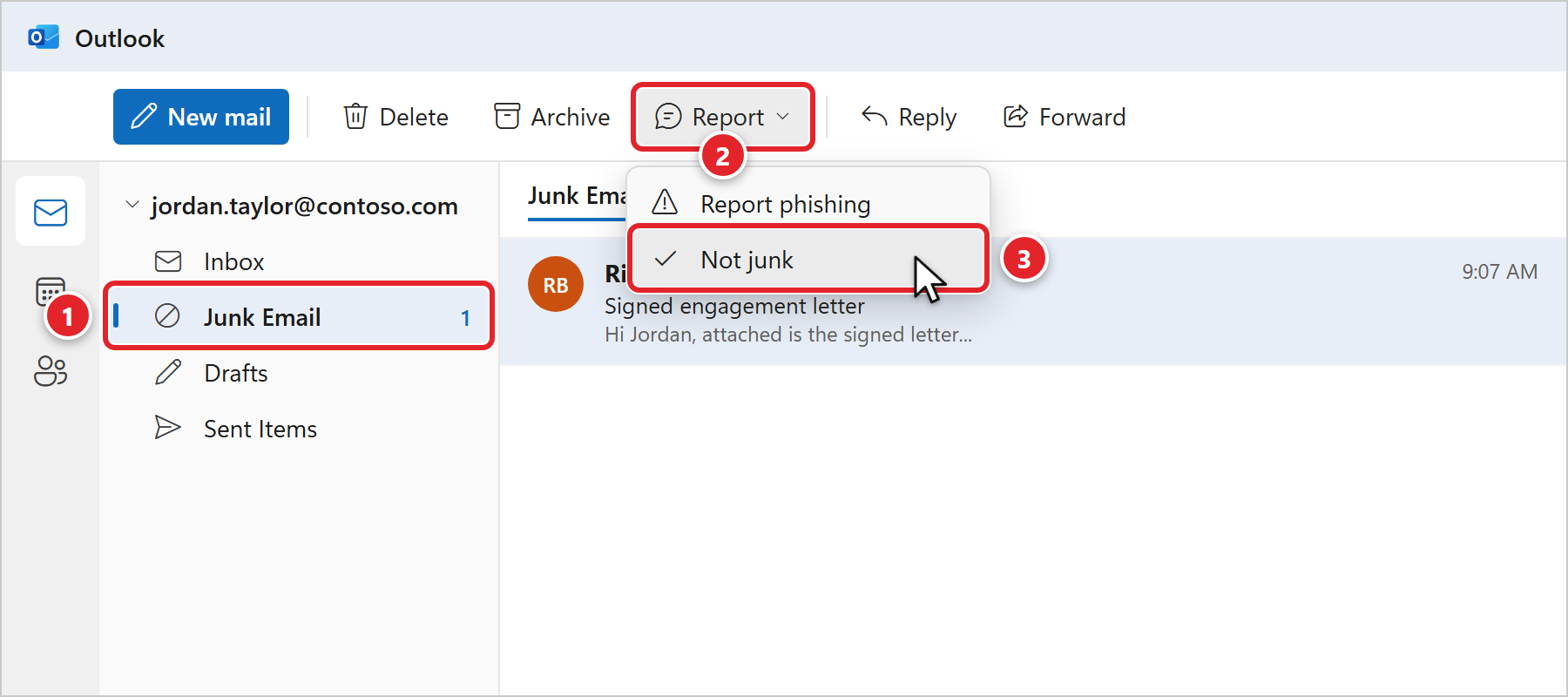
In classic Outlook, select the message and click Home > Report > Not Junk. On some versions it's Home > Junk > Not Junk.
4. Check Quarantine
Some email never reaches your mailbox at all: your company's email security holds suspicious messages in quarantine before delivery. Depending on how your company's email filtering is set up, you may get a notification email listing held messages:
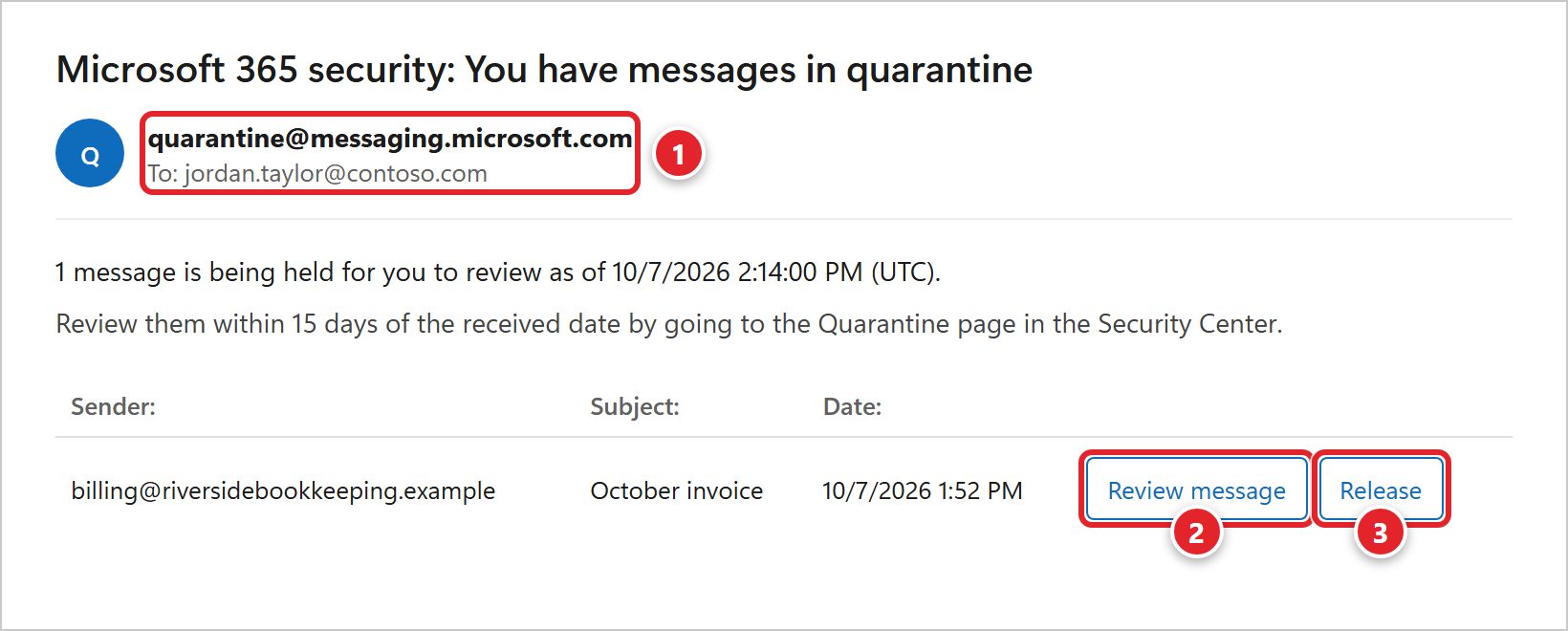
- Check who it's from (1). Real notifications come from quarantine@
messaging.microsoft.com . Scammers send fake "quarantine" emails too, so if anything looks off, don't click; go straight to security.microsoft.com/quarantine instead and sign in with your work account. - Review message (2) shows you the held email so you can decide.
- If you recognize the sender and were expecting the message, click Release (3) to deliver it to your Inbox. If you see Request release instead, clicking it asks us to review and release it for you.
Only release messages you're sure about. Messages that were quarantined as phishing or malware can only be released by an administrator, and that's on purpose.
5. Ask the Sender to Check Their Side
- Is your address spelled correctly? One wrong letter sends the email somewhere else, or nowhere.
- Did they get a bounce-back? An "Undeliverable" or "Delivery has failed" message explains why it didn't arrive. Ask them to forward it to you.
- Was the attachment very large? Big attachments (roughly 25 MB or more) are often rejected along the way. Ask them to share a link instead. See Sending a file that is too large to email.
- Can they send it again? A simple resend fixes a surprising number of cases.
6. Still Missing? Contact Us
We can usually trace a message through your company's email system to see whether it arrived, where it went, and why. Submit a support request with:
- The sender's email address (and your email address, if you have more than one)
- When it was sent, as close as you know (date and time)
- The subject line, if you know it
- Any bounce-back message the sender received
Frequently Asked Questions
Click a question to expand it.
Emails from the same sender keep going to Junk.
Report each one as Not junk, which helps the filter learn. You can also add the sender to your safe senders list: in new Outlook and Outlook on the web, go to Settings > Mail > Junk email; in classic Outlook, select the message and use Never Block Sender. If it keeps happening, tell us; there may be something on the sender's side we can help them fix.
I see the email on my phone but not on my computer (or the other way around).
Both should show the same mailbox. Make sure you're looking at the same account and folder on both, then close and reopen Outlook on the device that's missing it. If they still don't match, let us know.
People say they aren't getting my emails.
Ask them to check their Junk and quarantine as above. Check your Sent Items to confirm the message actually went out, and look for any bounce-back messages in your inbox. Then contact us with the recipient's address and when you sent it.