
Find Your Files in Teams and SharePoint
Can't remember where a file is? Team and department files usually live in a Teams channel (behind the scenes, that's a SharePoint site), while your own work files live in OneDrive. Here's where to look, how to search, and how to get team files to show up in File Explorer.
In Short
- A team's files: Teams > the team > the channel > Shared tab.
- Files people shared with you: the OneDrive app in Teams > Shared.
- Files from a chat: open the chat > Shared tab at the top.
- No idea where it is: type part of the name in the Search box at the top of Teams and choose Files.
Where Files Live
Your OneDrive
Your own work files. Only you can see them, unless you share them.
A Teams channel
Files that belong to the team. Everyone in the team can see them. They're stored in the team's SharePoint site.
A chat
Files shared in a one-on-one or group chat. They're stored in the sender's OneDrive and shared with the people in that chat.
Find a Team's Files
- In Teams, click Teams on the left, then click the team and channel.
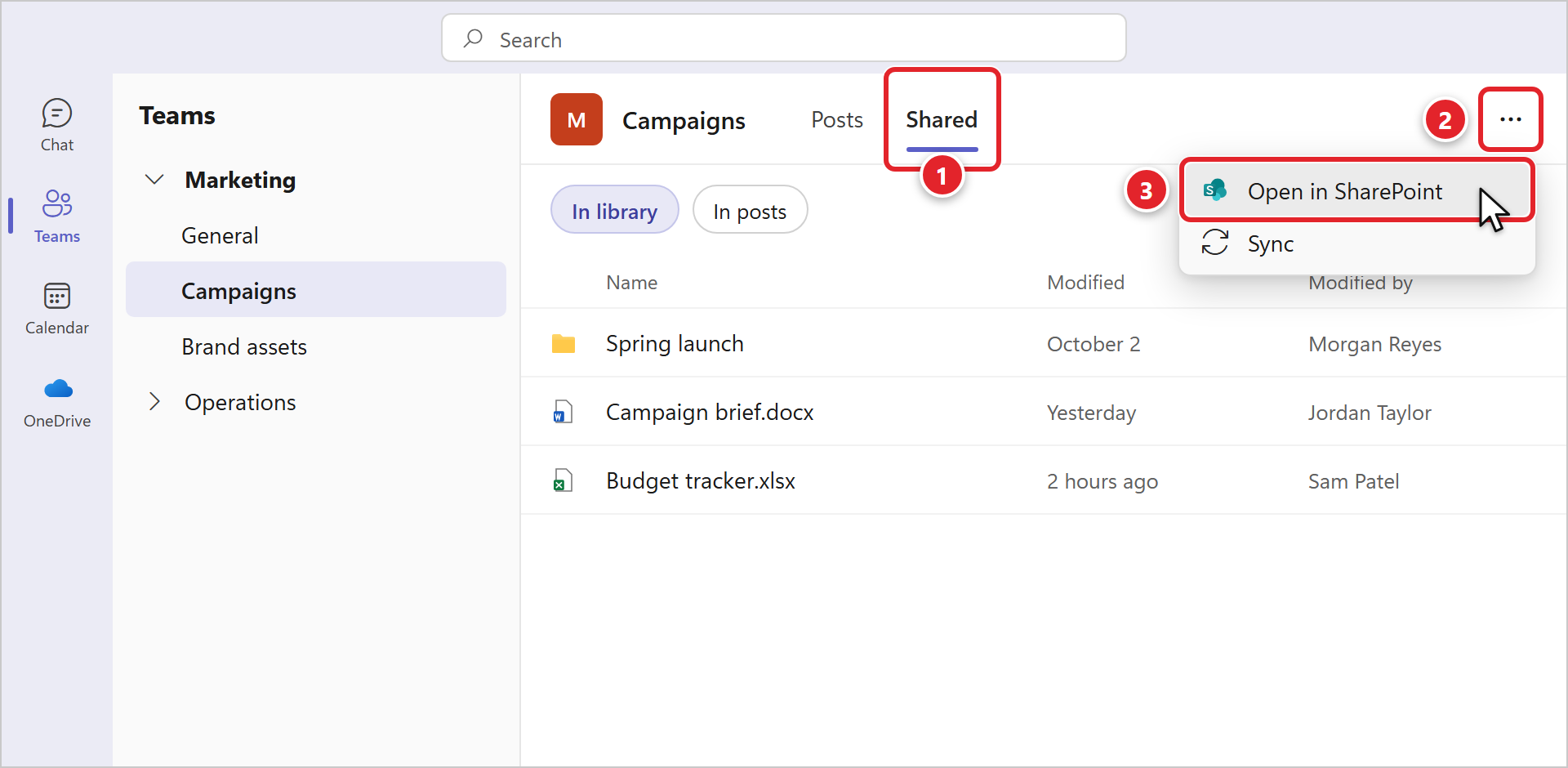
- Click the Shared tab at the top (1). This used to be called Files. In library shows the channel's files and folders; In posts shows files people attached to conversations.
- To see the whole library in your web browser, with more options, click More (...) (2) > Open in SharePoint (3).
Find Files Shared With You
- Click OneDrive on the left side of Teams (1). You may need to click ... (More apps) to find it.
- Click Shared (2) to see files other people have shared with you, newest first.
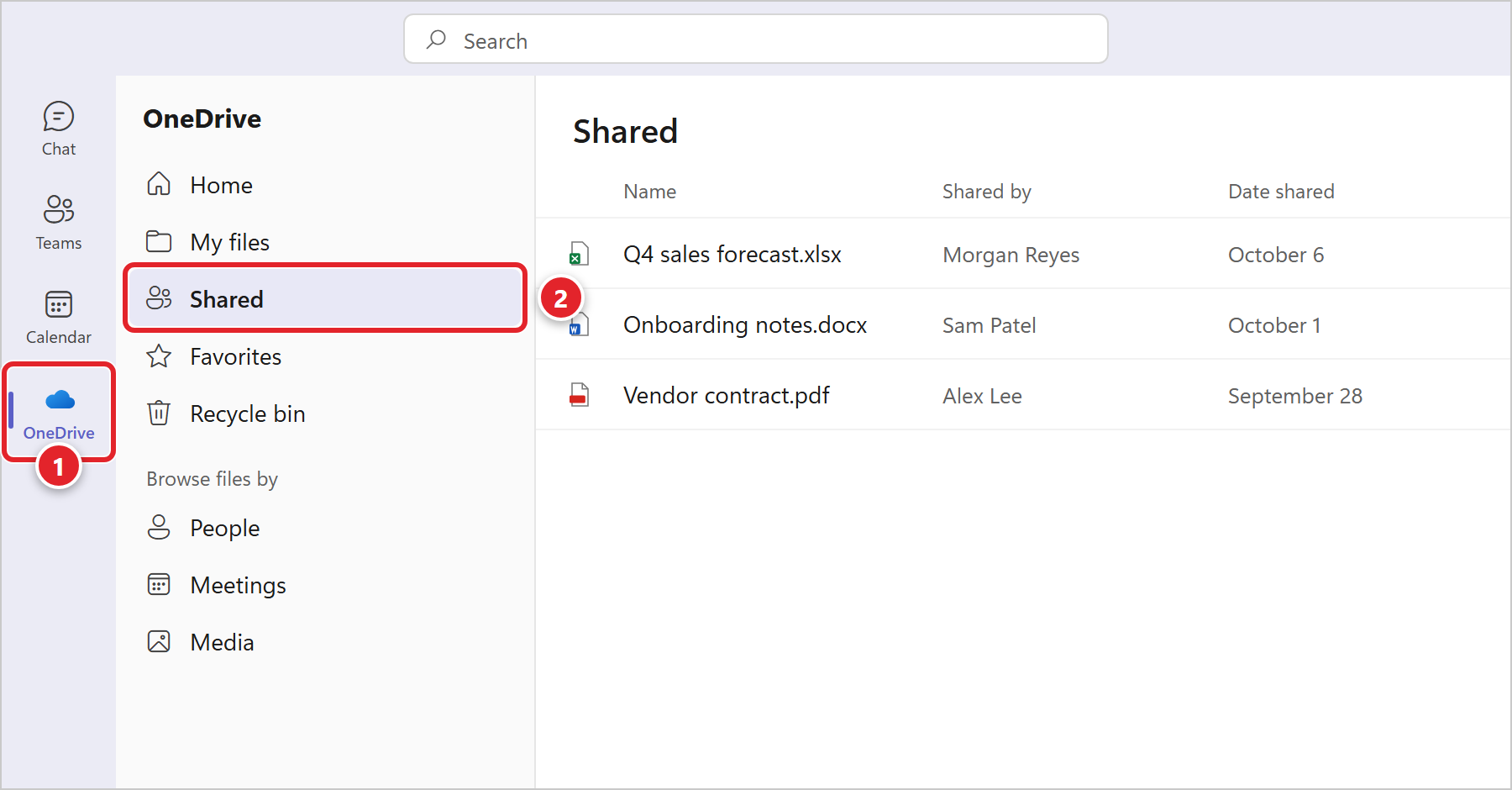
Under Browse files by, People groups files by who you work with, and Meetings shows files from your recent meetings. My files is your own OneDrive.
Find Files From a Chat
Open the chat and click the Shared tab at the top of the conversation. It lists every file and link shared in that chat.
Search for a File
Click the Search box at the very top of Teams, type part of the file name (or a word from inside it), and press Enter. Click Files to show only files. You can narrow it further by team, file type, who changed it, or date.
Search only finds files you have access to. If a coworker's file doesn't show up, ask them to share it with you.
Get Team Files in File Explorer
Prefer working in File Explorer? There are two ways to make a team's files show up on your computer. Pick one, not both, for the same folder.
Add shortcut to My files (recommended)
In SharePoint (use Open in SharePoint above), select the folder or library and click Add shortcut to My files.
The folder appears inside your OneDrive folder on every computer and phone you use, and it doesn't count against your OneDrive storage. To remove it, right-click the shortcut and choose Remove shortcut.
Sync
In the channel's Shared tab, click More (...) > Sync, or click Sync in SharePoint. Allow your browser to open Microsoft OneDrive.
The library appears in File Explorer under your company's name, with a building icon. To stop, use Stop sync in OneDrive's settings.
Synced files follow the same rules as your OneDrive: see OneDrive Not Syncing? if something gets stuck.
Good Habits
- Share a link, not an attachment. Everyone works on the same file instead of passing copies around. See Sending a file that is too large to email.
- Keep team files in the team. Moving a file from a channel into your own OneDrive takes it away from your coworkers.
- Deleted something by mistake? It can usually be recovered: Recovering a deleted file or an earlier version.
Frequently Asked Questions
Click a question to expand it.
Where did the Files tab go?
Microsoft renamed a channel's Files tab to Shared in late 2025. Your files are all still there: click Shared, then In library.
I can't see a team or channel my coworkers use.
You need to be a member. Ask the team's owner (often your manager) to add you, or ask your manager to submit a request. Some channels are private, so even team members only see them if they've been added.
A file opens as read-only.
You may only have permission to view it. Ask the person who owns or shared the file to give you edit access. If it's a team file you should be able to edit, let us know.
We also have shared drives (like S: or G:). Are those the same thing?
No. Lettered drives are folders on a server at your office, not in Teams or SharePoint. See Where Are My Mapped Drives?
Sources: Microsoft - File storage in Microsoft Teams, Add shortcuts to shared folders in OneDrive