
Join a Microsoft Teams Meeting
Got a Teams meeting invite? You can join from your computer, your phone, a web browser, or even by dialing in. Here's how, plus a quick check of your camera and microphone so you're ready when the meeting starts.
In Short
- From your calendar: open the meeting in Outlook or the Teams Calendar and click Join.
- From the invite: click the meeting link under Microsoft Teams meeting.
- Before you go in: choose camera and microphone on or off, pick your audio, then click Join now.
- No computer? Use the Teams app on your phone, or call the phone number in the invite.
Join From Your Computer
From your calendar
- Teams: click Calendar on the left side of Teams, select the meeting, and click Join.
- Outlook: open the meeting from your calendar (or the reminder that pops up) and click Join. In new Outlook, you can also click Join Online in the My Day pane.
From the invite email
Every Teams invite has a Microsoft Teams meeting section. Click the link next to Join (1). In older invites it says Join the meeting now instead.
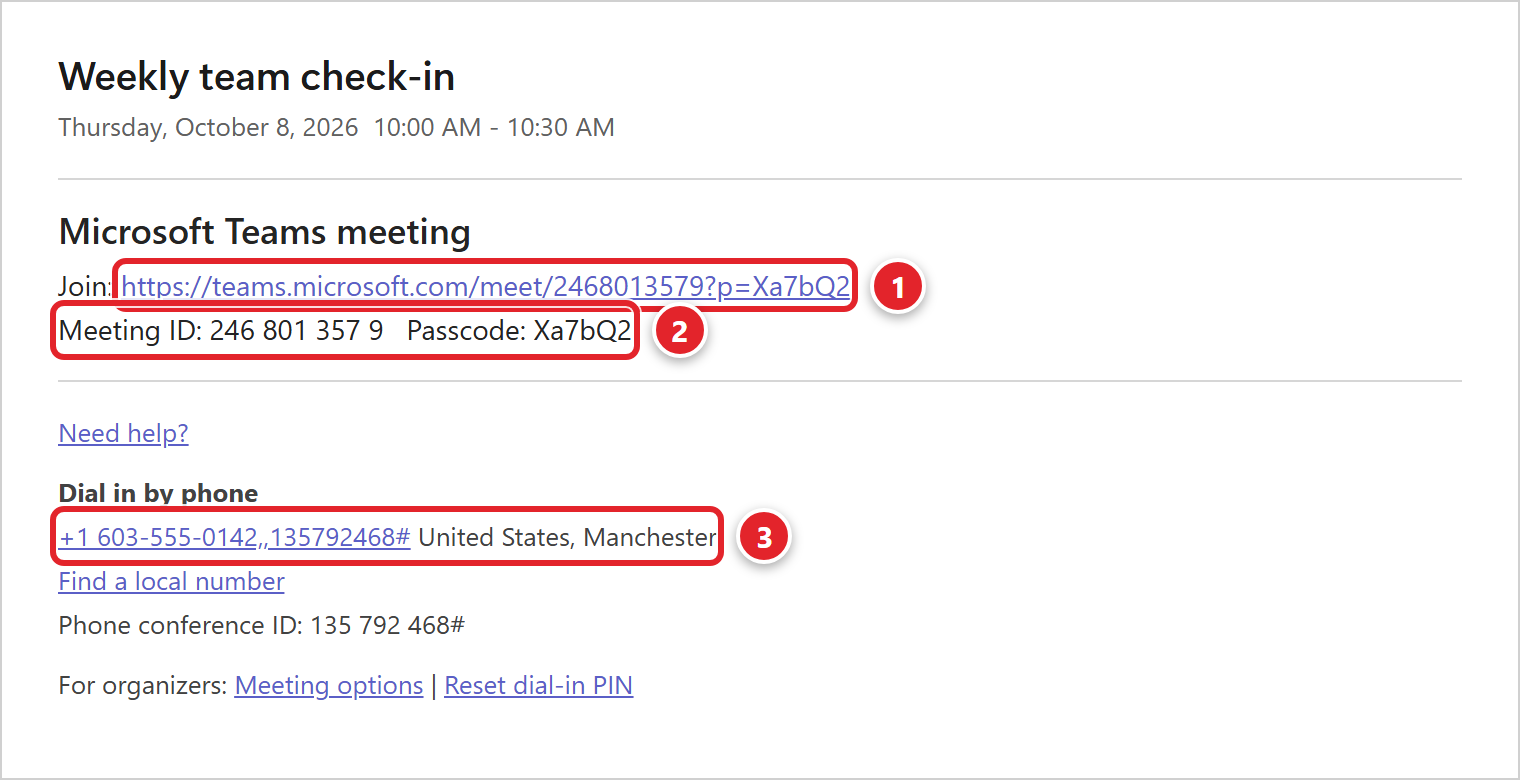
The Meeting ID and Passcode (2) let you join by typing them in, and the phone number (3) lets you dial in. More on both below.
Before you join: the pre-join screen
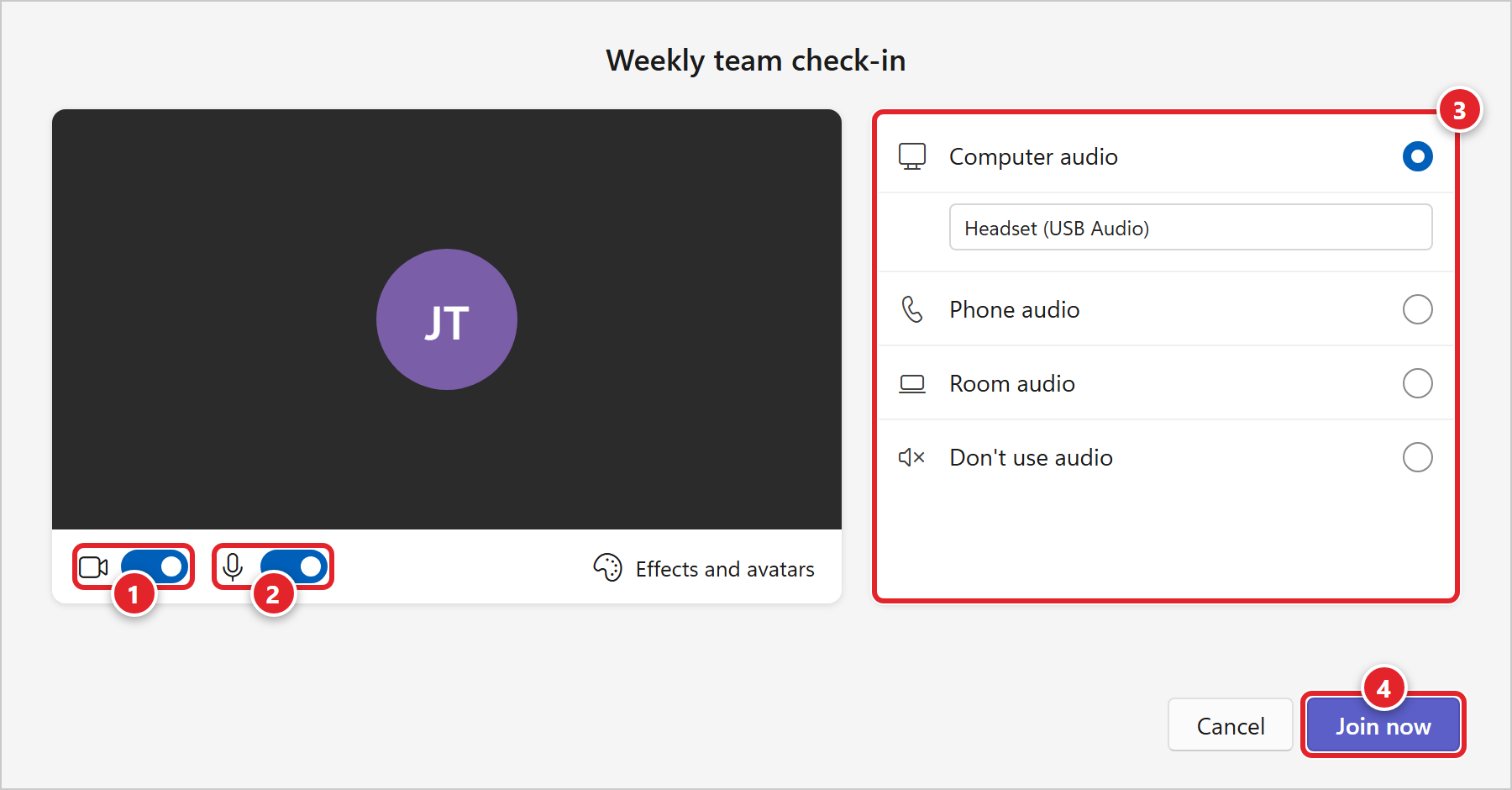
Teams shows a preview before you go in:
- Camera (1): switch it on or off. Use Effects and avatars to blur your background.
- Microphone (2): switch it on or off. It's polite to join muted in larger meetings.
- Audio (3): keep Computer audio to use your headset or speakers, and check the right device is selected. Choose Room audio in a meeting room that has its own Teams equipment, or Don't use audio if you're in the same room as someone already connected.
- Click Join now (4).
If the meeting has a lobby, you'll wait there until someone in the meeting lets you in. That's normal, especially for meetings with people outside your company.
Other Ways to Join
On your phone (Teams app)
Install Microsoft Teams from the App Store or Google Play and sign in with your work account. Then tap the meeting link in the invite, or open Calendar in the Teams app, tap the meeting and tap Join.
By phone (audio only)
If the invite has a Dial in by phone section, call the number and enter the Phone conference ID when asked. On a smartphone, tapping the number usually dials the ID for you. Not every invite has a phone number; it depends on your company's Teams setup.
With a meeting ID
Someone gave you a Meeting ID and Passcode instead of a link? In Teams, click Calendar, click the arrow next to Meet now, and choose Join with an ID. Enter the ID and passcode and join. On your phone, open Calendar in the Teams app and look for Join with meeting ID.
From a web browser
On a computer without Teams (or someone else's computer), click the meeting link and choose Continue on this browser. Allow the browser to use your microphone and camera when asked, type your name if prompted, and click Join now. Use Microsoft Edge or Google Chrome for the best results.
Test Your Camera and Microphone
Before an important meeting, run a test call in Teams: click Settings and more (the ... next to your profile picture) > Settings > Devices, and click Make a test call. Teams records a short message and plays it back.
Camera or microphone not working? See Teams camera or microphone not working.
Troubleshooting & FAQs
Click a question to expand it.
I've been waiting in the lobby for a long time.
The organizer or someone already in the meeting has to let you in. Send them a quick message or email to let them know you're waiting. If nobody admits you, Teams eventually removes you from the lobby; just join again.
No one can hear me, or I can't hear them.
Check that your microphone isn't muted in Teams (and that your headset doesn't have its own mute switch). Then click More (...) in the meeting controls > Settings > Device settings and make sure the right speaker and microphone are selected. More fixes are in Teams camera or microphone not working.
The link opens Teams with the wrong account (or a personal account).
On the pre-join screen, click Change next to the account name at the top and pick your work account. Or join from the browser instead, using Continue on this browser.
The invite is for Zoom, Google Meet or Webex, not Teams.
Click the link in the invite and follow the prompts. Most let you join from a browser without installing anything. If the meeting needs an app installed on your work computer, submit a Software Request and we'll install it.
Sources: Microsoft - Join a meeting in Microsoft Teams, Manage audio settings in a Teams meeting