
OneDrive Not Syncing? Fix Stuck, Paused or Missing Files
- In Short
- Step 1: Check the OneDrive Icon
- Step 2: If It's Paused, Resume It
- Step 3: If There's a Sync Issue, Fix the File
- Step 4: Restart OneDrive, Then Your Computer
- Files Missing on This Computer?
- Is the file online-only?
- Are you looking in the right place?
- Is it in OneDrive online?
- Is it a shared or team file?
- Please Don't
- Frequently Asked Questions
OneDrive keeps your work files backed up and the same on every device. If files seem stuck, syncing is paused, or something you expected isn't on this computer, work through the steps below in order. Most problems are solved by the first three.
In Short
- Find the OneDrive cloud near the clock and check what it shows.
- If syncing is paused, resume it.
- If there's a sync issue, read it and fix the file it names.
- Restart OneDrive, then restart your computer.
- Still stuck? Contact us.
Step 1: Check the OneDrive Icon
Look for the OneDrive cloud in the bottom-right corner of your screen, next to the clock. If you don't see it, click the small up arrow (^) to show hidden icons. Here's what it's telling you:
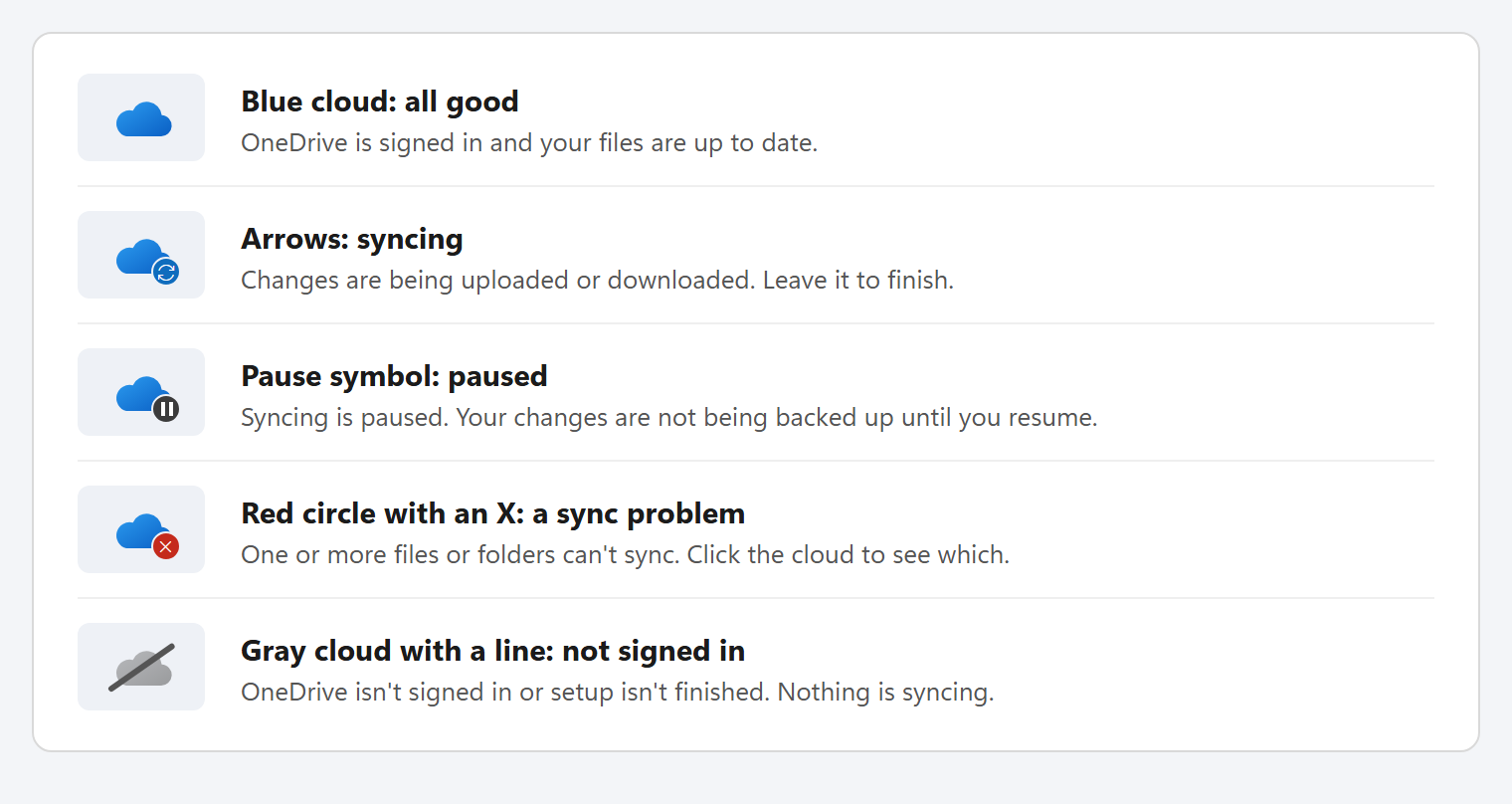
- Blue cloud, no badge: OneDrive is working. Skip to Files missing on this computer?
- Arrows: it's busy. Large files or many changes can take a while; give it time before trying anything else.
- Gray cloud with a line: click it and choose Sign in, then sign in with your work email and password.
- No cloud at all, even under the up arrow: OneDrive isn't running. Click Start, type OneDrive, and open it.
Step 2: If It's Paused, Resume It
Click the OneDrive cloud. If you see Your files are not currently syncing, click that message (1) to resume.
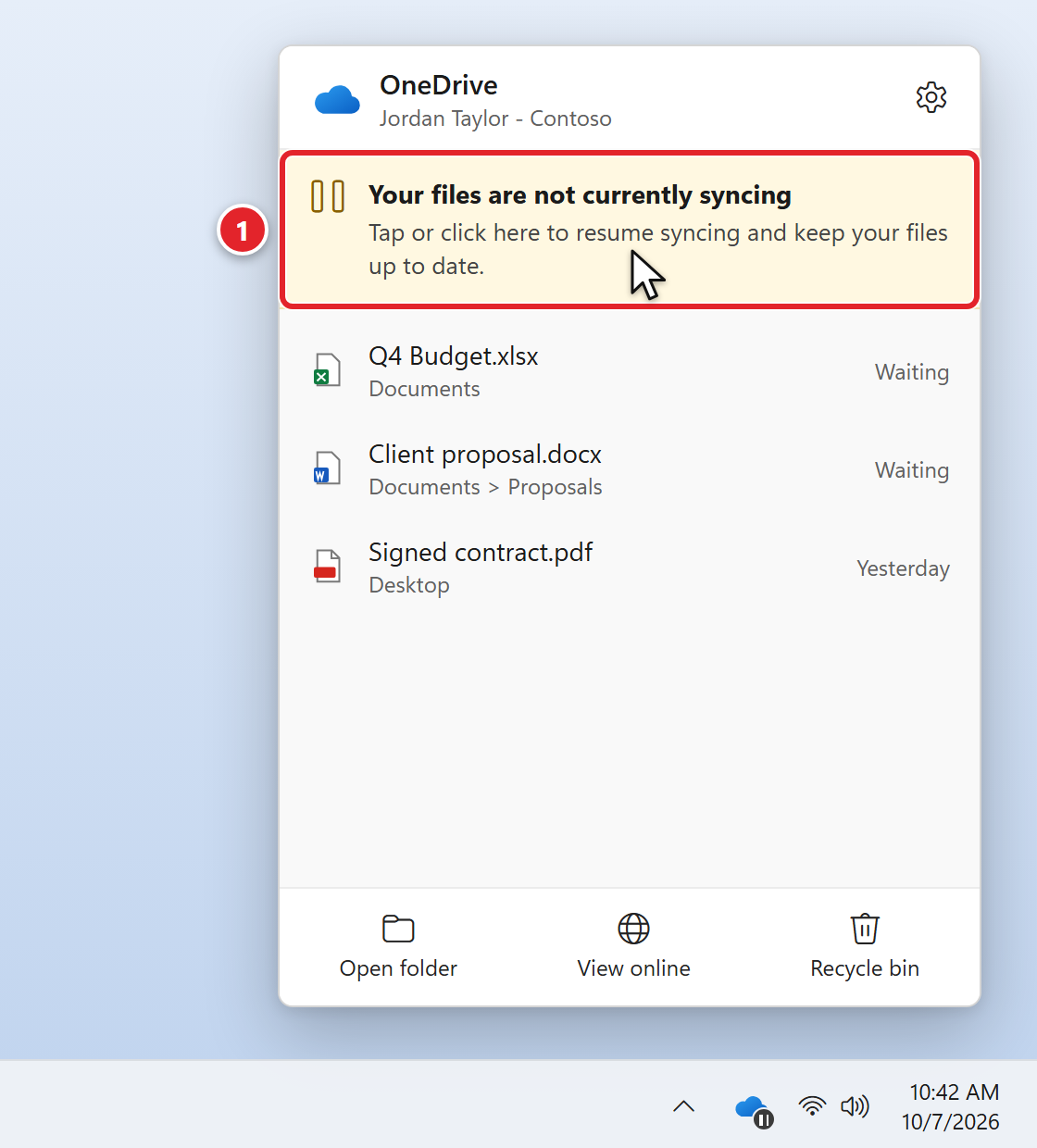
You can also click the gear icon (Help & Settings) and choose Resume syncing.
Step 3: If There's a Sync Issue, Fix the File
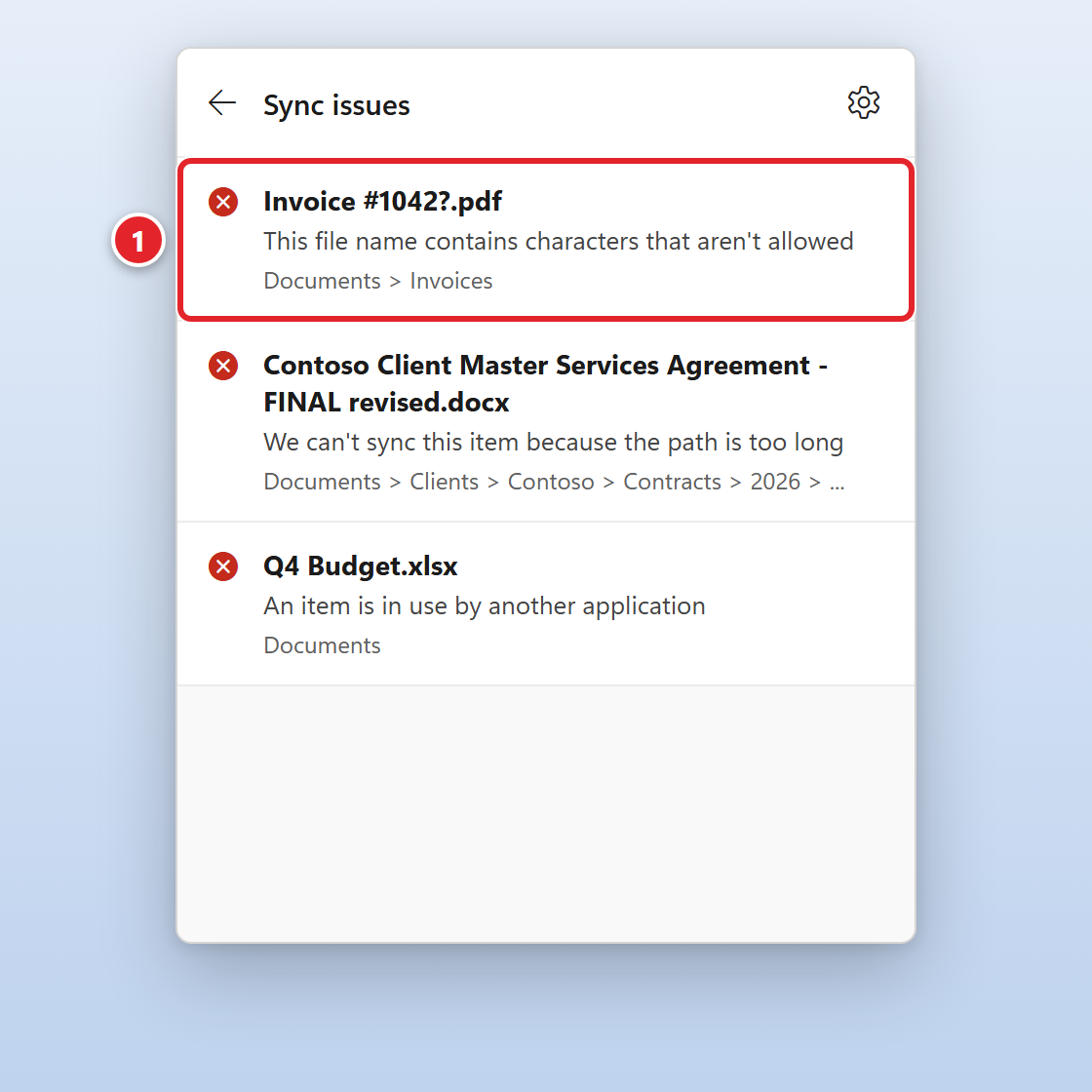
If the cloud has a red circle with an X, click it, then click the red message at the top to see the list of Sync issues. Each one names the file and the problem (1).
| If OneDrive says... | Do this |
|---|---|
| The name contains characters that aren't allowed | Rename the file or folder without these characters: " * : < > ? / \ |. Names can't start with ~$ or begin or end with a space. |
| The path is too long | The folder names plus the file name are too long together (the limit is 400 characters). Shorten some folder names, or move the file into a folder closer to the top. |
| The item is in use by another application | Save and close the file (and the app it's open in). It syncs once it's closed. |
| Your OneDrive (or storage) is full | Nothing new can upload. Delete files you no longer need (large videos are the usual culprit), then let us know if you need more space. |
| Low on disk space | Your computer itself is full. See Computer Says Your Disk Is Full? |
| Anything else | Take a screenshot of the message (Windows key + Shift + S) and send it to us. |
Step 4: Restart OneDrive, Then Your Computer
If nothing above applies, or files still won't move, restart OneDrive:
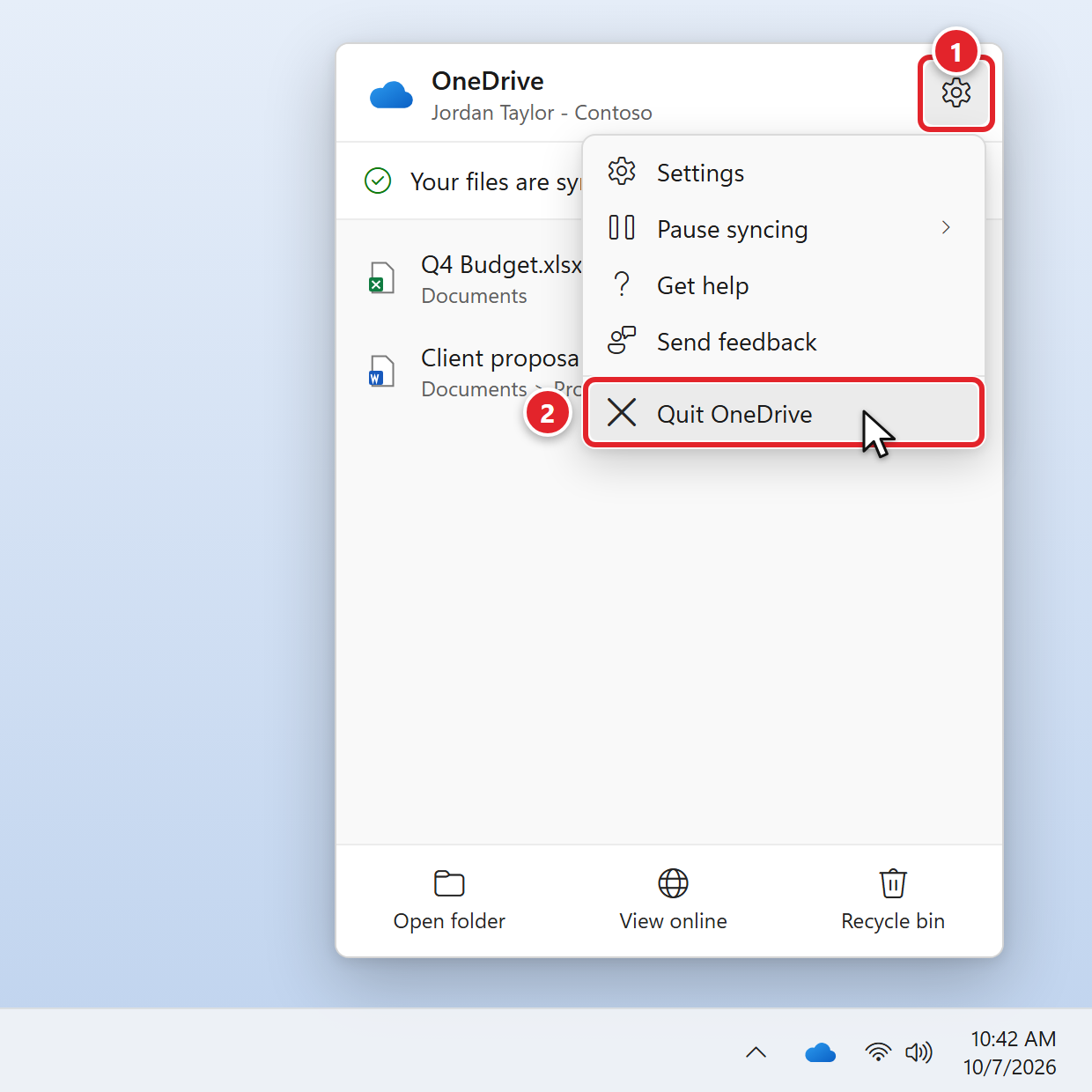
- Click the OneDrive cloud, then click the gear icon, Help & Settings (1).
- Click Quit OneDrive (2), then confirm with Close OneDrive.
- Click Start, type OneDrive, and open the OneDrive app. Give it a few minutes to check your files.
Still not syncing? Save your work and restart your computer (Start > Power > Restart, not Shut down).
Files Missing on This Computer?
Most "missing" files are actually there. Check these first:
Is the file online-only?
OneDrive can keep files in the cloud until you open them, to save space. In File Explorer, the Status column shows where each file is:
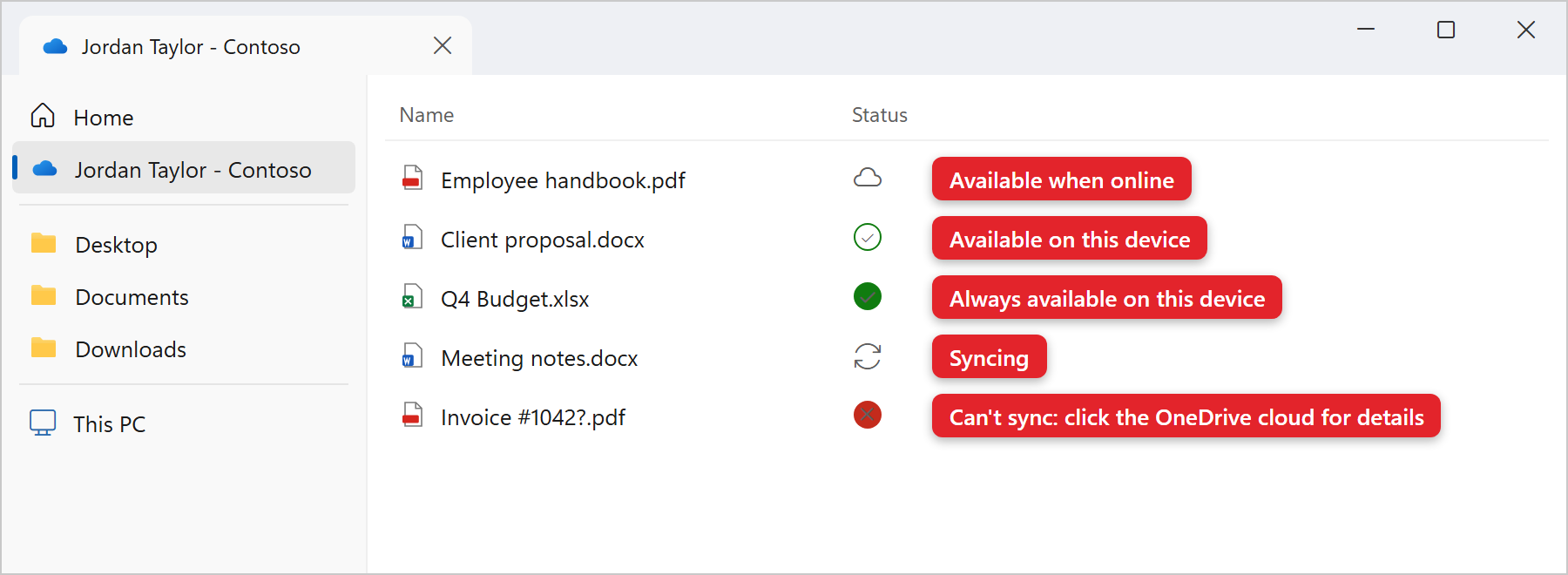
- Blue cloud: the file is safe in OneDrive and downloads when you open it. You need an internet connection to open it.
- Going somewhere without internet? Right-click the file or folder and choose Always keep on this device before you go.
Are you looking in the right place?
Your OneDrive folder appears in File Explorer's left pane with a blue cloud and your name and company, for example Jordan Taylor - Contoso. Your Desktop, Documents and Pictures folders may live inside it. You can also type the file name in the search box at the top right of File Explorer.
Is it in OneDrive online?
Click the OneDrive cloud and choose View online. If the file is there, it's safe: this computer just hasn't caught up yet, so go back to Step 1. If it isn't there either, check the Recycle bin (same window) and see Recovering a deleted file.
Is it a shared or team file?
Files that belong to a team or department usually live in Teams or SharePoint, not your own OneDrive. See Find Your Files in Teams and SharePoint.
Please Don't
- Don't delete files to "fix" syncing. Deleting a file from your OneDrive folder deletes it from OneDrive online and from your other devices too. To save space without deleting, use Free up space (see Computer Says Your Disk Is Full?).
- Don't copy everything out of OneDrive "to be safe." It creates duplicates and the copies aren't backed up.
- Don't move, rename, unlink or reset OneDrive unless we ask you to. We'll walk you through it if it's needed.
Frequently Asked Questions
Click a question to expand it.
I have two copies of a file, one with my computer's name in it.
That happens when the same file was changed in two places before OneDrive could sync, for example on two computers, or offline. OneDrive keeps both so nothing is lost. Open both, keep the one you want (copy any missing changes into it), and delete the other.
My file shows as synced, but my coworker doesn't see my changes.
Make sure you're both working on the same file, not separate copies. Files you share from your OneDrive, or that live in a Teams or SharePoint site, are the same file for everyone. A copy saved to your desktop or emailed as an attachment is not. Ask your coworker to close and reopen the file.
OneDrive keeps asking me to sign in.
Sign in with your work email and password, and approve the request in Microsoft Authenticator. If it asks again and again, submit a support request; your sign-in may need attention on our side.
Syncing is taking forever.
Large files (videos, big PDFs) and thousands of small files take time, especially on a slow connection. Leave your computer on and connected, and avoid pausing. If the arrows haven't moved in a few hours, restart OneDrive (Step 4).
Sources: Microsoft - What do the OneDrive icons mean?, Restrictions and limitations in OneDrive and SharePoint