
Clearing Web Browser Cache
In certain instances, websites may fail to load images/attachments or experience longer than normal loading times. To resolve these issues, you can clear your web browser's cache.
Tick only two boxes: Cookies and other site data and Cached images and files. Those two fix most loading problems. Leave everything else unticked so you don't lose saved passwords, addresses or payment cards.
You may be prompted to log back into websites/applications. This is normal and by design as you will need to reauthenticate.
The red numbers in each picture show what to click, in order.
Microsoft Edge
In the Edge address bar, enter or copy the following text: edge://settings/clearBrowserData
Then press Enter. The Clear browsing data box opens.
- Under Time range, choose All time (1).
- Tick Cookies and other site data and Cached images and files (2). Untick everything else, such as Browsing history and Download history. Scroll down the list to check that Passwords and Autofill form data (includes forms and cards) are unticked too.
- Select Clear now (3).
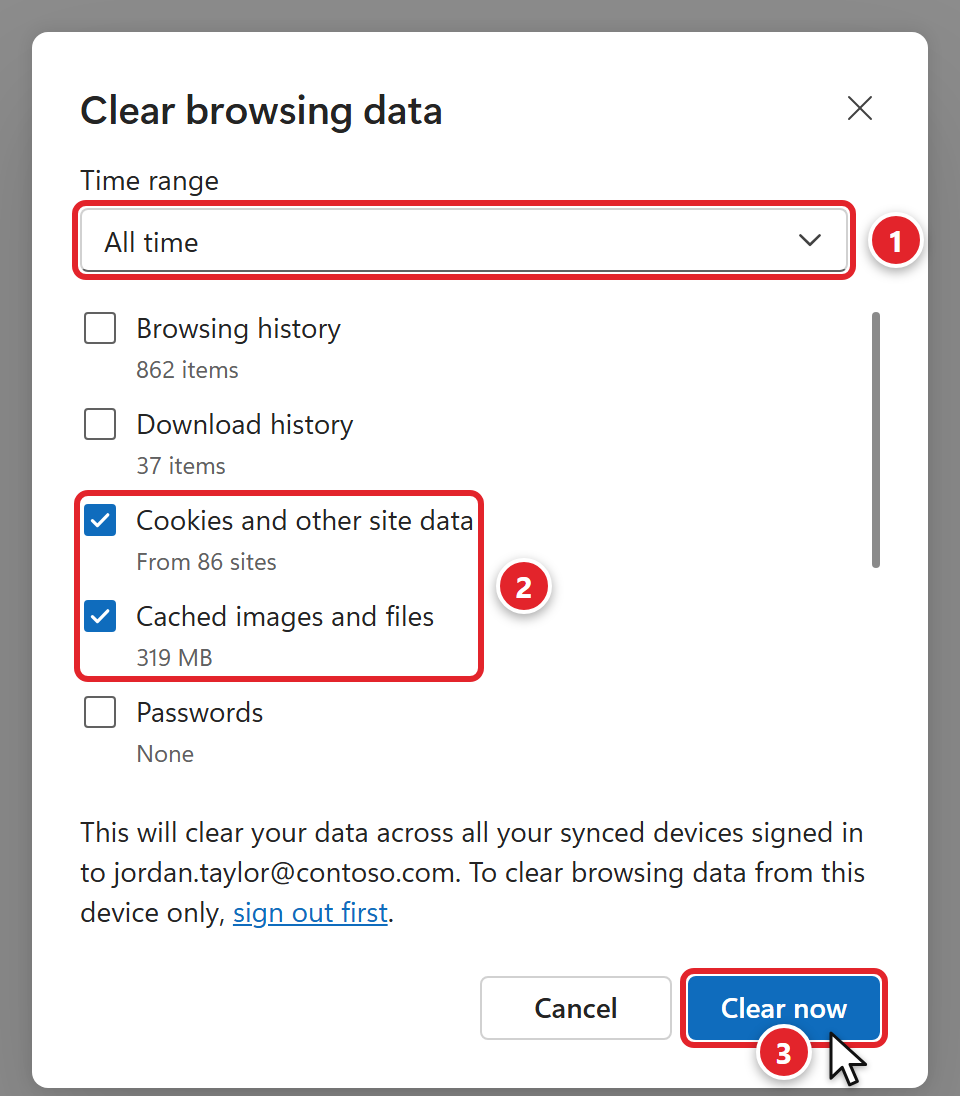 Edge may say this will clear your data across all your synced devices. That's OK. Cookies and cached files are stored only on this computer, so your other devices aren't affected.
 - Close and reopen your browser for changes to take effect.
Google Chrome
In the Chrome address bar, enter or copy the following text: chrome://settings/clearBrowserData
Then press Enter. The Delete browsing data box opens.
- Select More, then All time. All time now shows a check mark (1).
- Tick Cookies and other site data and Cached images and files (2). Untick every other box in the list, such as Browsing history and Download history.
- Select Delete from this device (3). If you're signed in to Chrome, the button says Delete data instead.
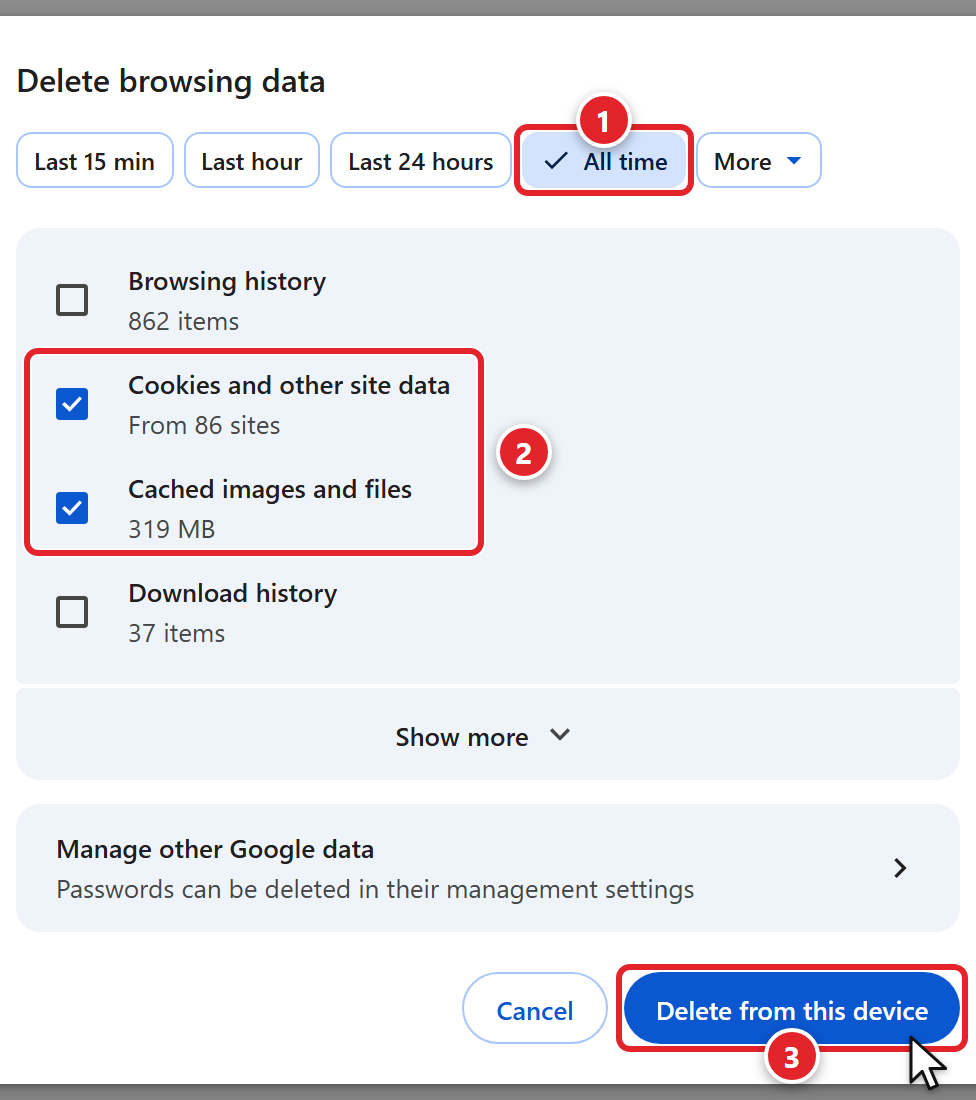
- Close and reopen your browser for changes to take effect.
Was this article helpful?