
Passkeys: Sign In to Microsoft 365 With Your Face or Fingerprint
For now, click Other options 1, then Skip for now. No Skip for now? Clicking Next is fine. Use your Windows PIN, face or fingerprint (Mac: Touch ID or your Mac password). Type any name, then click Next and Done (see the steps). Then do Make Your Passkey below on your phone. It may ask again later. That's normal.
On the computer
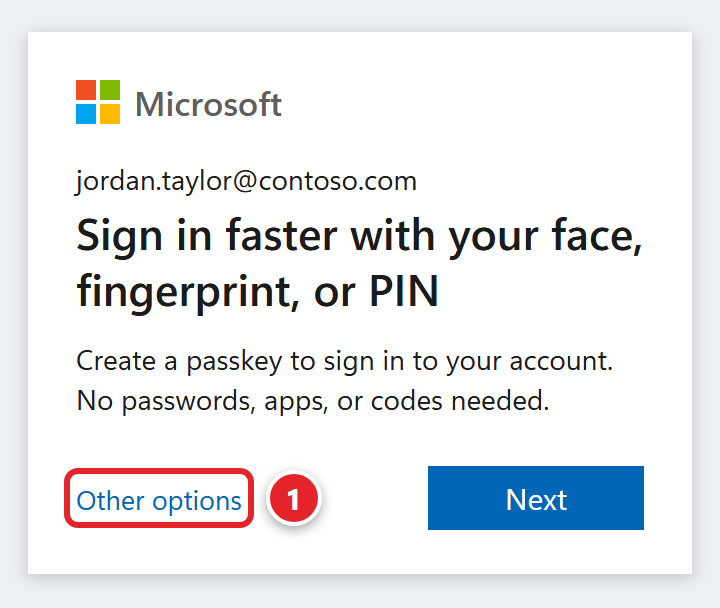
A passkey lets you sign in to work with your face, fingerprint, or your phone's passcode or PIN. It's safer than a password: a fake website can't use it. Your password stays the same. Steps 1 to 6 take about 5 minutes. Don't worry about the reading time at the top. The questions near the bottom are only for when something goes wrong.
Make Your Passkey (Start Here)
You need:
- Microsoft Authenticator on your phone, set up for work. It's the app where you type a number or tap Yes when you sign in at work. Not set up yet, or you only get text-message codes? Set up Authenticator first.
- The newest Authenticator. In the App Store (iPhone) or Google Play (Android), search for Microsoft Authenticator. Tap Update if you see it.
- A screen lock on your phone. If you unlock your phone with your face, your fingerprint, a code or a pattern, you have one.
Step 1: Open Authenticator and Tap Your Work Account
On your phone, open Microsoft Authenticator. Tap your work account. It shows your company's name and your work email.
Step 2: Tap Create a passkey
Under Other ways to sign in, tap Create a passkey 1. The red numbers in the pictures show what to tap.
On any phone
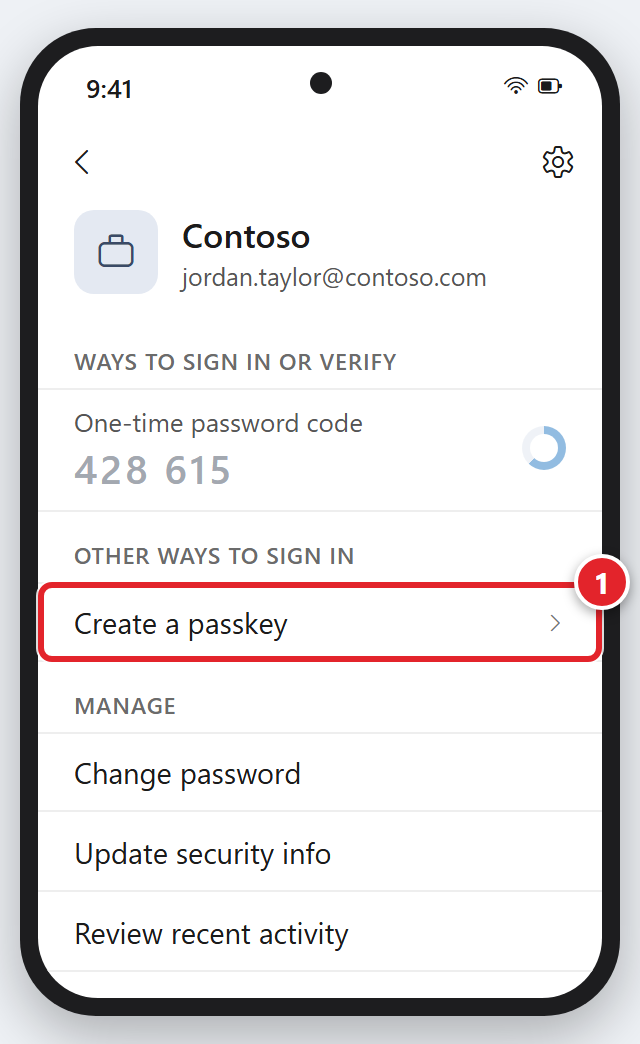
Ignore the 6-digit code. Don't see Create a passkey? See I don't see Create a passkey.
Step 3: Sign In and Tap Yes
Authenticator asks you to sign in.
- Asked for a password? Type your work password (the one you use for email, not your phone passcode).
- A sign-in message pops up, like the ones you approve every day. It may show right inside Authenticator or at the top of the screen. At the top? Tap it. Missed it? Swipe down from the top left of the screen (not the right corner) and tap it there.
- Tap Yes.
Next, you switch on Authenticator in your phone's Settings app. Pick your phone:
On an iPhone: Steps 4 to 6
iPhone Step 4: Tap Settings
Authenticator shows Allow Authenticator to autofill your passwords and passkeys. Tap Settings 1.
On an iPhone
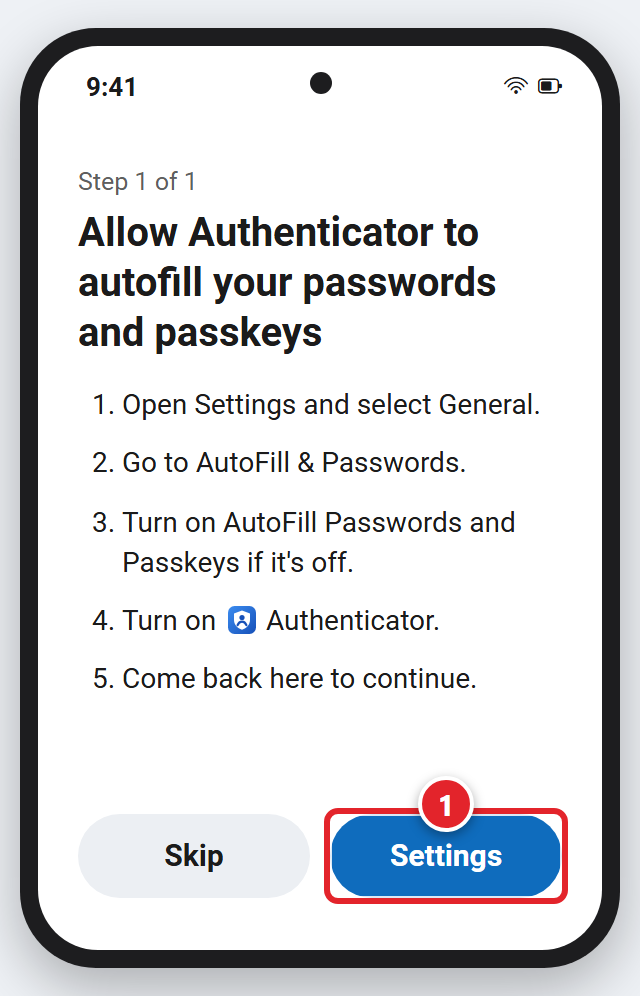
Don't tap Skip here. Your passkey needs this switch.
Your iPhone may show a small box instead, asking to let Authenticator fill in passwords and passkeys. Tap the button that turns it on (not the one that says no or not now). Then go to Step 6, number 2.
iPhone Step 5: Switch On Authenticator
Your iPhone's Settings app opens.
- Make sure the switch next to AutoFill Passwords and Passkeys is green 1.
- Under AutoFill From (or Use passwords and passkeys from), switch on Authenticator 2. You can leave Passwords on.
On an iPhone
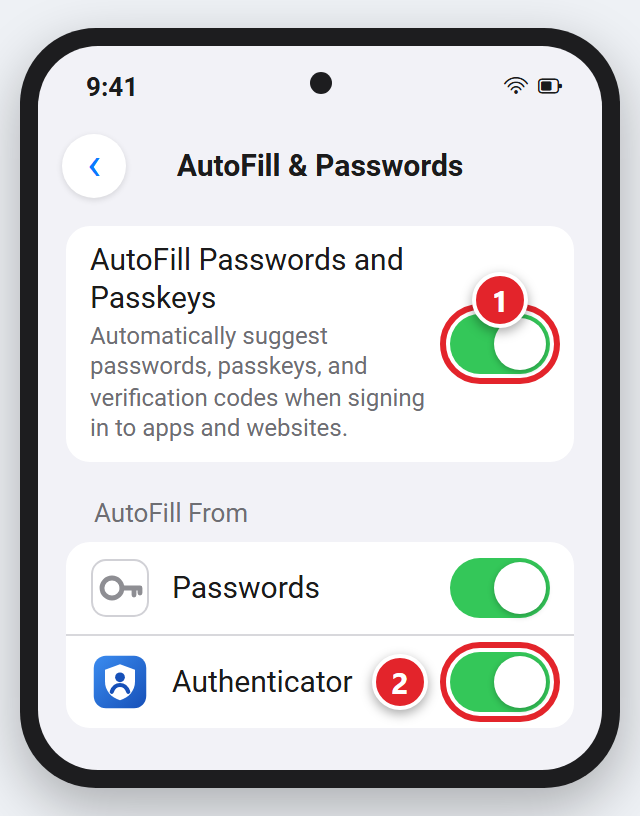
When you're done, the switches marked 1 and 2 are green, like this.
Not on this page? Tap the back arrow in the top-left corner until you see the big word Settings at the top. Tap General, then AutoFill & Passwords. Can't find it? Tap Passwords, then Password Options.
iPhone Step 6: Go Back to Authenticator and Tap Done
- Go back to Authenticator: tap the small blue words ◀ Authenticator in the top-left corner, where the time usually is. Don't see them? Swipe up from the bottom edge (or press the Home button) to go to your Home Screen. Then swipe down in the middle of the screen, type Authenticator and tap it.
- Tap Done at the bottom of the screen (it may say Continue). If your iPhone asks for Face ID, Touch ID or your passcode, use it. Still see Skip and Settings? The switch isn't on yet. Tap Settings and do Step 5 again. Both switches already green? Submit a support request with a photo of the screen.
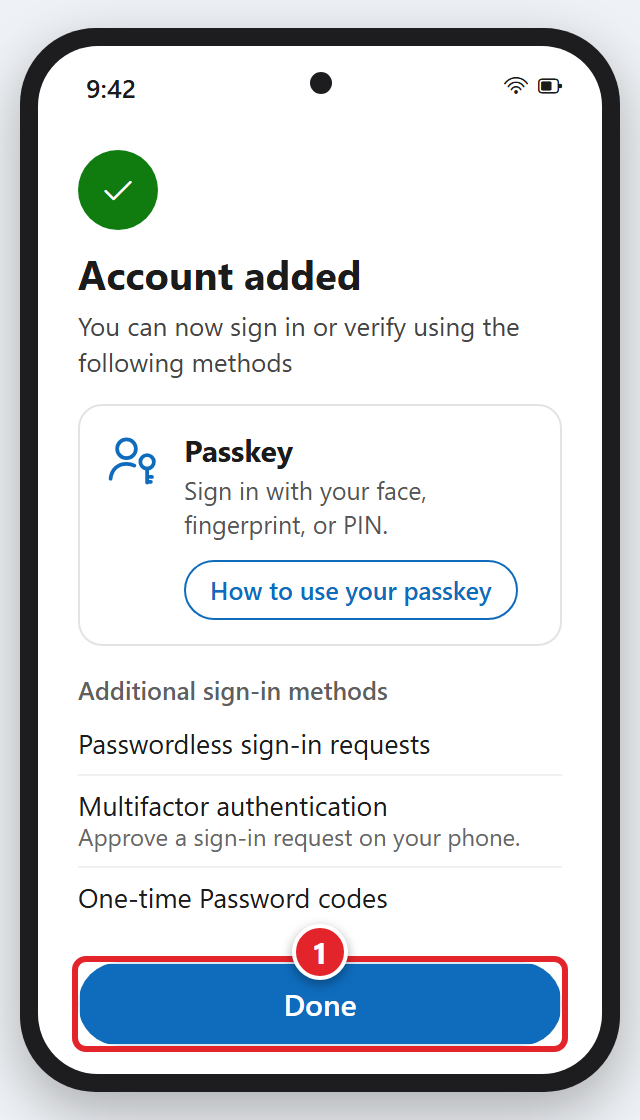
- You'll see Account added, with Passkey at the top. Tap Done again 1. Yes, you tap Done twice. It's the same account as before, now with a passkey.
On any phone
All done on your iPhone. Your passkey is ready. Your computer may still show "Sign in faster with your face, fingerprint, or PIN" now and then. That's normal, not a scam: click Other options, then Skip for now. Next: try your passkey on your computer.
On an Android Phone: Steps 4 to 6
Android Step 4: Tap Settings
Authenticator shows Allow Authenticator to use passkeys. Tap Settings 1.
On an Android phone
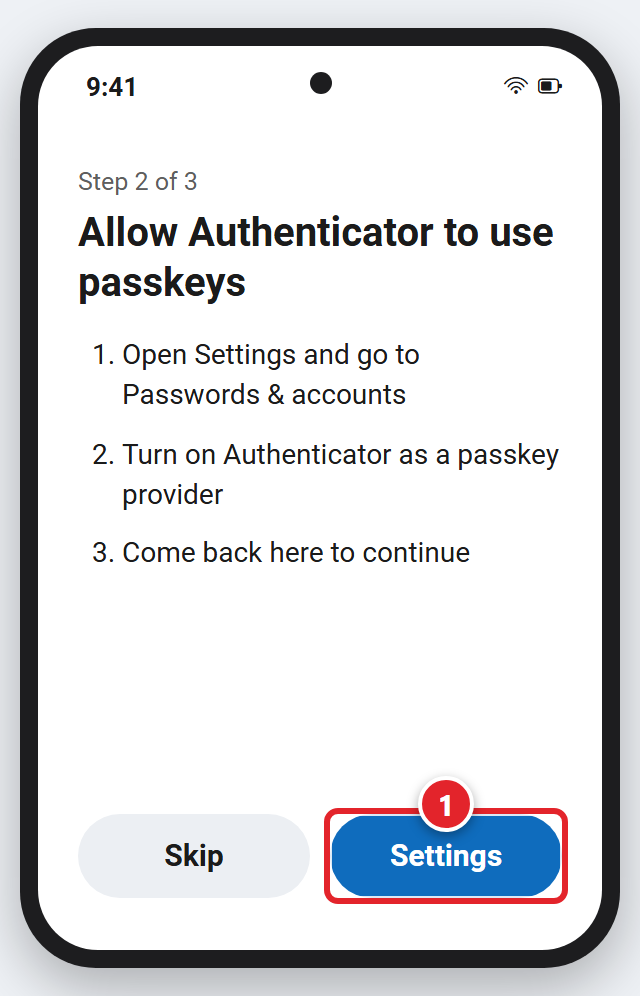
Don't tap Skip here. Your passkey needs this switch.
Android Step 5: Switch On Authenticator
Your phone's Settings app opens. Under Additional services (or Additional providers), switch on Authenticator 1. Don't change the top part (Preferred service). If a box asks about Authenticator, tap OK (or Turn on).
On an Android phone (Samsung looks a little different)
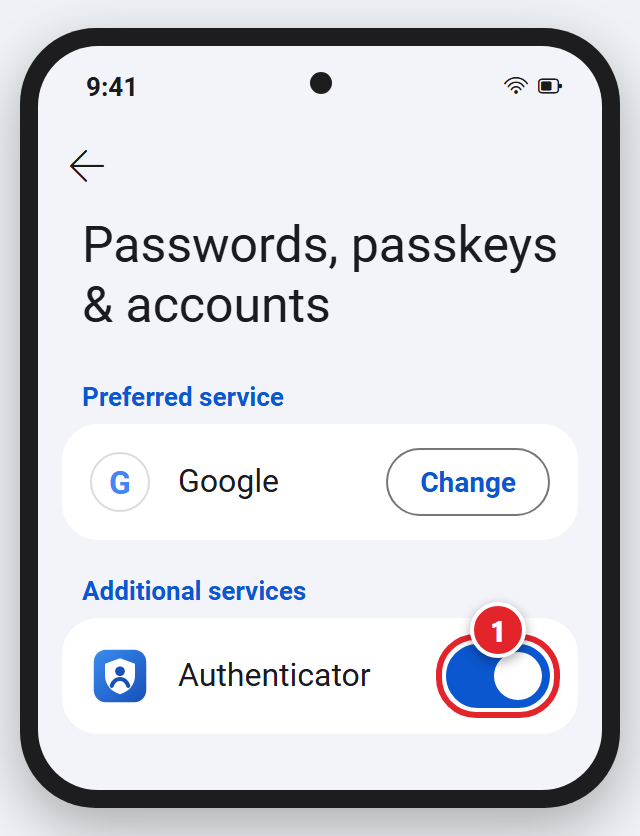
Samsung: the page is called Passwords, passkeys and autofill. The top may say Samsung Pass. Leave it. Find Authenticator in the list and switch it on.
Not on the right page? Open Settings, tap the search box at the top and type passkey. Tap the result that mentions passkeys. More help
Android Step 6: Go Back to Authenticator and Tap Done
- Go back to Authenticator: tap the Back button at the bottom of the screen (on a Samsung phone it looks like <), or swipe in from the side. Still in Settings? Just open Authenticator again.
- Tap Done at the bottom of the screen (it may say Continue). If your phone asks for your fingerprint, face or PIN, use it. Still see Skip and Settings? The switch isn't on yet. Tap Settings and do Step 5 again. Switch already on? Submit a support request with a photo of the screen.
- You'll see Account added, with Passkey at the top. Tap Done again 1. Yes, you tap Done twice. It's the same account as before, now with a passkey.
On any phone
All done on your Android phone. Your passkey is ready. Your computer may still show "Sign in faster with your face, fingerprint, or PIN" now and then. That's normal, not a scam: click Other options, then Skip for now. Next: try your passkey on your computer.
Sign In on a Computer With Your Passkey
Try your passkey now. Use these steps any time Microsoft asks you to sign in.
- Turn on Bluetooth on your computer and your phone. Just switch it on. You don't need to connect them. Keep your phone nearby.
Windows: click Start (the Windows logo at the bottom of the screen), then Settings (the gear), then Bluetooth & devices. Switch Bluetooth on. Don't see Settings? Type Bluetooth and click Bluetooth and other devices settings.
No Bluetooth switch on that page? This computer doesn't have Bluetooth. That's OK. Keep signing in here the usual way. Asked for your passkey? Click Cancel. Then click Sign in another way (or Other ways to sign in) and choose Approve a request on my Microsoft Authenticator app. Your passkey still works on your phone.
Mac: click the Apple menu (top-left corner), then System Settings, then Bluetooth. Switch it on.
iPhone: open Settings, tap Bluetooth, switch it on.
Android: swipe down from the top of the screen and tap Bluetooth. Don't see it? Swipe down again, or swipe down from the top-right corner. - Go to office.com (or wherever you sign in for work). If you see a Sign in button, click it.
Already signed in? (You see your apps or your name, not a Sign in button.) Try your passkey in a private window. Read this box and numbers 3 to 6 first. They're short.
- Bluetooth on? If not, do number 1 first.
- Windows: press Ctrl, Shift and N together. Mac: press Cmd (⌘), Shift and N together. (Firefox: P instead of N.) A new window opens on top of this page. It may be dark. That's normal.
- In the new window, type office.com in the bar at the top and press Enter (Mac: Return). Click Sign in. Then come back to this page for number 3. Click your web browser's icon at the bottom of the screen and pick this page. Mac: click Window at the top of the screen and pick this page. To go back, do the same and pick the private window.
- Click Sign-in options 1 under Microsoft's Sign in box. You don't need to type your email first.
On the computer
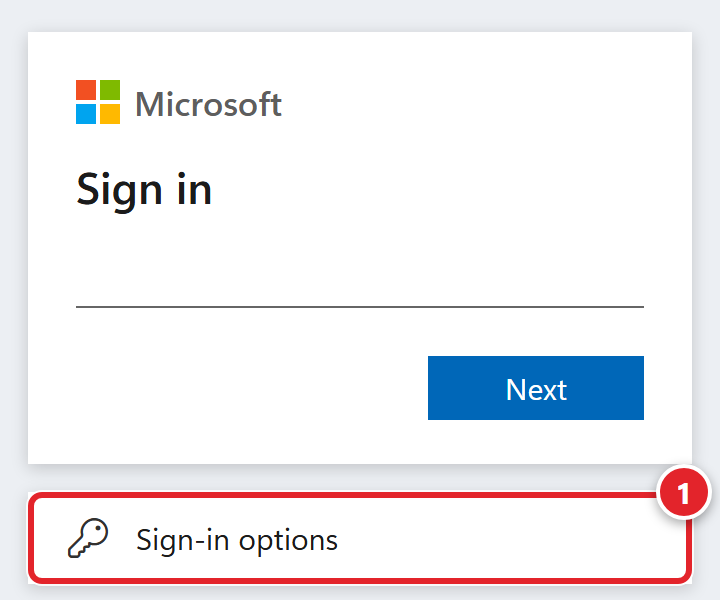
Then click Face, fingerprint, PIN or security key 2. You don't need a security key. It's the right choice for your phone too.
On the computer
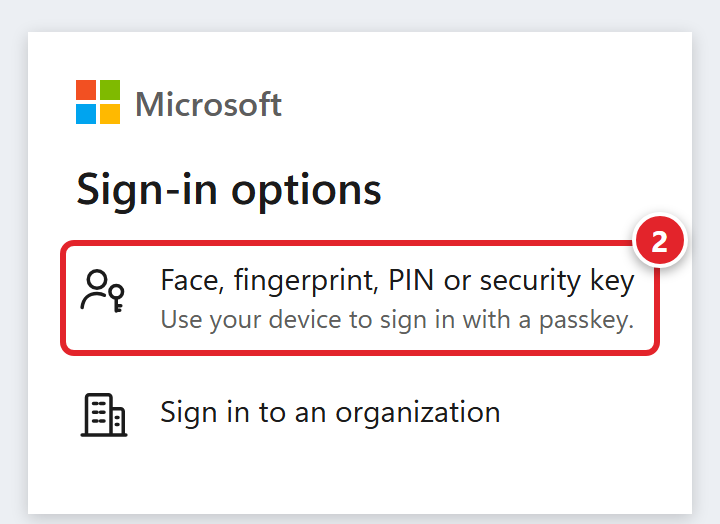
No Sign-in options? Type your work email, click Next, then click Other ways to sign in and the choice marked 2. Don't type your password.
See Pick an account? Click your work account, then Other ways to sign in.
A box from Windows (or from Safari on a Mac) opened by itself? Go to number 4.
- Pick your phone. A box opens.
On Windows: the Windows Security box says Choose a passkey. Click iPhone, iPad, or Android device 1. If Windows asks Turn on Bluetooth?, click Turn on Bluetooth.
On Windows
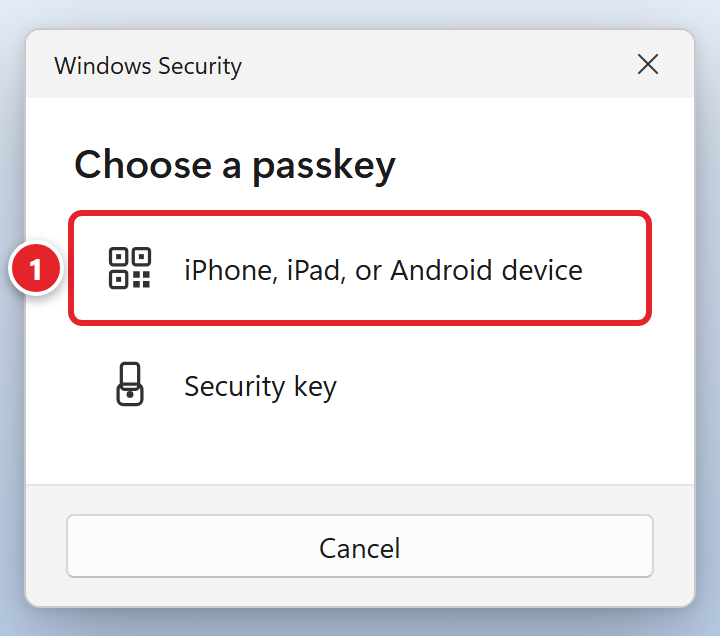
Box looks different? Click the choice that mentions a phone, or your phone's name. Asked for your Windows PIN? See Windows asks for my Windows PIN.
Clicked your phone's name? There's no square code. Look at your phone, tap the message, then go to number 6.
On a Mac: the boxes look different from these pictures. Already see a square code? Go to number 5. If not, in Safari click Other Options, then Passkey from nearby device. In Chrome or Edge, pick the option to use a phone.
- Scan the square code (a QR code) with your phone's Camera app. It's safe because you opened this sign-in page yourself. Never scan a sign-in code from an email or text.
On Windows
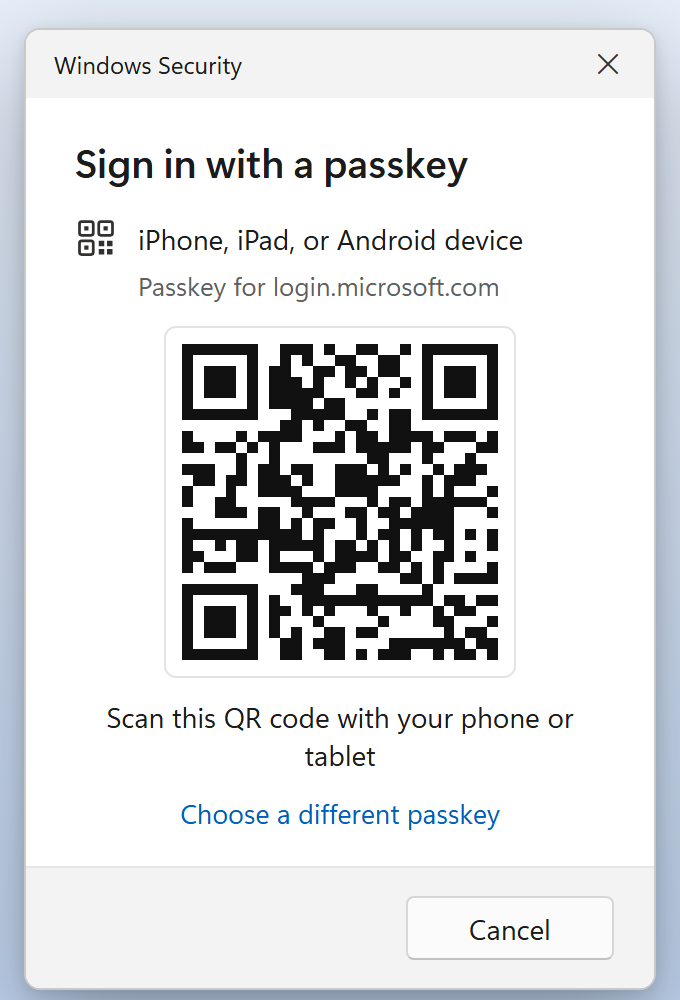
On an iPhone
Open the regular Camera app, not Authenticator. Point it at the code. Tap the yellow Sign in with passkey button under the code 1.
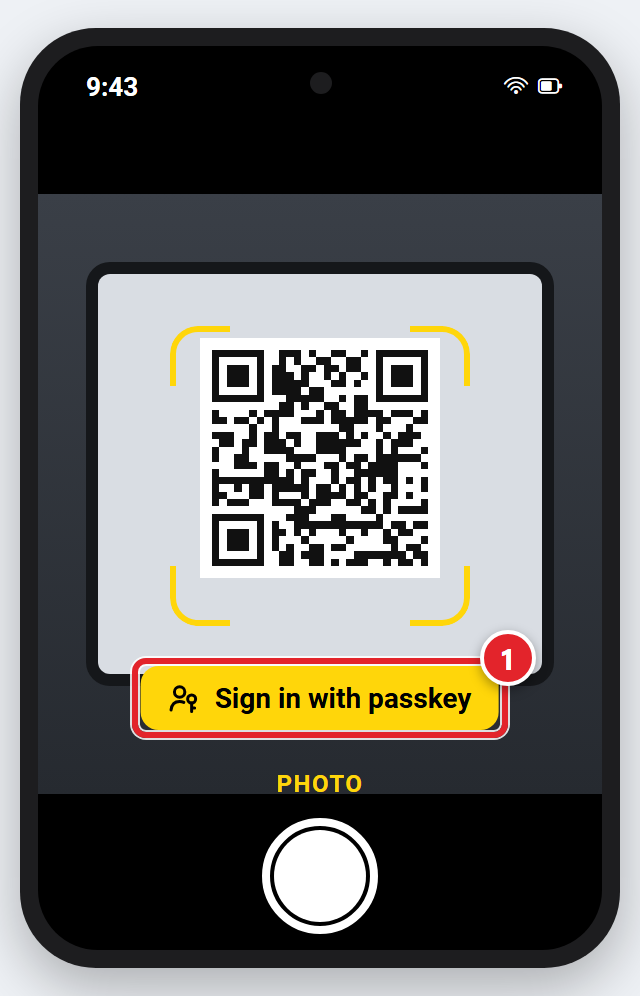
Nothing pops up? Hold the phone a little farther back, so the whole square fits on the screen. Wait 2 seconds.
On an Android phone
Open the Camera app and point it at the code. Tap the small link that pops up (it may show odd letters, like FIDO). Then tap Use passkey 1.
After you tap the link
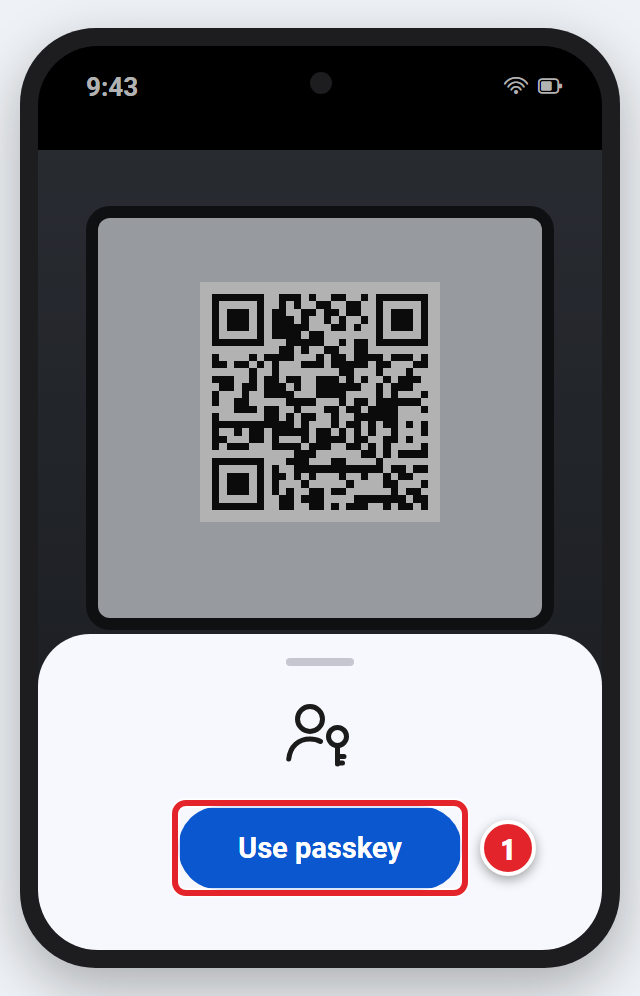
Android only: Camera does nothing? Open Authenticator and tap your work account. Under Passkey details, tap the scan button in the lower-right corner. Point it at the code.
- On your phone, tap Continue (on a Samsung it may say Sign in) if you see it. Then use your face, fingerprint, passcode or PIN. The computer signs you in.
Does Microsoft then ask you to Sign in faster with your face, fingerprint, or PIN? That's normal. Click Other options, then Skip for now (see a picture). You're done.
In a private window? Asked Stay signed in? Either answer is fine. Then close that window with the X in its top-right corner. Mac: click the red dot at its top left.
QR code won't work? See the Signing in questions below.
Sign In on Your Phone
Already signed in to Outlook or Teams on your phone? You're done. You don't need to test it. The next time an app asks you to sign in, your phone offers the passkey by itself:
- If the app asks for your email first (Outlook and Teams may), type your work email and tap the button under it.
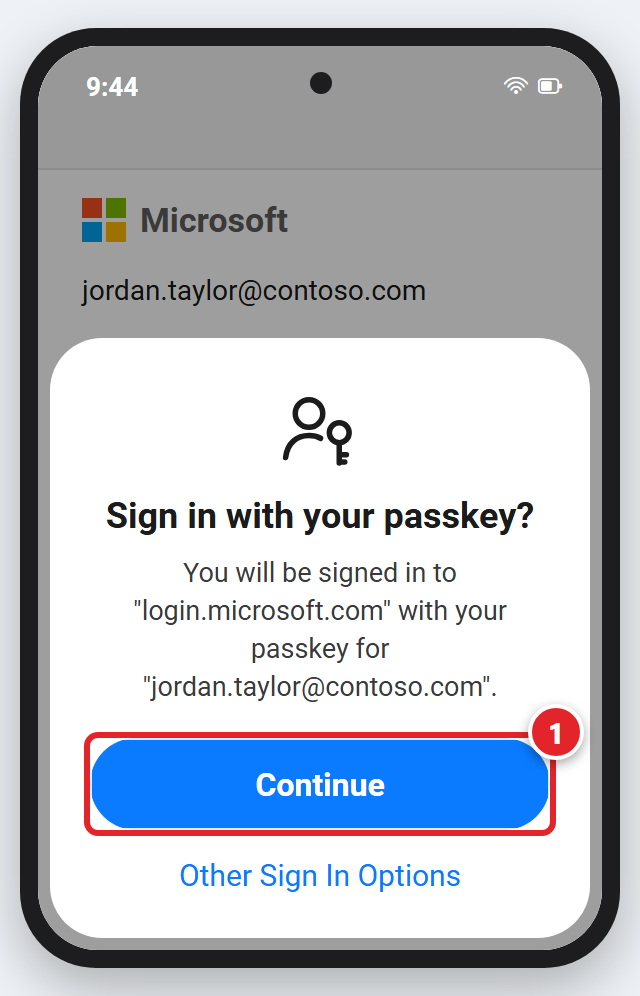
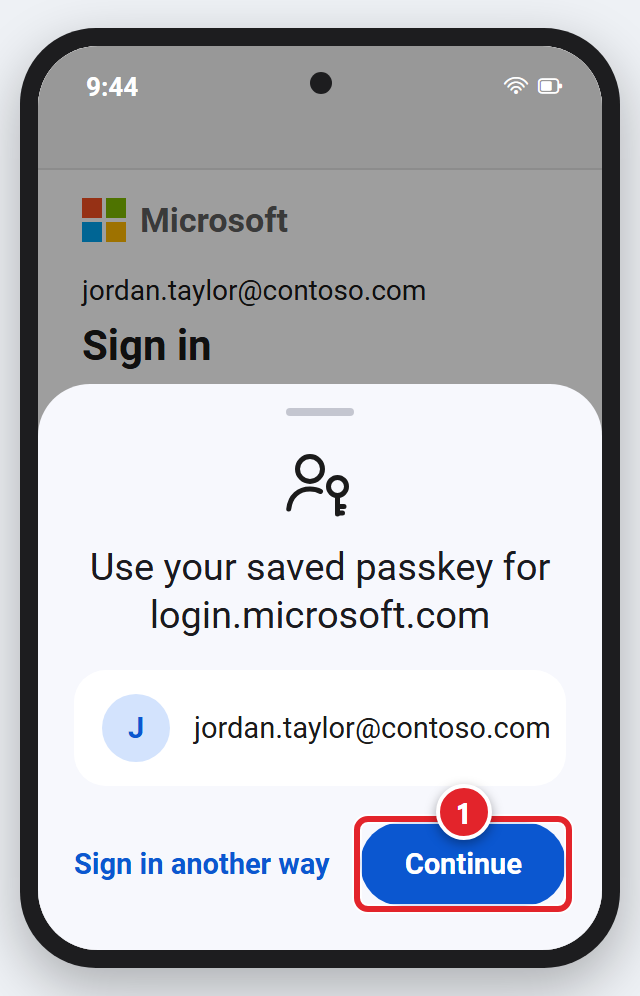
- A box like one of these pops up. Tap Continue 1 (on a Samsung: Sign in). Then use your face, fingerprint, passcode or PIN. You're signed in.
On an iPhone
On an Android phone
No box? Don't type your password. Tap Sign-in options or Other ways to sign in, whichever you see. Then tap Face, fingerprint, PIN or security key.
If Something Doesn't Work
Tap or click a question to see the answer.
Asked for your passkey again? Click Cancel, then Sign in another way (or Other ways to sign in) and choose Approve a request on my Microsoft Authenticator app.
Most asked: The passkey didn't save · I scanned the QR code and nothing happens · I'm getting a new phone
Is it safe? Do I have to?
Is this message real, or is it a scam?
- The real message pops up right after you open Outlook, Teams or office.com yourself. It shows your own work email. See a picture of it.
- Never type your password, scan a QR code or approve a sign-in on a page someone sent you a link to. Only scan the code your own computer shows while you sign in yourself. Making your passkey inside your own Authenticator app, the way this page shows, is safe.
- Got an email or text with a link like that? Don't click anything in it. See Reporting Junk Email or Phishing Attempts.
Not sure? Stop and submit a support request. We're happy to check.
Is a passkey safe? Does Microsoft get a copy of my face?
Yes, it's safe. It only works on Microsoft's real sign-in page, so a fake website can't use it. Your face and fingerprint never leave your phone.
Can I still use the number code or my password?
Yes. Your passkey is added next to what you already have. Microsoft may offer it first. To use the number instead, see Asked for your passkey again?
Your password doesn't change. You'll still need it sometimes.
I sign in with text-message codes. Do I have to change?
Most likely, yes. Microsoft is moving people from text-message and phone-call codes to passkeys.
Already use Authenticator? You're all set. Only use text messages? Set up Microsoft Authenticator, then make a passkey. Not sure? Submit a support request and we'll check.
Making the passkey
The passkey didn't save, or it says "Passkey could not be added."
First, check. Open Authenticator and tap your work account. Still see Create a passkey? Then it didn't save. See Passkey details (or Passkey) instead? It saved. Go to I scanned the QR code and nothing happens.
Getting a new phone soon? Skip this. Make your passkey on the new phone. See I'm getting a new phone.
Read these 4 steps first. Then do them in one go. If you stop for a few minutes, it gives up.
- Tap Create a passkey. If it asks for a password, type your work password (not your phone passcode). A sign-in message pops up. Tap it if you need to, then tap Yes.
- On the screen with Skip and Settings, tap Settings. Don't tap Skip. A small box pops up instead? Tap the button that turns it on. Then go to number 4.
- Your phone's Settings app opens by itself.
- iPhone: switch on AutoFill Passwords and Passkeys. Then, under AutoFill From (or Use passwords and passkeys from), switch on Authenticator. (Picture: iPhone Step 5)
- Android: under Additional services (or Additional providers), switch on Authenticator. (Picture: Android Step 5)
- Go back to Authenticator. iPhone: tap the small ◀ Authenticator in the top-left corner. Android: tap Back. Then tap Done. You see Account added with Passkey at the top? Tap Done again. It saved.
Now try it: see Try your passkey in a private window. Says it already exists? See It says the passkey already exists.
Tried twice and it still fails? Some phones can't store a passkey. That's OK. Keep signing in the usual way. Take a photo of the screen and submit a support request.
It says the passkey already exists.
A half-made passkey is stuck on your phone. Remove it and try again:
- In Authenticator, tap your work account.
- Tap the gear at the top right (Settings). Don't see a gear? Tap the three dots or three lines at the top. Then tap Delete passkey.
- Start again from Step 2.
I don't see "Create a passkey" in Authenticator.
- Make sure you tapped your work account, not a personal one.
- Update Authenticator in the App Store or Google Play.
- Your phone may be too old. It needs iOS 17 or newer (iPhone) or Android 14 or newer. Install any update your phone offers, then look again.
Still missing? Your company may not have passkeys turned on for you yet. Submit a support request and we'll check.
Authenticator isn't in the list in my phone's Settings.
- First, update Authenticator in the App Store or Google Play. Open it once, then look again.
- iPhone: switch on AutoFill Passwords and Passkeys first. Authenticator then shows up under AutoFill From (or Use passwords and passkeys from).
- Android: open your phone's Settings app and search for passkey. The page may be called Passwords & accounts. On a Samsung phone, the page is Passwords, passkeys and autofill, and the list may be called All services.
- Too many apps switched on? Your phone only allows a few. Switch off one you don't use.
It says "Screen lock required" or "No passkeys available."
Already have a passcode or PIN on your phone? Then your passkey may not have saved. See The passkey didn't save.
No screen lock? Passkeys need one. Set one up, then start again from Step 1:
- iPhone: open your phone's Settings app. Tap Face ID & Passcode (or Touch ID & Passcode), then Turn Passcode On.
- Android: open your phone's Settings app, search for screen lock, and set a PIN, pattern or password.
I clicked Next on Microsoft's message and it saved somewhere else.
That's OK. Clicking Next saves the passkey where your phone or computer usually saves passwords: Authenticator, the iPhone Passwords app, Google Password Manager, Samsung Pass or Windows. One saved on a Windows computer only works on that computer.
If you see an error, click Skip. On an iPhone or Mac, also delete the passkey for login.microsoft.com in the Passwords app, or submit a support request.
To sign in on any computer with your phone, also make a passkey in Authenticator (steps 1 to 6).
My computer keeps asking me to create a passkey.
Microsoft checks each computer on its own, so it may still ask. Either answer is fine:
- Skip it each time: click Other options, then Skip for now. It may come back the next day.
- Say yes once: click Next. Use your Windows PIN, face or fingerprint (on a Mac, Touch ID or your Mac password). Type any name, such as "Work laptop", click Next, then Done. After that, this computer can sign you in without your phone.
If you see an error, click Skip and sign in the usual way.
My Android phone has a separate Work section.
Make the passkey in the Authenticator app in the Work section. In your phone's Settings app, open Passwords, passkeys & accounts, tap the Work tab, then switch on Authenticator. Scan QR codes with the camera in the Work section too.
See We couldn't sign you in? The passkey was probably saved on the personal side. Make it again in the Work section.
Signing in
How do I test my passkey now?
Use a private window, so Microsoft asks you to sign in again. See Try your passkey in a private window.
I scanned the QR code and nothing happens, or it says "Something went wrong."
- Is your passkey saved? Open Authenticator and tap your work account. Still see Create a passkey? See The passkey didn't save.
- iPhone: use the regular Camera app. The camera inside Authenticator can't read this code. A small yellow Sign in with passkey button appears under the code. Nothing happens until you tap it. No yellow button? Open your phone's Settings app, tap Camera and switch on Scan QR Codes.
- Android: tap the small link that pops up. Camera doesn't react? Use the scan button in Authenticator. On a Samsung phone, you can also open Camera, tap the gear and switch on Scan QR codes.
- Turn on Bluetooth on both (see how). Both need the internet. Keep the phone close.
- Be quick. Tap the button on your phone right away. If you wait, the code stops working.
- It says "Something went wrong"? Click Try again. Also install any updates for your phone, your computer and Authenticator.
- Still stuck? Click Cancel. Go to office.com again and start over from number 2 of Sign in on a computer. Or, for now, sign in the usual way.
The QR code doesn't show up, or there's no "iPhone, iPad, or Android device" choice.
Did your email open without asking you to sign in? You're already signed in, so there's no code. To test your passkey, see Try your passkey in a private window.
Clicked your phone's name? See number 4 of Sign in on a computer.
Otherwise, Bluetooth is usually off on the computer. Turn it on. Many desktop computers don't have Bluetooth. Your company may also block Bluetooth sign-in.
For now, click Cancel and sign in the usual way. Want us to look at it? Submit a support request.
Windows asks for my Windows PIN instead of my phone.
This computer has its own passkey, and you can use it. To use your phone instead, click Choose a different passkey in the Windows box, then iPhone, iPad, or Android device.
Nothing happens when I click "Face, fingerprint, PIN or security key."
Windows may have asked once whether your web browser can use passkeys, and the answer was No. Click Start, then Settings (the gear). Click Privacy & security, then Passkey access, and allow your browser. Then try again.
My passkey stopped working, or it says "This passkey can no longer be used."
You may also see "We couldn't use your device to verify your identity." This happens if the passkey was deleted, or Authenticator or your work account was removed from the phone. On an Android phone, it also happens if you changed your phone's PIN or switched between fingerprint and face unlock.
- For now, click Cancel and sign in the usual way.
- Make a new passkey (steps 1 to 6).
- Remove the old one. See How do I remove an old passkey?
Can't get in another way? Submit a support request and we'll help.
My phone isn't with me, or it isn't near my computer.
Your phone needs to be in the same room. Bring it closer and try again. Or click Cancel and sign in the usual way.
No phone at all? Submit a support request from another device and we'll help you get in.
New, lost or changed phone
I'm getting a new phone (or just got one).
Nothing to do for your passkey now. But don't hand in or reset your old phone, not even at the store. You need it to set up the new one.
Your passkey never worked, or it didn't save? Don't fix it now. Make it on the new phone.
Your passkey does not move to the new phone, even if you move everything with iCloud, Google or Samsung Smart Switch. When you have the new phone:
- Keep your old phone until the last number below.
- Install Microsoft Authenticator on the new phone (App Store or Google Play). Then do Steps 1 and 2 of Getting a new phone: moving Microsoft Authenticator. Then press your browser's Back button to come back here for number 3.
- Make a new passkey on the new phone (steps 1 to 6). They end with a test on your computer. Scan the code with the new phone. When you see You're done, come back to this question for number 4.
- On the old phone, open Authenticator and tap your work account. See Passkey details? Remove that old passkey (see How do I remove an old passkey?). See Create a passkey? There's no passkey to remove. Go to number 5.
- On your computer, remove the old phone from your account. Do Step 3 of Getting a new phone. Do this even if there was no old passkey.
- Now it's safe to reset or trade in the old phone.
I lost my phone, or it was stolen.
Your passkey went with the phone. Please submit a support request right away. We'll remove the old passkey and help you get back in. Then follow Lost or Stolen Laptop or Phone? Do This Now.
How do I remove an old passkey?
Always make and test your new passkey first. Then:
- On a computer (easiest): go to mysignins.microsoft.com/security-info and sign in. Find the passkey you don't use anymore and select Delete.
- In Authenticator: tap your work account. Tap the gear at the top right (or the three dots or three lines at the top), then Delete passkey. On an iPhone, this isn't enough. Also delete it on the website above.
Not sure which one to delete? Leave them all and submit a support request.
Still Stuck? Submit a Ticket
Submit a support request or email [email protected]. These details help us fix it faster:
- Your phone: iPhone or Android, and the model if you know it.
- Where you got stuck, for example "Android Step 5."
- The exact words of any message. A photo or screenshot of the screen is perfect.
- Where you were signing in: a Windows computer, a Mac or your phone.
- Whether you can still sign in the usual way.
Sources: Microsoft - Register passkeys in Authenticator, Microsoft - Sign in with passkeys in Authenticator, Microsoft - Troubleshoot signing in with a passkey