
Set Up Work Email on Your iPhone or Android Phone (Outlook App)
Want your work email and calendar on your phone? The free Microsoft Outlook app is the way to do it, on iPhone and Android alike. Setup takes about five minutes.
Before You Start
- Your work email address and password.
- Microsoft Authenticator already set up for your work account. If it isn't yet, do that first: Microsoft 365: Signing In for the First Time & Setting Up MFA.
- Your phone, up to date, with a Wi-Fi or cellular connection.
In Short
- Install Microsoft Outlook from the App Store or Google Play.
- Open it, type your work email and tap Continue.
- Enter your password and tap Sign in.
- Approve the sign-in in Microsoft Authenticator.
- Follow any extra prompts from your company, then tap Maybe Later when asked to add another account.
Step 1: Install the Outlook App
- iPhone: open the App Store, search for Microsoft Outlook, and tap Get.
- Android: open Google Play, search for Microsoft Outlook, and tap Install.
Check that the publisher is Microsoft Corporation. Ignore look-alike apps.
Step 2: Add Your Work Account
- Open Outlook. If it offers an account it found on your phone, make sure it's your work email and tap Add Account or Continue. If it shows a different account, tap Skip.
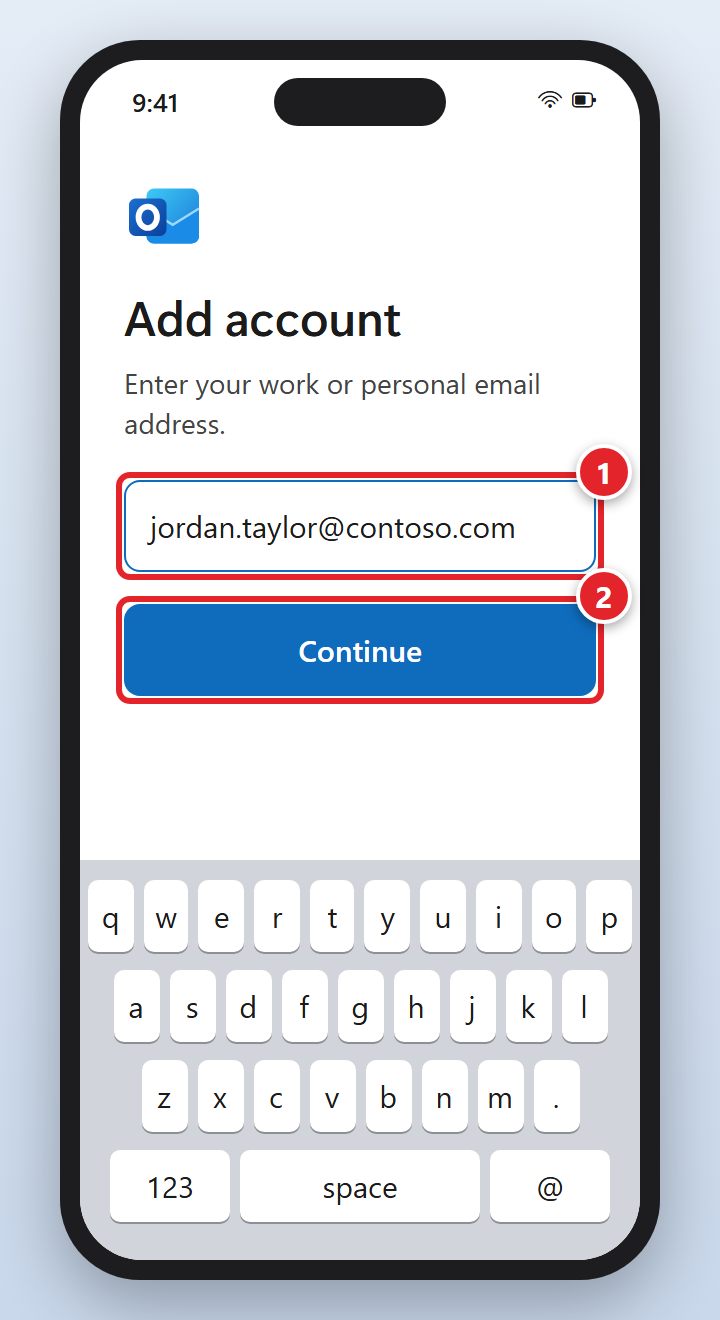
- Otherwise, tap Add Account, type your work email address (1) and tap Continue (2).
Step 3: Sign In
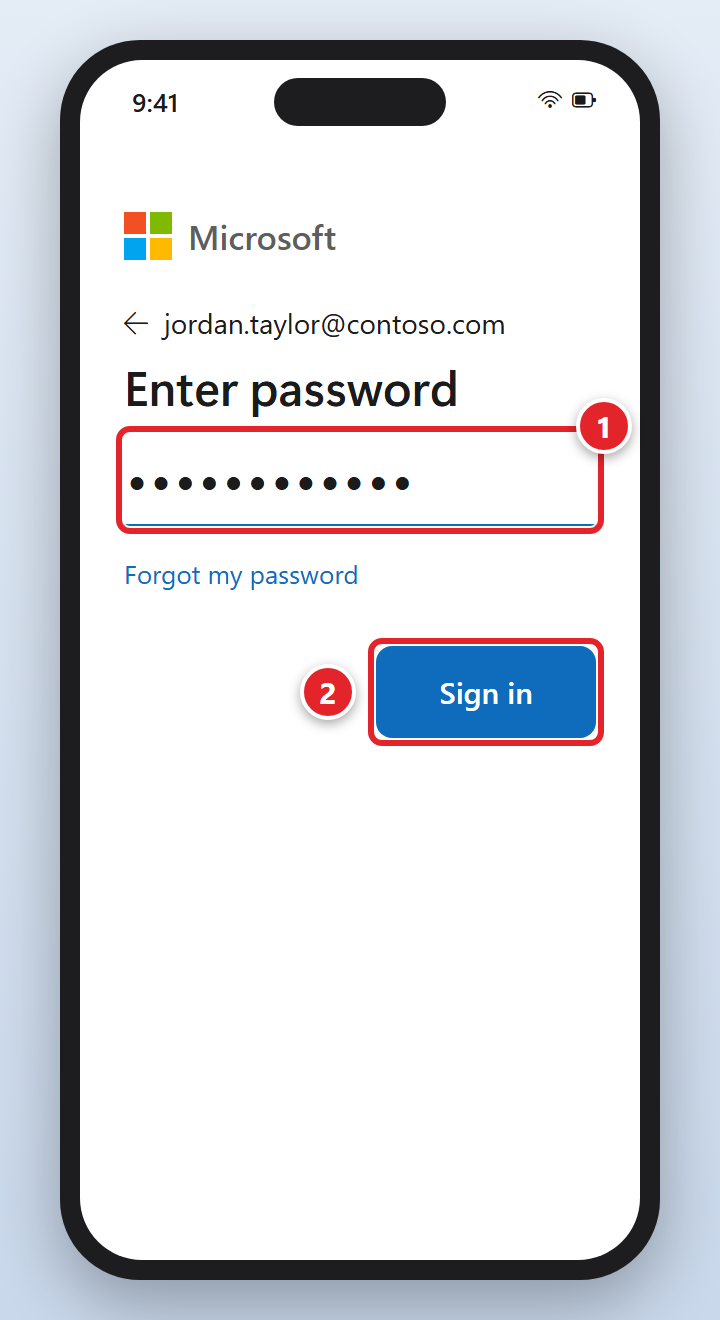
- The Microsoft sign-in page opens. (It may show your company's logo and colors instead.) Type your work password (1) and tap Sign in (2).
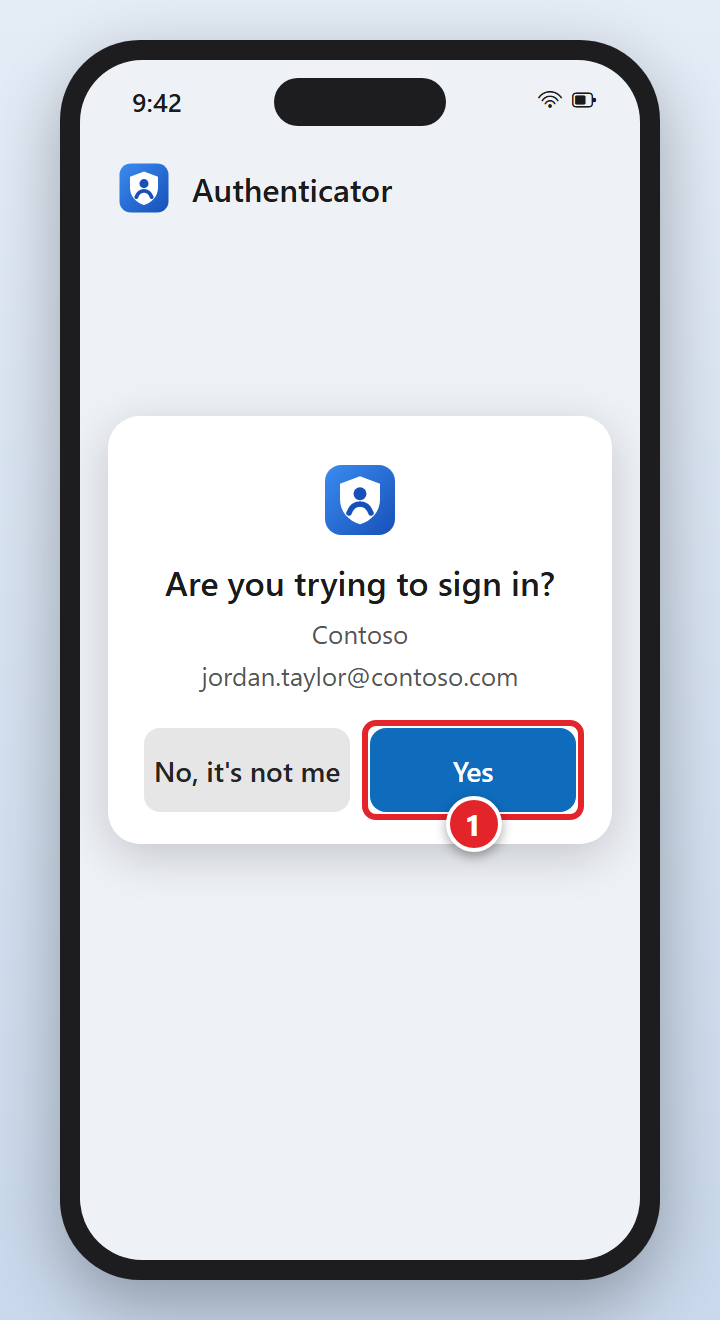
- Microsoft Authenticator asks Are you trying to sign in? Check that it shows your work email, then tap Yes (1). If the sign-in page shows a number, type that number into Authenticator first.
Step 4: Finish Up
- If your phone asks whether Outlook can send you notifications, tap Allow so you know when new email arrives.
- If Outlook asks whether you want to add another account, tap Maybe Later.
- Swipe through or Skip the feature tour.
Done! Your inbox loads in a few moments. Tap the calendar icon at the bottom of the screen to see your work calendar.
You Might Also See: Company Security Prompts
Many companies protect work email on phones with Microsoft's app protection. If yours does, you'll see one or more of these during setup. They're expected and safe to follow:
- Android: "Company Portal required." Tap Go to store, install Intune Company Portal (published by Microsoft Corporation), then go back to Outlook. You don't need to set anything up inside Company Portal unless it asks you to.
- "Register" or "Sign in" to protect your organization's data: tap Register or sign in with your work account again.
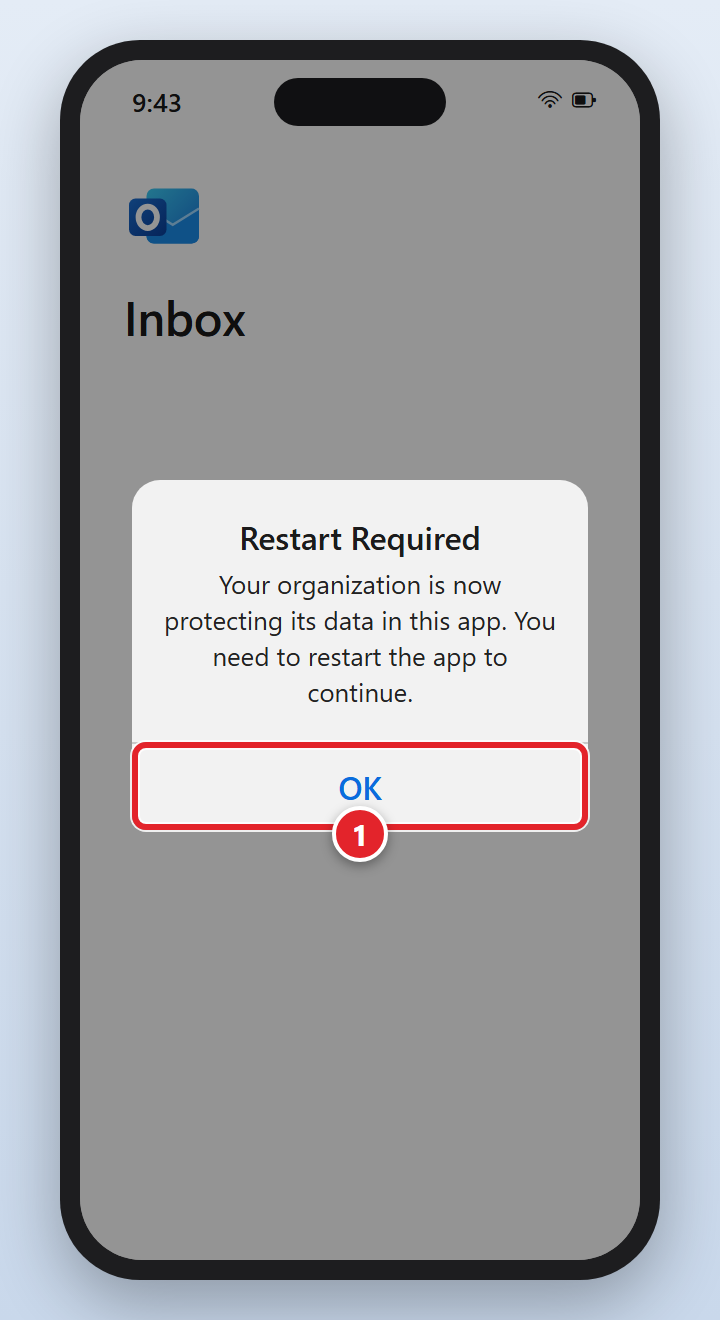
- "Restart Required: Your organization is now protecting its data in this app." Tap OK (1), then open Outlook again.
- Create a PIN. When Outlook reopens, it may ask you to set a PIN (or use Face ID or your fingerprint) for the app. Choose one you'll remember: you'll use it to open Outlook.
Removing Work Email From Your Phone
Getting a new phone, or leaving the company? In Outlook, tap your profile picture at the top left, then Settings (the gear). Tap your work account, scroll down and tap Delete Account. This removes the email from the phone; it doesn't delete anything from your mailbox.
If you're replacing your phone, move Microsoft Authenticator before you wipe or trade in the old one: Getting a new phone: moving Microsoft Authenticator.
Troubleshooting & FAQs
Click a question to expand it.
My password isn't accepted.
Check Caps Lock and try once more, carefully. Don't keep guessing: too many tries can lock your account. If you've forgotten it, see Microsoft 365 Self-Service Password Reset, or contact us.
Authenticator never asked me to approve.
Open the Authenticator app yourself; the request is often waiting inside it. Make sure notifications for Authenticator are turned on in your phone's settings. If the sign-in page offers Sign in another way, you can choose a different method you've already set up.
I get a message that I can't access email from this app or device.
Your company may only allow work email on certain apps or devices. Make sure you're using the Microsoft Outlook app, and that your phone's software is up to date. If the message continues, take a screenshot and send it to us.
My email isn't updating.
Pull down on the inbox to refresh, and check that you're connected to Wi-Fi or cellular data. Close and reopen the Outlook app. If it still won't update, delete the account from Outlook (see above) and add it again.
It's my personal phone. Can you set it up for me?
We can't connect to or manage a personal phone, but we're happy to help with your work account, and this guide covers the phone side. See What Your Managed IT Support Covers.
Sources: Microsoft - Set up the Outlook app for iOS, Set up email in the Outlook for Android app