Computer running slow? Try these first

Everything takes a beat longer than it should. Windows open slowly, the cursor hesitates, a document that used to appear instantly now makes you wait. It's one of the most common things people write in about, and it very rarely means something is broken. Most of the time a slow computer is a computer that has been asked to carry too much at once — and a handful of checks you can do yourself will clear it.

The short version: Restart first — a genuine Restart, not a shut down, because those are not the same thing on Windows 11. If that doesn't settle it, check your free disk space, close what you're not using, and look at what starts up automatically when you sign in. If none of that helps, the details you gathered along the way are exactly what we need to fix it properly.

Start with a restart — and make it a real one

Restarting is the first suggestion for a reason, and it isn't a brush-off. Every app you open holds on to a slice of memory and a set of open files, and it hands those back when it closes — mostly. Over days of steady use, apps left running, browser sessions, print jobs and background tasks accumulate, and the computer spends more and more of its effort managing that pile. A restart puts all of it back to a known-good starting point. It's also the step that finishes any updates that have installed but are waiting on a reboot to complete.

Here's the part that catches almost everyone out: shutting down at the end of the day is not the same as restarting. Windows has a feature called Fast Startup, and it's enabled by default. When you shut down, Windows doesn't fully close the core of the running system — it saves that session to a file on disk and hibernates it, so your computer can start up faster in the morning. That's genuinely useful, but it means shutting down leaves yesterday's state largely intact. Microsoft puts it plainly: "The Fast Startup setting doesn't apply to Restart." Only a restart performs the full start-up cycle.

  1. Save your work and close anything you'd hate to lose.
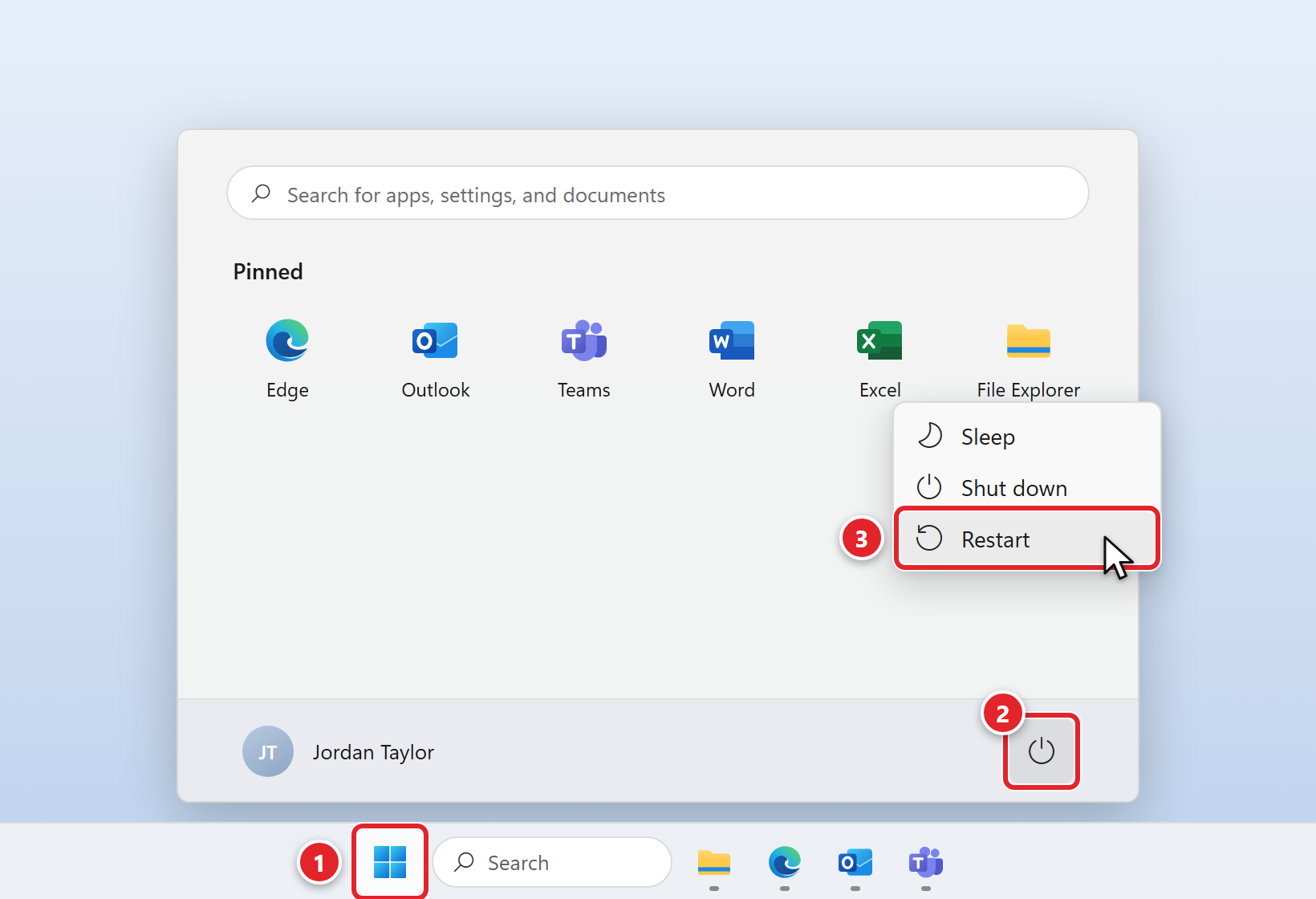
  2. Go to Start → Power → Restart. Not Shut down.
  3. Sign back in, then give it a few minutes before you judge the result — the first stretch after signing in is the busiest, because startup apps are launching and background tasks are catching up.

If it's been weeks since the last true restart, this one step fixes a surprising share of slow computers. Our guide to rebooting and restarting your computer walks through it in more detail.

Close what you're not using

This is the cheapest fix there is, and it's Microsoft's own advice too: "Having many apps or browser tabs open can slow performance. Close any apps or tabs you don't need."

There's no magic number of tabs — it depends entirely on your computer and on what those tabs are doing. Twenty static reference pages cost far less than three tabs running video meetings, live dashboards or pages that refresh themselves. Big spreadsheets, PDF files and anything playing media are all heavy in the same way.

If you keep tabs open as a to-do list (most of us do), bookmark them into a folder instead. You lose nothing and the browser stops carrying all of it at once.

Taking a look in Task Manager

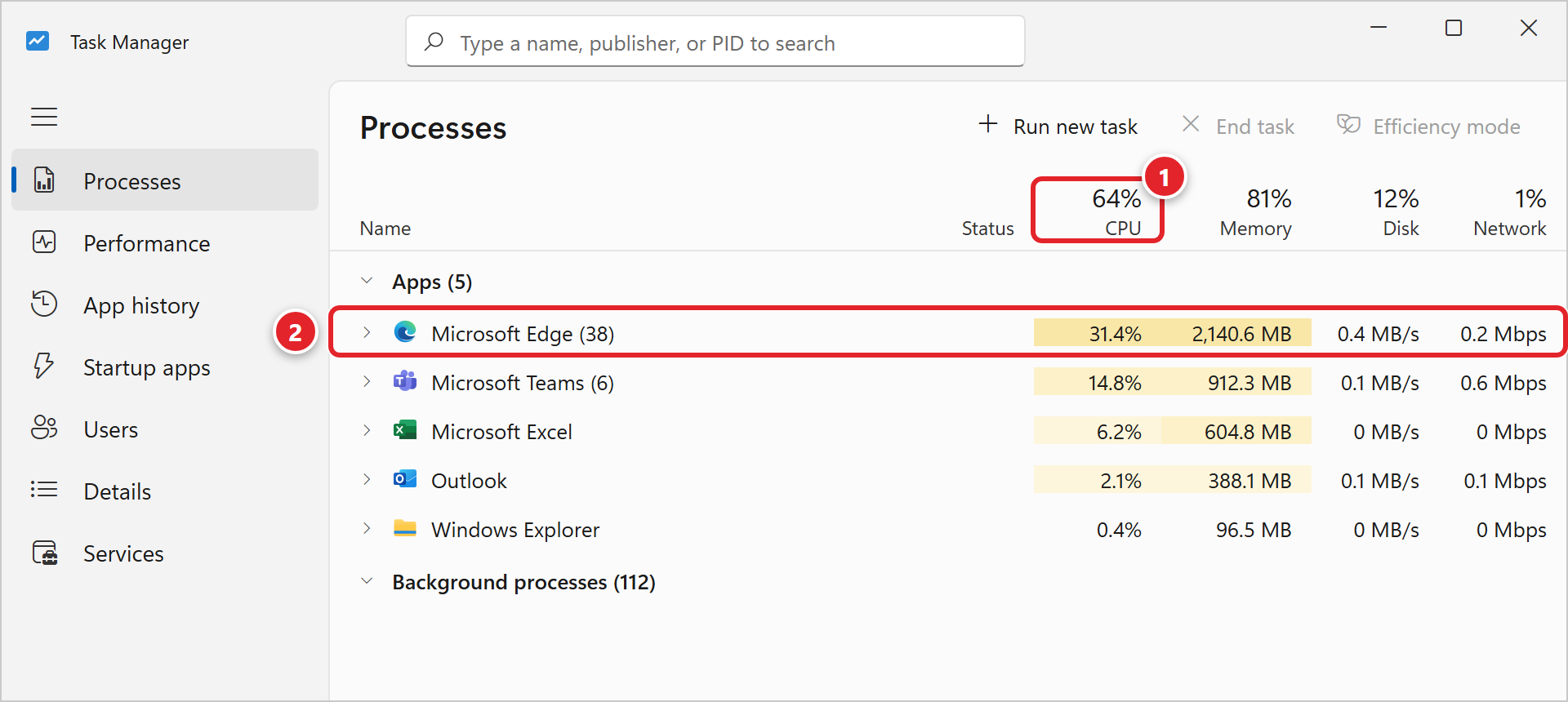
If you'd like to see where the effort is actually going, Task Manager will show you. Press Ctrl + Shift + Esc, then open the Processes tab — Microsoft describes it as a "List of apps and background processes, and the resource usage of each." Scan for anything sitting at a high share of CPU, memory or disk that you don't recognize as something you're currently doing.

If Task Manager won't open, or you get a message saying it has been disabled by your administrator, that's a managed setting rather than a fault. Skip this step — everything else in this article still applies, and we can look at the process list from our side if it comes to that.

One more browser note: add-ons and extensions run as part of the browser, so a browser that has collected them over the years has more to carry. If you're not sure whether something in your browser belongs there, don't remove it on a hunch — check our approved software list or ask us, and we'll tell you what's expected and what isn't.

Check your free disk space

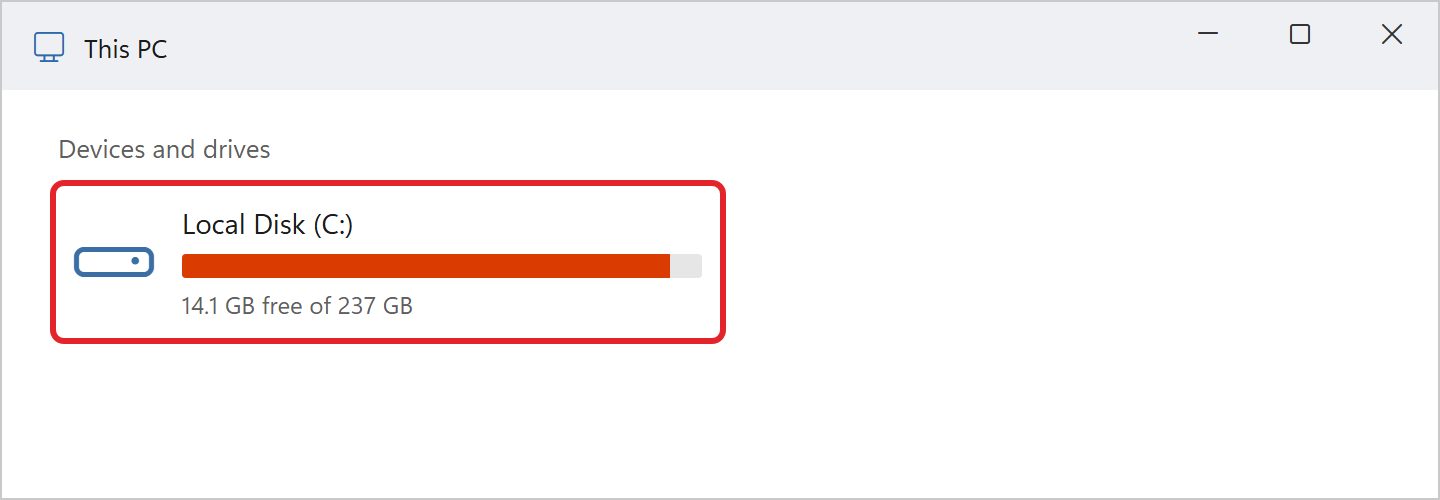
A drive that's nearly full slows a computer down in ways that don't look like a disk problem at all — things just get sluggish everywhere. Go to Start → Settings → System → Storage to see where you stand. Windows makes this easy to read: when the device is genuinely low on space, the capacity bar on that page turns red.

How much is enough? Microsoft's guidance is that it's "a good idea to have 10% to 15% of free space available" — a good idea, note, not a hard rule. There's a more concrete argument, though, and it's the one that matters most on a managed computer: Windows updates need real room to install. Microsoft's published figures are 6 GB to 11 GB or more of free space for a feature update, and 2 GB to 3 GB or more for a quality update. Below those, updates simply don't install.

Clearing space safely

Start with your own files, because that's where the space usually is and it's entirely under your control:

  • Your Downloads folder — installers, PDF files and copies of attachments collect there for years.
  • Your Recycle Bin. Files there still take up space until it's emptied, so check the contents first, then empty it.
  • Old copies of large files — the "final v3 (2)" ones — especially video, scans and anything you keep on the desktop.

Windows also has a built-in cleanup tool called Storage Sense, on that same Settings → System → Storage page. It's off by default, though Windows may switch it on by itself if your computer runs low on space and you haven't used it before — it will notify you when it does. From the Storage page you can also open Cleanup recommendations, tick categories such as Temporary files, and choose Remove files.

Storage Sense works on your system drive only — normally your C: drive — and it can't run unless you've been signed in and online for more than 10 minutes. Reassuringly, it leaves your Downloads folder and your OneDrive content alone by default; clearing Downloads is a separate setting, "Delete files in my Downloads folder if they haven't been opened for more than:", which is the kind of thing to opt into deliberately rather than discover after the fact.

Some cleanup options aren't yours to use, and that's by design. Categories that touch system files — Previous Windows Installation(s) is the usual one — are machine-wide, and the Clean up system files button in the older Disk Cleanup tool asks for an administrator password you won't have. That's normal on a managed computer; see software installation and administrative functions. If you've cleared what you can and space is still tight, submit a support request and we'll take the rest.

Why the numbers never quite add up

If you've ever worked out that your files don't account for everything on the drive, you're right — and nothing is wrong. Windows deliberately reserves a portion of the drive for temporary files, caches and updates, commonly around 7 GB, so updates can complete predictably; you can see it under Settings → System → Storage → Show more categories. When the computer genuinely runs short, Windows releases that reserved space by itself.

So please don't go hunting for space inside Windows, System32 or Program Files. There's nothing safe to reclaim there, and deleting the wrong thing turns a slow computer into a broken one.

Trim what starts automatically

Let's be honest about what this achieves, because it's often oversold. Reducing startup apps makes signing in quicker and lowers the background load on your computer. It does not make the processor faster, and it won't rescue a machine that's genuinely undersized for the work. It's worth doing, but it's a trim, not a transplant.

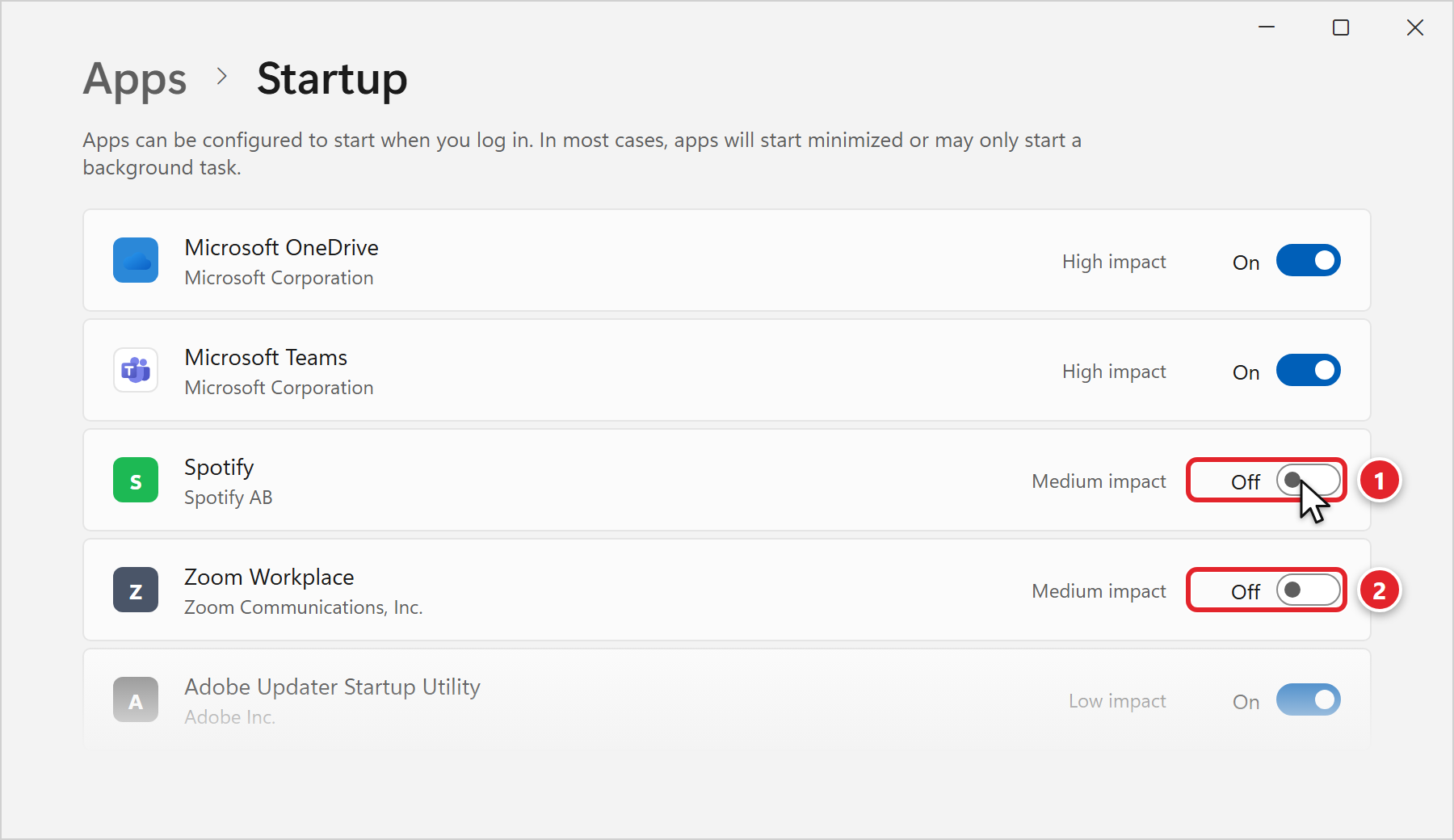
There are two routes to the same list. The friendlier one is Settings → Apps → Startup, where each app has a simple On/Off toggle. The other is Task Manager: press Ctrl + Shift + Esc, open Startup apps, right-click an entry and choose Disable. Task Manager also shows a startup impact rating for each item — the values are None, Not Measured, Low Impact, Medium Impact and High Impact.

Aim at the ones you recognize, don't need the moment you sign in, and can happily open yourself — chat and media apps, update helpers for software you rarely use, that sort of thing. Turning an app off here does not uninstall it; the app still opens normally when you click it. It just stops launching on its own.

Leave anything you don't recognize alone — and leave our tools alone specifically. Managed computers run a support agent, a remote support utility and monitoring software, all listed in the software we manage. Turning those off doesn't speed anything up, and it does cut you off from support. If an entry is grayed out and won't toggle, that means it's set for everyone on the computer and is managed by us. That's expected — leave it as it is.

Something may just be finishing in the background

Sometimes a slow computer isn't slow at all — it's busy, briefly, with work that's about to end. Three causes account for most of it.

Updates working, or waiting on a restart

Your computer is patched centrally by us, so this happens without you starting it. Critical security fixes go out as they're needed, and everything else — the larger batch, the kind that usually wants a restart — is applied during our monthly patching window on the 25th of each month, whichever day of the week that lands on. While updates are downloading and installing, the computer has real work on and can feel heavy. And once they've installed, part of the job stays unfinished until the next restart, which is another reason that first step matters so much.

You don't need to click Check for updates — in fact we'd rather you didn't. Our article on Windows updates on managed computers explains why, and what the update screen is really telling you.

OneDrive catching up

After a big change — a large folder added, a batch of files restored, a first sign-in on a new computer — OneDrive has a lot to move, and that competes with whatever you're trying to do. You can test whether that's the cause without breaking anything: right-click the OneDrive cloud icon in the notification area, choose Pause syncing, and pick 2 hours, 8 hours or 24 hours. Syncing restarts by itself when the time is up, so you can't accidentally leave yourself unsynced.

If pausing makes an obvious difference, that's a genuinely useful clue — please mention it if you end up raising a ticket.

Windows search catching up

Windows keeps an index of your files so that the Start menu and Outlook can find things instantly. After a lot of new files arrive, the index has to catch up, and that shows as background activity for a while. Windows offers two modes for this: Classic indexes your Documents, Pictures and Music folders plus the desktop, while Enhanced indexes your entire computer — so on Enhanced there's simply more to work through.

This settles on its own, and it's not something to switch off. Indexing is what makes search fast; turning it off trades a slow afternoon for slow searches every day after that.

Please don't install a PC cleaner or optimizer

Search "speed up my computer" and you'll be offered dozens of tools promising to clean your registry and tune your system. We'd ask you not to install them, and we'd rather give you the real reason than just say no.

Microsoft does not support registry cleaning utilities. Its published policy is explicit: Microsoft isn't responsible for issues caused by one, serious problems can occur when the registry is modified incorrectly, those problems might require reinstalling the operating system, and Microsoft cannot guarantee that problems resulting from the use of such a utility can be solved — including data that may not be recoverable. That's a real risk to your working day, not a matter of taste.

It's also worth noticing what isn't in Microsoft's own list of ways to improve performance: there are a dozen recommended steps, and not one of them is a cleaner utility. Everything genuinely effective here is already built into Windows.

Separately from whether any given tool works, installing software that isn't approved is a policy matter on a managed computer regardless. If you've seen something you think would help, tell us instead and we'll look at it properly — our approved software list is the place to start.

Sometimes it really is the computer

All of the above assumes the computer is capable and just cluttered. Sometimes that isn't the case, and it's worth saying clearly: that is not something you did. Software gets heavier every year, and a machine that was exactly right four years ago can be genuinely undersized today. Working around a slow computer for months, quietly, costs far more than replacing it.

A few signs that point at the hardware rather than the habits:

  • It's slow from the moment you sign in, every day, and stays slow no matter what you close.
  • Everything is slow — not one application, but all of them, including simple ones.
  • The fan runs loudly and constantly, and the computer is hot to the touch.

That last one is worth acting on. Computers overheat when air can't get through them — Dell attributes it to insufficient airflow from dust or debris blocking the air vents and exhaust ports, or a clogged fan — and an overheating computer can slow down, and can also restart or shut down unexpectedly. Processors deliberately reduce their own speed to cope with heat, which feels like exactly the sluggishness this article is about.

What you can safely do is keep the air path clear: use the computer on a hard flat surface rather than a blanket, cushion or lap, and don't stack papers or bags against the vents. Anything involving opening the machine or clearing dust from inside it is a hardware job and ours to do — check your device warranty status and let us take it from there. If the computer is also restarting on its own, why did my computer restart? covers that side of it.

And if the answer turns out to be more memory or a newer machine, that's a normal conversation to have and a normal part of running an office. Start it with a hardware or software request, or just tell us what you're seeing and we'll work out what's needed.

If none of that worked

Submit a support request or email [email protected]. Slowness is one of the harder things to diagnose remotely, so a few specifics turn a vague ticket into one we can act on immediately:

  • Your computer's name. If you're not sure of it, right-click the support agent icon in your system tray — locating your computer's service tag shows you where.
  • When it started, as precisely as you can manage. "Since Monday" and "for about six months" lead us in completely different directions.
  • Whether it's one application or everything. A single slow program is usually a different problem from a slow computer, and knowing which saves a whole round of questions.
  • Whether it's slow from startup, or gets worse over the day. Slow immediately after signing in points one way; fine at 9am and crawling by 3pm points another.
  • What you've already tried from this article, and whether any of it helped even temporarily.
  • Whether a restart helps, and for how long — an hour, a day, or not at all. This one is genuinely diagnostic.
  • What you're doing when it's at its worst — a video meeting, a large file, a particular website, working remotely.
  • Any on-screen message, word for word, if one appeared.

If you'd like a hand putting the request together, submitting a support request walks through it.

The takeaway: restart properly, keep a bit of room on the drive, close what you're not using, and be a little choosy about what launches at sign-in. That covers the overwhelming majority of slow computers, and every step here is safe and reversible. When it doesn't cover yours, that's not a failure on your part — it's information, and it's the fastest possible start for us.
Was this article helpful?