
Computer Says Your Disk Is Full? Free Up Space Safely
Seeing "low on storage" or "disk full" warnings? When your computer's drive fills up, it slows down, updates can't install, and OneDrive can stop syncing. Here's how to free up space safely, starting with the steps that save the most space without deleting anything you need.
In Short
- OneDrive: right-click big folders you rarely use > Free up space. Nothing is deleted.
- Settings: System > Storage > Cleanup recommendations.
- Downloads folder: keep what you need (in OneDrive), delete the rest.
- Restart your computer.
How Full Is It?
Open File Explorer (the yellow folder on your taskbar) and click This PC on the left. Under your Local Disk (C:), Windows shows how much space is free. A red bar means the drive is nearly full.
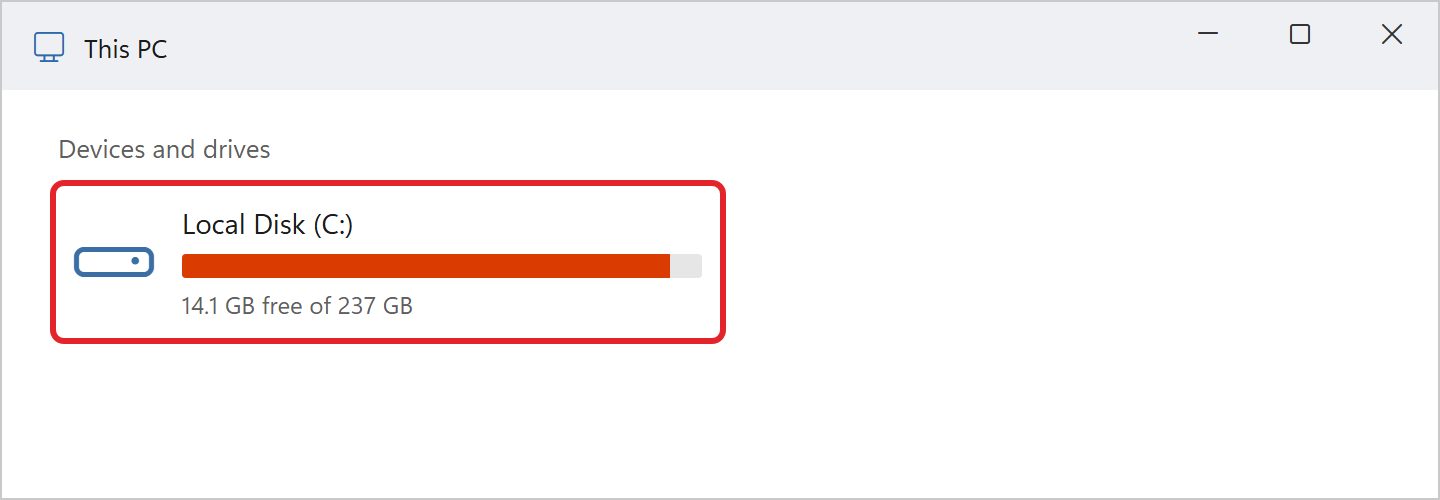
Aim to keep at least 10% to 15% of the drive free (for example, 25 to 35 GB on a 237 GB drive).
Step 1: Let OneDrive Keep Files in the Cloud
If your files are in OneDrive, this is usually the quickest big win, and it doesn't delete anything. Files you mark this way stay safe in OneDrive and download again whenever you open them (you'll need an internet connection to open them).
- Open File Explorer and click your OneDrive folder on the left (the blue cloud with your name and company).
- Right-click a large folder you don't use every day, for example old projects or photos.
- Click Free up space (1).
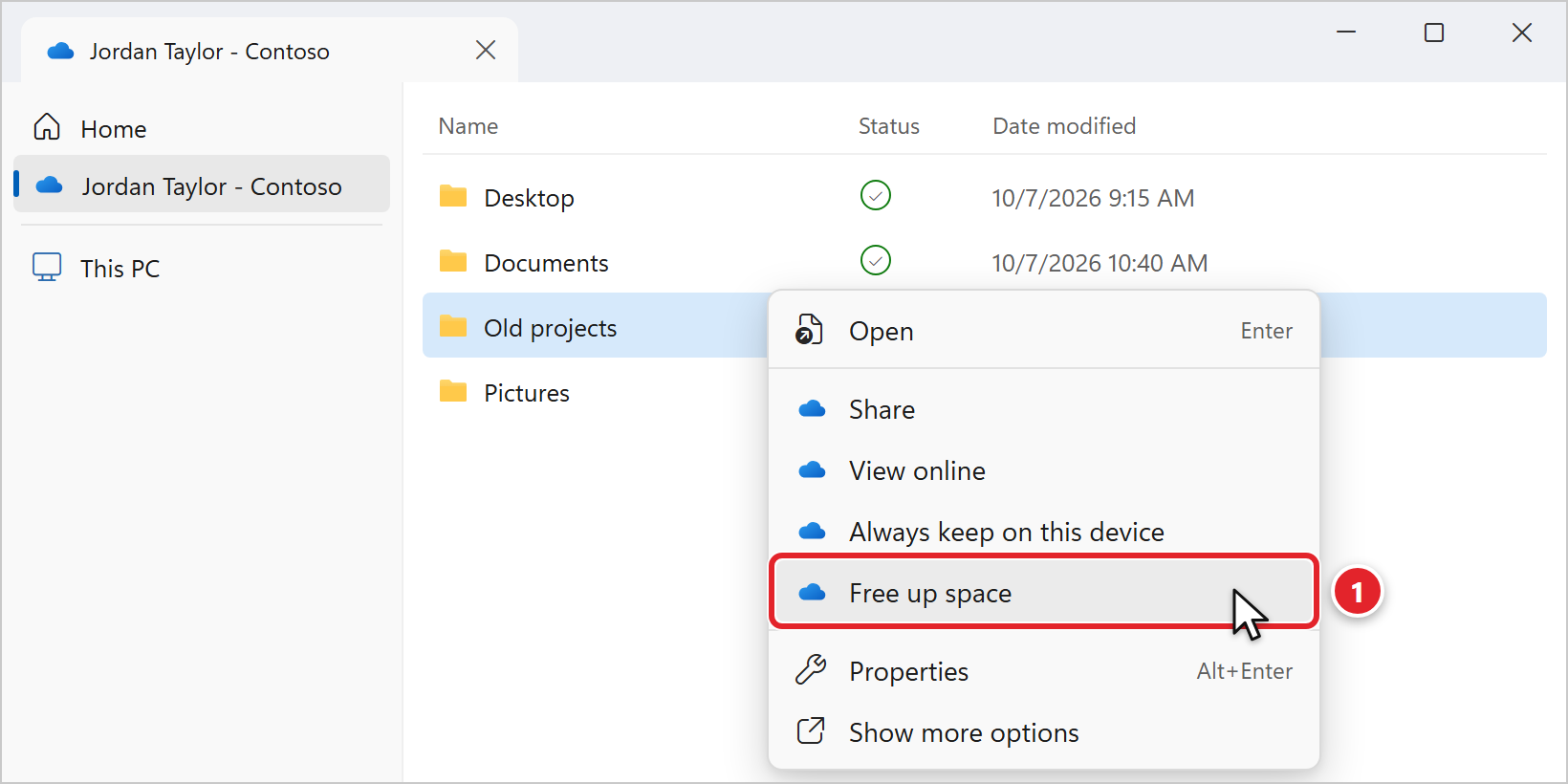
The folder's status changes to a blue cloud: it's now "available when online". Not sure what the icons mean? See OneDrive status icons.
Step 2: Use Windows Cleanup Recommendations
- Right-click the Start button and click Settings. Shortcut: Windows key + I.
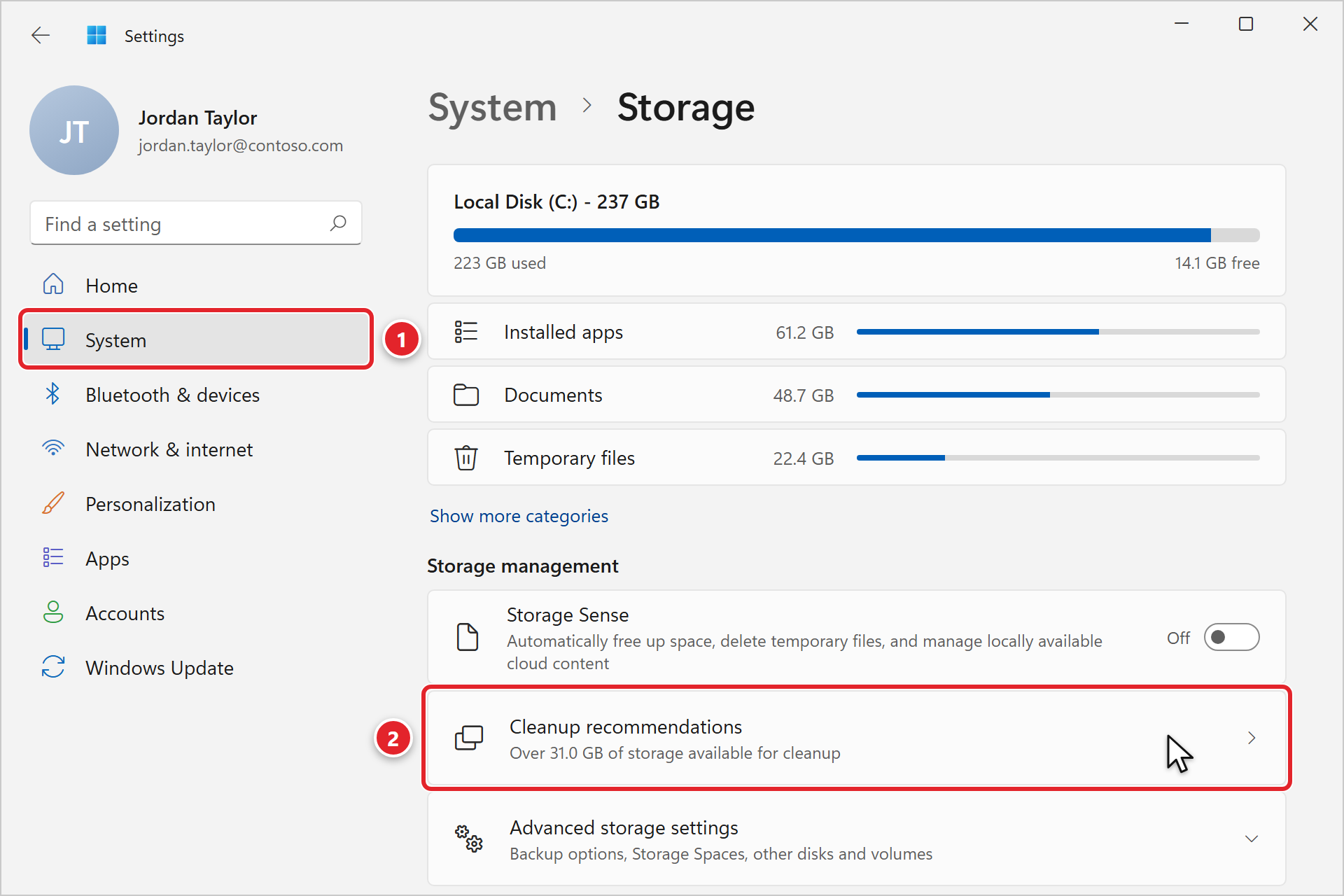
- Click System (1), then Storage, then Cleanup recommendations (2).
- Under Temporary files, check what you want to remove. Recycle Bin is safe if you've already looked inside it. Leave Downloads unchecked (1) unless you've checked that folder first (see Step 3).
- Click the Clean up button (2).
- Open Files synced to the cloud (3): it lists OneDrive files that are also stored on this computer. Cleaning these up does the same as Free up space in Step 1.
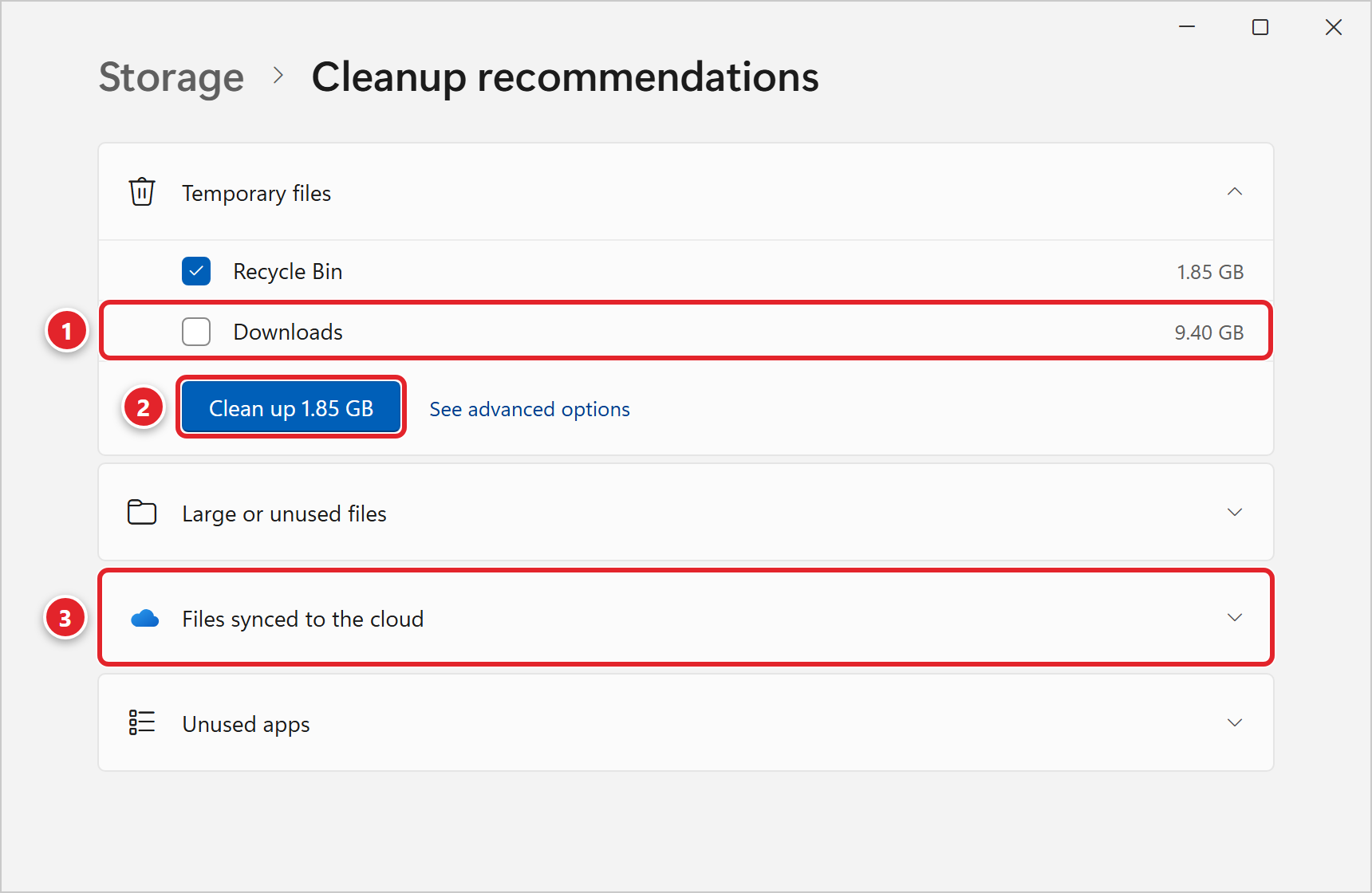
Large or unused files lists big files you haven't opened in a while. Look through it carefully, and only remove files you're sure you don't need (or move them to OneDrive first).
Step 3: Tidy Your Downloads Folder
The Downloads folder quietly collects installers, old attachments and duplicate copies. Open File Explorer, click Downloads, and sort by Size (click the column heading) to see the biggest files first.
- Keep it? Move it into your OneDrive or the right Teams or SharePoint folder.
- Don't need it? Delete it, then empty the Recycle Bin on your desktop.
Step 4: Restart Your Computer
Restarting clears temporary files that Windows was holding on to and lets pending updates finish, which can free more space. Use Start > Power > Restart.
Please Don't
- Don't delete anything in the Windows or Program Files folders, or files you don't recognize. Your computer may stop working.
- Don't download "PC cleaner" or "optimizer" apps. Many are scams or adware, and you don't need them. See Fake virus pop-ups and tech-support scams.
- Don't uninstall our support and security apps to make room. See Managed IT Software.
- Don't move work files to a USB drive to save space. USB drives get lost, aren't backed up, and may not be encrypted.
Still Full?
If your drive is still almost full after these steps, submit a support request. We can find out what's taking up space, clean up things you can't, or talk with your company about a larger drive. Include a screenshot of Settings > System > Storage if you can.
Frequently Asked Questions
Click a question to expand it.
Will "Free up space" delete my OneDrive files?
No. The files stay in OneDrive and still show in File Explorer with a blue cloud. They download again when you open them. If you need a file while offline, right-click it and choose Always keep on this device before you go.
What is "System & reserved", and can I remove it?
That's space Windows needs to run and to install updates. Leave it alone; it isn't something you can safely clean up yourself.
Should I turn on Storage Sense?
Storage Sense automatically clears temporary files and can make unused OneDrive files online-only. It's generally safe. On some company computers its settings are managed by us, in which case you may not be able to change it.
My computer is slow even with plenty of free space.
Disk space is only one cause. See Computer running slow? Try these first.
Source: Microsoft - Free up drive space in Windows