
Foxit PDF Editor - Accept Your Invitation and Get Started
Your company uses Foxit PDF Editor to open, edit, fill in and sign PDFs. The IT Experience sets up your license and sends you an invitation through Foxit. This guide shows every screen you'll see, from the email to your first sign-in. It takes about 10 minutes.
The Steps at a Glance
- Open the invitation email from Foxit
- Click Click here to join now! and set up your Foxit password
- Install Foxit PDF Editor (skip this if it's already on your computer)
- Open Foxit PDF Editor and sign in
- Choose your company, then restart Foxit PDF Editor
Step 1: Open the Invitation Email
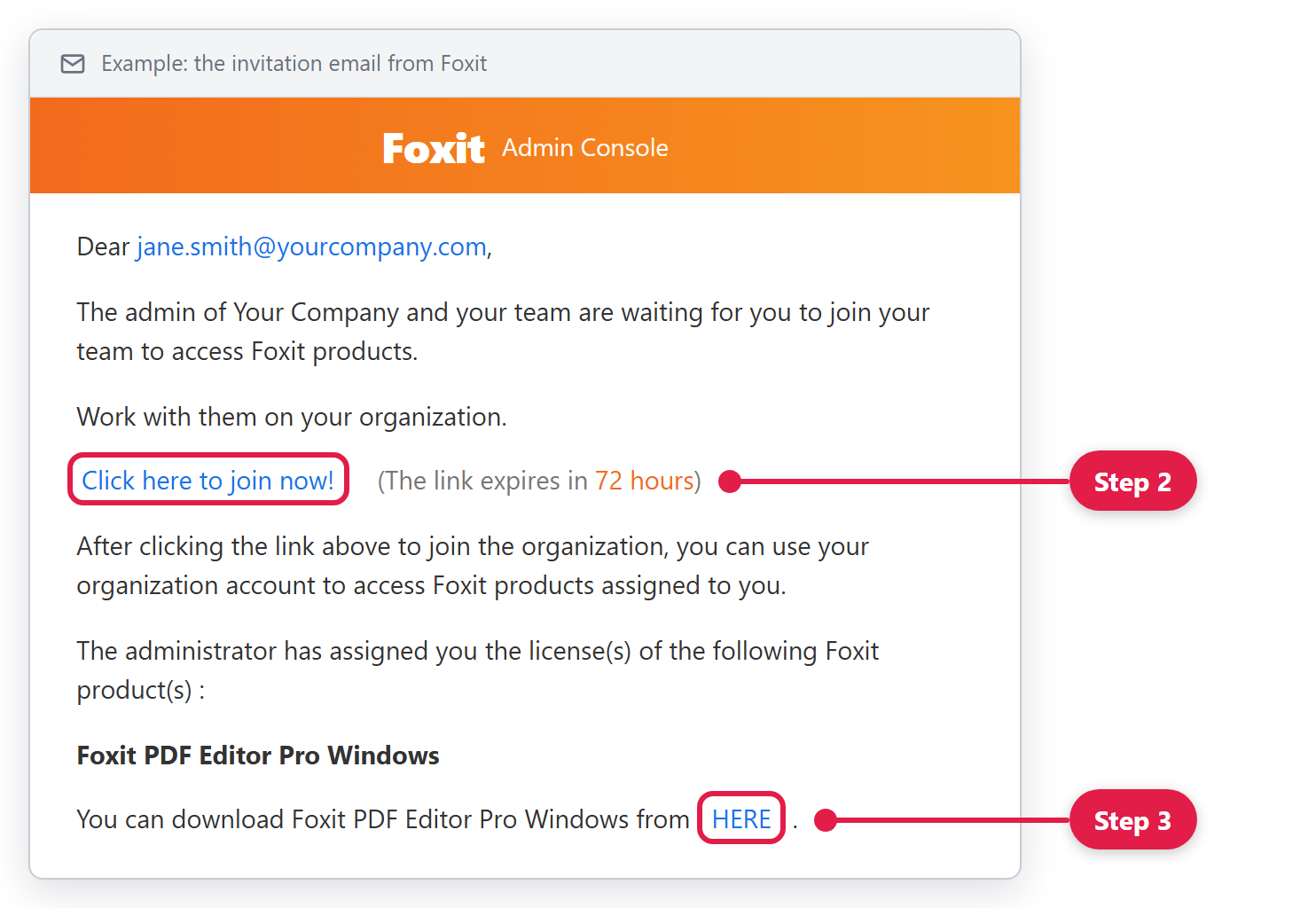
The email comes from Foxit, not from The IT Experience. It says the admin of your company and your team are waiting for you to join, and it lists the Foxit product assigned to you. It looks like this:
Step 2: Accept the Invitation
- In the email, click Click here to join now!
- A Foxit web page opens. Follow the prompts to set up your Foxit account password. If you already have a Foxit account with this email address, sign in instead. Don't remember that password? Use the page's forgot password option to reset it.
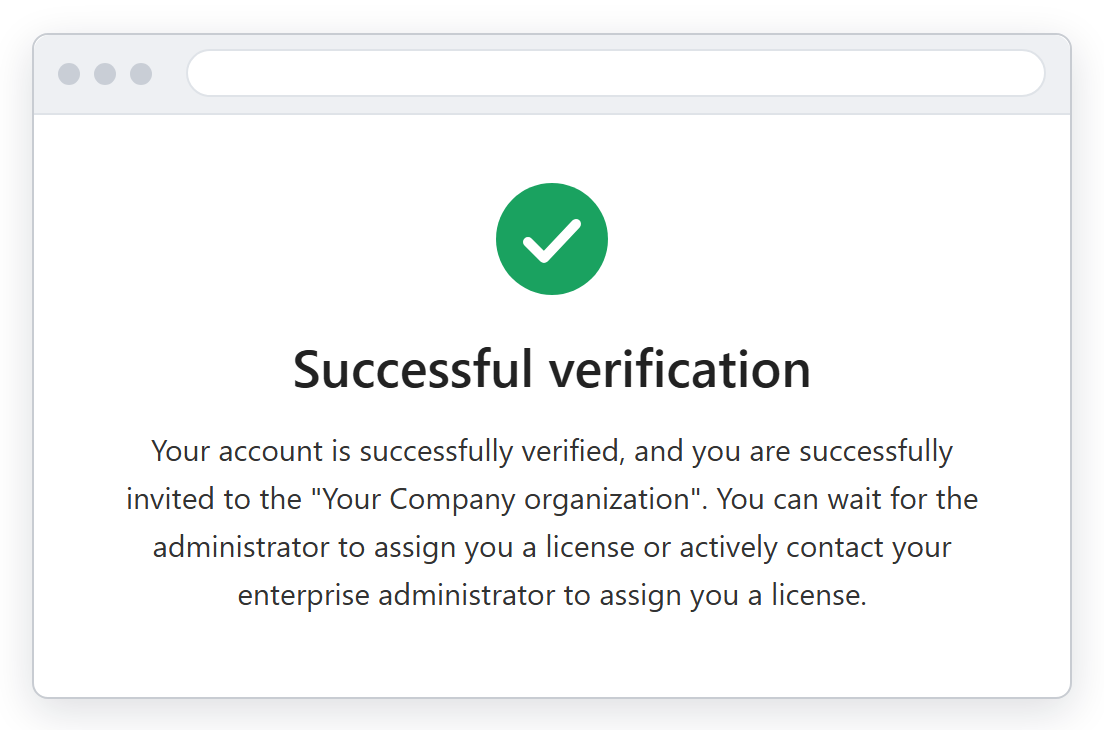
- When you see Successful verification, you've joined your company on Foxit. You can close the page.
Step 3: Install Foxit PDF Editor
Already have Foxit PDF Editor on your computer? Skip to Step 4.
- In the invitation email, click the HERE link at the bottom (next to "You can download Foxit PDF Editor ... from HERE")
- Open the file you downloaded and follow the installer
Step 4: Sign In to Foxit PDF Editor
- Open Foxit PDF Editor. The Foxit PDF Editor Activation window appears. Click Sign In. Don't click Buy Now: your company has already paid for your license.
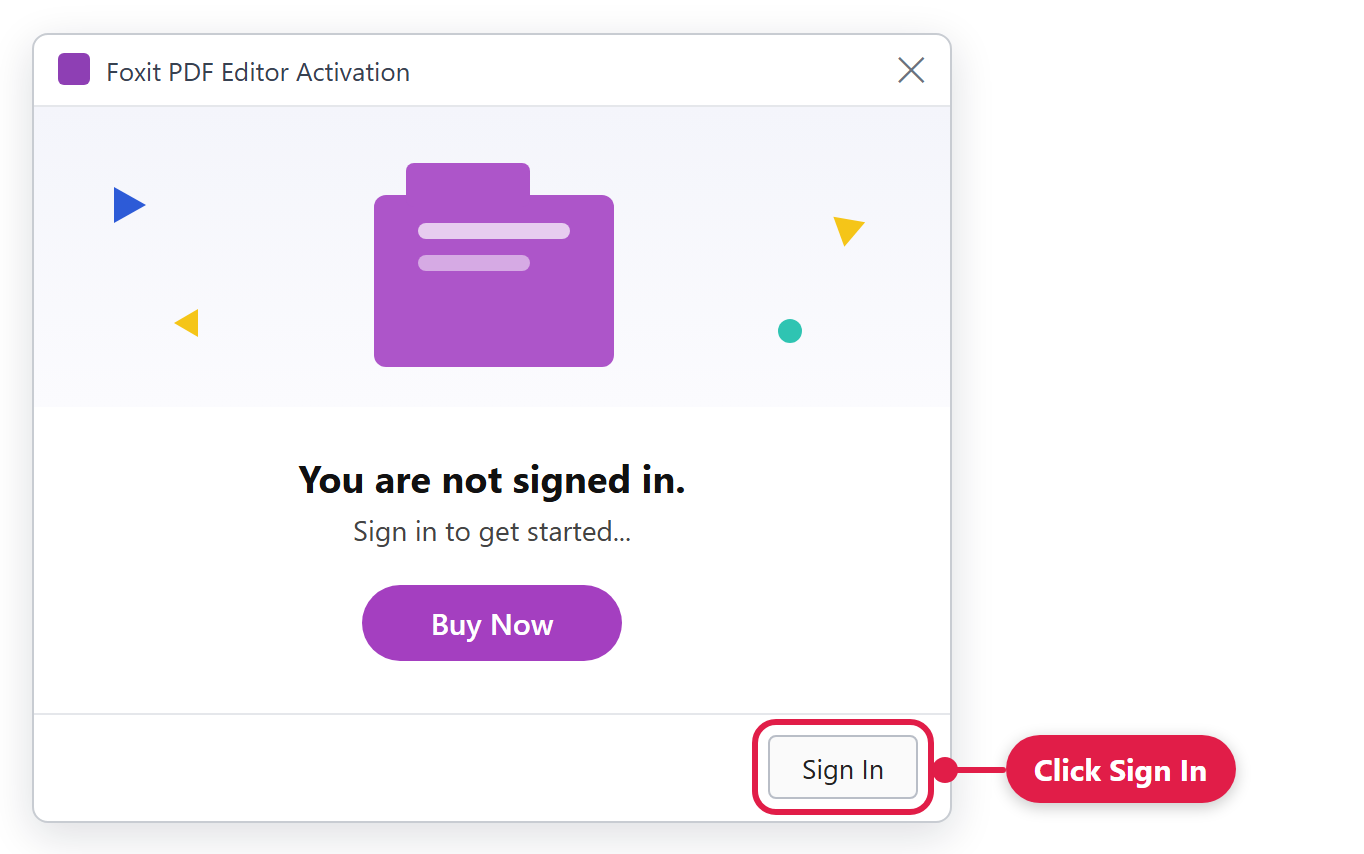 No Activation window? Click Start, type Activation, and open the Activation app.
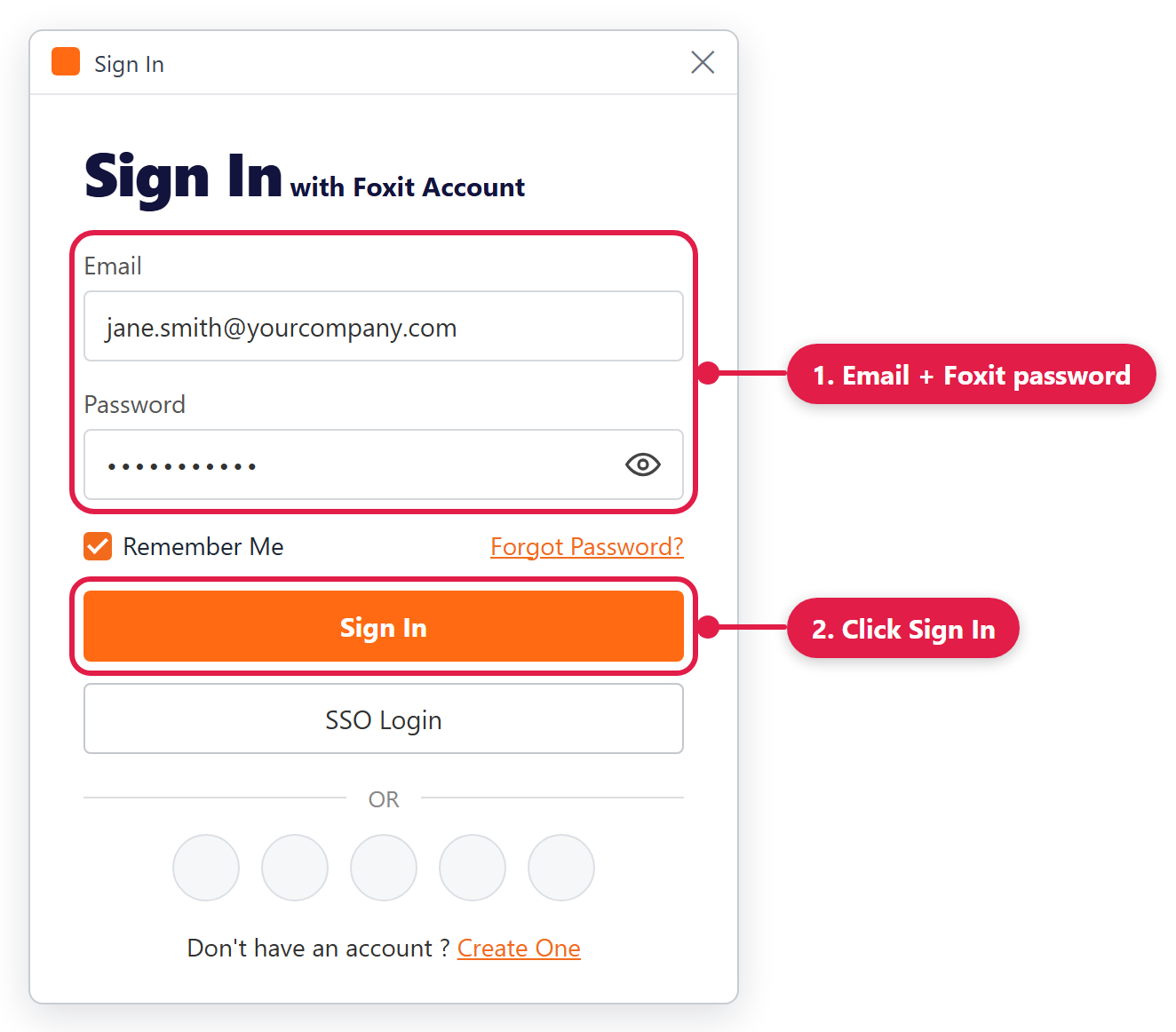
 - Type your work email and the Foxit password from Step 2, then click Sign In (on some versions the button says Login)
Step 5: Choose Your Company and Restart
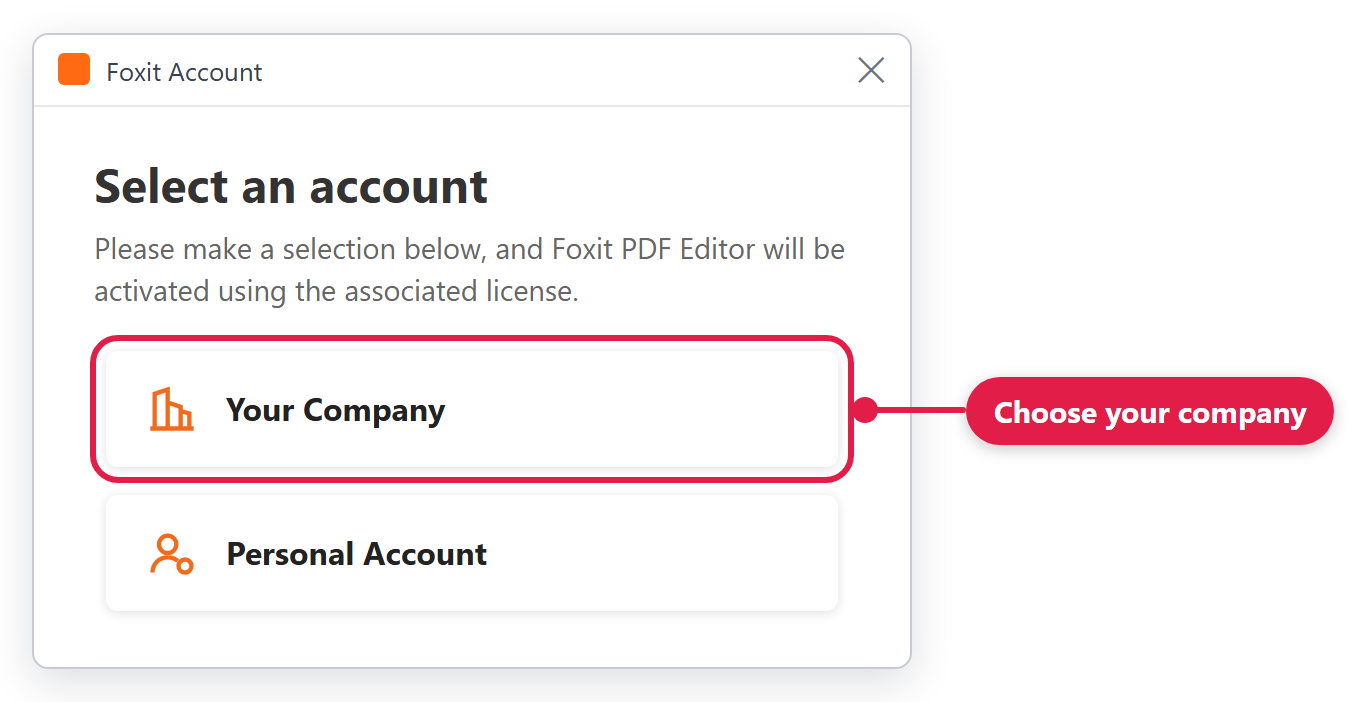
- On Select an account, click your company's name, not Personal Account
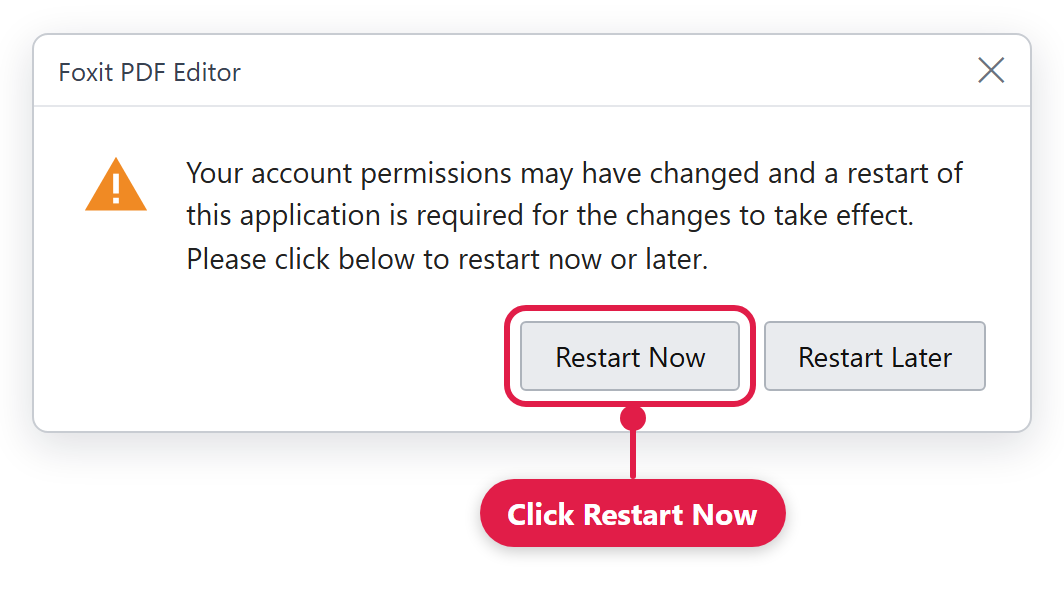
- Foxit then asks to restart. Click Restart Now, or OK if that's the only button.
- If you see You have successfully registered your formal license key, click OK
Using a Mac?
Steps 1 and 2 are the same. To sign in, open the Activation app, click Sign In in the bottom-right corner, enter your work email and Foxit password, and choose your company. Click OK on You have successfully registered your formal license key, then close and reopen Foxit PDF Editor.
Having Trouble?
| Problem | What to do |
|---|---|
| No invitation email | Check Junk or Spam and search for Foxit. Then contact us: we can resend it or send you a direct invitation link. |
| The invitation link has expired | Contact us and we'll send you a new invitation |
| Forgot your Foxit password | Click Forgot Password? in the Sign In window and follow the steps |
| Signed in, but Foxit still asks you to buy or says you're on a trial | Make sure you finished Step 2: you must accept the invitation before your license works. Then sign in again and choose your company, not Personal Account. |
| Your company isn't listed under Select an account | Contact us so we can check your invitation and license |
| Asked for an administrator password while installing | See Software Installation and Administrative Functions, or contact us and we'll install it for you |
Questions or stuck on a step? Submit a support request or email [email protected].
These steps follow Foxit's own support articles: How to invite users in the Admin console, Assigning Products/license to users using Admin Console, How to activate Foxit PDF Editor on Windows (subscription) and Activate Foxit PDF Editor Subscription on Mac. The pictures are drawings of Foxit's screens, so yours may look slightly different.