
How to Change Your Default PDF Reader in Windows 11
Do your PDFs open in your web browser when you'd rather use Adobe Acrobat or Foxit PDF Reader? You can tell Windows which app to use. It takes about a minute, and from then on every PDF you double-click opens in the app you picked.
In Short
- Quickest way: right-click any PDF > Open with > Choose another app > click your app > Always
- Or in Settings: Apps > Default apps > type .pdf > click the app shown > click your app > Set default
The red numbers in each picture show what to click, in order.
Option 1: From Any PDF File (Quickest)
- Open File Explorer (the yellow folder on your taskbar) and find any PDF file, for example in your Downloads folder.
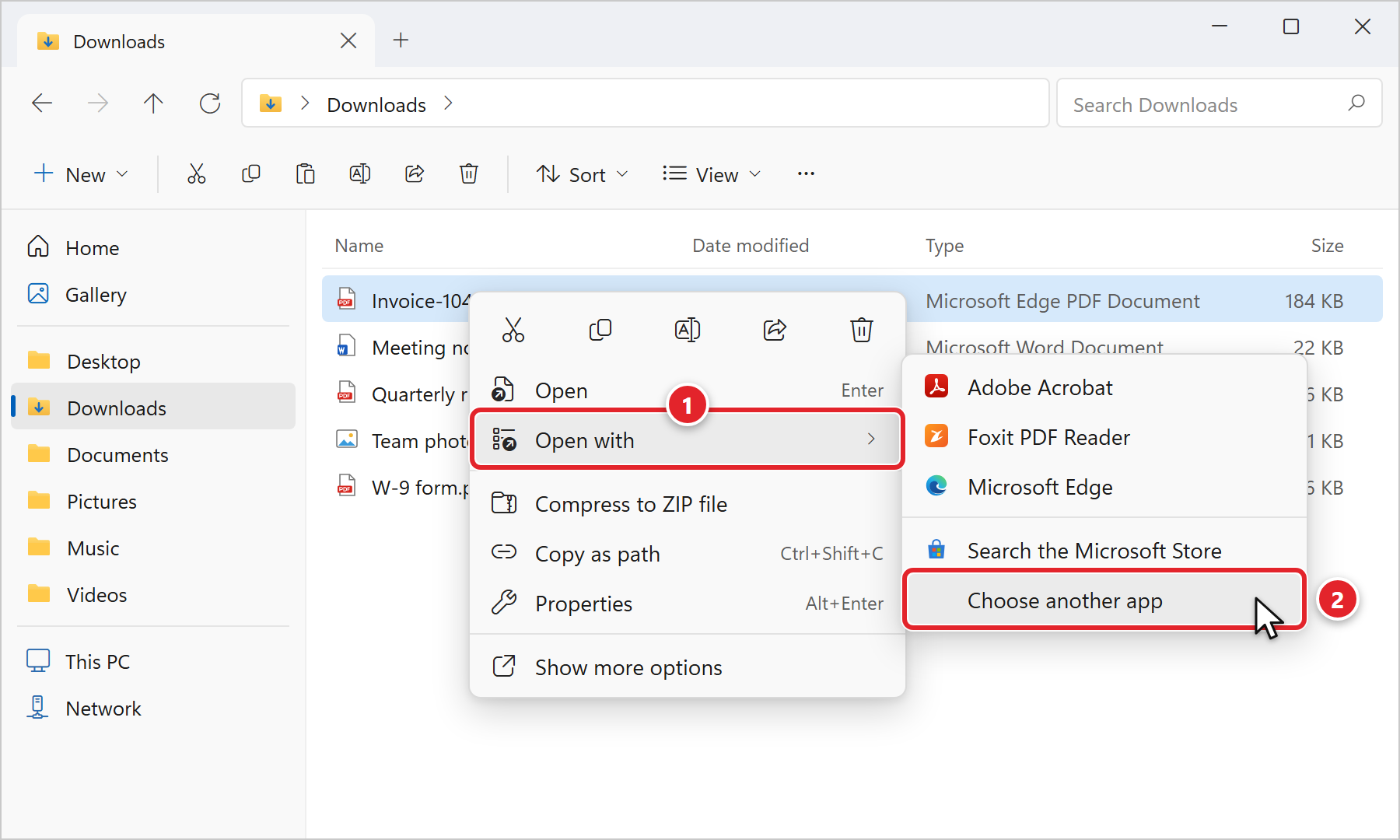
- Right-click the PDF file. Point to Open with, then click Choose another app.
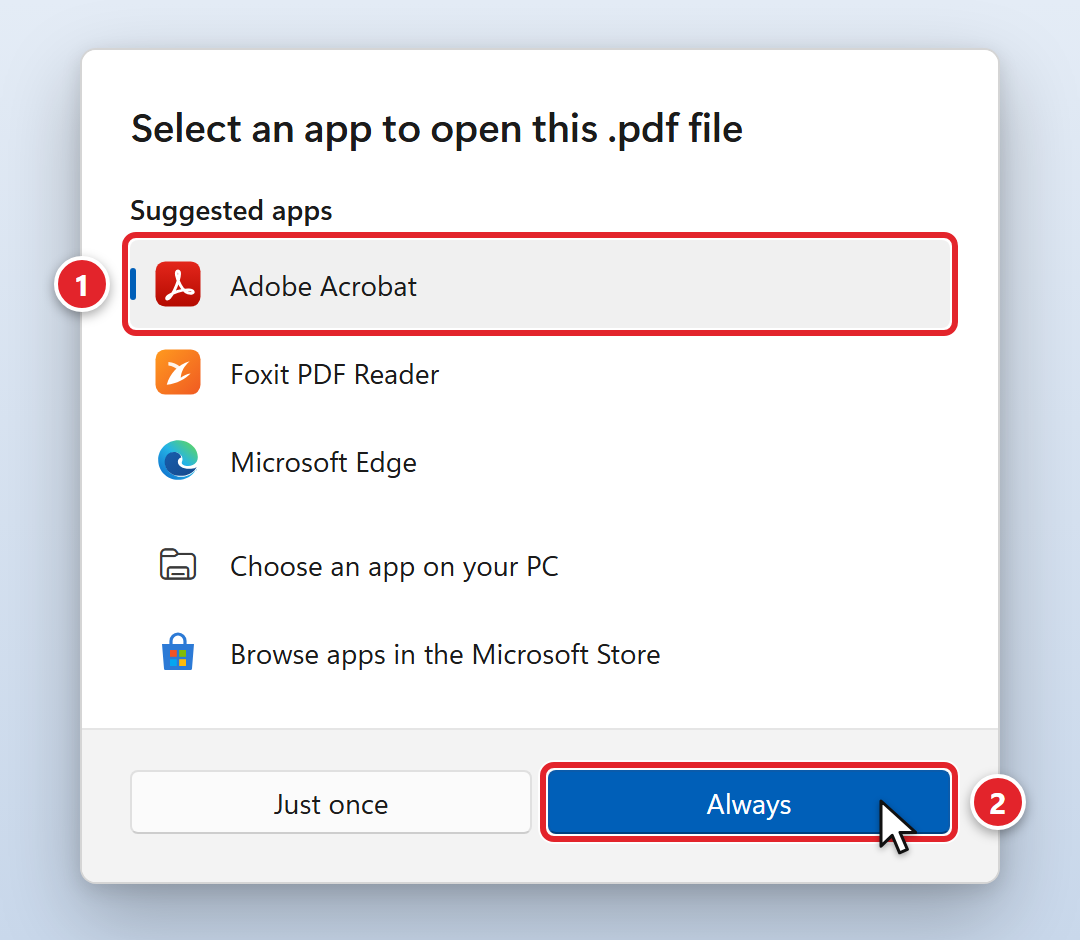
- In the window that opens, click the app you want to use, for example Adobe Acrobat or Foxit PDF Reader. Then click Always.
Done! Your PDF opens in the app you picked, and every PDF you double-click from now on will open there too.
Option 2: From Windows Settings
Use this way if you don't have a PDF file handy, or if you want to see which app opens your PDFs right now.
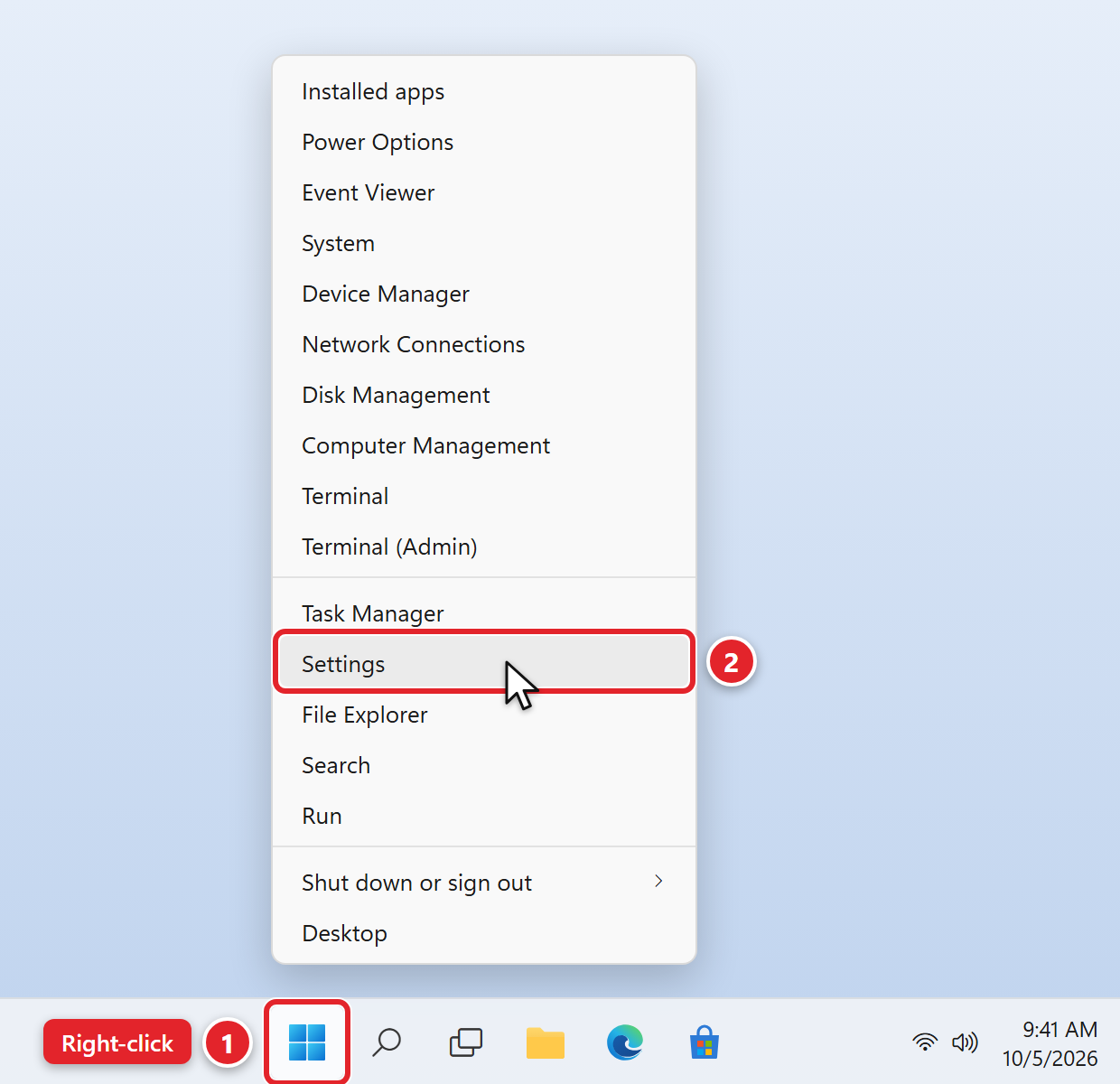
- Right-click the Start button (the Windows logo on your taskbar), then click Settings. Shortcut: hold the Windows key and press I.
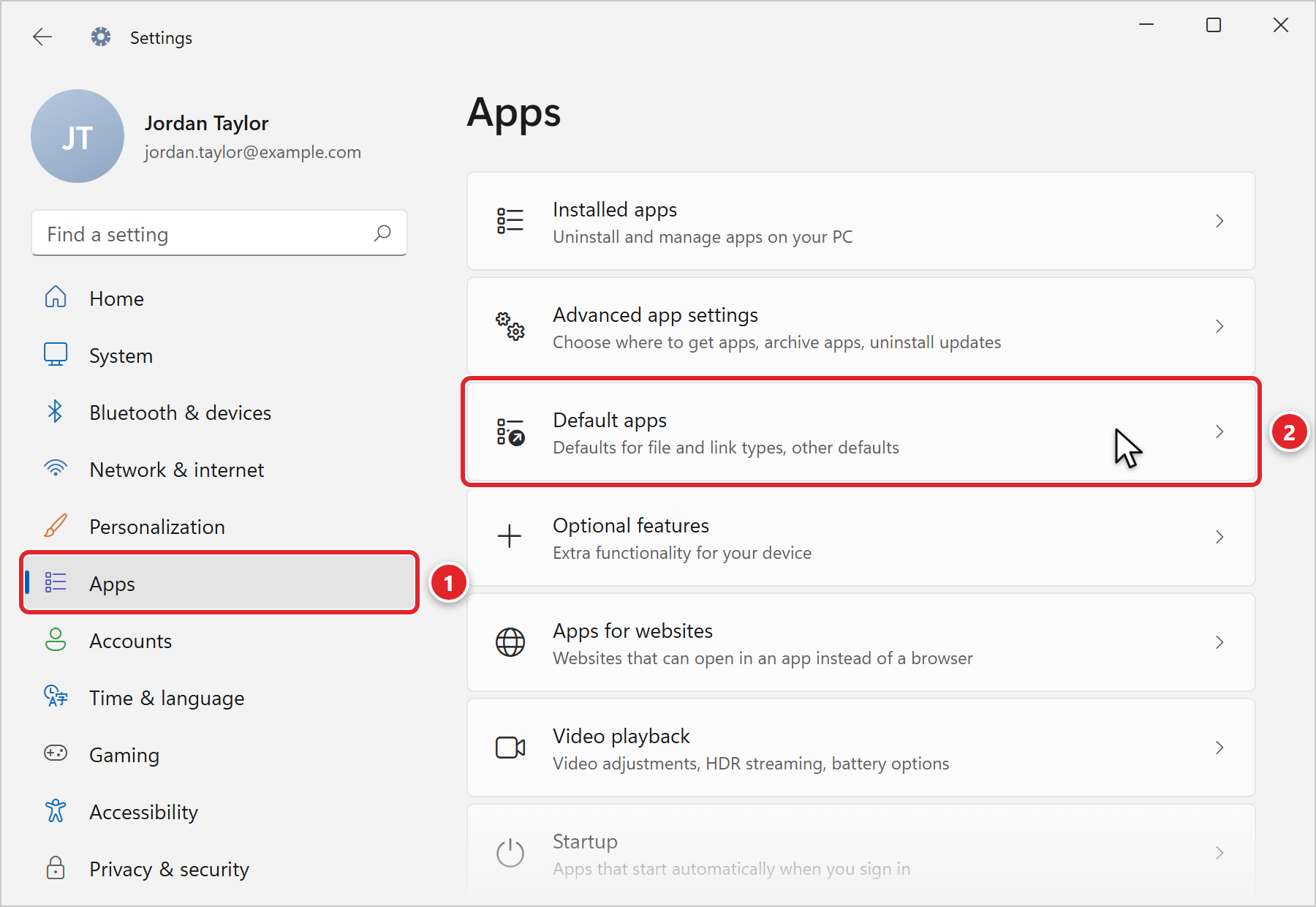
- Click Apps on the left, then click Default apps.
- Click in the box under Set a default for a file type or link type and type .pdf (include the dot). The app that opens your PDFs today appears just below the box, usually Microsoft Edge. Click it.
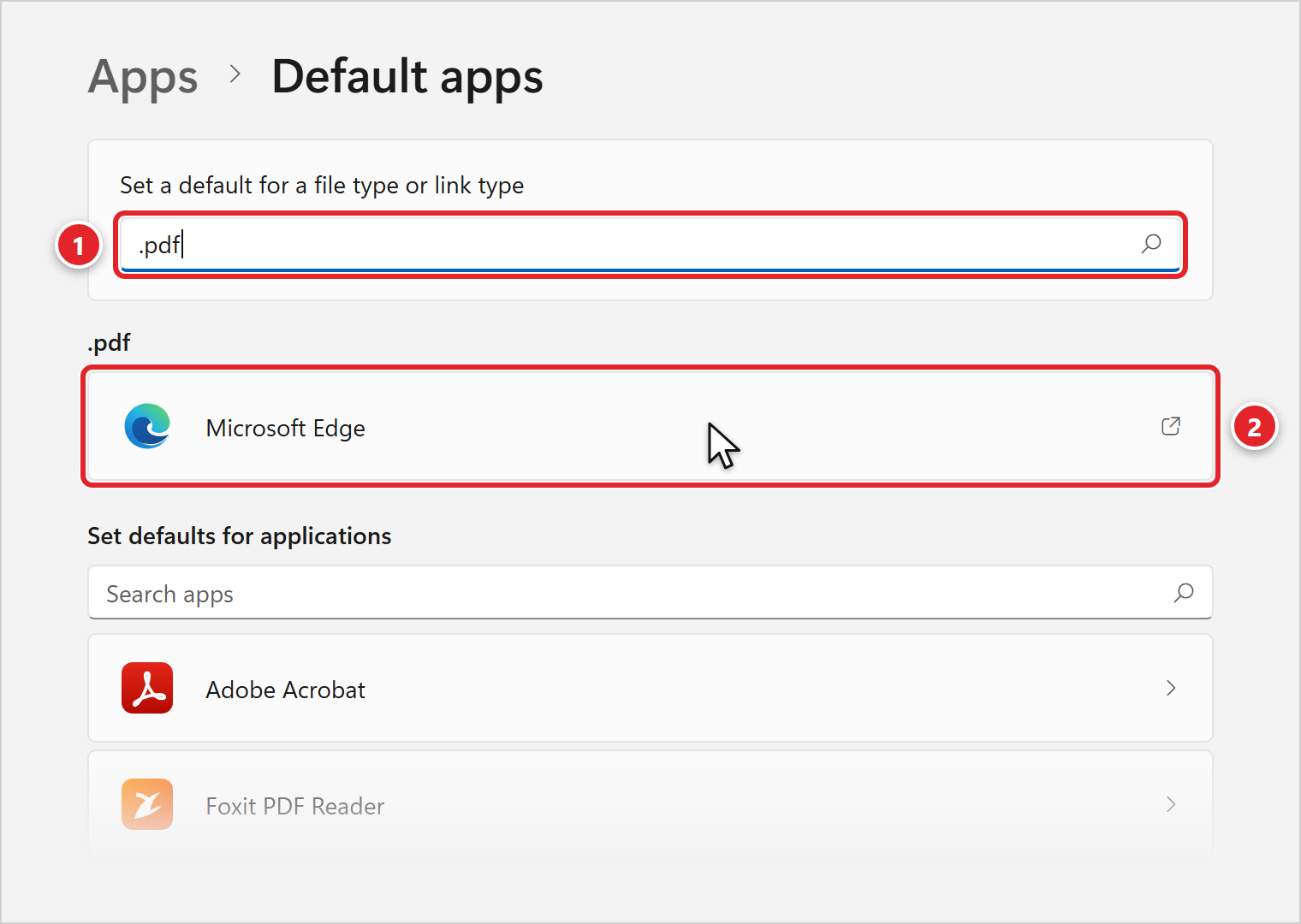
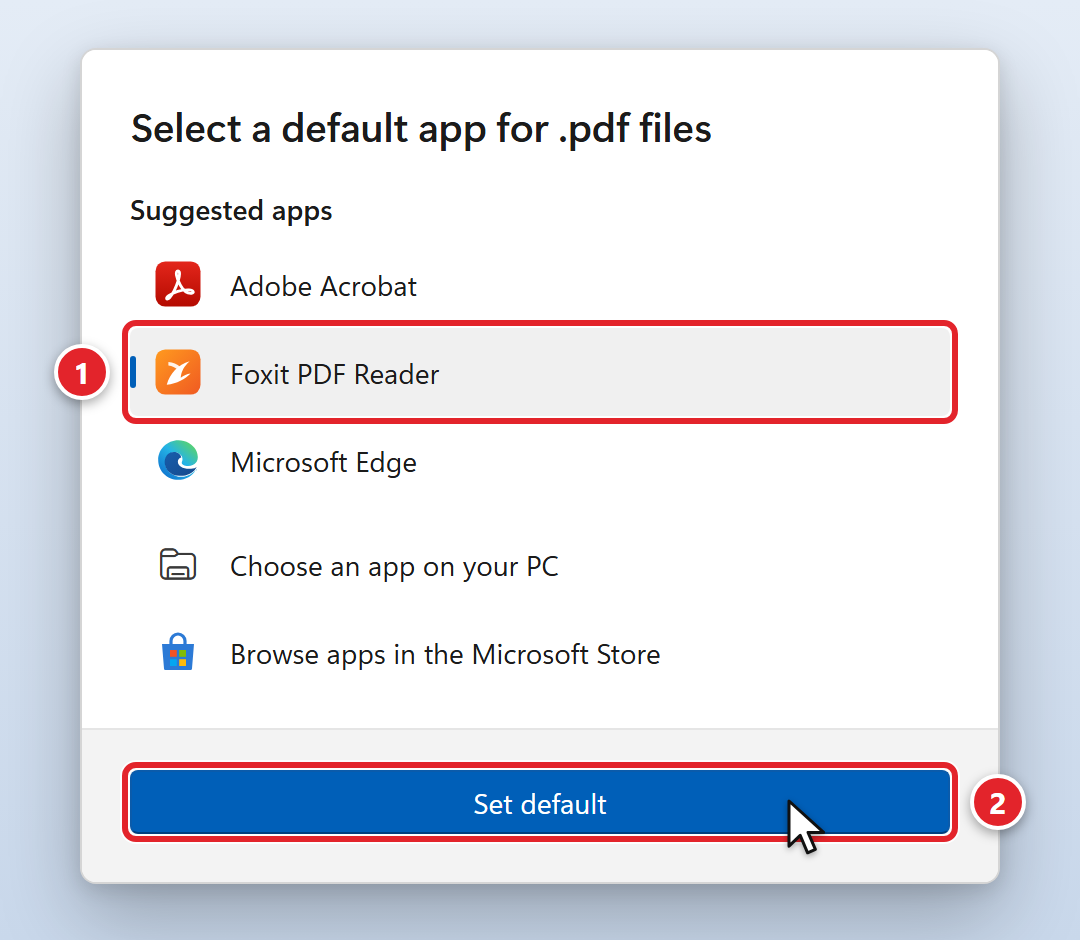
- Click the app you want, for example Foxit PDF Reader or Adobe Acrobat, then click Set default.
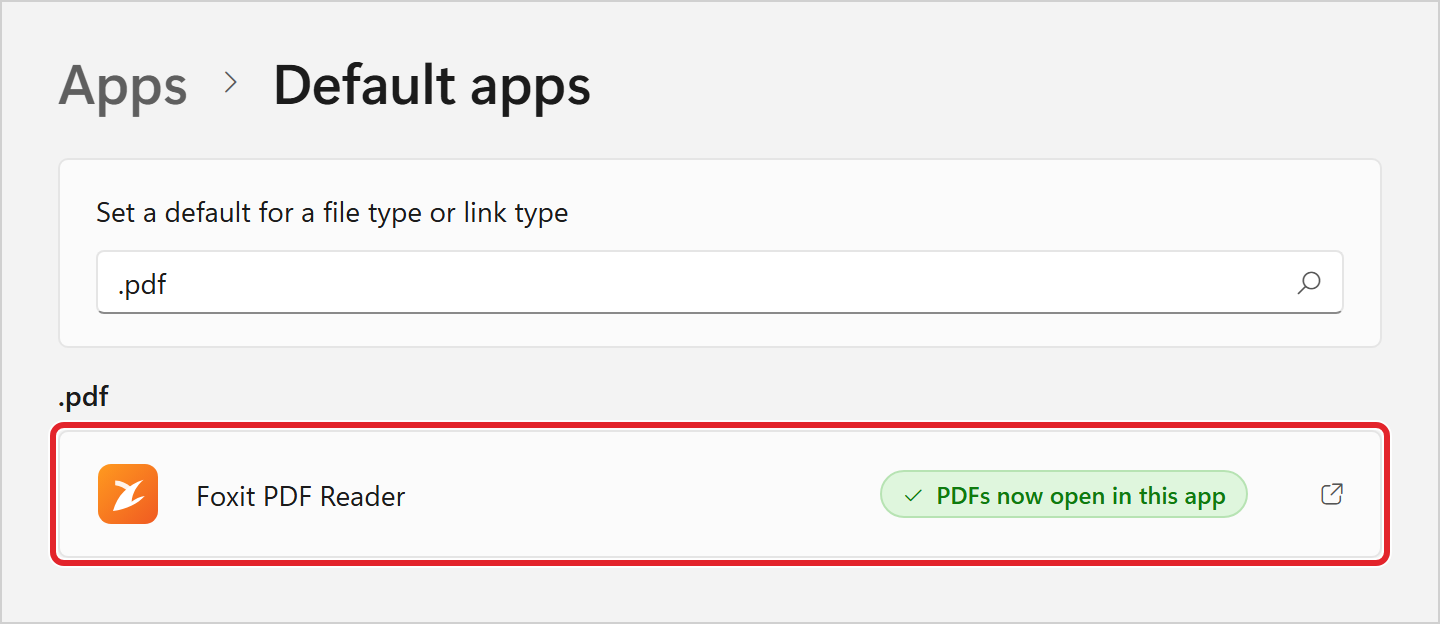
- The app shown under .pdf is now the one you chose. You can close Settings.
Check That It Worked
Double-click any PDF file. It should open in the app you picked. In File Explorer, your PDF files may also show the new app's icon.
Troubleshooting & FAQs
Click a question to expand it.
The app I want isn't in the list.
Scroll down in the list first; it can hold more apps than fit in the window. Your app may also go by a slightly different name:
- Adobe: look for Adobe Acrobat or Adobe Acrobat Reader
- Foxit: look for Foxit PDF Reader or Foxit PDF Editor
If it still isn't there, it probably isn't installed on this computer. Submit a Software Request and we'll install it for you.
Adobe or Foxit asks to become my default PDF app. Is that OK?
Yes, it's safe to say yes; it does the same thing as the steps above. Some versions open Windows Settings for you instead. If that happens, find .pdf on the page that opens, click the app shown next to it, choose your PDF app and click Set default.
My PDFs went back to opening in Microsoft Edge.
A large Windows update, or reinstalling or updating your PDF app, can occasionally reset the default. Just repeat Option 1. If it keeps switching back, submit a support request and we'll take a look.
I clicked "Just once" by mistake.
No problem: nothing was changed. Repeat Option 1 and click Always this time.
Can I go back to opening PDFs in my web browser?
Yes. Follow either option above and choose Microsoft Edge (or Google Chrome, if it's listed) instead.
Which PDF app should I use?
Use the app your company provides. A free reader is fine for viewing, printing and filling in most forms. To edit, combine or sign PDFs you may need a paid app such as Adobe Acrobat Pro; see Adobe - Download/Install Adobe Acrobat Pro, or submit a Software Request.
My computer still runs Windows 10. Does this work?
Yes, Option 1 works almost the same way. After Choose another app, click your PDF app, tick Always use this app to open .pdf files, and click OK. Windows 10 reached its end of support in October 2025, so please contact us about upgrading if you haven't already.
Source: Microsoft - Change default apps in Windows