
Printer shows offline or will not print
- Start with the printer itself
- Make sure Windows is using the right printer
- Check the "Use Printer Offline" setting
- Clear stuck print jobs
- Restart the printing services on your computer
- Power-cycle the printer
- Restart your computer
- Let Windows run its own check
- Why a network printer can seem to vanish
- If none of that worked
You send a document and nothing comes out. Or the printer shows as offline in Windows while the machine itself is sitting right there, plugged in and apparently perfectly happy. This is one of the most common things people write to us about, and it is very rarely a sign that anything is broken.
Offline is Windows' way of saying it didn't get an answer from the printer the last time it tried. Something in between the two of them has changed. The checks below are ordered so the quickest, most likely fixes come first — most people are printing again long before they reach the bottom.
The 7 quick checks
- Check the printer itself: awake, paper loaded, no error on its display, covers shut (about 1 minute) Then ask a coworker to try printing to it. If nobody can, the problem is the printer or the network, so submit a support request. If they can and you can't, keep going.
- Make sure Windows is using the right printer: it can change your default on its own (1 minute)
- Make sure Use Printer Offline is off (1 minute)
- Clear stuck print jobs (1 minute)
- Restart the printing services from the support agent (then wait 30 seconds)
- Power-cycle the printer (unplug it for 30 seconds, then wait 2 to 3 minutes)
- Restart your computer (about 3 minutes)
Still not printing? Here's what to send us.
The red numbers in each picture show what to click. Each number matches the step it belongs to. On a phone, tap a picture to open it full size.
Start with the printer itself
It sounds too simple to bother with, and it is still the best place to start. A paper or toner condition on the device shows up on your side as a queue that has stalled or a printer that looks offline — the problem is at the machine, but the symptom appears on your screen.
- Wake it up. Press a button on the control panel or touch the screen. Office printers dim their displays and drop into a low-power state when they've been idle, and can take a moment to come back.
- Read the display. Any message on the printer's own screen — paper, toner or ink, an open cover, a jam — will stop printing no matter what Windows thinks. Clear that first.
- Check the paper and the trays. Make sure paper is loaded in the tray your document is asking for, and that every tray and cover is pushed fully closed.
- Check the cable. If the printer connects by network cable or USB, make sure the cable is firmly seated at both ends and hasn't been knocked loose.
Windows passes some of these conditions straight through to you. In the print queue you may see a job sitting at "Out of paper" or "Attention required" — those come from the device itself, and no amount of clicking in Windows will clear them.
Make sure Windows is using the right printer
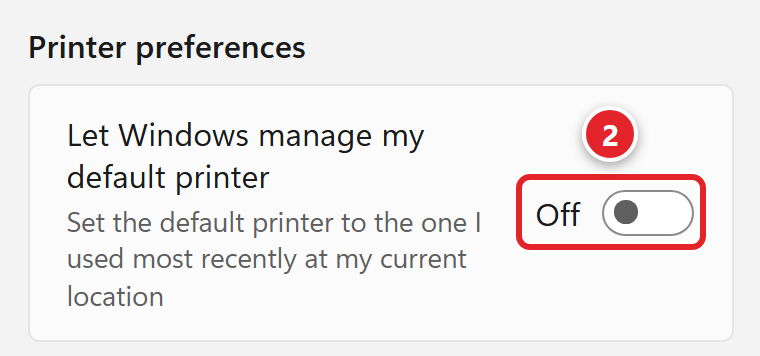
Windows has a setting that quietly changes your default printer for you. On the Printers & scanners page, under Printer preferences, there's a toggle called Let Windows manage my default printer, described on screen as "Set the default printer to the one I used most recently at my current location". While that's switched on, your default can move to whichever printer you last used, wherever you last were.
That catches out anyone with a laptop who moves between home and the office, or between offices. It's also why a document that "won't print" has sometimes printed perfectly well — in another room.
- Go to Start → Settings → Bluetooth & devices → Printers & scanners.
- Scroll down to Printer preferences and turn Let Windows manage my default printer off (2).
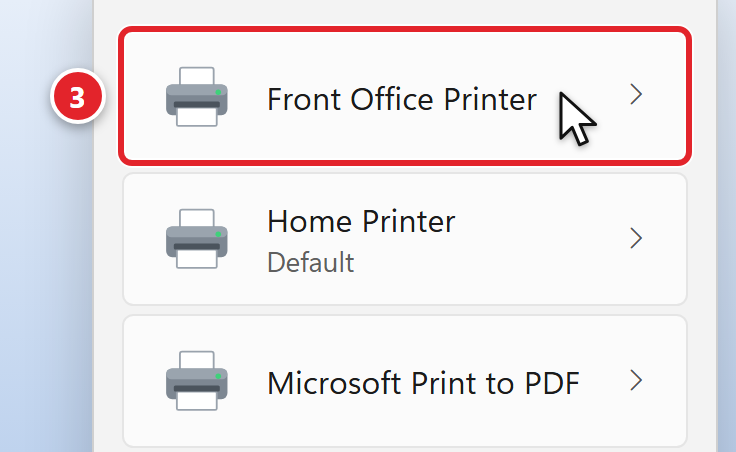
- Go back up to the printer list and select the printer you actually want (3).
- On that printer's page, choose Set as default (4).

Don't see Set as default? Check that the switch in step 2 is off. If it is, that printer may already be your default.
Both are your own personal settings — no special permissions needed, and nobody else is affected. It's worth glancing at the printer named in the print window before you send a job, too.
Check the "Use Printer Offline" setting
Windows has a switch that tells it to stop trying to reach a printer altogether and simply hold your documents instead. It's called Use Printer Offline. It can get switched on by accident, or left on from a time when the printer genuinely was unreachable. It takes about ten seconds to rule out.
This setting lives in the older print queue window, so that's where you need to go:
- Hold the Windows key and press R. A small Run box opens in the corner of the screen.
- Type
shell:PrintersFolderand press Enter. A window listing your printers opens. - Right-click the printer you're trying to use and choose Open (3), the first item in the menu. Lower down, the same menu also lists Use Printer Offline. Don't click it there. Choose Open, so you can see whether it has a check mark.
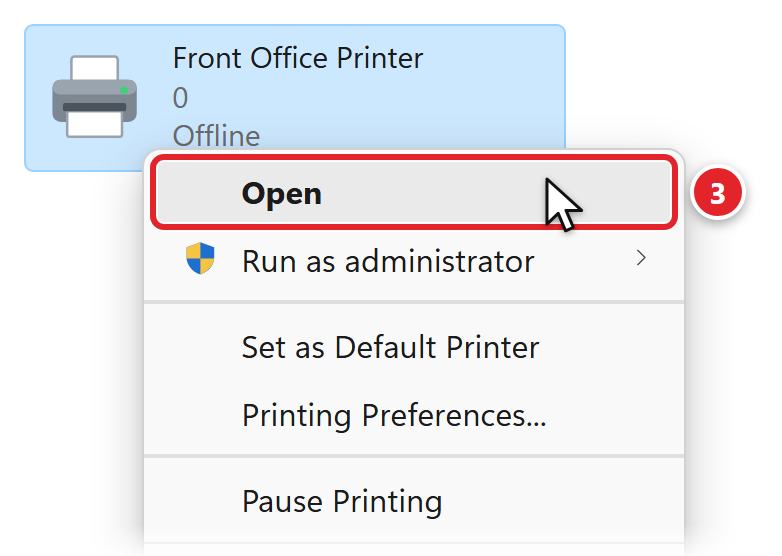
- In the window that opens, click the Printer menu along the top (4).
- If Use Printer Offline has a check mark beside it (5), click it once to clear it, then try printing. If it doesn't, there's nothing to change here — close the window and carry on down this page.
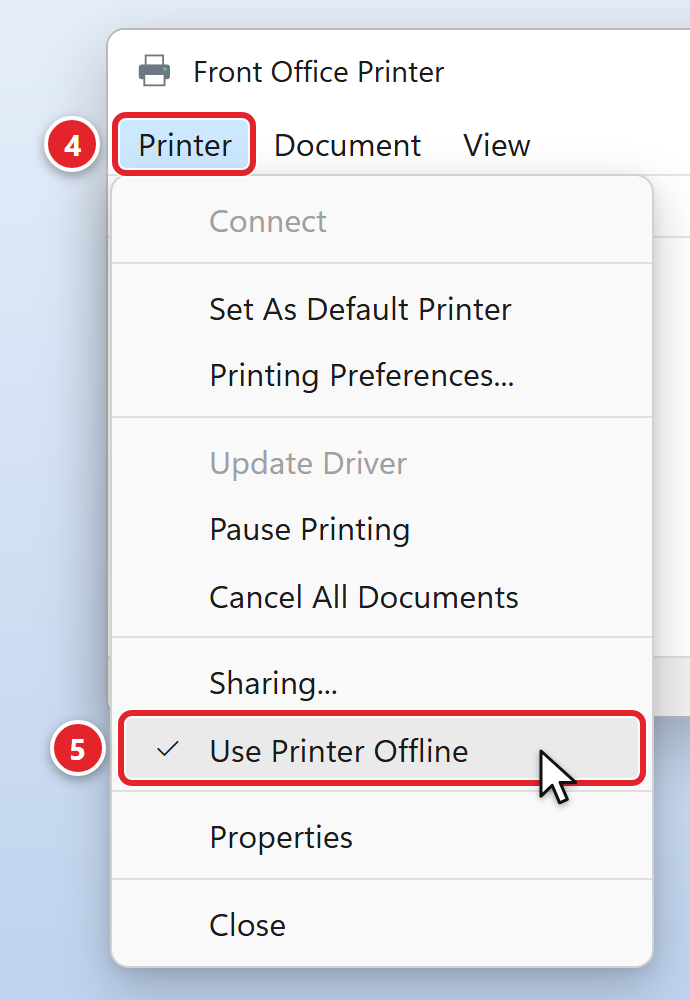
Can't untick it (it's grayed out)? Submit a support request and say Use Printer Offline is on. Skip Open As Administrator: it needs an administrator password.
Clear stuck print jobs
Print jobs line up in a queue and are handed to the printer one at a time. If the job at the front can't finish — it was sent while the printer was switched off, or it's a file the printer couldn't process — everything behind it waits its turn forever. Emptying the queue and printing one page again is often the whole fix.
- Go to Start → Settings → Bluetooth & devices → Printers & scanners and select your printer.
- Choose Open print queue.
- Select the stuck job and choose Cancel. To empty the queue completely, use Cancel all — you may need to open More options to find it. Windows will ask you to confirm.
- When the queue reads "No print jobs", try printing a single page.
Restart the printing services on your computer
Behind the scenes, Windows runs a background service that receives your print jobs, holds on to them and feeds them to the printer. When that service gets stuck, nothing prints and nothing leaves the queue no matter how much you cancel. Restarting it is a routine fix, but it requires administrator rights, so Windows won't let you do it from your own account.
You don't need to wait for us, either. The support agent already running on your computer — the icon in the system tray near the clock — has a one-click option that does exactly this. The steps are in Restarting printer services. Give it about 30 seconds afterwards, then try printing again.
Power-cycle the printer
If the printer still isn't responding, give it a full power cycle rather than just tapping the power button: remove the power cable for a full 30 seconds, then plug it back in. That also brings the printer back onto the network from scratch, which matters for the reason explained further down.
Then be patient. A printer can take two to three minutes to fully initialize and start accepting print jobs, and a large office copier can take longer still. Printing during that warm-up looks exactly like another failure, so give it the time before you judge it.
Restart your computer
A restart reloads the printing services and re-establishes your computer's network connections from scratch, all in one move. It resolves a good share of printing problems on its own, which is why we suggest it so often.
Use Restart from the Start menu's power button rather than shutting down and switching back on — because of a Windows feature called Fast Startup, only Restart fully reloads Windows. Full steps are in Rebooting / restarting your computer.
Let Windows run its own check
Microsoft has an automated printer check that looks for the usual suspects — a stopped printing service, a stuck job, the wrong default printer, paper and toner conditions — and repairs what it can on its own. Where it lives has moved around over the years, so it's worth knowing what to expect before you go looking.
Go to Start → Settings → System → Troubleshoot → Other troubleshooters and look for the printer entry. On current Windows 11 that entry doesn't run a troubleshooter of its own any more — it hands the job over to Microsoft's Get Help app, so Get Help has to be installed on your computer for the step to go anywhere.
If Get Help isn't on your computer, or the printer entry isn't listed on that page at all, don't go hunting for it. Skip this step and submit a support request instead — the checklist at the end of this article tells you what to include.
If it does run and reports something it couldn't fix, write down exactly what it says. That wording is genuinely useful to us.
Why a network printer can seem to vanish
If you've got this far, two ordinary things explain most printers that worked yesterday and are offline today. Neither means anything is damaged.
It went to sleep. Printers power themselves down when nobody has used them for a while. A sleeping printer may not answer when Windows checks whether it's there, so Windows marks it as offline. Sending a job, or pressing a button on the panel, can be enough to bring it back.
It picked up a different address. Every device on your office network is given an address — think of it like a desk number — and for most printers that number is handed out automatically rather than fixed permanently. If the printer is switched off, unplugged, or off the network long enough, it can come back with a different number while your computer is still knocking at the old one. Nothing is broken; the two are simply looking in different places. The permanent fix is to reserve one address for that printer on the office network equipment so it always gets the same one. That's work on our side, not yours — and it's well worth asking for if the same printer keeps dropping off.
If none of that worked
Hand it over: submit a support request, or email [email protected]. Printing problems are fast for us to solve when the request arrives with the right details, and slow when it doesn't. Please include:
- The printer's name — exactly as it appears in Windows under Printers & scanners, and the name or model printed on the device itself if you can see it. The two don't always match, and knowing both removes a round of guessing.
- Whether anyone else can print to it. This single detail tells us immediately whether to look at your computer or at the printer and the network.
- When it last worked — this morning, Friday, last month, or never. Plus anything that changed around then: a new computer, a different desk or office, working from home, or the printer being moved or replaced.
- The error, word for word. Whatever Windows or the printer's own display shows. A photo of the printer's screen is ideal. Exact wording matters more than you'd expect — two messages that read similarly can have entirely different causes.
- What you've already tried from this article, so we don't send you back over ground you've already covered.
- Which computer and which app — if you use more than one computer, tell us which one, and which program you were printing from.