
Safe Pop-Ups: Restart, Windows and Dell Messages You Can Trust
- Our Restart Prompt: System Notification
- Our Restart Reminder: Computer Restart Status
- Windows Notifications
- Dell Command | Update (Dell Computers Only)
- "Updates are ready to install"
- "The system is updated and will restart"
- During the restart
- LogMeIn Guardian Error Report
- Website Unblocked: IT Web Filtering
- Other Pop-Ups From Us
- How to Tell a Safe Pop-Up From a Fake One
- When to Contact Us
- Related Articles
Not every pop-up is a scam. Your work computer shows some messages on purpose: our restart reminders, Windows' own notifications, Dell's update tool on Dell computers, LogMeIn's error report box and our website filter. This page lists them, so you know they're safe and what to do when one appears.
The short version
- Safe: our restart box titled System Notification. See it
- Safe: our Computer Restart Status reminder. See it
- Safe: Windows' own notifications, such as Windows Update and Windows Security. See the list
- Safe: Dell Command | Update messages on Dell computers. See them
- Safe: the LogMeIn Guardian error report box. Tick "don't ask me again" and click Don't Send Report. See it
- Safe: the IT Web Filtering message saying a website you asked for is now unblocked. See it
- Not on this page, or not sure? Don't click anything on it. Submit a support request and tell us what it said.
Our Restart Prompt: System Notification
When updates need a restart to finish, we send this box to your screen. It's titled System Notification and says Reboot required for system updates.

- Buttons: Remind me later or Restart now. It may also show how many reminders are left.
- What to do: save your work, close your apps and click Restart now.
- Remind me later is fine for a short while, but the reminders run out. Then the computer restarts on its own, so don't leave unsaved work open.
- Asked again after you restarted? Restart again. Some updates need two or three restarts.
Timing, reminders and why it can ask more than once are explained in Computer Updates and Restarts (Reboots).
Our Restart Reminder: Computer Restart Status
Now and then you may see a smaller window titled Computer Restart Status. It's also from us. It shows how long your computer has been running and when it last restarted. It's a friendly nudge, not a Windows Update restart.
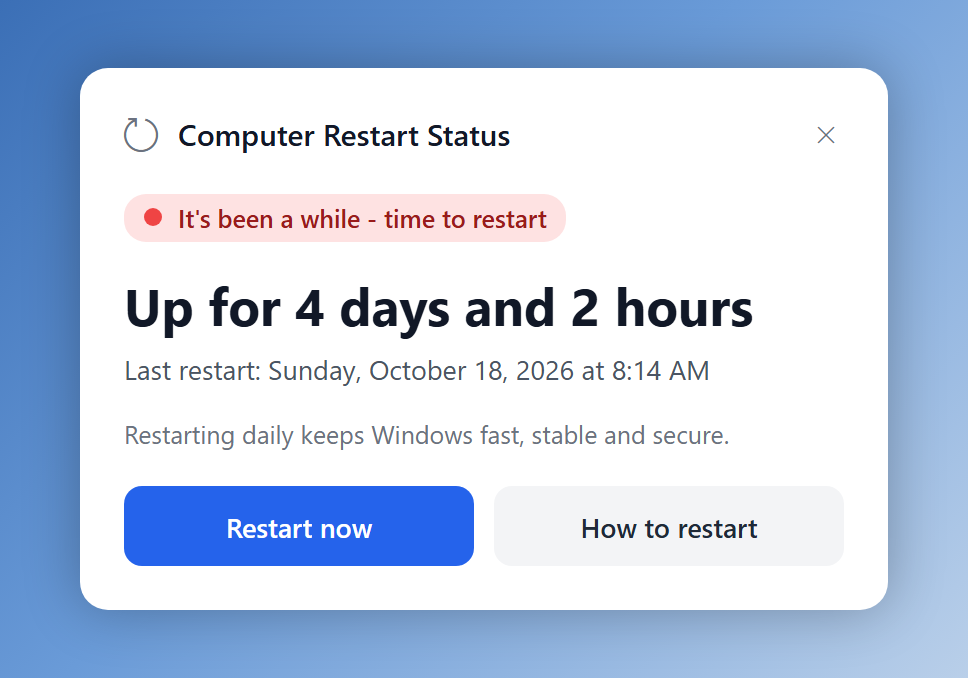
- The colored label shows how it's doing: You're all set, Consider restarting soon, or It's been a while - time to restart.
- Restart now starts a short countdown so you can save your work. Cancel restart stops it.
- How to restart opens our guide, Rebooting/Restarting your Computer.
- You may also see a yellow note about Fast Startup. It means Shut down doesn't fully restart Windows. Use Restart instead.
- What to do: if it says it's time to restart, save your work and click Restart now. Or close it with the X and restart soon, when it suits you.
Windows Notifications
Windows shows its own messages too. Most appear as a small box in the bottom-right corner, near the clock. They slide away after a few seconds. To see them again, click the clock or press Windows + N.
These are the ones you're most likely to see. All of them are part of Windows and safe.
Windows Update
A notice that a restart is needed for updates. The power button in the Start menu may also show Update and restart or Update and shut down.
What to do: save your work and choose Update and restart when it's a good time.
Windows Security
Messages from Microsoft Defender, the antivirus built into Windows, such as a scan summary or Threats found. A threat it finds is usually already blocked.
What to do: nothing for a scan summary. If it says it found a threat, submit a Security Concern request and tell us what it said. Don't try to clean it up yourself.
"Windows protected your PC"
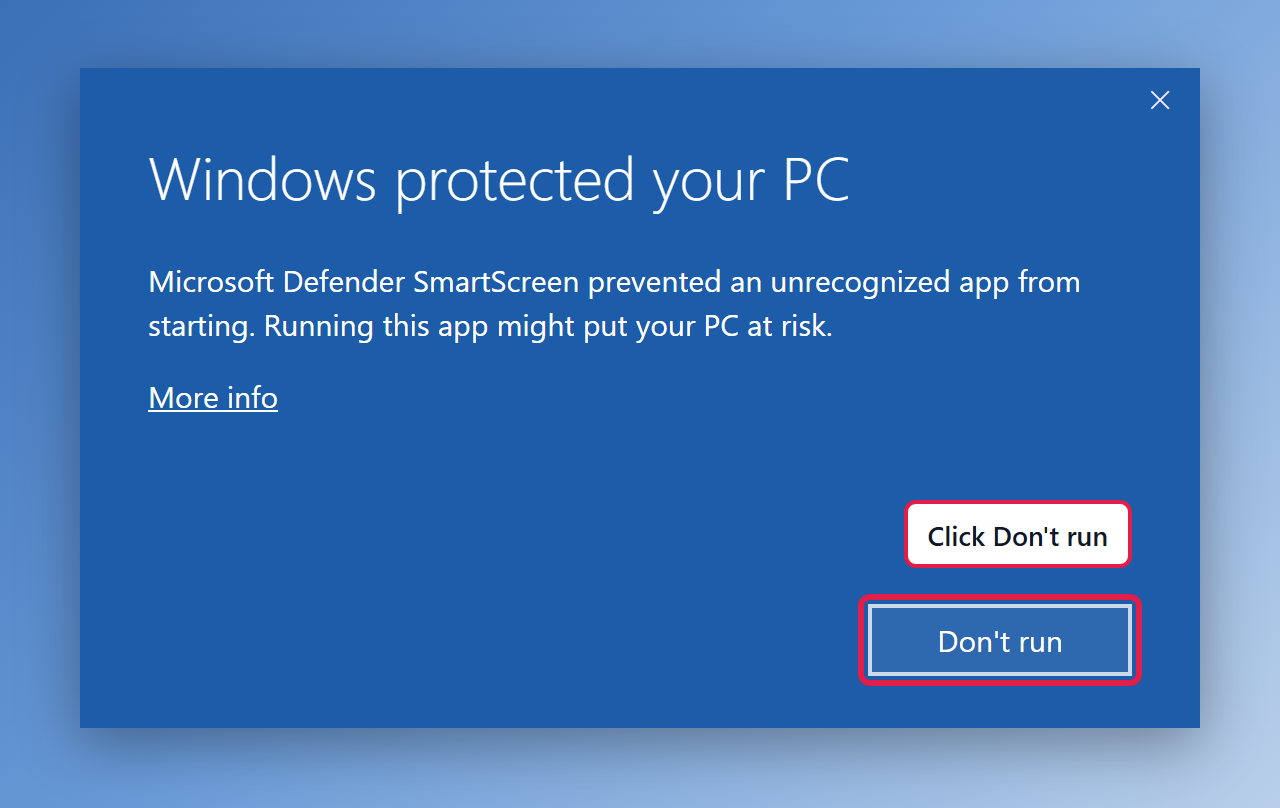
A blue box from Microsoft Defender SmartScreen when you open a program Windows doesn't recognize. See it
What to do: click Don't run. Don't use More info to run it anyway. Need that program? Ask us.
Unsafe site warning in Edge
A red page in Microsoft Edge saying the site has been reported as unsafe. This is SmartScreen too.
What to do: go back or close the tab. Don't continue to the site.
Battery and devices
A low battery warning on a laptop, or a short note when you plug in a mouse, headset, dock or monitor.
What to do: plug in your charger. Device notes need nothing from you.
Tips and suggestions
Windows sometimes suggests new features, apps or backup offers.
What to do: you don't need any of them for work. Close them, or pick the skip or later option.
This is the "Windows protected your PC" box. Click Don't run.
Dell Command | Update (Dell Computers Only)
Dell Command | Update is Dell's own tool. We use it to keep Dell computers' drivers, BIOS and firmware up to date. Only Dell computers show these messages. They appear near the clock and are labeled Dell Command | Update or DellCommandUpdate.
"Updates are ready to install"
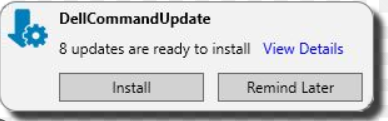
- It says how many updates are waiting, for example 8 updates are ready to install. View Details lists them.
- What to do: save your work and click Install. Busy right now? Remind Later puts it off for a while.
"The system is updated and will restart"
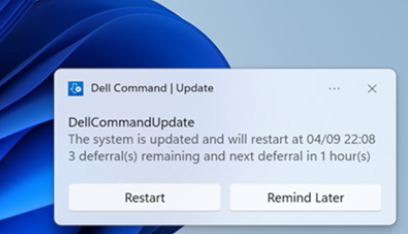
- The updates are installed. The message shows when the computer will restart to finish them.
- Remind Later puts the restart off for a while. The message shows how many times you can still do that (deferrals remaining). Once none are left, the computer restarts on its own.
- What to do: save your work, close your apps and click Restart. On a laptop, plug in the charger first. BIOS updates need power.
During the restart
- You may see a Dell screen showing a BIOS or firmware update in progress. The screen may go dark, or the computer may restart more than once. That's normal.
- Let it finish. Don't turn the computer off or close the lid while an update screen is showing. Wait for the sign-in screen.
LogMeIn Guardian Error Report
Some computers have LogMeIn software that we install, such as our CloudVPN client (LogMeIn Hamachi). If that software runs into a problem, its error reporter, LogMeIn Guardian, may show this box.
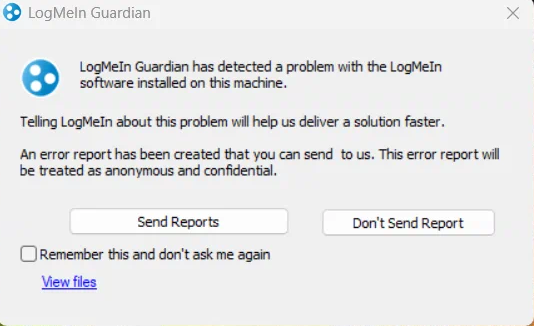
It offers to send an error report to LogMeIn, the company that makes the software.
What to do: it's safe to close, and you don't need to send anything.
- Tick Remember this and don't ask me again.
- Click Don't Send Report.
Your computer is fine. If your VPN stops working, submit a support request.
Website Unblocked: IT Web Filtering
Our website filter blocks unsafe sites. If it blocks a site you need, you can click Request Access to Page on the blocked-page notice. When we approve your request, this message appears near the clock, titled IT Web Filtering.
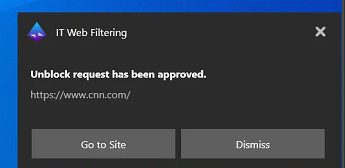
- It says Unblock request has been approved and shows the website's address.
- What to do: click Go to Site to open it, or Dismiss to close the message.
- You'll only see it after you asked for a site to be unblocked.
- Still blocked? Give it up to 15 minutes, or clear your browser cache. See Website Filtering / Website Blocked.
Other Pop-Ups From Us
- Approval window when you install software or do something that needs admin rights. It sends the request to our team. See Software Installation and Administrative Functions.
- "Allow access" box for remote support. You'll only see it after you start a support session with us. See Get Remote Support: Let Us Connect to Your Computer (Windows and Mac).
- Icons near the clock from our support tools are normal too. See Managed IT Software.
How to Tell a Safe Pop-Up From a Fake One
The pop-ups on this page:
- Appear near the clock or as their own small window, not inside a web page
- Name themselves: System Notification, Computer Restart Status, Windows Update, Windows Security, Dell Command | Update, LogMeIn Guardian or IT Web Filtering
- Never show a phone number to call
- Never ask you to pay, buy gift cards, download a "fix" from a website, or let someone connect to your computer
A warning inside your browser with a phone number, a siren or a countdown is a scam. See Fake virus pop-ups and tech-support scams.
When to Contact Us
- Windows Security says it found a threat
- You see a pop-up that isn't on this page, or you can't tell where it came from
- An update or BIOS screen hasn't moved in a long time
- The same restart request keeps coming back for days, even after you restart
- The LogMeIn Guardian box comes back after you ticked "don't ask me again", or your VPN stops working
Related Articles
- Computer Updates and Restarts (Reboots): when restarts happen and why they can ask twice
- Rebooting/Restarting your Computer: Restart, not Shut down
- Fake virus pop-ups and tech-support scams: what a fake warning looks like and how to close it
- Windows Updates on Managed Computers: how updates are scheduled