
VPN — Power On / First-Time Setup (CloudVPN)
CloudVPN is how you reach office network drives, printers, and internal resources from outside the office. After The I.T. Experience installs the client on your computer, you only need to Power On once (and sometimes again after a reboot) so the connection comes up. Your CloudVPN sign-in is the same username and password you use on your office computer.
On your computer the app is labeled Hamachi or LogMeIn Hamachi — that is the CloudVPN client. Same service, different label on the icon.
Before you begin
- Your computer is connected to the internet (any website should load).
- CloudVPN is already installed — you can find Hamachi in the system tray or Start menu.
- You know the username and password you use to sign in to your office Windows computer (you may be asked once).
Power On CloudVPN (first time and every day)
These steps are the same the first time and any later day you need the office network from outside the office.
- Click the ^ (up arrow) next to the clock, at the right end of the Windows taskbar. This shows your hidden icons.
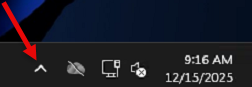
Hamachi icon already showing by the clock? Skip to step 3.
- Find the Hamachi icon (sometimes labeled LogMeIn Hamachi) in the small panel that opens. When CloudVPN is off, it's a round gray icon.
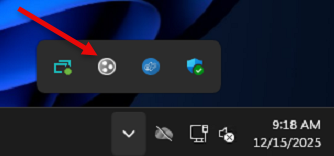
- Right-click the Hamachi icon and choose Power On.
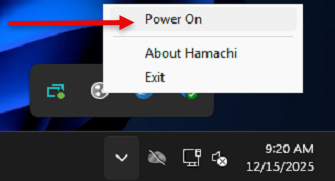
Menu says Power Off instead? CloudVPN is already on, so don't click it. If your drives still won't open, see VPN — Can’t Connect or See Network Drives (CloudVPN).
- Wait about 30 seconds while it connects. Don't open drives yet; give it that short pause. If your lettered drives (G:, S:, etc.) don't come back, open Network Access on your desktop (where to find it).
What the icon usually means
Exact artwork can vary by version, but these are the common states clients see:
| What you see | What to do |
|---|---|
| Powered off / greyed CloudVPN is not running |
Right-click → Power On |
| Connecting / busy Still coming online |
Wait ~30 seconds |
| Online / powered on Ready for network shares |
Open drives or Network Access |
| Asking for a login Client needs your office credentials |
Sign in with your office username/ |
If you are asked to sign in
Use the same username and password you use on your office computer. If your firm uses a domain-style login, it often looks like COMPANY\jsmith or [email protected] — use whichever form IT already gave you for Windows.
If sign-in fails after a careful retype (and Caps Lock is off), submit a support request rather than guessing new passwords.
Find the Network Access shortcut
After CloudVPN is set up, a Network Access shortcut is placed on your desktop. If lettered mapped drives (G:, S:, etc.) are missing or won’t connect, open Network Access first — it lists your company shares even when drive letters fail.
- Go to your Windows desktop.
- Double-click Network Access.
- Open the share you need (common names vary by company — Shared, Departments, Scans, etc.).
Verify you are connected
You are done when all of the following are true:
- Hamachi shows as powered on / online.
- Network Access opens and lists company folders (or your usual mapped drives reconnect).
- You can open at least one folder you recognize from the office.
Optional checks that confirm a healthy connection:
- A known shared folder opens without a long hang, then an error.
- An office network printer appears if you normally print over CloudVPN (printing still depends on the printer itself — see Printer shows offline if the printer is the only problem).
If Power On does not work
Try these in order. Stop when you are online and can open a share.
- Confirm the icon exists. No Hamachi icon under hidden icons and nothing in the Start menu for “Hamachi”? You need install help first — VPN — Install the CloudVPN Client.
- Try Power On again after waiting a full minute on a stable internet connection.
- Sign in carefully if prompted — office credentials only.
- Restart Windows once using Restart (not Shut down), then Power On again. See Rebooting / restarting your computer if you want the short version of why Restart matters.
- Still red, stuck, or greyed out? Use VPN — Can’t Connect or See Network Drives (CloudVPN), or hand it to us (checklist below).
After a reboot or Windows Update
It is normal for CloudVPN to come up off after a restart. That is not a failure — it is waiting for you to Power On again (unless IT configured auto-start for your firm).
After Windows finishes loading, follow the Power On steps above. Then open Network Access or your mapped drives.
FAQ
Click a question to expand it.
Is Hamachi the same thing as CloudVPN?
Yes. CloudVPN is the name we use in these guides and in tickets. On your PC the product is labeled Hamachi or LogMeIn Hamachi. One service.
Do I leave CloudVPN on all day?
If you are working from outside the office and need drives or office printers, leave it powered on. When you are done for the day you can leave it on or power it off — either is fine. Power it on again the next time you need the office network.
Internet works, but office folders do not — is that this article?
Yes for the Power On / first connection step. If Hamachi is already online and folders still fail, switch to VPN — Can’t Connect or See Network Drives (CloudVPN) or VPN — Access Network Drives & Shares (CloudVPN).
I am on a guest Wi‑Fi / hotel / hotspot. Will CloudVPN work?
Often yes, sometimes no. Some public networks block the connection types CloudVPN uses. Try a phone hotspot as a quick test. If the hotspot works and the venue Wi‑Fi does not, the venue network is filtering VPN traffic — use the hotspot or another network, or ask us for options.
Network Access is missing from my desktop
Search Start for Network Access or Hamachi. If nothing useful appears and Power On works but you still have no way to open shares, submit a support request and say Network Access is missing after install.
If none of that worked
Submit a support request if: Hamachi isn’t installed, Power On fails, Network Access is missing, or you can connect to CloudVPN but still can’t open the shares you need.
Please include:
- Whether you can see the Hamachi icon (yes / no / only after showing hidden icons)
- What happens when you choose Power On (connects, asks for login, greyed out, error text)
- Whether Network Access is on the desktop
- Whether regular websites work on that same computer
- Your computer name if you know it, and roughly when this last worked