
View Your Security Cameras: UniFi Protect on the Web, iPhone and Android
- Set Up Your Account (One Time Only)
- Step 1: Open the Invitation Email
- Step 2: Type Your Work Email
- Step 3: Click "Forgot password?" to Set Your Password
- Step 4: Sign In and Type the Code
- Step 5: Accept the Invitation at unifi.ui.com
- Step 6: Open Your Cameras
- Use the Cameras in a Web Browser
- Watch Earlier Recordings
- Get the App on Your iPhone or Android Phone
- Use the App
- Keep It Private
- More Questions
Your company's security cameras run on UniFi Protect. Once your company asks us to give you access, you can watch the cameras live and look back at recordings on a computer, an iPhone or an Android phone. Setting up your account takes about 5 minutes, one time only.
The short version
- Open the invitation email and click Accept Invitation.
- Type your work email on the sign-in page.
- Click "Forgot password?" to set your first password.
- Sign in and type the code Ubiquiti emails you.
- Accept the invitation at unifi.ui.com.
- Click the Protect icon. Your cameras open.
After that: use the cameras in a web browser, or get the app on your iPhone or Android phone.
Before you start, have these ready
- Your work email inbox. Three emails from Ubiquiti will arrive there during setup.
- A computer with a web browser. Google Chrome works best.
- About 5 minutes.
The red numbers in each picture show what to click. The names in the pictures are examples. You'll see your own company's name instead of Contoso - Main Office.
Set Up Your Account (One Time Only)
Do these steps on a computer. Once your account works, you can add your phone in a couple of minutes.
Step 1: Open the Invitation Email
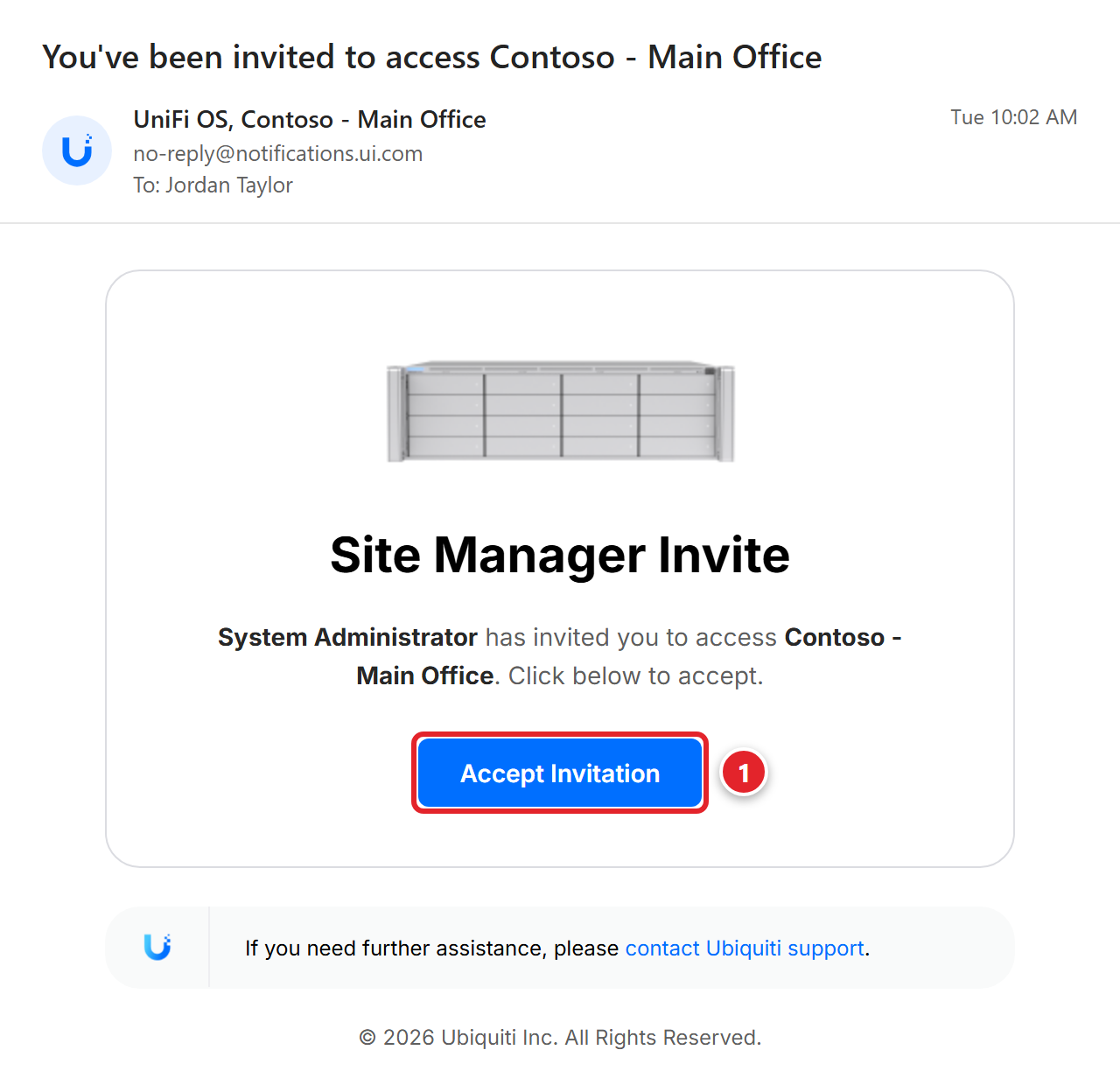
Look in your work inbox for an email from UniFi OS. The subject is You've been invited to access, then the name of your camera system. It's sent from no-reply@
- Open the email.
- Click the blue Accept Invitation button (1).
Step 2: Type Your Work Email
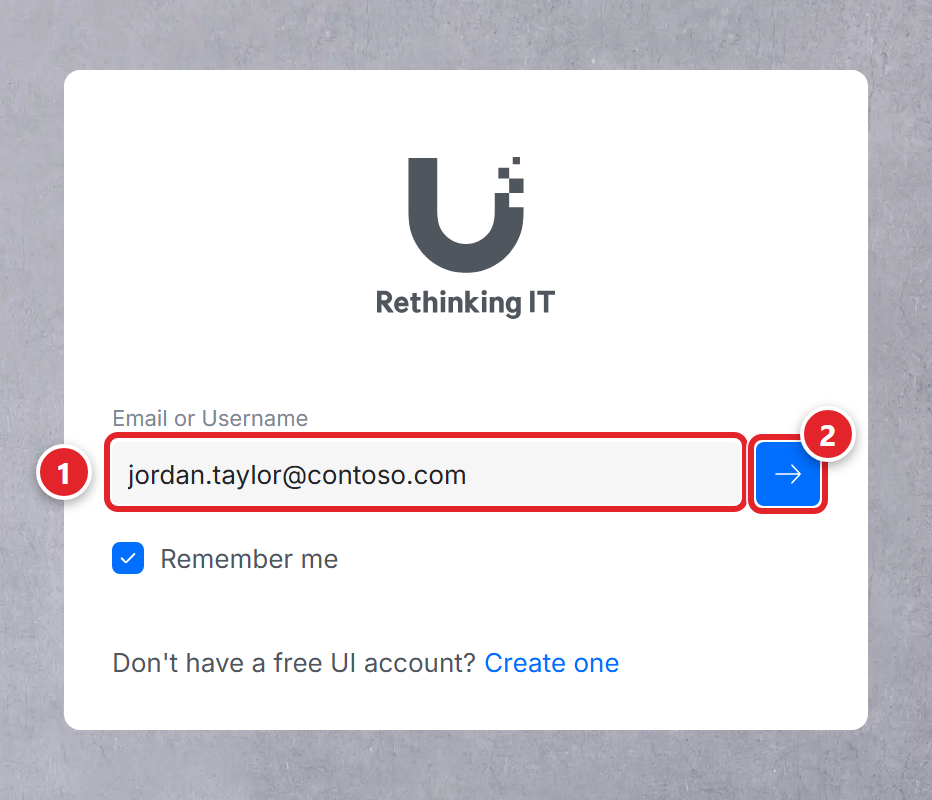
The button opens Ubiquiti's sign-in page in your web browser.
- Type your work email address (1). Use the same address the invitation was sent to.
- Click the blue arrow (2).
Step 3: Click "Forgot password?" to Set Your Password
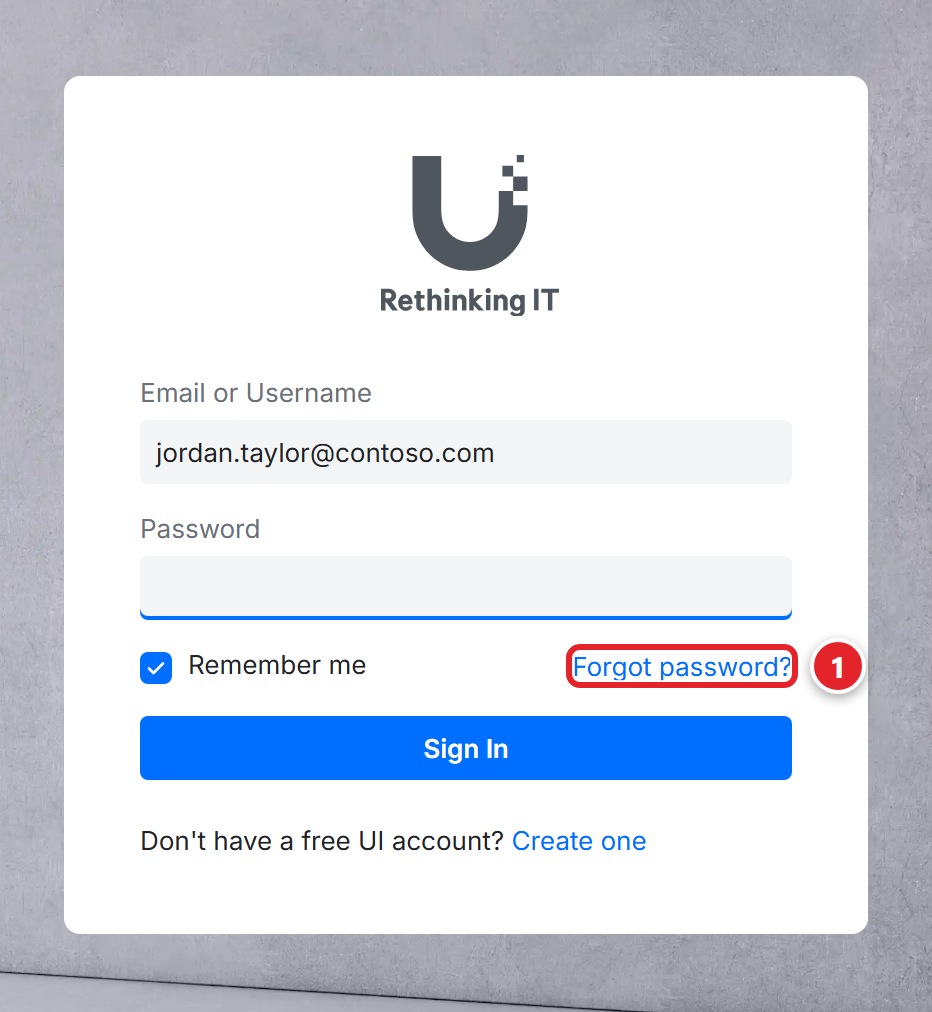
A Password box appears. You haven't chosen a password yet, so:
- Click Forgot password? (1), just above the Sign In button.
- Go back to your inbox. Within a minute or two you'll get an email from Ubiquiti Inc with the subject Password Reset (1 in the picture below).
- Open it and click Reset Password.
- Choose a password, type it twice and save it. Keep it somewhere safe. You'll need it to sign in on a new computer or phone.
This is the normal way to set your first password. It's not an error.
Step 4: Sign In and Type the Code
- Go back to the sign-in page. Sign in with your work email and your new password.
- Ubiquiti emails you a code. The subject is MFA Login Authentication (2).
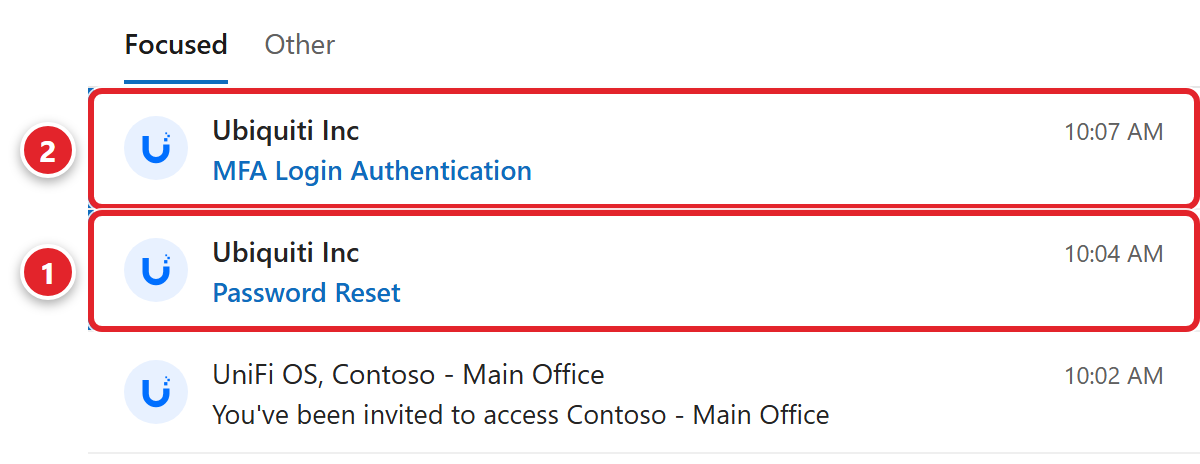
- The code looks like XX-123456. Yours will be different. Type it on the sign-in page.
Step 5: Accept the Invitation at unifi.ui.com
- Open a new browser tab and go to unifi.ui.com.
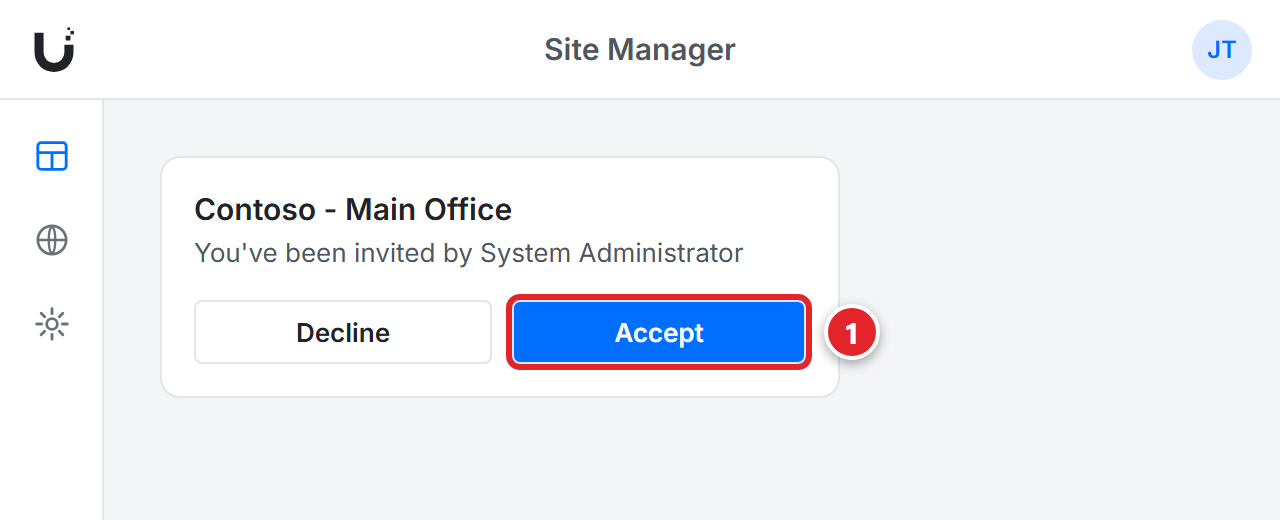
- You'll see a box with your camera system's name and You've been invited by. It usually says System Administrator. That's us.
- Click Accept (1). Don't click Decline.
Step 6: Open Your Cameras
The box changes. It now shows your camera system with a green bar.
- Click the round Protect icon under the green bar (1).
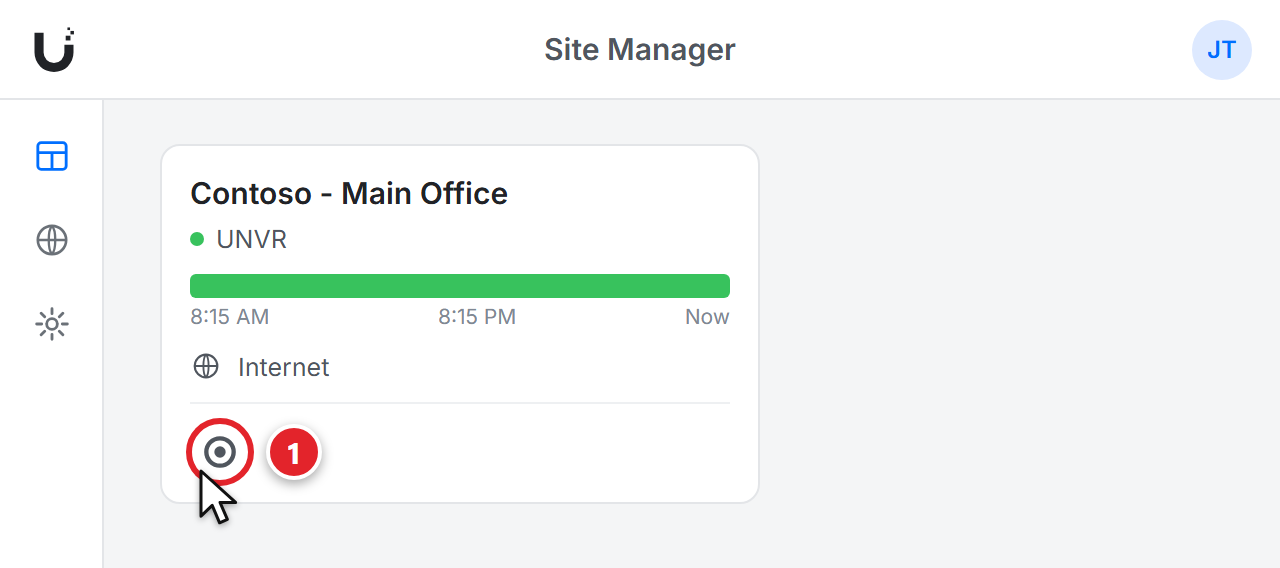
- Your cameras open. You're all set.
Use the Cameras in a Web Browser
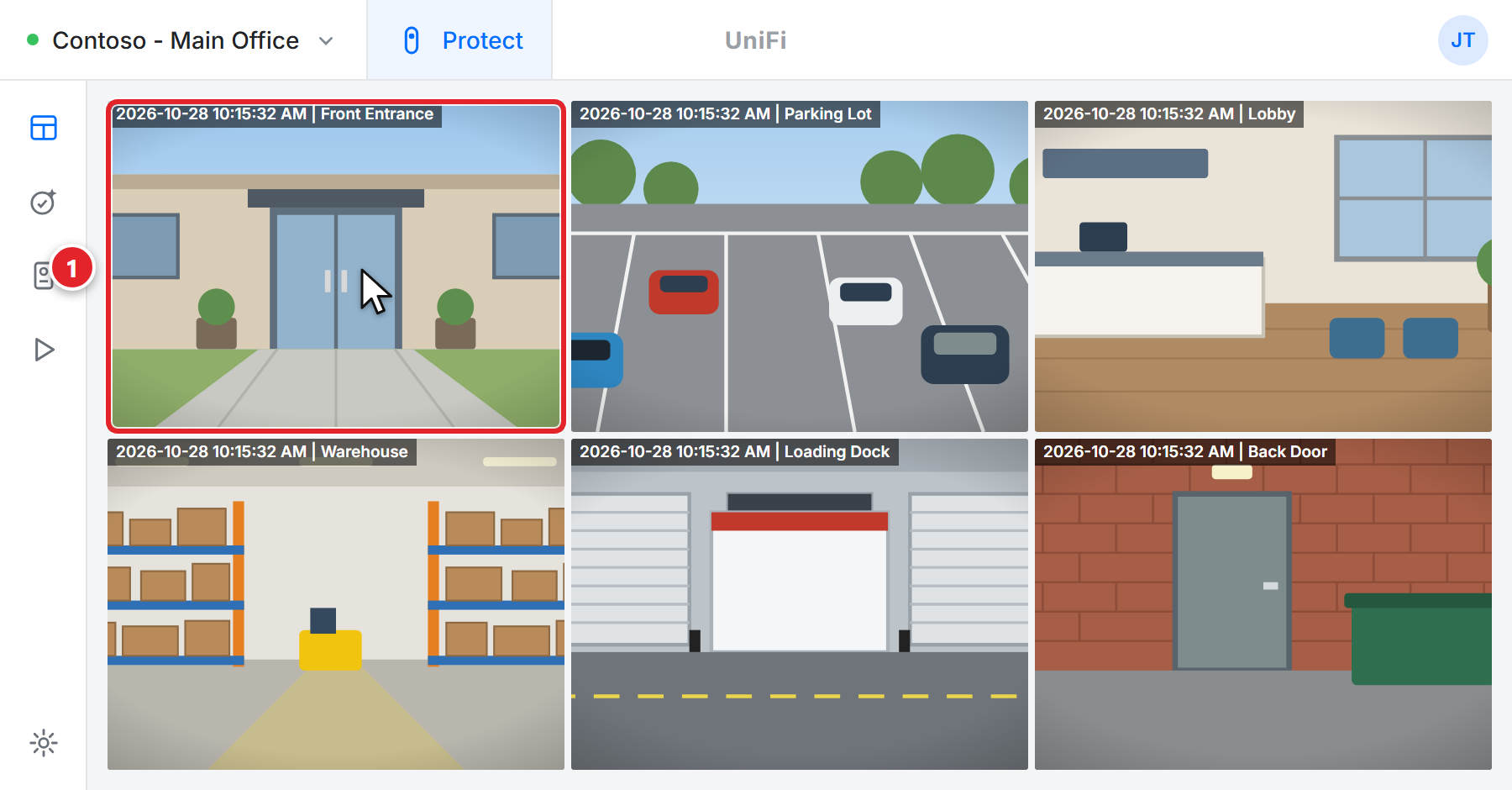
The camera page shows all the cameras you can see, live.
- See one camera bigger: click it (1).
- Switch camera systems: if you have access to more than one, click the name at the top left.
Watch Earlier Recordings
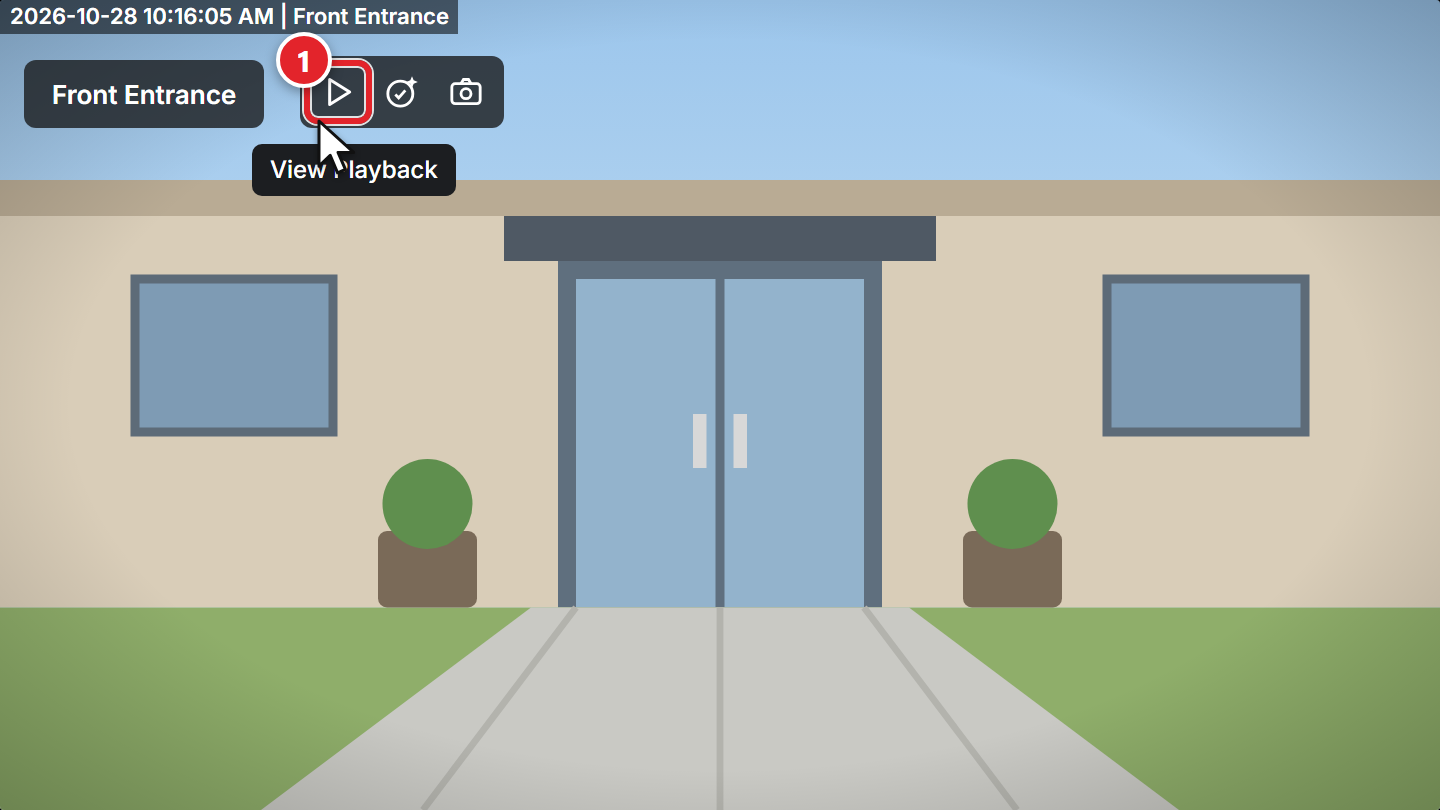
- Click a camera to make it bigger.
- Click the View Playback button (1). It's the triangle above the picture.
- Use the timeline on the right (1). Scroll or drag it down to go back in time. The video jumps to that moment.
- To go back to the live picture, click LIVE (2) at the top of the timeline.
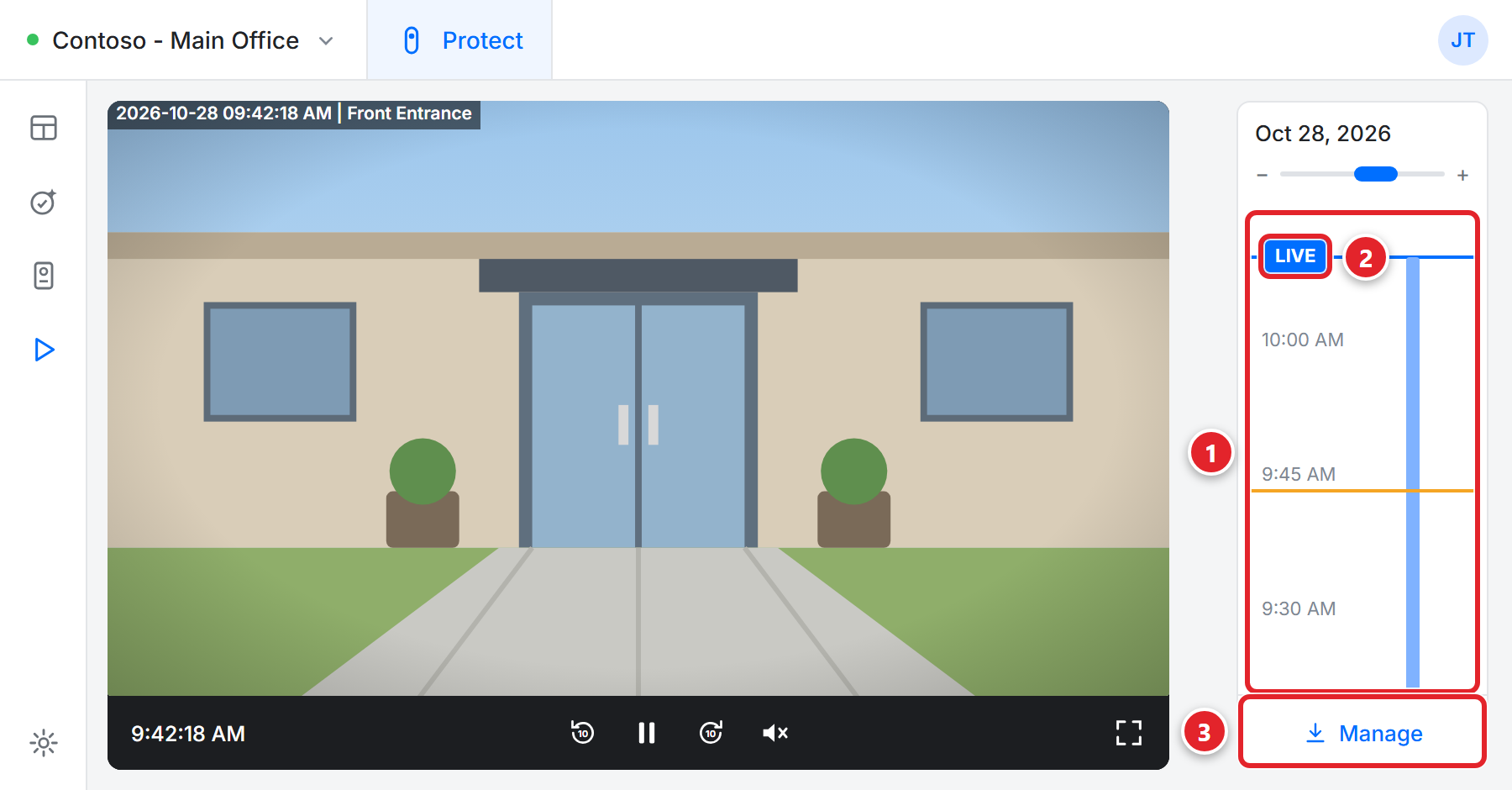
- Need a copy of a clip? Click Manage (3) under the timeline to download it. If you don't see it, your access doesn't include downloads. How to get that changed.
Get the App on Your iPhone or Android Phone
Set up your account on a computer first (Steps 1 to 6). Then:
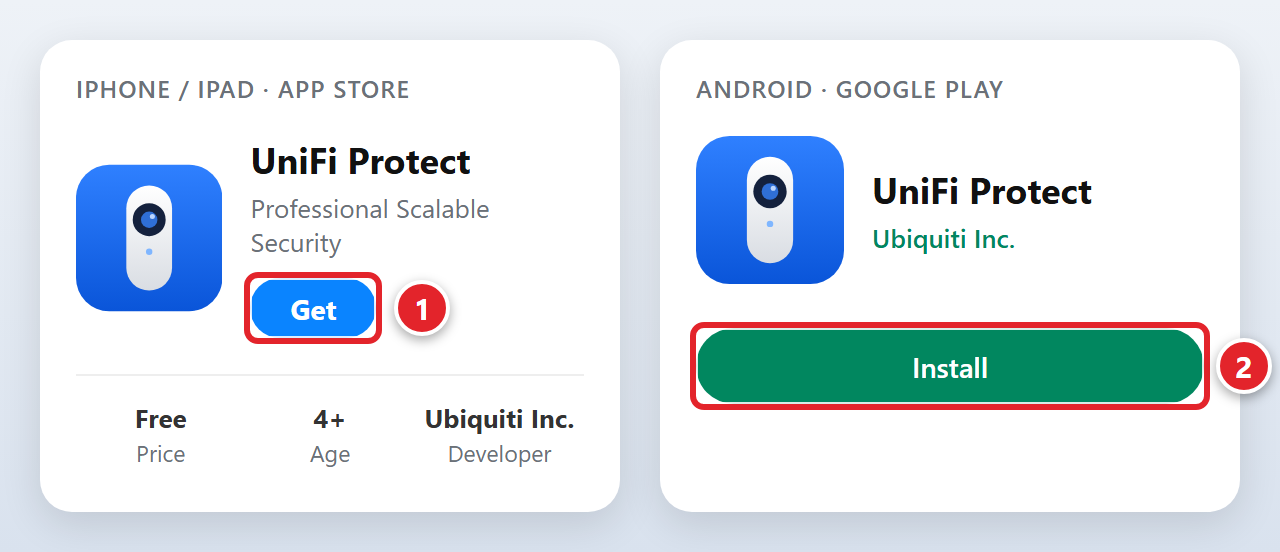
- Open the App Store (iPhone or iPad) or Google Play (Android).
- Search for UniFi Protect. Pick the one made by Ubiquiti Inc. It's free.
- Tap Get (1) on an iPhone or Install (2) on Android.
- Open the app and sign in with your work email and the password you chose in Step 3.
- If Ubiquiti emails you a code, type it in. It's the same kind of code as in Step 4.
- The app may ask to send you notifications or use your location. Both are optional. Choose what you're comfortable with.
Can't install it? The app needs a fairly recent phone: currently iOS 18 or later on an iPhone, Android 7.0 or later on Android. Update your phone first. On an iPhone, go to Settings > General > Software Update.
Use the App
The pictures below are from an iPhone. The Android app looks almost the same and works the same way.
- Your camera system's name is at the top (1). If you have more than one, tap it to switch.
- Tap a camera (2) to open it.
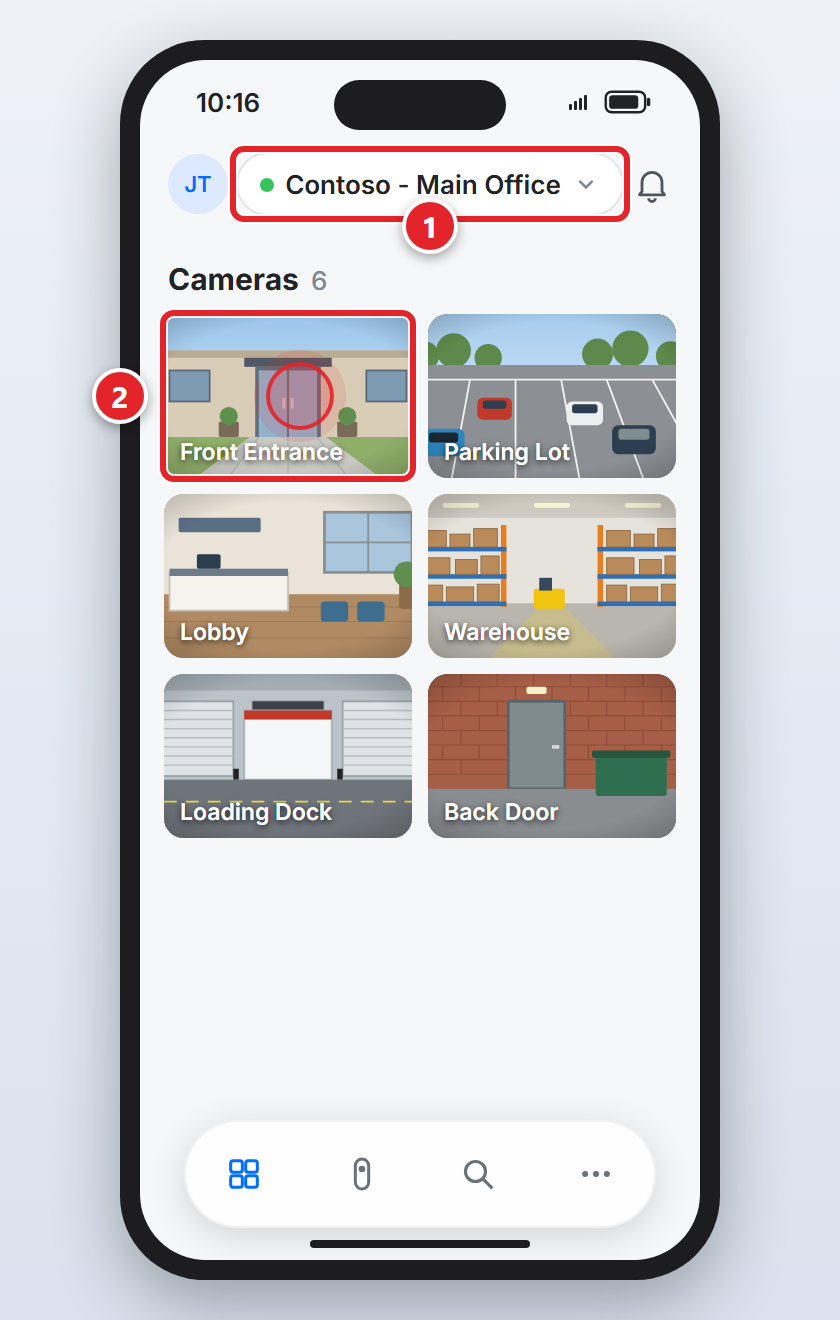
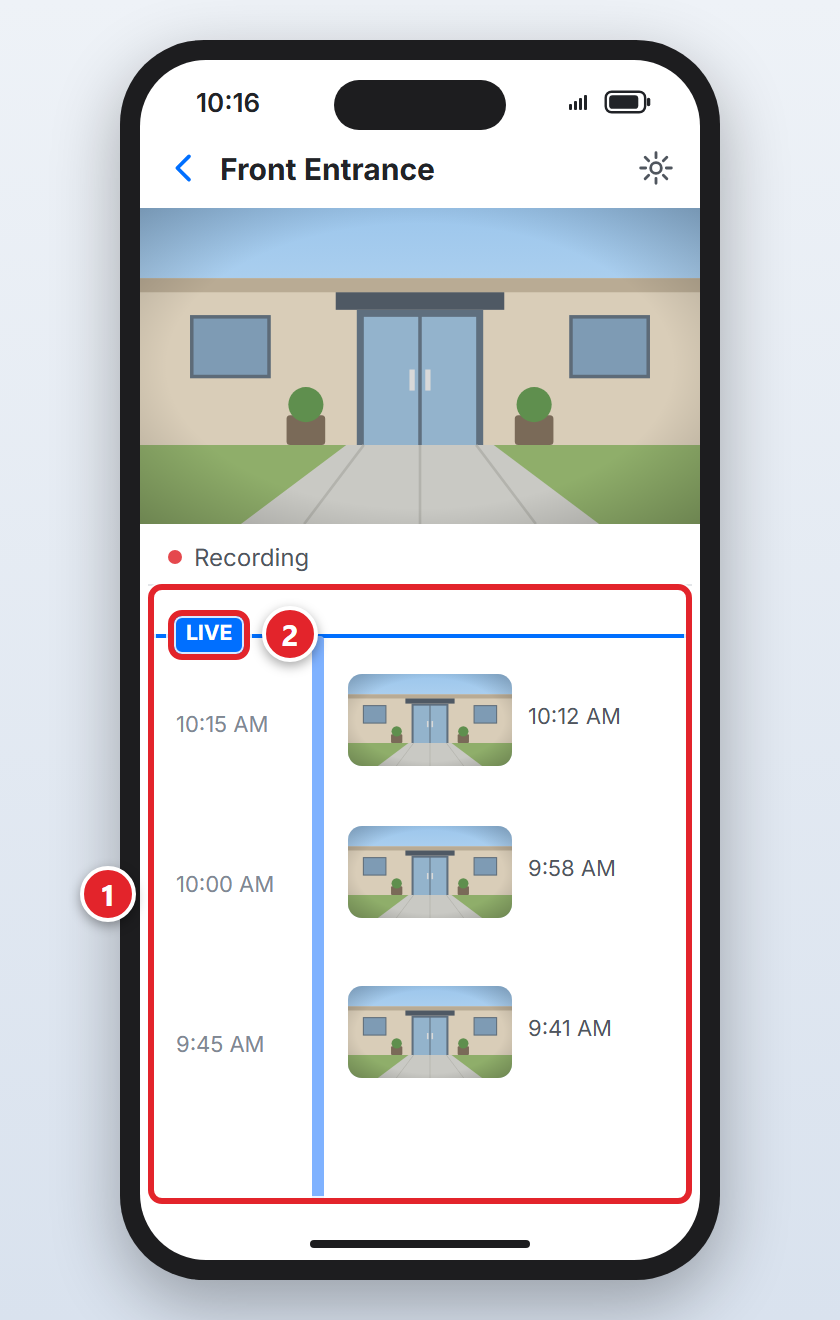
When a camera is open, you see the live picture on top and the timeline below it (1).
- Go back in time: swipe the timeline. The video follows. Small pictures on the right mark moments when something moved.
- Back to live: tap LIVE (2).
- Bigger picture: turn your phone sideways.
- Save a clip: tap the Share icon and choose Export clip. You'll only see this if your access includes downloads.
Keep It Private
- Don't share your sign-in. Each person gets their own invitation. Need someone added? See below.
- Camera footage is private. Follow your company's rules before you share a clip or a screenshot.
- Lost your phone? Tell us. See Lost or Stolen Laptop or Phone? Do This Now.
More Questions
Click a question to expand it.
I can't find the invitation email.
Check your Junk or Spam folder and search your mail for UniFi. See also An Email Didn't Arrive? Check Junk, Quarantine and More. Still nothing after a few minutes? Submit a support request and we'll send it again.
Is the invitation email real? I wasn't expecting it.
We send it only after your company asks us to give you camera access. A real one comes from no-reply@
I signed in, but I see an "Account" page with Ubiquiti products, not my cameras.
That's your Ubiquiti account page (account.ui.com), not the cameras. Go to unifi.ui.com instead, then do Step 5 and Step 6.
I don't see the invitation box at unifi.ui.com.
Make sure you signed in with the same work email the invitation was sent to. If you did and there's still no box, the invitation may have expired. Submit a support request and we'll send a new one.
The code expired, or it never arrived.
Codes last 10 minutes. Go back to the sign-in page, sign in again and use the newest code. Check your Junk folder too.
It asks for a code again on a new computer or phone.
That's normal. It's a security check whenever you sign in somewhere new. Type the code from your email.
I forgot my password.
Use Forgot password? on the sign-in page, just like in Step 3, and choose a new one.
A camera says "Unable to Stream" in my web browser.
Some cameras save space with a video format that not every browser can play. Then you'll see this message:
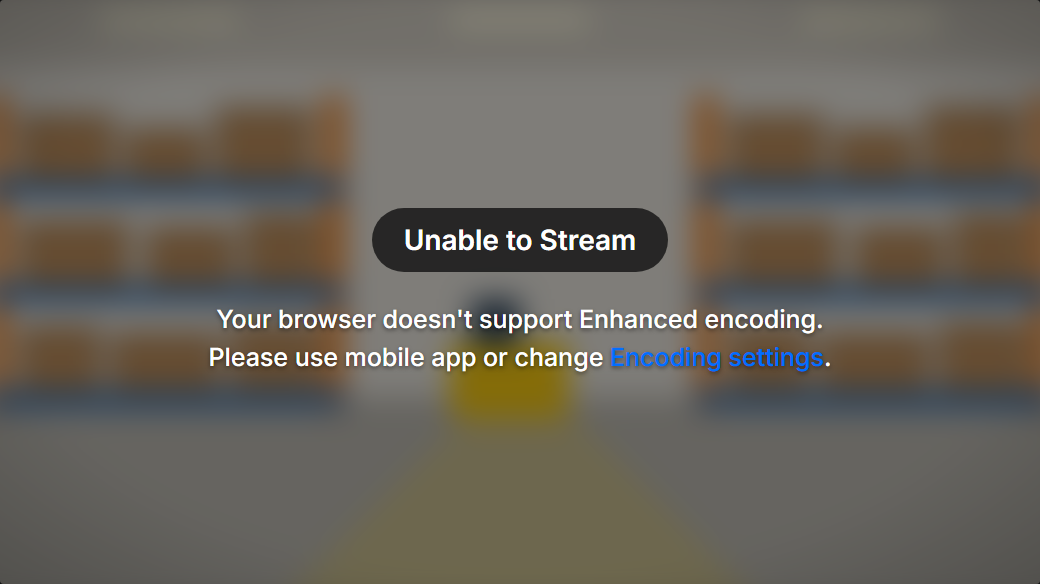
Try Google Chrome, or watch that camera in the phone app. Still stuck? Submit a support request and tell us the camera's name. You can't change the encoding settings yourself; that's our job.
I can't see a camera I need, or I can't download clips.
Your company decides who can see which cameras and who can download. Ask your manager. They can submit a support request and we'll make the change.
Someone else needs access, or someone has left.
A manager can submit a support request with the person's name and work email. We'll send a new invitation or remove access. When someone leaves the company, include it in the offboarding request.
Source: Ubiquiti - Getting Started with UniFi Protect