
New Employee? Your First-Day IT Checklist
Welcome aboard! Your manager has already asked us to set up your accounts and equipment. This checklist takes you through your first day with technology, step by step and in the right order. Each step links to a detailed guide with pictures. Tick the boxes as you go.
Before You Start: What You Need
- Your work email address and temporary password. Your manager receives these from us before your first day.
- Your mobile phone (iPhone or Android), charged, and able to download apps from the App Store or Google Play.
- Your company computer, plugged in and connected to the internet.
Part 1: Get Signed In (Do These First, in Order)
(5 minutes)
This app confirms it's really you when you sign in. Install it from the App Store or Google Play, but don't set anything up in it yet. Follow Part 1 of the first sign-in guide to make sure you get the right app.
(5 minutes)
Use the sign-in details from your manager. If Windows asks you to choose a new password, pick a long one you'll remember (see Password Tips). Done when you see your desktop.
(15 minutes)
Follow Microsoft 365: Signing In for the First Time & Setting Up MFA, Parts 2 and 3. Done when you've approved a sign-in on your phone and you can see your Microsoft 365 home page.
Part 2: Check Your Everyday Apps
Your work apps are pinned to the taskbar at the bottom of the screen, or you can find them by clicking Start and typing their name. Here's where to look:
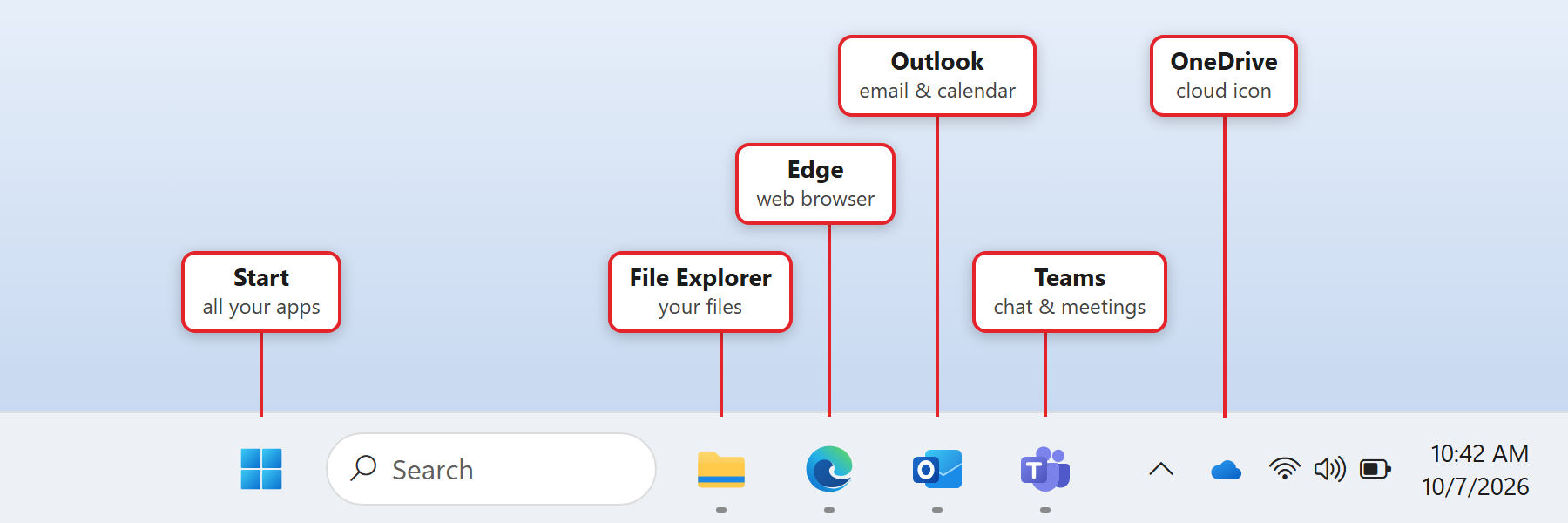
Open Outlook. If it asks you to sign in, use your work email and the password you just set. Done when you can see your inbox and you've sent a test email to a coworker (or your manager) and they got it.
Open Microsoft Teams and check that you can see your chats and teams. Before your first meeting, test your audio and video: click Settings and more (the ... next to your picture) > Settings > Devices > Make a test call. Problems? See Teams camera or microphone not working.
Look for the OneDrive cloud near the clock (you may need to click the ^ arrow to see it). Click it: it should show your name and say your files are up to date. Save your work files in OneDrive, or in your company's Teams and SharePoint sites, so they're backed up and you can get to them from anywhere. If the cloud is gray or missing, see OneDrive Not Syncing?
Open the shared folders, shared mailboxes and business apps your manager told you you'd need. If something is missing or asks for a password you don't have, make a list and send it in one support request. Looking for shared drives? See Where Are My Mapped Drives?
Try printing a test page. If the printer you need isn't listed, follow Adding a network printer.
Part 3: Only If It Applies to You
- Work email on your phone: Set Up Work Email on Your iPhone or Android Phone. This is optional unless your manager asks for it.
- Working from home: if your manager said you'll need VPN or remote access, follow the guide they pointed you to in VPN & Remote Access. Also read Working From Home.
- Shared mailbox (like info@ or billing@): Open a Shared Mailbox in Outlook.
Part 4: Good Habits From Day One
Lock your screen
Press Windows key + L whenever you step away from your desk.
Keep your password to yourself
Never share it, not even with us. We will never ask you for your password.
Only approve your own sign-ins
If Authenticator asks you to approve a sign-in you didn't start, deny it and tell us.
Report suspicious emails
Not sure about an email? Don't click. See How to send us a suspicious email.
Restart regularly
Restart your computer at least once a week, and leave it on overnight on the 25th for monthly updates.
Save to the cloud
Keep work files in OneDrive, Teams or SharePoint, not only on your desktop.
Getting Help
We're your IT team. Whenever something isn't working, submit a support request, email [email protected], or use the support icon near your computer's clock. Read How We Support You for our hours, response times and how to flag something urgent. It's also worth bookmarking this knowledge base: most everyday questions are answered here.
For managers: to set up a new employee, see Employee New Hire: Onboarding Request.